 DVDneXtCOPY DVD Creator
5 Tested AVI to DVD Converter: Best Use & Step Guide [2026]

Summary: An AVI to DVD converter must author AVI video into a DVD-Video structure when the target is a standalone player. DVDneXtCOPY, WinX, and DVD Flick can create playable DVD output, while Movavi and Zamzar mainly prepare files for a separate authoring step. Choose the tool by output type, operating system, menu needs, and whether you want a disc, ISO, folder, or converted MPG file.
I dropped an old home-video AVI onto a blank disc, loaded it in a standalone DVD player, and got a black screen with sound. An AVI to DVD converter must author the file into DVD-Video format; copying the AVI as data is not enough for dependable set-top playback.
I have burned and checked enough of these discs to focus first on the target player, video standard, and output type. This comparison covers five tools, their main limits, a numbered conversion process, and the choice between a physical disc, folder, AVI to DVD ISO, or modern digital file.
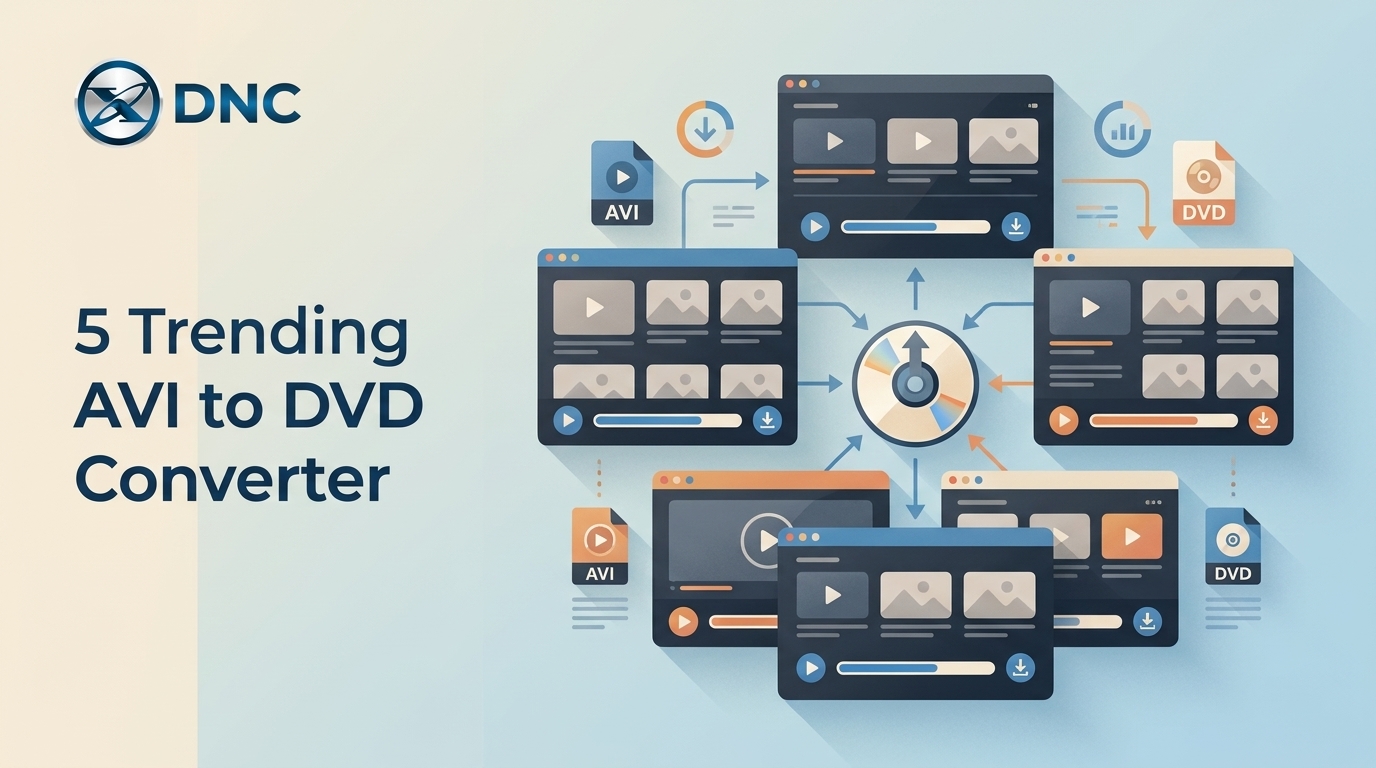
Why AVI Needs DVD-Video Conversion
Most set-top players expect an authored DVD-Video structure with navigation and player-compatible video. A data disc can store an AVI file, but playback depends on whether that specific player recognizes the file's container and codecs.
AVI Files Versus Playable Video DVDs
To convert AVI to DVD for a living-room player, choose an authoring tool, not just a file converter. Check the target player's manual before selecting a standard, because supported media and formats matter more than a long software feature list. NTSC is the practical US default, while PAL remains common in many other regions.
Five AVI to DVD Converters Compared
The five options do different jobs. DVDneXtCOPY DVD Creator, WinX DVD Author, and DVD Flick provide Windows DVD authoring, while Movavi and Zamzar mainly prepare video files for a later authoring step.
| Tool | Operating system | Free or trial limit | Playable DVD-Video | Menus and chapters | ISO or folder | Best fit | Main limitation |
|---|---|---|---|---|---|---|---|
| DVDneXtCOPY DVD Creator | Windows 11/10/8.1/8/7 | Trial creates up to 3 DVDs | Yes | Yes, modern and stylish | Yes | Complete Windows DVD authoring | No macOS version |
| WinX DVD Author | Windows 11/10/8.1/8/7 | Free without a watermark | Yes | Yes, but simple | DVD folder or VOB output | Free Windows DVD authoring | No macOS or Blu-ray authoring |
| Movavi Video Converter | Windows and Mac | Free download is a trial | No complete authoring process | No DVD menu authoring | No authored ISO workflow | DVD-compatible file conversion | Needs separate authoring software |
| Zamzar | Web browser | 50 MB free file limit | No | No | No | Small no-install file conversion | Not a disc-authoring tool |
| DVD Flick | Windows | Free | Yes | Basic menus and chapters | ISO and DVD files | Legacy free Windows projects | Latest official release is from 2009 |
DVDneXtCOPY DVD Creator
DVDneXtCOPY DVD Creator is a Windows AVI to DVD converter that imports AVI and more than 200 video formats, builds a DVD-Video structure with menus, and outputs a DVD disc, ISO image, or DVD folder. It also provides batch importing, subtitle and audio controls, disc-size settings, aspect-ratio options, menu templates, and preview tools for home-video or presentation projects.
Its main advantage is the complete authoring path inside one program, including menu design, output-size control, GPU acceleration, and disc, ISO, or folder delivery. The main limits are the lack of a macOS version and the trial restriction, which allows users to create up to three DVDs before authorization.
How to convert AVI to DVD using DVDneXtCOPY DVD Creator
Step 1: Install and launch DVDneXtCOPY. Open the Creator module, select DVD Creator, and click Add Source. You can also drag and drop one or more AVI files into the source area.

Step 2: Open Advanced Settings to select the DVD size, quality, aspect ratio, audio track, and subtitles. Then open Menu Settings to choose a template and change the menu text, font, thumbnail, or background image.

Step 3: Insert a blank DVD and select the optical drive, or choose the folder or ISO output button near the Save to field. Preview the project, confirm the output settings, and click Start to create the DVD.
Movavi Video Converter
Movavi Video Converter converts AVI into a DVD-compatible MPEG-2 or VOB file on Windows or Mac. The program supports batch conversion, PAL and NTSC presets, trimming, cropping, rotation, color adjustment, and output-parameter changes. It suits users who need to prepare an AVI file before importing it into separate DVD-authoring or burning software.
Its core advantages are cross-platform support, a clear preset-based process, and basic editing before conversion. However, it does not build a complete DVD-Video project with menus, chapters, VIDEO_TS navigation, or an authored ISO image. The free download is a trial, and a second program is still required to create and burn the playable DVD.
How to prepare an AVI file for DVD using Movavi Video Converter
Step 1: Install and launch Movavi Video Converter. Click Add Media, select Add Video, and import the AVI file. You can also drag the file directly into the program window.
Step 2: Open the Video tab and select DVD-Compatible Video. Choose a PAL or NTSC preset and the required quality level. Use the cogwheel button when you need to adjust the aspect ratio, bitrate, or resolution.

Step 3: Click Save to and select a folder for the converted file. Click Convert to create the DVD-compatible video.
Step 4: Import the converted file into DVD-authoring software, create the DVD menu and chapters if needed, and then burn the authored DVD-Video project to a blank disc.
WinX DVD Author
WinX DVD Author is a free Windows AVI to DVD converter that creates playable DVD-Video discs from AVI and other common video formats. It can add subtitles, build title and chapter menus, use a custom menu picture or background music, set the aspect ratio, and output a DVD disc, DVD folder, or VOB file.
Its main advantages are free authoring without a watermark, direct disc burning, and enough menu controls for a basic family-video project. Its limits are the Windows-only platform and the lack of Blu-ray authoring. The menu templates and design controls also remain simpler than those in newer paid DVD creators.
How to convert AVI to DVD using WinX DVD Author
Step 1: Install WinX DVD Author on a Windows computer, insert a blank DVD, and launch the program. Select Video DVD Author, click the Add File (+) button, and add one or more AVI files. Adjust the order, subtitles, aspect ratio, or trimming options if needed, and click >>.

Step 2: Select a menu background from the available list. To use your own image, click the Select a menu background picture button and choose a picture from the computer.
Step 3: Click Title Menu or Chapter Menu to edit the required menu. Click the TT button to add text, and then double-click the added text to change its wording, font, size, or position. Do not double-click the Title Menu option itself.

Step 4: Click the Add a background music button to add menu music when needed. After completing the title and chapter menu settings, click >> to continue.
Step 5: Select a temporary output folder, choose the optical drive, and set NTSC or PAL according to the target DVD player. Select the preferred encoder engine and burning speed, confirm the disc is detected, and click Start to author and burn the AVI video.
DVD Flick
DVD Flick is a free Windows DVD-authoring tool that converts AVI and other supported video files into a playable DVD-Video project. It can create chapters, add subtitle and audio tracks, apply a basic menu template, burn the finished project to disc, or save it as an ISO image for later testing and burning.
Its core advantages are free disc authoring, ISO output, and direct control over DVD size, PAL or NTSC format, and encoding quality. Its main limitation is age: the latest official release is version 1.3.0.7 from 2009. The older interface and encoder may also create slower or less predictable results on current Windows systems.
How to convert AVI to DVD using DVD Flick
Step 1: Open DVD Flick and click Add title on the right side. Select one or more AVI files and click Open.

Step 2: Double-click a title, or select it and click Edit title, to set chapters and add subtitle or audio tracks. To add a DVD menu, open Menu settings, choose a template, select Enable menu, preview it, and click Accept.
Step 3: Open Project settings. Under General, choose the target disc size. Under Video, select PAL, NTSC, or Mixed as the target format and choose an encoding profile. Select a destination folder on a hard drive with enough free space; do not select the DVD drive as the temporary folder.

Step 4: Open the Burning tab and select Burn project to disc for direct burning, or select Create ISO image when you want an ISO file. Choose the correct drive and insert a blank DVD if you are burning a disc.
Step 5: Save the project and click Create DVD. DVD Flick will encode the AVI files, create the DVD-Video structure, and burn the disc or save the ISO according to the selected option.
Zamzar
Zamzar is a browser-based file converter that can change AVI into MPG without installing desktop software. The downloaded MPG file can serve as source material for a later DVD project, but Zamzar does not create DVD menus, chapters, VIDEO_TS navigation, an authored ISO image, or a physical DVD disc.
Its main advantages are browser access and a short upload-convert-download process for small files. The main limits are the 50 MB free file limit, the need to upload the video to a cloud service, and the lack of DVD authoring. A separate DVD creator must still build the playable disc structure and burn the project.
How to prepare an AVI file for DVD using Zamzar
Step 1: Open the official AVI to MPG conversion page and click Choose Files. Select the AVI file from the computer or another available source.
Step 2: Confirm that MPG is selected as the output format and click Convert Now. Wait for the upload and conversion to finish.

Step 3: Download the converted MPG file to the computer.
Step 4: Import the MPG file into DVD-authoring software. Select PAL or NTSC, create the menu and chapters, and output a DVD disc, folder, or ISO. The authoring program may transcode the MPG again when its resolution, frame rate, or audio settings do not match the selected DVD standard.
FAQs
Yes. WinX DVD Author states that its DVD-authoring functions are free without limits or watermarks. DVDneXtCOPY DVD Creator also creates playable DVD output, but its trial is limited to three DVD creations before authorization.
Burn a disc when you need immediate playback in a compatible DVD player. Save an ISO when you want to test, archive, mount, or burn the same authored image later. Choose MP4 instead when the actual target is a modern device without DVD menus.
Conclusion
An AVI to DVD converter should match the output you actually need: a playable disc, an ISO image, a DVD folder, or only a DVD-compatible file. DVDneXtCOPY DVD Creator offers the most complete Windows authoring path in this list, while WinX DVD Author covers a free disc project with menus and subtitles. DVD Flick can still create a disc or ISO, but its old release makes modern compatibility less predictable. Movavi and Zamzar prepare files rather than finish DVD-Video authoring. Before starting, check the player, choose NTSC or PAL, confirm disc capacity, and test the authored folder or ISO before burning the final disc.
![Top 8 Best MP4 to DVD Converters on Windows & Mac [2026 Tested]](https://images.dvdnextcopy.com/2026/09/17/I2v69nzxIF6Xn7iue3ZRMGJ5-Ls0SF_z/feature_cover.jpg) Luna MillerSep 21, 2026
Luna MillerSep 21, 2026Top 8 Best MP4 to DVD Converters on Windows & Mac [2026 Tested]
 Luna MillerSep 21, 2026
DVD Region Codes Explained: Region 1 and Playback Options
![How to Remove DVD Copy Protection: Software and Free Methods [2026]](https://c.dvdnextcopy.com/media/How_to_Remove_DVD_Copy_Protection_d24c38a790.png) Steven VanceSep 21, 2026
Steven VanceSep 21, 2026How to Remove DVD Copy Protection: Software and Free Methods [2026]
 Luna MillerSep 21, 2026
How to Rip a Copy-Protected DVD on Win & Mac: 6 Ways
 Steven VanceSep 18, 2026
Top MP4 to ISO Converter in 2026: DVD Authoring vs Online Tools
 Steven VanceSep 18, 2026
How to Digitize DVD Collection: 5 Ways in 2026