 DVDneXtCOPY DVD Creator
Top 8 Best MP4 to DVD Converters on Windows & Mac [2026 Tested]

Summary: To convert MP4 to a DVD that plays in a standard DVD player, use DVD authoring software rather than copying the MP4 to a data disc. DVDStyler is a free option for menus and DVD-Video output, while paid tools such as DVDneXtCOPY DVD Creator provide additional presets and hardware-assisted encoding on supported systems. Choose DVD-5 or DVD-9 for the project size, set NTSC or PAL for the target player, and test the finished disc before deleting the source file.
While the digital MP4 file played perfectly on laptop or mobile devices, if we want to get it to work on an older home player or a big screen, it is better to use a DVD disc. I recently tried to burn a special anniversary video from MP4 to DVD to share with my parents for their celebration. So, I conducted real tests on the top MP4 to DVD converter software options currently available.
In this guide, I'll share 8 effective ways to convert your MP4 files to DVD with functional disc menus in high resolution. I will look at burning speed, menu creation, output quality and ease of use to help you choose the right tool to preserve your memories on a physical disc.
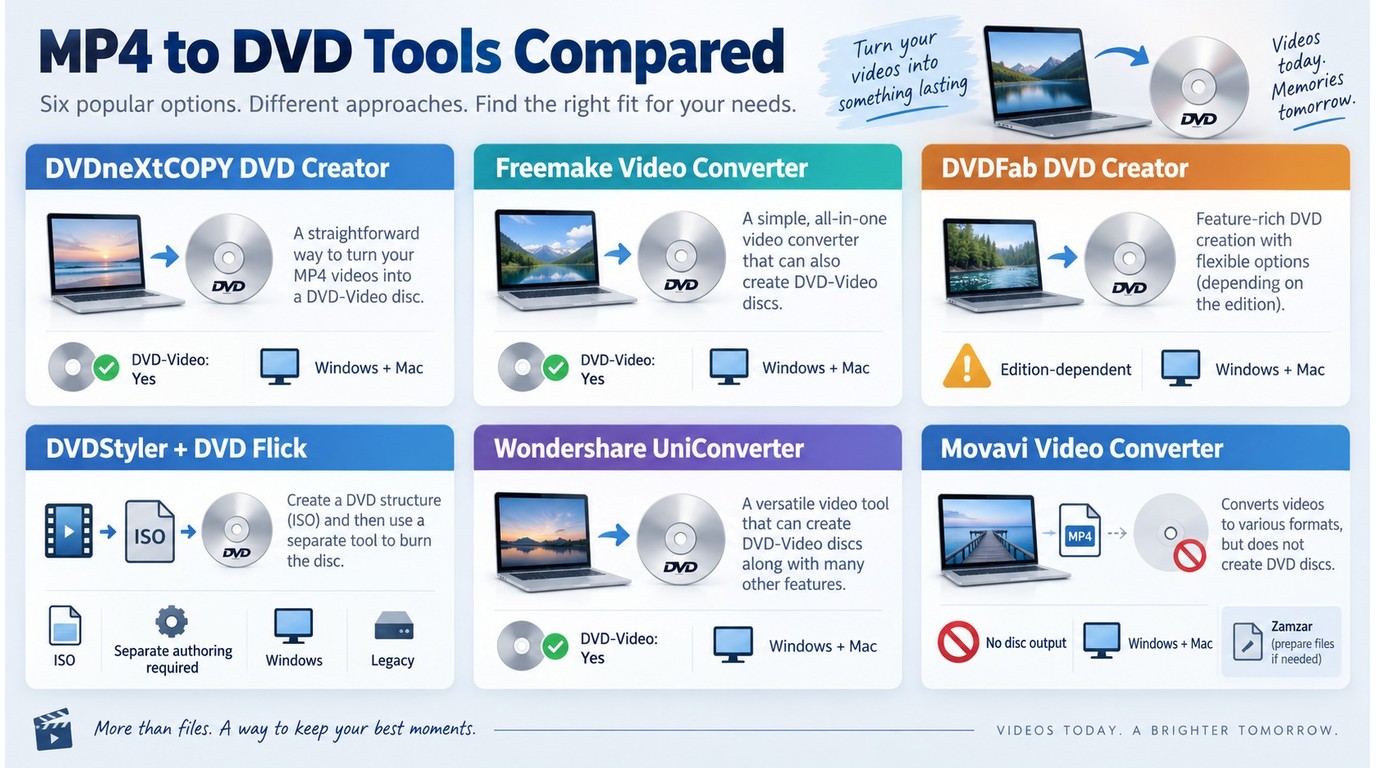
Top 8 Best MP4 to DVD Converters at a Glance
To ensure my recommendations are both practical and reliable, I evaluated each software based on strict criteria relevant to disc authoring. My testing process focused on the following key features to help you find a MP4 to DVD converter that works on the first try:
- Disc Compatibility: I tested if the software supports various disc types, including DVD-5 (4.7GB) and DVD-9 (8.5GB), and allow for both NTSC and PAL television standards.
- Menu and Editing Features: My review prioritizes tools that offer customizable menu templates, chapter creation, and basic video editing like trimming or cropping.
- Burning Speed & Stability: I measured the time taken to encode files and verified that the software remains stable during the entire burning process to avoid wasted discs.
- Quality and Output: I checked for the presence of watermarks and verified that the final video plays smoothly with synced audio on standard hardware.
- Community Feedback: I analyzed data from major rating sites and user forums to verify how these tools perform in the real world.
Based on these criteria, I selected the top 8 tools including:
- Professional MP4 to DVD Converters
DVDneXtCOPY DVD Creator: Offers professional-grade menu templates and the fastest burning speeds.
Freemake Video Converter: Highly intuitive for beginners and supports many formats, but the free version adds a large watermark unless you purchase a pack.
DVDFab DVD Creator: Supports Windows and Mac with high output quality and fast burning speeds while offering deep personalization for menus, chapters, and video editing.
Wondershare UniConverter: Provides a modern, all-in-one toolkit with high-quality output.
Movavi Video Converter: Delivers excellent video processing speeds and a very intuitive layout, though it lacks advanced menu customization options.
- Free MP4 to DVD Converters
DVDStyler: Provides impressive open-source flexibility for advanced menu design without watermarks, though it requires more time to master than simpler tools.
DVD Flick: A lightweight, ad-free choice for straightforward burning tasks, but it lacks modern menu templates and hardware acceleration.
- Online MP4 to DVD Conversion Tool
Zamzar: A quick web-based solution for converting small files to DVD-compatible formats, though it cannot actually burn the files to a physical disc.
How I Tested These MP4 to DVD Converters
Then, I conducted hands-on testing with each MP4 to DVD Converter software on a PC running Windows 11 Pro. For the test, I used a 2-hour 1080p MP4 video file and attempted to burn it onto a standard 4.7GB DVD-5 disc.
The table below summarizes my findings based on the specific metrics like burning speed and output video quality recorded during the burning process:
| Tools | Compatible OS | Input Format | Output Format | Burning Speed | Video Quality | Menu Designer |
| DVDneXtCOPY DVD Creator | Windows 7/8/8.1/10/11 | 200+ digital formats | DVD disc, folder, and ISO | 15min42s | Sharp/Original | High Custom |
| Freemake Video Converter | Windows 11/10/8/8.1 /7/Vista | 62+ formats | DVD disc, ISO, and folder | 21min40s | Clear | Basic |
| DVDFab DVD Creator | Windows 7/8/8.1/10/11 and macOS 10.13-15x | 200+ digital formats | DVD disc, folder, and ISO | 12min55s | Sharp/Original | High Custom |
| DVDStyler | Windows PC XP/Vista/7/8/10/11, Linux, and Mac OS | Many media formats | DVD | 25min19s | Clear/Slight Grain | High Custom |
| DVD Flick | Windows XP/Vista/7 | Up to 45 file formats | DVD | 35min10s | Grainy | Basic |
| Wondershare UniConverter | Windows XP/Vista/7/8/10/11 and macOS 10.10 or later | 1000+ digital formats | Multiple output formats | 16min5s | Clear | Professional |
| Movavi Video Converter | Windows 7/8/10/11, and macOS X 10.13 or higher | 180+ media formats | Multiple output formats | 18min26s | Clear | No |
| ZamZar | Web-based | 1100+ different formats | Multiple output formats | N/A (Conv. Only) | N/A | No |
Detailed Review of the 8 Tools to Convert MP4 to DVD
1. DVDneXtCOPY DVD Creator
- Compatibility: Windows 11, 10, 8, 7
- Input: MP4, AVI, MKV, MOV, and 200+ formats
- Output: DVD-5, DVD-9, ISO Image, DVD Folder
- Latest version: 1.0.0.0 (Publicly listed Jun 6, 2025)
DVDneXtCOPY DVD Creator is a dedicated MP4 to DVD converter that can burn high-quality DVD discs with stylish menus. It supports over 200 high-definition input formats and burns content onto standard DVD-5 or high-capacity DVD-9 discs. It also allows for the creation of ISO files or DVD folders for local backups. Advanced settings offer options to adjust the aspect ratio and choose the TV standard (NTSC or PAL) to ensure playback compatibility across different regions.
Menu templates are grouped by style, allowing you to tweak titles, fonts, thumbnails, backgrounds, and button layouts. The software supports chapter range selection along with audio and subtitle picking, and it includes a built-in preview to check your work before burning. If your PC has a supported GPU, the software will leverage hardware acceleration to significantly boost burning speeds.
I followed several discussions and user comments, finding that many long-time hobbyists describe the software as a reliable choice for batch converting MP4 to DVD. I like DVDneXtCOPY for its flexible menu customization, quick installation, and ability to handle large batches without audio synchronization issues or obvious pixelation.
- Easy DVD Creation: Convert and burn videos from formats like AVI, MKV, and MP4 to ISO, folder, or standard DVD discs.
- Customizable Menus: Create professional-looking DVD menus with templates and personalized options.
- High-Quality Output: Maintains video quality during conversion and burning.
- Fast Processing: Optimized for quick DVD authoring without long waiting times.
- User-Friendly Interface: Simple workflow for beginners while offering advanced settings for experienced users.
How to Burn MP4 to DVD with DVDneXtCOPY DVD Creator
Step 1: Download and Install DVDneXtCOPY DVD Creator
Step 2: Launch the Software and Add MP4 Files
Open DVDneXtCOPY DVD Creator and select "DVD Creator" mode.

Click "+" or drag and drop your MP4 video files into the program and arrange clips in the desired playback order.
Step 3: Customize DVD Menu (Optional)
Choose a pre-designed menu template or create a custom one.
Edit menu text, background, and buttons with the built-in DVD menu creator if needed.

Step 4: Adjust DVD Settings and Start the Conversion
Select DVD type (DVD-5 for 4.7GB or DVD-9 for dual-layer 8.5GB).
Choose video quality (higher quality takes more space).
Set aspect ratio (4:3 for standard or 16:9 for widescreen).

Click "Burn" and wait for the process to complete.

2. Freemake Video Converter
- Compatibility: Windows 11, 10, 8, 7
- Input: MP4, WMV, AVI, MKV, and 500+ types
- Output: DVD and digital formats (feature availability depends on paid tier)
- Latest version: 5.0.0 (Release date Oct 17, 2025)
Freemake Video Converter acts as a simple MP4 to DVD converter that supports over 500 different video and audio file types. This software streamlines the process of burning high-definition MP4 files to physical discs while providing options for DVD folders and ISO images.
This tool offers basic video editing features like trimming unwanted segments and rotating vertical clips before you start the burn. It also offers a variety of themed menu templates, though the customization of button layouts is somewhat limited compared to professional suites.
I see a lot of feedback from casual creators who love the drag-and-drop nature of the interface. However, common user complaints often mention branding watermark limits in free version, so paid upgrades are frequently suggested when a clean result matters.
- Includes images and photos when creating your DVDs
- Provides simple conversion for videos from MP4 format to DVD
- Provides video editing features for better editing decisions
- Offers stylish menu templates and local image upload options for customization
- Menu templates are fixed with no editing options
- Adware during installation and watermarks added to videos
How to Convert MP4 to DVD with Freemake Video Converter
Step 1: Install and launch Freemake Video Converter on your Windows PC.

Step 2: Tap the +Video icon to load the MP4 video files. Or, drag and move these MP4 videos to drop them into the program.

Step 3: Choose to DVD from the bottom menu bar and add it to Favorites for easy access.

Step 4: Review and adjust the conversion parameters, including DVD title, menu type, aspect ratio, volume, encoding system, and audio codec.

Step 5: Start the conversion by clicking Burn. Insert a blank DVD-R or RW as the destination.
3. DVDFab DVD Creator
- Compatibility: Windows 11, 10, 8.1, 8, 7 (64-bit); macOS 10.13 - 15.x
- Input: MP4, MKV, AVI, M2TS, MOV, FLV, and 200+ other formats
- Output: DVD-5, DVD-9, ISO Image, DVD Folder
- Latest version: 13.0.6.6 (Updated Aug 28, 2026)
DVDFab DVD Creator provides an all-in-one professional module to convert MP4 to DVD with high-definition visual fidelity. This software supports over 200 input formats and generates standard DVD-5 or DVD-9 discs as well as digital ISO images. It automatically handles the downscaling of 4K or 1080p source files to ensure every disc remains compatible with standalone home players. The advanced settings allow for precise selection of NTSC or PAL standards and custom aspect ratios for different screen sizes.
The built-in authoring suite includes regularly updated menu templates with themes like wedding, birthday, and travel. Users can personalize backgrounds, text fonts, and button layouts. It supports manual chapter editing and multi-track audio selection, while GPU acceleration for NVIDIA and AMD cards boosts processing speeds significantly. These features ensure that even complex conversions with multiple video clips are finished quickly without system lag.
Mytesting confirms that the high-bitrate encoding keeps the burned DVD video looking much sharper than the results from alternatives. I also noted that the interface stays clean and easy to navigate despite the deep customized options available for expert creators.
- Burn standard DVDs from over 200 video formats, including MP4 and AVI
- Personalize menu elements and preview designs for future use effortlessly
- Generate original metadata to improve the organization and accessibility of files
- Previews the output video to ensure the quality and correction of your content
- Offers various menu templates for enhanced DVD customization and multilingual support
- Don't compatible with Linux computers
How to Burn MP4 to DVD with DVDFab DVD Creator
Step 1: Launch and open DVDFab DVD Creator on your device. Click the Creator module and choose DVD Creator. Load your source video files using the Add button. You can also drag your MP4 videos directly to the homepage.

Step 2: Once the program analyzes your uploaded MP4 file/files, it will display all the necessary video details like name, audio, runtime, subtitle language, etc. Pick your desired audio tracks and subtitle language. Preferably, you can add external subtitles. Or click None to eliminate any subtitles.

Advanced Settings lets you set advanced parameters like the output DVD name, video resolution, and DVD type. In addition, you can adjust the Menu Properties and Playback Mode.

Then click Menu Settings to select a menu template and customize all elements and widgets, including background images, text font, color, size, thumbnails, and playback buttons like Play/Pause and Previous/Next. Click OK to finalize.

Step 3: Move to the bottom of the primary interface to select an output directory. You have three options:
- a. Disc (Hard Drive): Convert MP4 for DVD player.
- b. Folder: Save the MP4 as a DVD file on your computer.
- c. ISO: Output a DVD in ISO format from MP4 videos.

Step 4: Touch the Start button to begin converting MP4 to DVD. With advanced GPU acceleration, you can enjoy 50x faster burning.
4. DVDStyler
- Compatibility: Windows, macOS, Linux
- Input: MP4, AVI, MKV, OGG, MPEG, and others
- Output: DVD Disc, ISO Image
- Latest version: 3.2.1 (stable release in 2021; 3.3 is a beta line)
DVDStyler is a free, open-source MP4 to DVD converter that creates professional-looking discs. It supports common formats like MP4, AVI, and MKV, allowing you to burn them to physical discs or create ISO images for later use. While the output is generally clear, it can appear slightly grainy depending on your source files and encoding settings.
Its biggest strength is the menu editor. Buttons, text, and images can be placed wherever you want, and there are ready-made templates to start from, plus support for photo slideshows. You can also add multiple audio tracks and subtitles. However, encoding and disc creation can be slow, and the program may occasionally crash when handling particularly large files.
From what I see in community threads, users like DVDStyler because it offers creative control when converting MP4 to DVD and stays completely free. Most complaints focus on the time it takes to learn and the slower speed on longer movies. I recommend downloading only from the official website or SourceForge to avoid third-party installers.
- User-friendly interface that supports drag-and-drop for easy file management
- Design custom DVD menus or select from pre-made templates
- Add multiple audio tracks and subtitles for versatile playback options
- Supports various formats, including AVI, MOV, MP4, and WMV
- Does not have a built-in player to preview DVDs before production
- Some users experience installation issues and recommend careful attention during setup
How to Burn MP4 to DVD free via DVDStyler
Step 1: Download and launch DVDStyler on your computer. Tap the File button at the top and select a New tab to start the burning process.

Step 2: Enter a title for your DVD and adjust settings like aspect ratio. Tap OK.
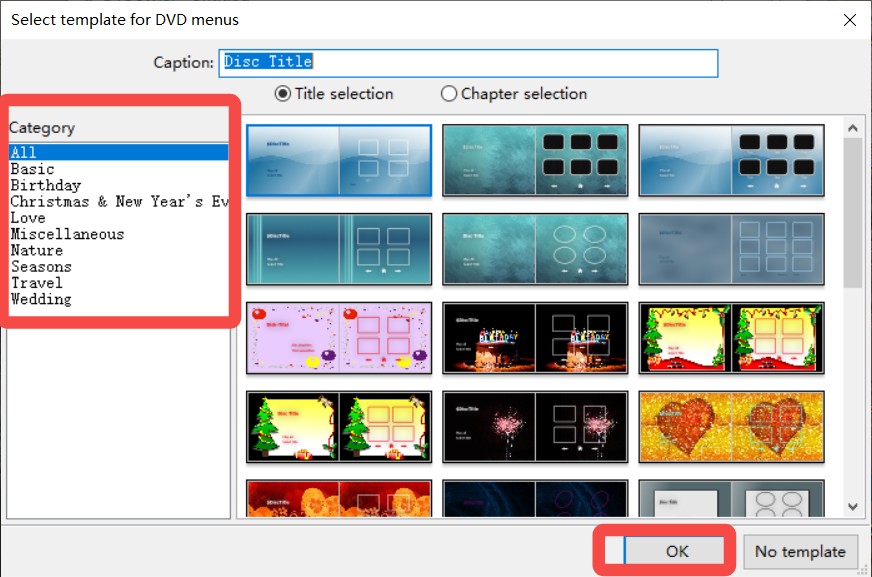
Step 3: Next, choose a DVD template that suits your project, and hit OK again to finalize your selections.
Step 4: Tap the File Browser in the left menu to load your MP4 files. Once added, select File and click Save As to save your project, ensuring all your settings and selections are preserved.

Step 5: Insert a blank DVD disc into your CD-ROM drive. Hit File and select Burn DVD to initiate your project's MP4 burning to DVD process.
5. DVD Flick
- Compatibility: Windows 2000/XP/Vista/7 (official); many users still run it on newer Windows versions
- Input: 45+ file formats (MP4, AVI, MKV, etc.)
- Output: DVD disc, DVD Folder, ISO image
- Latest version: 1.3.0.7 (Static Version)
DVD Flick is a free but legacy MP4 to DVD converter that turns various video files into discs for standard home players. The software supports over 45 file formats and uses FFmpeg-related components to encode content into a DVD-compliant structure. It produces standard VIDEO_TS folders or ISO images for burning to physical media. Advanced options include bitrate adjustments and custom aspect ratios to fit different screen dimensions.
The program offers 6 basic menu templates and allows for custom subtitles in several common formats. It can generate chapter markers at set time intervals to make disc navigation easier. While it lacks advanced video editing tools, it supports multiple audio tracks for different language options. The encoding speed is generally slower than modern tools because it does not support GPU hardware acceleration.
I see many people recommending this tool for its clean, ad-free feel. It works best for smaller jobs where fancy menus and speed are not the main concern. My test found that the conversion can take a while and may crash, but once converted, the final disc often plays reliably without strange errors.
- Can read AviSynth scripts for advanced video processing and editing
- Supports subtitle formats, including Substation Alpha (SSA/ASS)
- Supports 60 popular video codecs for versatile playback options.
- Includes support for various subtitle formats to enhance the viewing experience
- The software can be pretty slow when handling larger files
- Developers haven't released updates recently, causing compatibility issues for users
How to Burn MP4 to DVD with DVD Flick
Step 1: Launch and open DVD Flick on your older Windows models. Then, tap the Add Title tab. Select Edit Title to proceed.
Step 2: In the opening window, add your video name and aspect ratio. Click the Accept button opens a new window for adjusting additional settings.

Step 3: Close the Title Settings window, then open the Project Settings window to adjust your project's configurations and preferences.
Step 4: Tap the Burning button in the window's left menu to access the settings for burning your project.
Step 5: Load a blank DVD disc into your CD-ROM and tap Burn Project to Disc to initiate MP4 DVD burning.
6. Wondershare UniConverter
- Compatibility: Windows 11, 10, 8, 7; macOS 10.11 or later
- Input: MP4, MKV, AVI, MOV, and 1,000+ formats
- Output: DVD disc, Blu-ray, ISO, DVD Folder
- Latest version: 17.2.0 (Released Feb 9, 2026)
Wondershare UniConverter enables conversion to over 1,000 formats for various devices, including PC, Xbox, Apple, and Android. It also features batch conversion, video editing, compression, and downloading, making it a comprehensive solution for all multimedia needs.
Wondershare UniConverter bundles conversion, editing, and disc creation in one place, and the DVD section comes with various menu templates. It supports DVD output to disc, ISO, or folder, and Blu-ray creation is available on Windows. The overall setup feels closer to a media toolbox than a single-purpose burner.
The recent 17.x line puts more weight on AI-assisted tools and compression features, which can help shrink large files when you're trying to fit them on a disc. DVD menus are easy to personalize with background images, music, and text styling, and the template library is large enough to cover common themes without much effort. GPU acceleration is also part of the package for faster processing on supported hardware.
Same as user reviews on forums, I also found that the most common downside in my tests is that the tool set is big, so it can feel busy at the start, and some features sit behind paid tiers. Once set up, I can convert digital videos to DVD quickly.
- Supports over 1,000 file formats for seamless DVD conversions
- Simple interface and fast conversion speeds for productivity
- Offers basic video editing tools with a built-in screen recorder facility
- Ensures a wide range of video and audio formats for your conversion needs
- Lacks drag-and-drop capability for file management and organization
- The free version is limited and requires upgrading to a premium plan for advanced capabilities
How to Convert MP4 to DVD with Wondershare Uniconverter
Step 1: Download and open Wondershare UniConverter on your computer.
Step 2: Import all the MP4 files to be burned by tapping the Add Files button. Then, place a blank DVD into your CD-ROM drive to prepare for the burning or conversion process.

Step 3: Select the output location where you want your files to be burned, ensuring it's a suitable destination for easy access later. Once you've made your choice, click the Burn button to initiate the process. The software will begin burning your files to the specified location on the DVD.
7. Movavi Video Converter
- Compatibility: Windows 10/11; macOS 12.0 or higher
- Input: 180+ formats (MP4, AVI, MOV, etc.)
- Output: DVD/VOB and many other formats (device presets also available)
- Latest version: 24.4.0 (Update: 2025-12-01)
Movavi Video Converter uses a fast engine to convert and prepare video files for DVD-style output formats. The transfer MP4 to DVD step here usually means converting MP4 into DVD-friendly profiles such as VOB/DVD, then saving the result for authoring and burning with a separate DVD tool. It supports 180+ formats and includes presets that help keep files compatible across devices.
It has a SuperSpeed mode that can switch containers without re-encoding when the source meets the conditions. Basic edits are also available, but SuperSpeed has limits if you try to change codecs or apply effects.
I see recurring comments that Movavi Video Converter works best as a prep step for DVD creation, especially when people need MP4 converted into DVD-friendly formats like VOB before using a separate authoring tool. In my tests, I like its speed and the straightforward presets, and I also noticed trial limitations such as watermarks.
- Converts an MP4 video into a DVD format for easy playback
- Offers speedy video conversions, ensuring quick processing for all your files
- Includes video-editing features to enhance your videos and improve overall quality and presentation
- It does not support burning physical DVDs with its current features
- Not compatible with Linux operating systems; it only supports Windows and macOS
How to Transfer MP4 to DVD with Movavi Video Converter
Step 1: Launch and open Movavi Video Converter on your Windows PC or Mac computer.
Step 2: Hit Add Video under the Add Media section and select the video clips you wish to transfer to your project or destination.

Step 3: In the Video tab, click the DVD-Compatible Video preset group. Choose an appropriate preset and tap the Cogwheel button to adjust the Frame Rate and Frame Size, ensuring optimal settings for your project.
Step 4: Tap the Save to button before conversion and select a destination path for your files. Then, hit Convert to save the files in your chosen format, ensuring easy access after conversion.
Step 5: Once the conversion is complete, the folder containing your newly converted files will automatically open, allowing you to access and manage them easily right away.
8. ZamZar
- Compatibility: Web-based
- Input: MP4 and 1,200+ file formats
- Output: VOB and many other formats (note: it converts files, but does not burn physical DVDs)
- Latest version: Cloud service (continuously updated)
Zamzar helps you convert MP4 to DVD-friendly formats like VOB online, without installing anything. You upload an MP4, pick an output format, and download the converted file when it's ready. It supports 1,200+ formats, so it's handy when the source file or the target format is unusual. Keep in mind it's a converter, so you'll still need separate DVD authoring software to build menus and burn a disc.
On the paid tiers, the big upgrades are practical: larger maximum file sizes, faster conversions, and higher daily limits - while the web app conversions per day are listed as unlimited for paid accounts. Free use is capped at 2 files per 24 hours, which is fine for one-off jobs but quickly becomes a question if you're doing a batch.
I recommend using Zamzar when the priority is a quick, browser-based conversion without the hassle of a download. My experience shows that the speed depends heavily on your internet connection, so larger files might take some time to process.
- The free option allows two conversions daily
- Offers fast video conversion speeds for efficient task completion
- Easy for beginners with a user-friendly interface and simple steps
- Many subscription plans are available to meet different users' needs
- Encourages users to subscribe for enhanced features beyond free options
- The free version is limited to a maximum file size of 50 MB for conversions
How to Convert MP4 to DVD online with Zamzar
Step 1: Open the Zamzar online platform on your web browser.
Step 2: Select Choose Files to load the MP4 files you want to convert. You can add your video file from your device, Google Drive, OneDrive, Dropbox, Box, or URL.
Step 3: Navigate to the Convert to list and pick the DVD video preset.
Step 4: Tap the Convert Now button to initiate the conversion process from MP4 to DVD format. Ensure all settings are correct before starting the conversion.
Step 5: Once the DVD conversion is complete, you can copy the MP4 files to DVDs for easy playback on compatible devices and securely store your videos.

FAQs
1. How long does it take to burn MP4 to DVD?
DVD encoding and burning times vary from minutes to hours, influenced by factors like video length, computer speed, DVD size, and output quality. However, DVDneXtCOPY DVD Creator's GPU acceleration technology can achieve speeds up to 50x faster than standard programs.
2. How do I convert MP4 to DVD with the Windows Media Player?
Windows Media Player can burn an MP4 file to a data DVD, but it does not author a standard DVD-Video disc. A data DVD will play only on computers and DVD players that support the MP4 file's video and audio codecs. To make a disc for a conventional DVD player, use DVD authoring software to create the DVD-Video structure before burning.
3. Is it necessary to burn MP4 to DVD?
You may seek MP4 to DVD converters for various reasons, including:
- Compatibility: MP4 files cannot be directly played on DVD players, necessitating conversion for compatibility.
- Backup: Converting MP4 to DVD provides a backup against accidental data loss from viruses or accidents.
- Free storage space: Burning MP4 videos to DVD frees up computer storage space and improves performance.
4. Can Windows Movie Maker burn MP4 to DVD?
For Windows 7 users, Windows Movie Maker is a useful DVD-burning utility, but it was discontinued after Windows 7 and is unavailable on Windows 10, 11, 8, and 8.1.
5. What is the best free MP4 to DVD converter without a watermark?
DVDStyler is a free, open-source option that can import MP4 files, create menus, add audio or subtitle tracks, and produce a DVD-Video project without a paid watermark. DVD Flick is another free choice for older Windows systems, but its last official release is dated and its menu tools are more limited.
6. Can an online converter burn MP4 to a physical DVD?
No. An online converter can prepare or download a converted video file, but it cannot operate your local optical drive. You still need DVD-Video authoring software, compatible blank media, and a separate burn step to make a playable disc.
Conclusion
Selecting the right tool to convert MP4 to DVD makes preserving your memories much easier. This guide highlights several reliable options for different budgets and skill levels. You can choose a fast, professional tool like DVDneXtCOPY and DVDFab or a flexible free program like DVDStyler and DVD Flick. Each software on this list helps you create high-quality discs that play on standard home systems. Pick the one that fits your needs and start burning today.
 Luna MillerSep 21, 2026
DVD Region Codes Explained: Region 1 and Playback Options
![How to Remove DVD Copy Protection: Software and Free Methods [2026]](https://c.dvdnextcopy.com/media/How_to_Remove_DVD_Copy_Protection_d24c38a790.png) Steven VanceSep 21, 2026
Steven VanceSep 21, 2026How to Remove DVD Copy Protection: Software and Free Methods [2026]
 Luna MillerSep 21, 2026
How to Rip a Copy-Protected DVD on Win & Mac: 6 Ways
 Steven VanceSep 18, 2026
Top MP4 to ISO Converter in 2026: DVD Authoring vs Online Tools
 Steven VanceSep 18, 2026
How to Digitize DVD Collection: 5 Ways in 2026
 Steven VanceSep 17, 2026
3 Best Free DVD Maker Tools for Playable DVDs in 2026