 DVDneXtCOPY DVD Ripper
How to Remove DVD Copy Protection: Software and Free Methods [2026]

Summary: To remove DVD copy protection, first use software that can read the protection on the disc, then choose the output you need. DVDneXtCOPY DVD Copy fits Windows users who want a DVD, ISO, or folder backup, while DVDneXtCOPY DVD Ripper converts supported protected DVDs to MP4, MKV, and other digital formats. MakeMKV suits stream-preserving MKV output, and HandBrake with libdvdcss is a narrower free route for basic CSS-protected DVD-Video.
Table of Contents
![How to Remove DVD Copy Protection: Software and Free Methods [2026]](https://c.dvdnextcopy.com/uploads/images/17899805857240259-39d91c0caeeea1128925c030d2a80899.jpg)
DVD copy protection removal does not erase protection from the physical disc. Instead, compatible software handles the supported protection while reading the DVD and creates a new disc, ISO, folder, or video file that can be opened without relying on the original access control.
I check the protection problem before choosing an output format. A program that creates MP4 files is not useful if it cannot read the disc correctly, while software that opens the DVD successfully may still produce the wrong type of backup. Start with the protection the tool can handle, then decide whether you need the complete DVD structure, selected titles, or a playback file.
What DVD Copy Protection Is and Why a DVD Fails to Copy
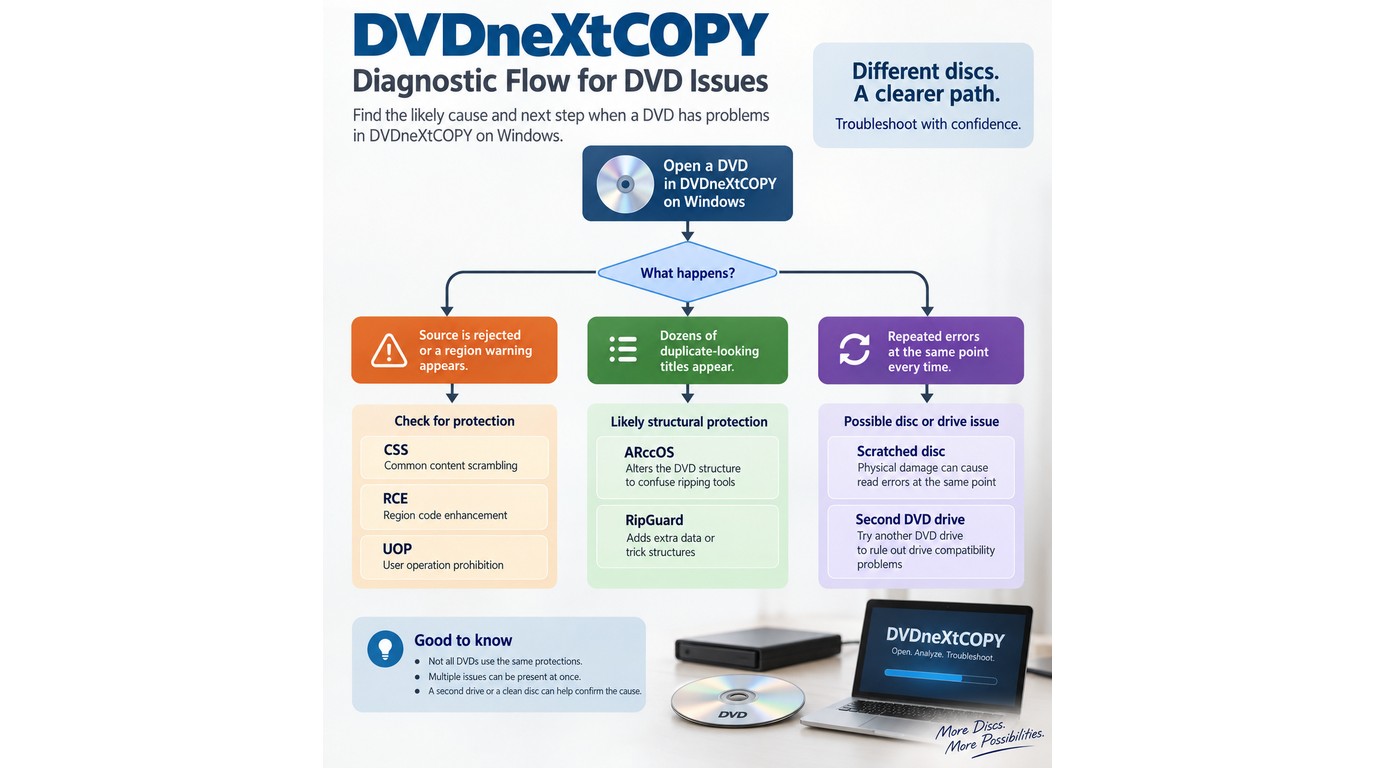
DVD copy protection can prevent ordinary software from reading a commercial disc normally. Depending on the protection, the program may reject the source, report read errors, select the wrong movie title, or display dozens of titles that appear almost identical.
CSS controls access to encrypted DVD video data. Region Code and RCE restrict playback according to region settings, while UOPs can limit certain player operations. Structural protections such as ARccOS and RipGuard can add misleading titles or problematic sectors that interfere with normal DVD copying.
| DVD protection | What it affects | Possible symptom |
|---|---|---|
| CSS | Access to encrypted DVD video | The program cannot read the movie correctly |
| Region Code / RCE | Regional playback restrictions | The disc is rejected because of region settings |
| UOPs | DVD player operations | Certain navigation or playback actions are restricted |
| ARccOS / RipGuard | DVD structure and sector reading | False titles, wrong movie selection, or repeated read errors |
Removing DVD copy protection normally means creating a readable output without the original access restriction. It does not modify or erase the protection stored on the physical DVD itself.
Copy Protection and Disc Damage Can Look Similar
A protected DVD is not the only reason a copy can fail. Dirt, scratches, a marginal optical drive, or a damaged sector can produce similar read errors.
Check the underside of the disc and clean it from the center outward. Confirm that the same drive can read another known-good DVD. If the copy stops at the same physical point every time, media damage becomes more likely. If the program shows dozens of similar movie titles or selects an obviously incorrect runtime, structural protection is a stronger possibility.
This distinction matters because changing the copy mode cannot repair a scratched disc, while repeatedly cleaning a physically sound DVD will not correct unsupported title detection.
DVD Copy Protection Removal Software: Quick Comparison
The first comparison should be protection handling rather than format count. After confirming that the software can read the protected DVD correctly, compare whether it creates another DVD, an ISO or folder archive, or an individual video file.
| Software | DVD protection handling | Output | Platform | Cost type | Best suited to |
|---|---|---|---|---|---|
| DVDneXtCOPY DVD Copy | Region Code, ARccOS, RipGuard, and other supported DVD access restrictions | DVD, ISO, DVD folder | Windows | Trial / Paid | Keeping DVD structure, menus, extras, or selected titles |
| DVDneXtCOPY DVD Ripper | Region Code, CSS, UOPs, RCE, Sony ARccOS, and other supported DVD protections | MP4, MKV, AVI, MOV, MP3, FLAC, SRT | Windows | Trial / Paid | Turning protected DVDs into digital video, audio, or subtitle files |
| MakeMKV | Reads encrypted DVD sources and processes them during title extraction | MKV | Windows, macOS, Linux | Free DVD functionality | Keeping original movie streams in a title-based file without video re-encoding |
| HandBrake + libdvdcss | Basic CSS access through the separate libdvdcss library | MP4, MKV, WebM | Windows, macOS, Linux | Open Source / Free | Basic CSS sources when a compressed video file is the goal |
| DVD Decrypter | Legacy protection handling with limited relevance to newer DVD structures | DVD files, ISO | Windows | Legacy Freeware | Older DVDs on compatible Windows systems |
These programs solve different parts of the job. DVDneXtCOPY DVD Copy keeps DVD-style outputs such as disc, ISO, and folder when menus or the original structure matter. DVDneXtCOPY DVD Ripper turns a protected DVD into normal video, audio, or subtitle files for digital playback. MakeMKV extracts selected DVD titles into MKV without a normal video transcode, while HandBrake belongs to the encoding stage and needs a readable source before it can create MP4, MKV, or WebM.
How to Remove DVD Copy Protection With DVDneXtCOPY DVD Copy
DVDneXtCOPY DVD Copy handles Region Code and structural DVD protections such as ARccOS and RipGuard while reading the source. After the disc is analyzed, you can save the usable content to another DVD, an ISO image, or a DVD folder.
I would start here when the backup needs to behave like a DVD rather than just become one movie file. Full Disc keeps menus and extras, Main Movie keeps the feature and selected tracks, Clone/Burn is intended for a same-capacity copy, and Customize lets you decide which titles, chapters, audio tracks, or subtitles stay in the output.
Key Features:
- Handle supported DVD copy protections while analyzing commercial DVD sources.
- Copy DVDs to blank discs, ISO images, or DVD folders according to the required backup type.
- Preserve menus and extras with Full Disc when the complete DVD structure matters.
- Keep the main movie and selected tracks when menus and bonus material are unnecessary.
- Create a same-capacity copy with Clone/Burn when compression is not required.
- Select titles, chapters, audio, and subtitles before creating the final copy.
- Preview the selected DVD content before starting the backup.
- Compress DVD-9 content to DVD-5 when a smaller target is required.
How to Remove DVD Copy Protection With DVDneXtCOPY DVD Copy:
Step 1: Load the Protected DVD and Let DVDneXtCOPY Analyze It
Insert the DVD into a compatible optical drive, open DVDneXtCOPY, and select the DVD Copy module. Add the disc as the source and wait for the analysis to finish.
Protection handling begins while the program reads the DVD structure. Once the source is recognized correctly, the title list and available content appear for selection. If many titles have similar runtimes, preview the likely main feature and compare its chapters before continuing.

Step 2: Choose How Much of the DVD to Keep
Select the copy mode according to what you want to reopen later.
- Full Disc: Keep the movie, menus, extras, and broader DVD structure.
- Main Movie: Keep the feature and selected audio or subtitle tracks without most bonus content.
- Clone/Burn: Keep the source structure in a same-capacity copy without DVD-9-to-DVD-5 compression.
- Customize: Keep selected titles, chapters, audio tracks, subtitles, or bonus material.
If a commentary track or extras menu matters, I keep it deliberately rather than assuming Main Movie is enough. For TV DVDs and special editions, preview titles instead of selecting the longest runtime automatically.
Step 3: Check Titles, Chapters, Audio, and Subtitles
Review the selected title and chapter range before starting the copy. Keep the audio languages, commentary tracks, and subtitles you expect to use later.
Use the preview to confirm the movie and switch through retained tracks before choosing the destination.

Step 4: Choose DVD, ISO, or DVD Folder Output
Choose a blank DVD when you want another physical disc. Save an ISO when you want the DVD structure inside one image file, or use a DVD folder when direct access to the VIDEO_TS structure is more convenient.
Step 5: Start the DVD Removal and Copying Process
Confirm the source title, copy mode, output type, and destination, then start the copy. Note the exact path when creating an ISO or folder so the finished output can be tested independently.

How to Remove DVD Copy Protection With DVDneXtCOPY DVD Ripper
Choose DVDneXtCOPY DVD Ripper when you want a normal video or audio file instead of another DVD, ISO, or DVD folder. It can read supported protected DVD discs, ISO images, and DVD folders, including sources with Region Code, CSS, UOPs, RCE, and Sony ARccOS, then convert the selected content to MP4, MKV, AVI, MOV, and other supported formats.
This is the better DVDneXtCOPY module when the finished movie will live on a hard drive, media server, phone, tablet, or another file-based playback device. You can select the movie title, chapter range, audio tracks, and subtitles before conversion. MP4 and MKV make the movie easier to reuse as a digital file, but they do not reproduce the original interactive DVD menu.
Key Features:
- Read supported protected DVDs, ISO images, and DVD folders before converting the selected title.
- Convert DVD movies to MP4, MKV, AVI, MOV, and other video formats for file-based playback.
- Extract DVD audio to formats such as MP3 and FLAC when the video track is unnecessary.
- Select titles, chapters, audio tracks, and subtitles before starting the rip.
- Built-in editing tools including crop, trim, watermark, subtitles, merge, brightness.
- Extract DVD subtitles to SRT when a separate editable subtitle file is needed.
- Preview the selected content and settings before processing the movie.
How to Remove DVD Copy Protection With DVDneXtCOPY DVD Ripper:
Step 1: Open DVDneXtCOPY's Ripper module and load the protected DVD, ISO, or folder.
Step 2: Choose the output profile, select the title, audio, and subtitles you want to keep, and adjust the video or audio settings when needed.
Step 3: Set the destination folder and start the rip.

How to Remove DVD Copy Protection for Free
Free methods work best when the disc uses a protection type the tool can handle and the desired output matches the tool's purpose. They are not interchangeable: libdvdcss helps compatible software access CSS-protected DVD data, HandBrake encodes readable video, and MakeMKV can process encrypted DVD sources without a separate video transcode.
Use HandBrake With libdvdcss for Basic CSS DVDs
HandBrake is a video transcoder, not a built-in DVD decrypter. Once it can read a source, it can encode the video to MP4, MKV, or WebM and apply video, audio, subtitle, filter, and compression settings.
libdvdcss 1.6.0 is a separate free library that provides DVD access and decryption functions. For the commercial DVD-Video workflow covered here, its main role is making CSS-protected content readable to compatible software. It should not be treated as equivalent to broad handling of structural protections such as ARccOS, RipGuard, misleading title layouts, or every commercial DVD variation.
The two components perform different jobs:
- Use libdvdcss to make a supported CSS-protected DVD readable to compatible software.
- Use HandBrake to select and encode the readable title into a video file.
- Choose MP4, MKV, or WebM according to the target player.
- Check audio and subtitle tracks after the encode finishes.
This setup makes sense when the desired result is a compressed playback file. It does not reproduce the original DVD menu or create a Full Disc copy.

Use MakeMKV When You Want the Movie in MKV Without Re-encoding
MakeMKV can open encrypted DVD sources and place the selected video, audio, subtitle, chapter, and metadata streams into MKV files without performing a normal video re-encode. Its DVD opening and conversion functions are free, and it runs on Windows, macOS, and Linux.
Open the DVD, let MakeMKV scan the available titles, then select the movie and the audio or subtitle tracks you want to keep. Choose an output folder and create the MKV. This is useful when you want the source movie streams and multiple tracks in a file that is easier to play from local storage or a media server.
An MKV is a title-based playback file rather than a copy of the original DVD structure. It does not reproduce the interactive DVD menu, so choose DVD copy software instead when menus, disc navigation, or a DVD-style ISO or folder are part of the backup goal.

Use DVD Decrypter Only as a Legacy Option
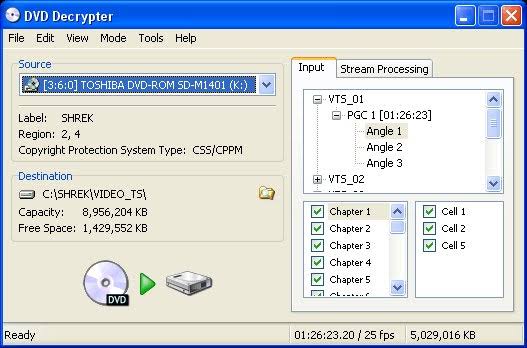
DVD Decrypter 3.5.4.0 dates from March 2005 and is no longer maintained. Its age makes modern Windows behavior, newer optical drives, and later structural protection schemes the main uncertainties.
It can still be useful for an older DVD on a compatible Windows setup, but I would not make it the default tool for a mixed collection. Test each finished image or folder independently rather than assuming an older successful disc predicts compatibility with a newer pressing.
How to Check Whether DVD Copy Protection Removal Worked
A finished progress bar confirms that the software completed a task. The more useful test is whether the new output opens without the protected source DVD and still contains the content the selected method was supposed to keep.
Open the Output Without the Original DVD
Eject the source disc first. Mount the ISO, open the DVD folder, insert the copied DVD, or play the MKV or MP4 file created by the selected method.
This prevents the original DVD from hiding a problem with the new output.
Check the Main Title and Chapter Structure
Confirm that the running time matches the intended movie or episode. Jump through several chapter points instead of checking only the opening scene.
If playback suddenly changes to a trailer, extra, alternate cut, or unrelated title, return to the original scan and review the title selection.
Switch Through Audio and Subtitle Tracks
Play several scenes and switch every retained audio track. Enable each subtitle track and check forced subtitles separately.
For Full Disc or ISO output, open the menu and launch at least one extra. For Main Movie or MKV output, confirm that the absence of menus and unrelated bonus material matches the choice you made before copying.
Troubleshooting DVD Copy Protection Removal
The Software Shows Dozens of Similar Titles
A long list of nearly identical titles can indicate structural protection designed to make the correct feature harder to identify. Compare runtime and chapter count, then preview the likely main title instead of choosing the longest one automatically.
If the program cannot identify a usable feature title, switch to software with support for structural protections such as ARccOS or RipGuard rather than repeatedly changing the output format.
The Copy Stops at the Same Point Every Time
Clean the disc and retry it in another compatible drive when possible. A repeatable failure at the same physical location can indicate a damaged or marginal sector rather than unsupported copy protection.
If another known-good DVD works correctly in the same drive, the problem is more likely isolated to the disc.
The DVD Opens but the Wrong Movie Is Selected
Do not rely on title length alone. Preview the selected title, compare the chapter count, and check whether the DVD contains alternate cuts, TV episodes, trailers, or bonus titles with similar runtimes.
Correct title detection is part of a usable result. Creating a playable copy of the wrong title does not solve the original protection problem.
HandBrake Still Cannot Open the DVD
Changing HandBrake encoding presets will not solve a source-reading problem. HandBrake starts its job after the DVD has become readable.
If a CSS setup still cannot open the disc, check the libdvdcss installation and the optical drive first. The DVD may also use a different protection, contain structural complications, or have a physical read problem that requires another source-reading method.
Frequently Asked Questions
Q
Does Removing DVD Copy Protection Reduce Video Quality?
Removing or handling DVD copy protection does not by itself reduce video quality. Quality changes when the output is compressed or re-encoded, such as shrinking DVD-9 content to DVD-5 or converting the movie to a smaller MP4. A same-capacity DVD copy, stream-preserving MKV, and compressed video file therefore have different quality implications.
A
Q
Does a Region-Free DVD Drive Remove DVD Copy Protection?
No. Region handling and DVD copy protection are separate issues. A region-free drive or player can address a regional playback restriction, but the DVD may still use CSS, UOPs, ARccOS, RipGuard, or another protection that the software must handle separately.
A
Q
What Is the Difference Between Removing DVD Copy Protection and Ripping a DVD?
Copy protection removal describes making the protected source readable during the copy or conversion process. DVD ripping describes extracting the movie into a digital file such as MP4 or MKV. A program such as DVDneXtCOPY DVD Ripper can handle supported protection and create the digital file in the same process, while HandBrake needs the source to be readable before its encoding stage begins.
A
Q
Should I Save a Protected DVD as ISO or MKV?
Answer: Choose ISO when you want a disc-style archive that can retain the DVD structure, menus, and extras. Choose MKV when you mainly want the movie, chapters, and selected audio or subtitle tracks in a file that is easier to play from local storage or a media server. The better choice depends on whether disc structure or everyday playback matters more.
A
Q
Can I Remove DVD Copy Protection on macOS or Linux?
The options differ by platform. DVDneXtCOPY DVD Copy and DVD Ripper are Windows options, while MakeMKV is available on Windows, macOS, and Linux. HandBrake is also cross-platform, but it does not include built-in commercial DVD decryption; a compatible source-access method is still required for a protected disc.
A
Conclusion
For Windows users who want to keep DVD menus or create another disc, ISO, or DVD folder, DVDneXtCOPY DVD Copy keeps source handling and DVD-style output in one program. If the goal is MP4, MKV, or another digital file instead, DVDneXtCOPY DVD Ripper handles supported protected sources and combines title, audio, subtitle, and output selection in the same conversion process.
MakeMKV is the simpler choice when the main goal is an MKV that keeps the source movie streams without a normal video re-encode. HandBrake with libdvdcss is a narrower free route for basic CSS-protected DVD-Video when the finished result should be a compressed playback file. Whichever method you choose, eject the original DVD and reopen the new output before treating the job as complete.
![Top 8 Best MP4 to DVD Converters on Windows & Mac [2026 Tested]](https://images.dvdnextcopy.com/2026/09/17/I2v69nzxIF6Xn7iue3ZRMGJ5-Ls0SF_z/feature_cover.jpg) Luna MillerSep 21, 2026
Luna MillerSep 21, 2026Top 8 Best MP4 to DVD Converters on Windows & Mac [2026 Tested]
 Luna MillerSep 21, 2026
DVD Region Codes Explained: Region 1 and Playback Options
 Luna MillerSep 21, 2026
How to Rip a Copy-Protected DVD on Win & Mac: 6 Ways
 Steven VanceSep 18, 2026
Top MP4 to ISO Converter in 2026: DVD Authoring vs Online Tools
 Steven VanceSep 18, 2026
How to Digitize DVD Collection: 5 Ways in 2026
 Steven VanceSep 17, 2026
3 Best Free DVD Maker Tools for Playable DVDs in 2026