 DVDneXtCOPY DVD Creator
Top MP4 to ISO Converter in 2026: DVD Authoring vs Online Tools

Summary: To create a playable DVD ISO from MP4, use DVD authoring software rather than simply placing the MP4 inside a generic ISO image. DVDneXtCOPY DVD Creator provides a guided Windows workflow with menus and preview, DVDStyler is the completely free option, Converter365 can create an ISO online for simpler storage tasks, and DVD Flick remains a basic legacy Windows alternative.
An MP4 copied into an ISO can still fail in a living-room DVD player. I start with the playback target, because a playable DVD-Video ISO and a data ISO can share the same .iso extension while containing very different structures. Once that choice is clear, the converter is much easier to pick.
Before You Convert MP4 to ISO: DVD-Video ISO vs Data ISO
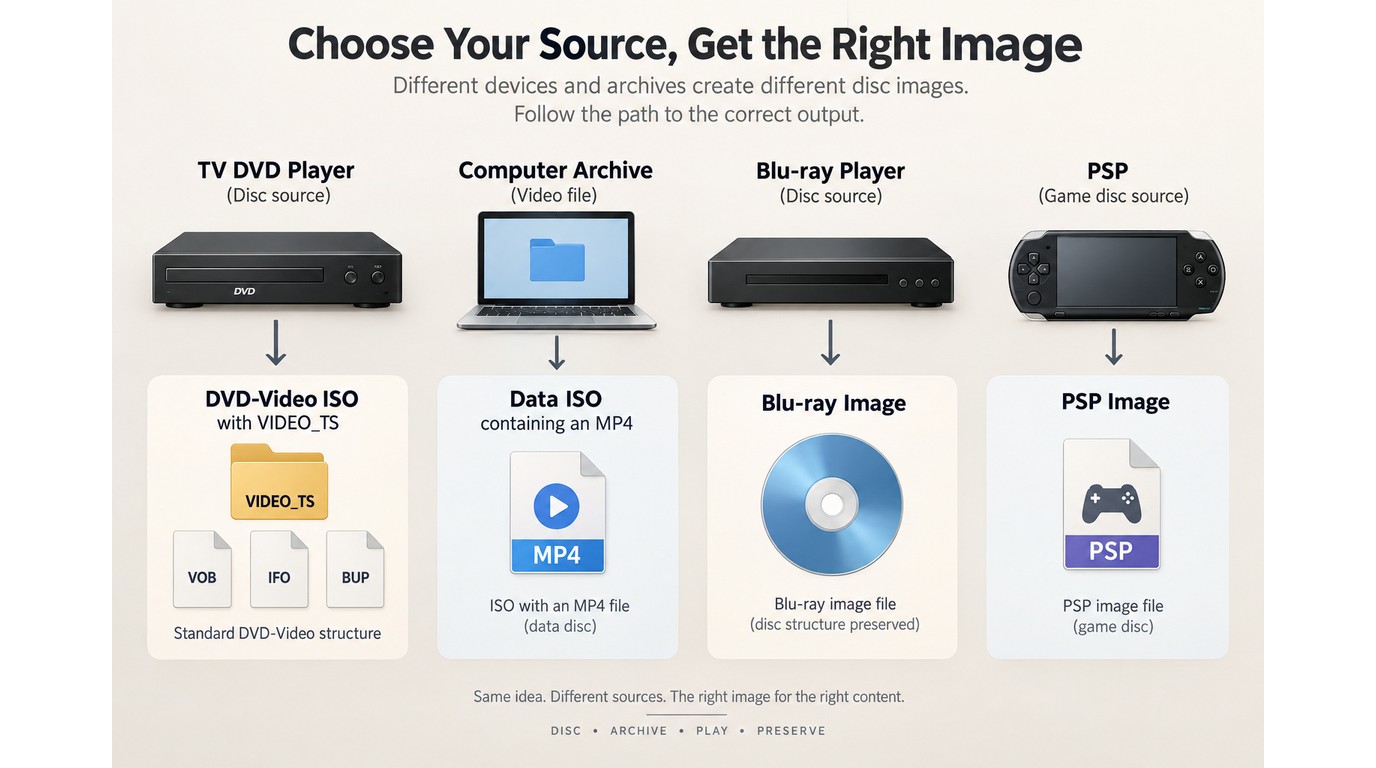
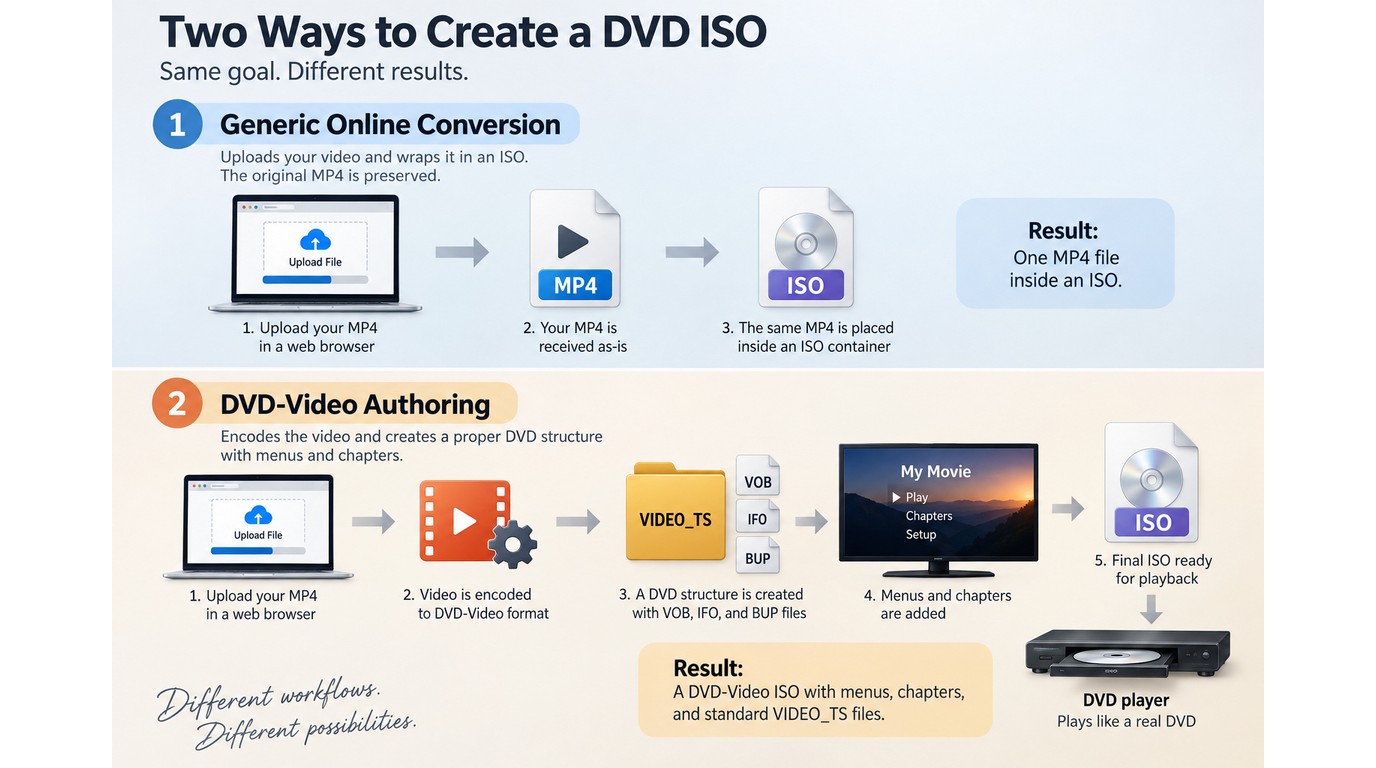
A playable DVD image contains authored DVD-Video files, normally VOB, IFO, and BUP files inside a VIDEO_TS folder. Creating that structure also converts the MP4 to DVD-compatible video, so the result is not a lossless wrapper around the original file.
A data ISO does something different: it can keep the original MP4 unchanged inside a mountable image. That works for storage, transfer, or a media device that already supports MP4 data discs, but it does not create DVD menus or broad standalone-player compatibility.
| Your goal | ISO you need |
|---|---|
| Play the result on a standard DVD player | DVD-Video ISO with VIDEO_TS structure |
| Keep the original MP4 inside one image file | Data ISO |
If your real target is Blu-ray playback, use a Blu-ray authoring workflow instead of a DVD-Video converter. For a physical DVD, you will also need compatible blank media and a DVD writer, but you do not need a writer just to create and test an ISO.
Best MP4 to ISO Converters Compared
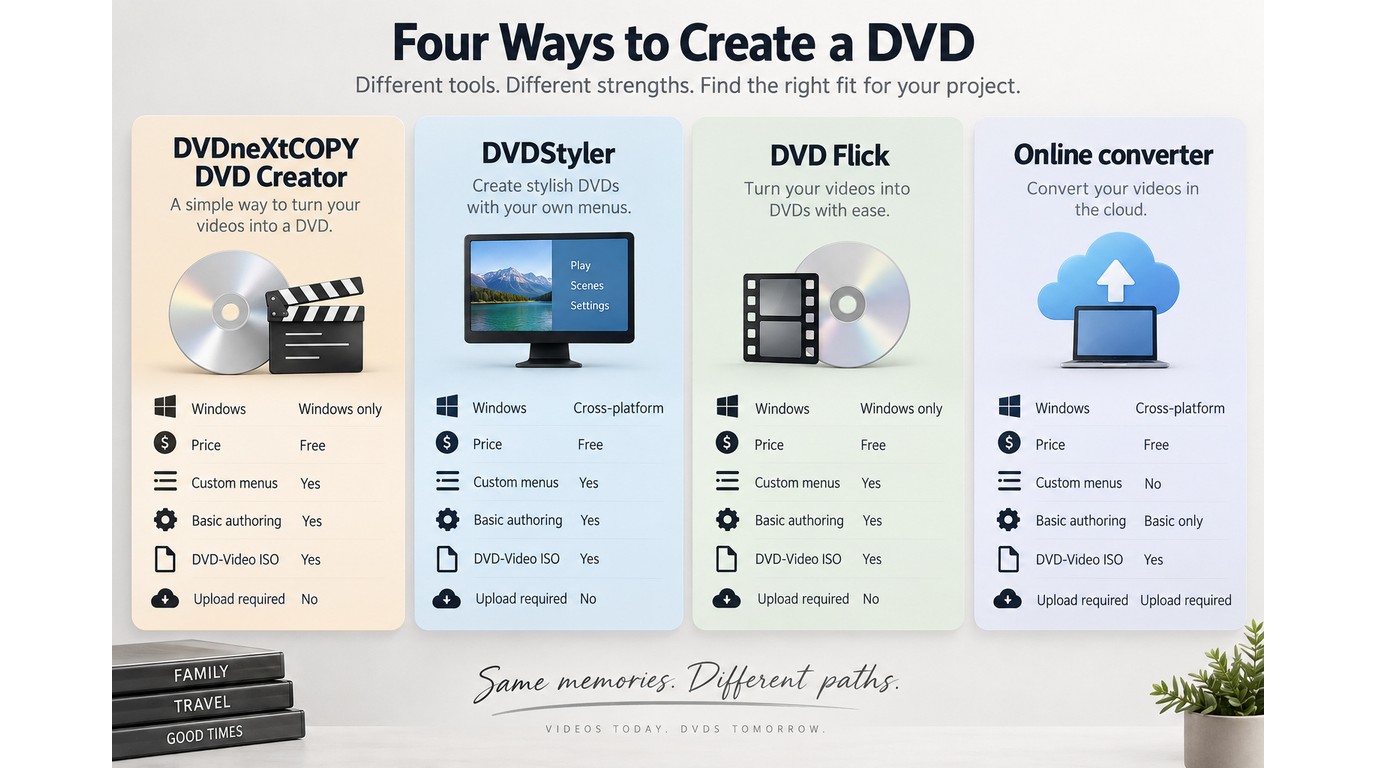
The best MP4 to ISO converter depends on whether you need a playable DVD structure, a completely free authoring tool, or simply an ISO container you can create in a browser.
| Converter | OS | ISO type | DVD menu | GPU acceleration | Cost | Best for |
|---|---|---|---|---|---|---|
| DVDneXtCOPY DVD Creator | Windows 11/10/8.1/8/7 | DVD-Video ISO | Yes, with stylish and customized menus | Yes | 30-day trial; paid from $39.99 | Guided Windows DVD authoring |
| DVDStyler | Windows, macOS, Linux/source builds | DVD-Video ISO | Yes | No | Free, open source | Completely free authoring |
| Converter365 | Browser | ISO output; DVD-Video authoring not documented | No | No | Free online tool | Small, nonsensitive ISO tasks |
| DVD Flick 1.3.0.7 | Legacy Windows | DVD-Video ISO | Basic | No | Free | Older, simple Windows projects |
Product availability, trial terms, and pricing checked in September 2026.
1. DVDneXtCOPY DVD Creator: Best MP4 to ISO Converter for Windows
DVDneXtCOPY DVD Creator is the most direct Windows option here when the ISO needs to behave like a real DVD-Video disc. It imports MP4 and more than 200 video formats, lets you set disc size, audio, subtitles, aspect ratio, menus, and chapters, and can save the finished project as a DVD disc, ISO image, or DVD folder.
The current trial lasts 30 days and allows up to three DVD Creator projects. After that, a paid license is required. I would choose it when I want the authoring decisions, menu preview, and ISO output in one guided workflow rather than assembling the structure manually.
How to Convert MP4 to ISO with DVDneXtCOPY DVD Creator
Step 1: Import the MP4. Open DVD Creator, then add one MP4 or several videos to the same project. If the disc mixes files from different cameras or exports, the module can accept formats such as MP4, AVI, MOV, MKV, FLV, WMV, M4V, and MPEG.

Step 2: Set the DVD structure. Choose DVD-5 or DVD-9, set the aspect ratio, and select the audio and subtitle tracks you need. Add or review chapter points before encoding so missing subtitles or cropped framing are corrected before the ISO is built.

Step 3: Customize and preview the menu. Choose a menu template, adjust the text, font, background, buttons, and thumbnails, then use the preview to check video order, menu links, chapter buttons, subtitles, and audio.

Step 4: Save as ISO and verify it. Choose DVD ISO as the output. Reopen the image, play the beginning, middle, and end, switch tracks, and test every menu link before you burn a physical disc.
2. DVDStyler: Best Free MP4 to ISO Converter
DVDStyler is the strongest completely free option in this comparison when you need a real DVD-Video ISO rather than a generic data image. It is open-source software with current Windows and macOS installers plus source builds, and it supports MP4 input, interactive DVD menus, multiple audio and subtitle tracks, and custom navigation.
The tradeoff is a more self-managed workflow. You are responsible for project settings, menu logic, and export troubleshooting, so I would choose DVDStyler when free authoring matters more than having a guided interface.
How to Convert MP4 to ISO Free with DVDStyler
Step 1: Create the DVD project. Start a new project, choose the disc capacity and TV standard, then add the MP4 titles you want to include.

Step 2: Build the menu and navigation. Select a template or create your own menu, then add the buttons, chapter links, subtitles, and audio tracks your project needs.
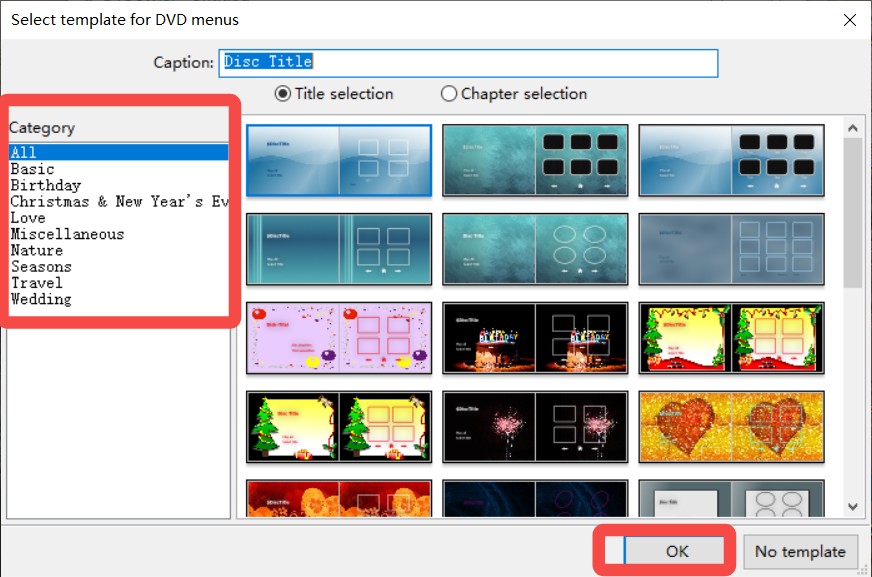
Step 3: Generate and test the ISO. Create the DVD image, open it in a software player, and check the menu, title order, chapters, audio, and subtitles before burning.

Free authoring can be a good trade when you are prepared to diagnose an export failure or adjust a project setting yourself.
3. Convert MP4 to ISO Online with Converter365
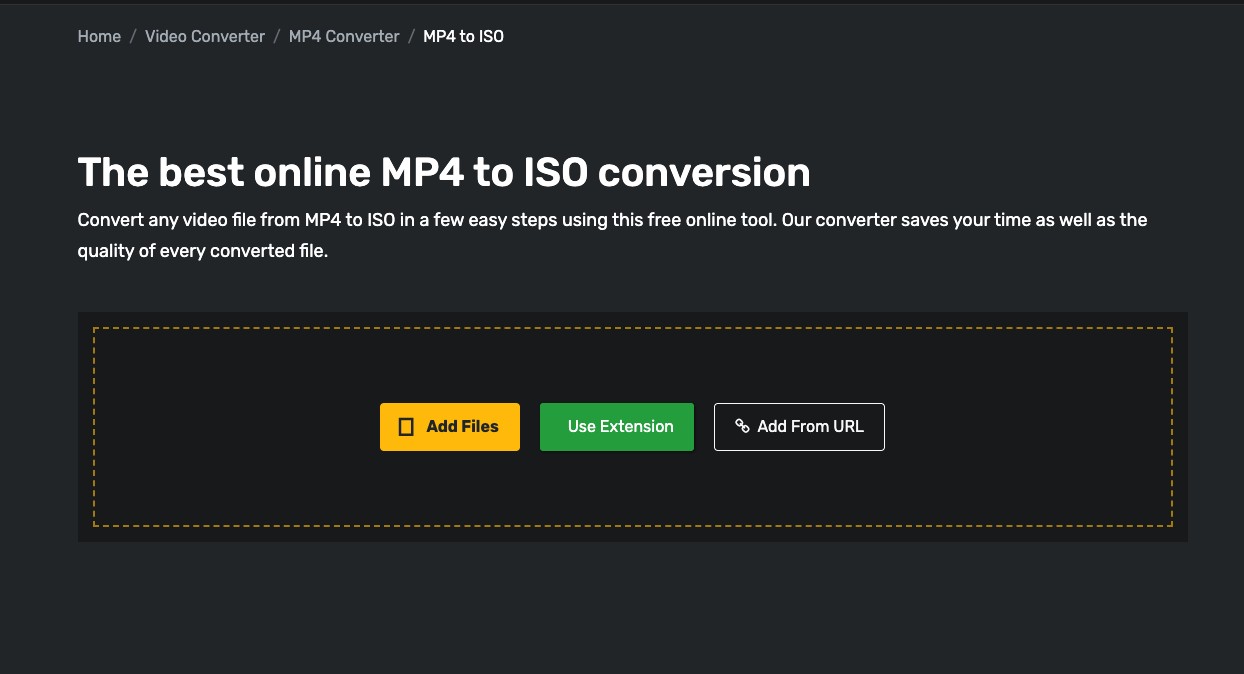
Converter365 provides a browser-based MP4-to-ISO workflow, so it fits the long-tail need to convert MP4 to ISO online without installing a desktop app. Its current page gives a simple upload, convert, and download process.
The important limitation is what the service does not document: the page does not describe DVD-Video authoring controls such as a VIDEO_TS structure, menus, chapters, DVD-5/DVD-9 settings, or standalone-player navigation. I would therefore treat the output as a generic ISO unless I opened the finished image and confirmed otherwise.
How to Convert MP4 to ISO Online
Step 1: Upload the MP4 file or add its URL.
Step 2: Start the MP4-to-ISO conversion.
Step 3: Download the ISO and inspect its contents before deciding how to use it.
4. DVD Flick: Legacy Free Windows MP4 to ISO Option
DVD Flick is a completely free DVD authoring tool that can take common video files, add a basic menu, subtitles, and audio tracks, and create a DVD project that can also be saved as an ISO image. Its official guide includes a dedicated Create ISO image option.
The limitation is age. The latest official version remains 1.3.0.7, and the published system requirements stop at Windows 7. I would keep it as a legacy option for a simple older Windows setup rather than make it the first recommendation for a current PC.

FAQs
Can VLC convert MP4 to ISO?
Not as a DVD authoring workflow. VLC can transcode media to supported file and stream containers, and it can play many ISO images, but it does not provide the DVD menu, chapter, and disc-structure authoring controls needed to turn an MP4 into a DVD-Video ISO. Use a DVD authoring tool for that job.
Can HandBrake convert MP4 to ISO?
No. HandBrake creates MP4, MKV, and WebM containers; it does not author DVD ISO images. You can use HandBrake to re-encode a source video before authoring, but another application must create the DVD-Video structure and ISO.
Can I extract the original MP4 from the ISO later?
From a data ISO, yes: mount or extract the image and copy the original MP4. From an authored DVD-Video ISO, no exact original MP4 remains because the source was encoded into VOB and navigation files. You can extract those files and make a new MP4, but that is another conversion rather than recovery of the original file.
Conclusion: Which MP4 to ISO Converter Should You Choose?
If you are on Windows and want a playable DVD ISO with menus, subtitles, chapters, preview, and a guided workflow, start with DVDneXtCOPY DVD Creator. It is the most complete fit here for turning MP4 files into a DVD-Video image without splitting authoring across several utilities.
Choose DVDStyler when the priority is a completely free DVD-Video solution and you are comfortable managing the project yourself. Use Converter365 when you specifically want an online ISO conversion and do not need documented DVD navigation. DVD Flick still works as a legacy free Windows authoring route, but its old release and system requirements make it a narrower choice.
If you only want to keep the original MP4 unchanged inside one image file, use a data ISO rather than DVD authoring. If the target is Blu-ray, start with Blu-ray authoring software instead of forcing a DVD-Video workflow.
![Top 8 Best MP4 to DVD Converters on Windows & Mac [2026 Tested]](https://images.dvdnextcopy.com/2026/09/17/I2v69nzxIF6Xn7iue3ZRMGJ5-Ls0SF_z/feature_cover.jpg) Luna MillerSep 21, 2026
Luna MillerSep 21, 2026Top 8 Best MP4 to DVD Converters on Windows & Mac [2026 Tested]
 Luna MillerSep 21, 2026
DVD Region Codes Explained: Region 1 and Playback Options
![How to Remove DVD Copy Protection: Software and Free Methods [2026]](https://c.dvdnextcopy.com/media/How_to_Remove_DVD_Copy_Protection_d24c38a790.png) Steven VanceSep 21, 2026
Steven VanceSep 21, 2026How to Remove DVD Copy Protection: Software and Free Methods [2026]
 Luna MillerSep 21, 2026
How to Rip a Copy-Protected DVD on Win & Mac: 6 Ways
 Steven VanceSep 18, 2026
How to Digitize DVD Collection: 5 Ways in 2026
 Steven VanceSep 17, 2026
3 Best Free DVD Maker Tools for Playable DVDs in 2026