 DVDneXtCOPY DVD Ripper
How to Rip a Copy-Protected DVD on Win & Mac: 6 Ways

Summary: To rip a copy-protected DVD, use a dedicated ripper such as DVDneXtCOPY or DVDFab for direct MP4/MKV output, MakeMKV for an MKV remux, or HandBrake only after the source is already readable. Check the detected title, audio, subtitles, and finished file before processing more discs.
Table of Contents
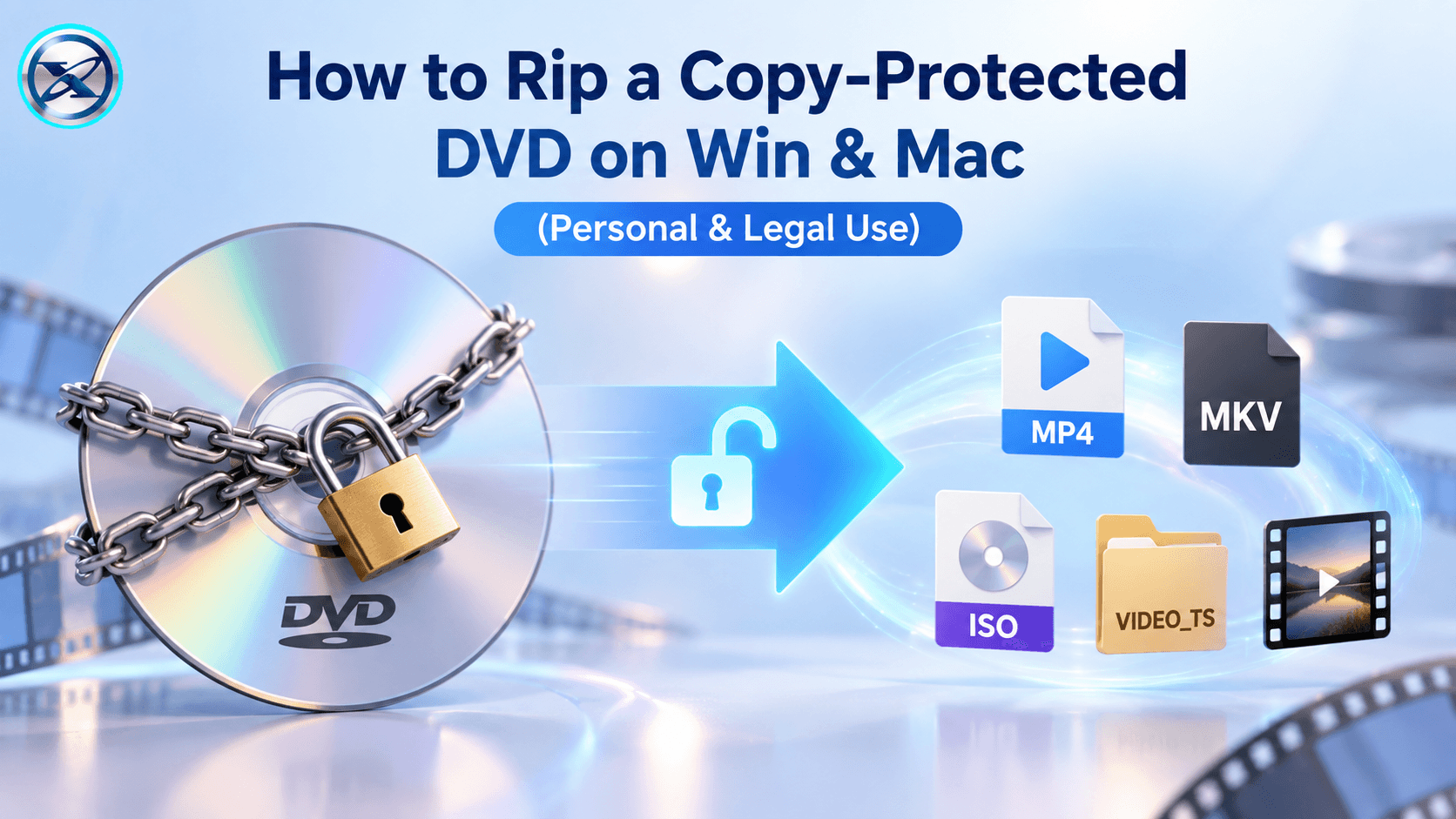
A copy-protected DVD can fail before the actual video conversion begins. The software may not recognize the disc correctly, may display several similar titles, or may finish with the wrong movie, audio track, or subtitles. I check those details before committing an entire collection to the same settings.
This article compares four current ways to rip a copy-protected DVD, along with two legacy options for older discs. My focus is on choosing the right ripping method, selecting the correct title and tracks, creating a usable MP4 or MKV when appropriate, and checking the finished file before processing more discs.
Best Ways to Rip a Copy-Protected DVD: Quick Comparison
The best way to rip a copy-protected DVD depends on the finished file you want and how much control you need over titles, audio, subtitles, and compression. Dedicated DVD ripper software tools can combine supported disc reading and conversion in one program, while MakeMKV creates an MKV without a normal video re-encode. HandBrake belongs at the encoding stage and should be used only when the DVD source is already readable.
| Method | Supported DVD copy protection | Primary output | Desktop OS | Cost or status | Good match for |
|---|---|---|---|---|---|
| DVDneXtCOPY DVD Ripper | CSS, Region Code (RC), RCE, UOPs, Sony ARccOS | MP4, MKV, audio, SRT | Windows | 30-day trial; active | Direct ripping with title, audio, subtitle, and output control |
| MakeMKV | CSS and other protected DVD structures | MKV remux | Windows, macOS, Linux | Current desktop project | Keeping selected source streams in an MKV |
| HandBrake | None built in; the DVD source must already be readable | MP4, MKV, WebM transcode | Windows, macOS, Linux | Free and open source | Encoding a DVD source that is already readable |
| DVDFab DVD Ripper | CSS, APS, RC/RCE, UOPs, Sony ARccOS, RipGuard, 99-title/new protections on supported discs | MP4, MKV, and other video/audio formats | Windows, macOS | 30-day trial; paid | Direct protected-DVD-to-digital conversion |
| DVDSmith Movie Backup | CSS, RCE, APS, UOPs (vendor-documented; legacy) | DVD folder / VIDEO_TS | Windows | Legacy freeware | Older readable DVDs and DVD-folder backups |
| DVD Shrink | Region code, UOPs, older CSS/Macrovision handling; no modern ARccOS/RipGuard support | ISO or DVD folder | Windows | Legacy freeware | Older readable DVDs and compressed DVD-style backups |
I would not choose between these methods by format count alone. First decide whether you need a normal playback file, a larger MKV that keeps selected source streams, or an older DVD-folder-style backup. Then check one finished title before processing another disc.
Rip a Copy-Protected DVD with DVDneXtCOPY DVD Ripper
DVDneXtCOPY DVD Ripper is designed to rip a copy-protected DVD to MP4, MKV, or other digital formats on Windows while keeping title, audio, subtitle, and output controls in one interface. It supports DVD discs, ISO files, and DVD folders, with MP4, MKV, AVI, MOV, MP3, FLAC, WAV, SRT, and other output profiles.
DVDneXtCOPY is most useful here when you want to go directly from a supported commercial DVD to a digital file without first creating a large intermediate MKV. MP4 is convenient for broad playback, while MKV gives more flexibility when several audio or subtitle tracks need to remain selectable.
Step 1: Load the DVD and Check the Detected Title
Open the Ripper module, insert the DVD, and use the Add button to load it. Wait for the title list before changing output settings. An ISO image or DVD folder can also be loaded.

Review the disc information and selected title. If the expected movie or episode is absent, stop and use the troubleshooting checks below instead of starting a full job.

Step 2: Choose MP4, MKV, Audio, and Subtitles
Select the output profile, audio track, and subtitle track. Use SRT extraction when you want a separate subtitle file, or retain the selected subtitle with the video output.

Step 3: Edit and Preview the Video Before Ripping
Open Advanced Settings or Video Edit only when the output needs a specific change, then choose the save folder. Preview the selected title before continuing, especially when the disc shows several similar titles or multiple subtitle tracks.

Step 4: Start the Rip the Copy-protected DVD
Click Start and watch the progress screen. For a collection, process one representative DVD first rather than immediately filling the batch queue.

Step 5: Reopen and Check the Finished File
A completed progress bar only confirms that the task ended. Open the finished file and check the beginning, a middle chapter, the ending, audio-track switching, subtitles, and chapter navigation when those items matter. If the runtime or title is wrong, return to title selection before changing the video codec.
Rip a Copy-Protected DVD with MakeMKV
MakeMKV is a useful option when you want to rip a supported copy-protected DVD to MKV without a normal video re-encode. It saves selected video, audio, subtitle, chapter, and metadata streams in an MKV container instead of compressing them into a smaller playback file.
This makes MakeMKV useful when I want an inspectable MKV before deciding whether to compress anything. A disc with several audio languages, commentary tracks, subtitles, or confusing title entries benefits from that extra checkpoint.
How to Rip a Copy-Protected DVD with MakeMKV:
- Insert the DVD and open it in MakeMKV.
- Wait for the title tree to appear, then compare likely movie or episode titles by duration.
- Expand the selected title and keep the audio and subtitle tracks you need.
- Choose the destination folder and create the MKV.
- Reopen the MKV and check the beginning, middle, ending, audio, subtitles, and chapters.

The trade-off is storage. MakeMKV does not normally shrink the video in the way a HandBrake encode does, so the MKV can remain relatively large. Its output is also MKV rather than MP4.
If you later need a smaller playback file, the verified MKV can be opened in HandBrake instead of reading the physical DVD again.
Rip a Copy-Protected DVD with HandBrake
If you want to rip a copy-protected DVD with HandBrake, the DVD source must already be readable first. HandBrake itself does not defeat or circumvent copy protection; its role here is to encode a readable DVD source or disc backup into MP4, MKV, or WebM.
Once the source opens correctly, HandBrake gives you control over the output preset, video codec, cropping, deinterlacing, audio, subtitles, chapters, and file size. Because HandBrake converts the video rather than passing it through unchanged, use it when compression or playback compatibility matters more than retaining the original selected video stream.
If a protected DVD does not open in HandBrake, solve the disc-reading problem before changing encoding presets. For detailed protection handling and compatibility limits, see the DVD copy protection removal guide.
How to Rip a Copy-Protected DVD with HandBrake:
- Open HandBrake and select the readable DVD source. Let the title scan finish before choosing a preset.
- Select the title by duration and chapter count. TV discs need extra care because one episode may be split across several entries.
- Choose MP4, MKV, or WebM, set the destination, and select a preset that matches the target player. Review the audio and subtitle tracks before starting.
- Start the encode. Check the finished file's beginning, middle, end, audio track, subtitle placement, and chapter changes.

Rip a Copy-Protected DVD with DVDFab DVD Ripper
DVDFab DVD Ripper can rip the latest copy-protected DVDs to MP4, MKV, and other digital video or audio formats on Windows and macOS. It supports DVD discs, ISO images, and DVD folders as input while keeping title, chapter, audio, subtitle, and output-profile controls in one application.
DVDFab combines supported commercial-disc reading and conversion in one application, while the title, chapter, audio, subtitle, codec, bitrate, and resolution settings can be adjusted around the target player or file size.
How to Rip a Copy-Protected DVD with DVDFab DVD Ripper:
- Load the DVD. Open DVDFab, choose the Ripper module, and insert the disc. ISO files and DVD folders can also be added.
- Select the correct title and output. Check the detected movie title, then choose MP4, MKV, or another digital profile.
- Review audio and subtitles. Keep the language, commentary, or subtitle tracks you need. Use Advanced Settings only when the output requires a codec, bitrate, resolution, or frame-rate change.
- Choose the destination and start. Save the file to a folder with enough free space and begin the rip.
- Verify the output. Play the beginning, middle, and ending, then test audio and subtitle switching before moving to the next disc.
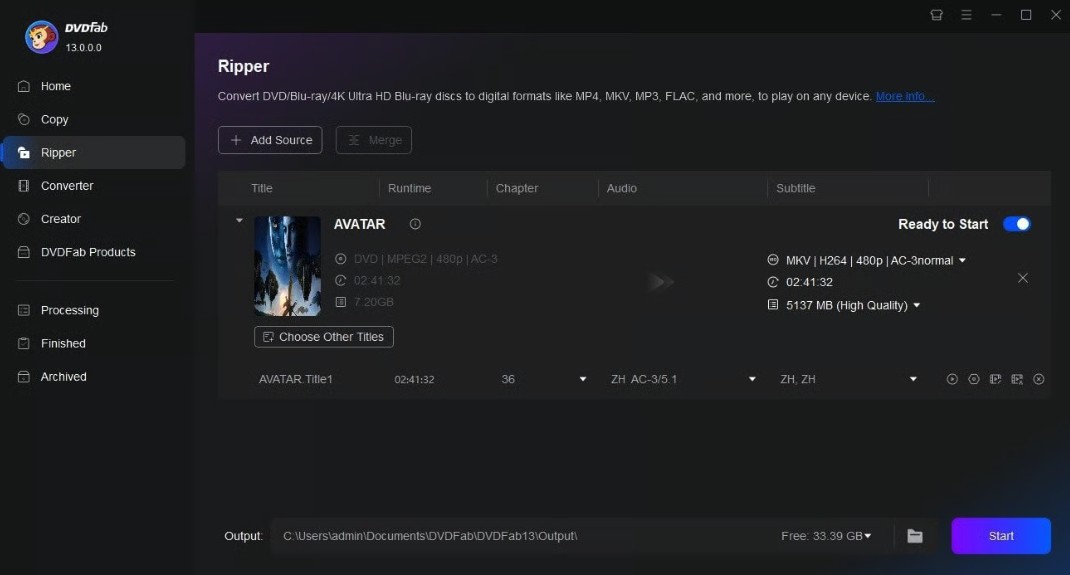
DVDFab offers a 30-day evaluation period. After that period, continued access to the full DVD Ripper feature set requires a license, while limited free features remain available in the same installer.
Legacy Options to Rip Older Copy-Protected DVDs
DVDSmith Movie Backup and DVD Shrink still appear in searches for protected DVD backup software, but I separate them from actively maintained ripping tools. Both can still be useful in narrow older-disc cases, yet their age changes how much confidence I would place in them for newer or already problematic DVDs.
DVDSmith Movie Backup
DVDSmith remains a legacy option for backing up an older copy-protected DVD to a DVD folder when the disc still reads correctly. Its current product page lists version 1.08, Windows support up to Windows 10, and Full Disc or Main Movie output rather than modern MP4 or MKV files.
Use DVDSmith when an older disc reads cleanly and a VIDEO_TS-style folder is the intended result. If the scan stalls or the main title is wrong, move to an actively maintained method rather than repeating the same backup.
How to Rip Older Copy-Protected DVDs with DVDSmith Movie Backup:
- Open DVDSmith and insert the DVD.
- Select Full Disc for the complete structure or Main Movie for the primary title.
- Choose the source drive and an output directory with enough free space.
- Start the backup and watch for read errors.
- Open the output folder and test the main title, audio, subtitles, chapters, and ending.

DVD Shrink
DVD Shrink can still be used in narrow cases to back up an older copy-protected DVD that the program can read correctly. Its official site lists 3.2.0.15 as the stable version and states that development was discontinued in May 2005.
DVD Shrink was designed around DVD backup and compression rather than modern MP4 or MKV ripping. It can still be relevant when an older DVD opens correctly and the desired result is a reduced DVD-style backup, but it should not be treated as a current peer to actively maintained protected-DVD rippers.
How to Rip Older Copy-Protected DVDs with DVD Shrink:
- Install the final stable version and open the application on a compatible Windows system.
- Select Open Disc and let the analysis finish. Stop if the title list, duration, or chapter layout does not match the disc.
- Review Compression Settings and extras. More compression means a larger change from the source.
- Select Backup, choose the destination, and inspect the completed DVD folder before treating it as finished.

Troubleshoot a Copy-Protected DVD That Will Not Rip Correctly
A protected DVD problem is cheaper to diagnose before a full encode. If the software shows an unexpected runtime, several similar titles, missing episodes, repeated read errors, or the wrong language track, stop before adding more discs to the queue.
The Wrong or Partial Title Was Ripped
- Compare the detected title duration with the movie or episode information on the disc packaging.
- Check the chapter count rather than choosing a title solely because it is the longest.
- Preview the opening, a middle scene, and the ending.
- For a television disc, check each episode entry individually.
- Confirm the audio language and subtitle track before starting the full rip.
- If the application supports a short preview or sample encode, use it before processing the full title.
I stop a batch at the first mismatched runtime, wrong episode, or missing subtitle track. Correcting one title takes minutes; discovering the same selection error after several discs takes much longer.
If one program shows many misleading title entries but another program identifies a normal movie structure, that points more toward a software or title-mapping compatibility issue than a video codec problem. Changing H.264 to H.265 will not correct the wrong title.
The Rip Stops or Shows Repeated Read Errors
- Clean the DVD with straight strokes from the center toward the edge.
- Retry the same title once and note where the error occurs.
- Test a known-good DVD in the same optical drive.
- If possible, test the problem disc in a second compatible drive.
- A failure that repeatedly occurs at the same physical point is more consistent with a disc or read problem.
- If the disc reads normally in one application but produces unusual title structures in another, compare the detected titles before changing encoding settings.
Do not switch software repeatedly without checking the result each time. A different application is useful only if it gives you new information: a clearer title list, a readable source, or a successful output that can be verified.
Frequently Asked Questions
Q
Can I copy a copy-protected DVD instead of ripping it to MP4 or MKV?
Yes, but copying and ripping produce different results. Ripping usually creates a normal digital file such as MP4 or MKV, while a DVD copy or backup can save the disc as another DVD, an ISO image, or a DVD folder. Choose the result that matches how you plan to play or store the content.
A
Q
Should I rip a copy-protected DVD to MKV or MP4?
Choose MP4 when broad playback compatibility and a straightforward movie file matter most. Choose MKV when you want more flexibility for multiple audio tracks, subtitle tracks, and chapters. An MKV remux can also avoid a normal video re-encode, although it usually requires more storage than a compressed playback copy.
A
Q
Why are subtitles missing after I rip a protected DVD?
The selected DVD may contain several subtitle tracks, including full-language or forced subtitles. Confirm the intended track before ripping, then reopen the finished file and switch through the available subtitles. If the track is absent, return to the source settings and include it before processing the rest of the collection.
A
Conclusion
The most reliable way to process a copy-protected DVD collection is to prove the settings with one disc first. Check that the software identifies the correct title, choose the output around how the file will be used, keep the required audio and subtitles, and reopen the finished file before repeating the same settings.
A finished progress bar is not the final check. The rip is useful only when the movie opens again with the title, audio, subtitles, chapters, and ending you expected.
![Top 8 Best MP4 to DVD Converters on Windows & Mac [2026 Tested]](https://images.dvdnextcopy.com/2026/09/17/I2v69nzxIF6Xn7iue3ZRMGJ5-Ls0SF_z/feature_cover.jpg) Luna MillerSep 21, 2026
Luna MillerSep 21, 2026Top 8 Best MP4 to DVD Converters on Windows & Mac [2026 Tested]
 Luna MillerSep 21, 2026
DVD Region Codes Explained: Region 1 and Playback Options
![How to Remove DVD Copy Protection: Software and Free Methods [2026]](https://c.dvdnextcopy.com/media/How_to_Remove_DVD_Copy_Protection_d24c38a790.png) Steven VanceSep 21, 2026
Steven VanceSep 21, 2026How to Remove DVD Copy Protection: Software and Free Methods [2026]
 Steven VanceSep 18, 2026
Top MP4 to ISO Converter in 2026: DVD Authoring vs Online Tools
 Steven VanceSep 18, 2026
How to Digitize DVD Collection: 5 Ways in 2026
 Steven VanceSep 17, 2026
3 Best Free DVD Maker Tools for Playable DVDs in 2026