
Can PS4 Play DVDs? How to Play DVD & Blu-ray on PS4

Summary: PS4 can play standard DVDs and standard Blu-ray Discs through its built-in optical drive. Disc playback must be activated over the Internet once, after which normal playback can usually work offline; unsupported regions, unfinalized recordable DVDs, damaged discs, and Ultra HD Blu-ray are separate limitations. If you prefer USB playback, the video file must also match PS4 Media Player's supported container, video, and audio settings.
Table of Contents
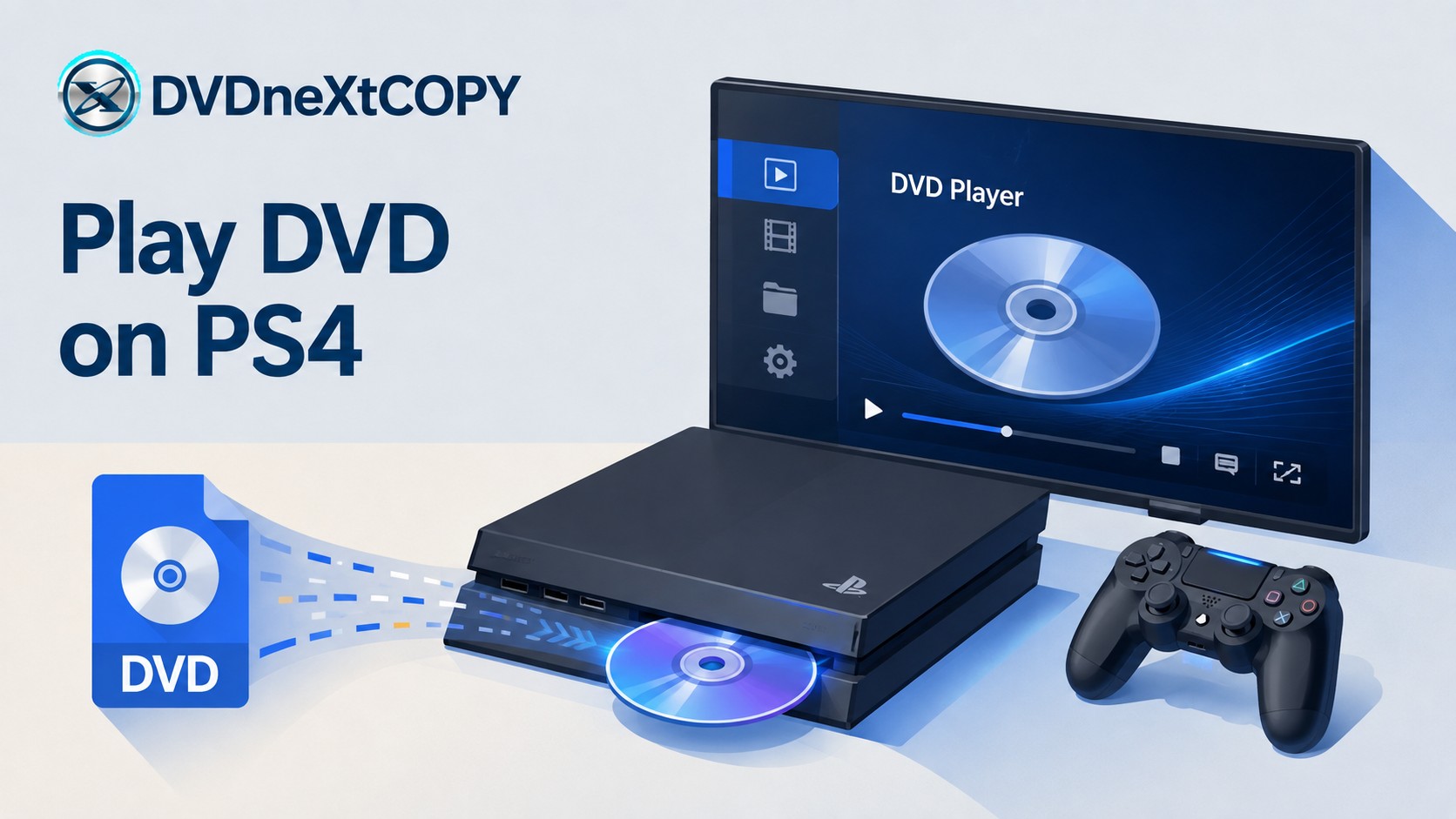
Yes. PS4 can play standard DVDs and standard Blu-ray Discs through its built-in optical drive. The first time you use DVD or Blu-ray movie playback, the console needs an Internet connection to enable the disc playback feature. After that one-time activation, normal disc playback can usually work without a continuous Internet connection.
There are limits. PS4 does not play every recordable disc, audio CDs, or Ultra HD Blu-ray Discs. PS4 Pro can handle some 4K digital video, but its optical drive still does not support UHD Blu-ray movies. If a supported DVD does not play, check the disc type, finalization, region, and physical condition before converting the movie to another format.
Can PS4 Play DVDs and Blu-ray Discs?
PS4 supports both DVD-Video and standard Blu-ray movie playback. Insert a supported disc into the console and select it from the PS4 content area to start playback.
The first movie disc needs one additional step: the PS4 must connect to the Internet once to enable Blu-ray/DVD playback. Once that feature has been activated, the console normally does not need to remain online just to play a DVD or Blu-ray.
Copyright-protected Blu-ray playback has an additional condition. The AACS encryption key may occasionally need to be renewed, which happens automatically when the PS4 is connected to the Internet.
PS4 is therefore a DVD and standard Blu-ray player, but it is not a universal optical-disc player. For more detail on the 4K disc limitation, see our guide to PS4 and 4K UHD Blu-ray playback.
What DVD and Blu-ray Disc Formats Does PS4 Support?
Check the actual disc type when one movie works and another does not. Commercial DVD-ROM and BD-ROM discs are straightforward, while recordable media has additional authoring and finalization conditions.
| Disc Type | PS4 Playback | What to Know |
|---|---|---|
| DVD-ROM | Yes | Standard DVD movie playback |
| DVD-R / DVD-RW | Conditional | Listed for video/VR modes; finalization, authoring, recording quality, and the individual disc can affect playback |
| DVD+R / DVD+RW | Conditional | Listed among supported media, but do not assume every recorded or burned disc will play |
| BD-ROM | Yes | Standard Blu-ray movie playback |
| BD-R / BD-RE | Supported variants | BDAV and BDMV are listed as supported |
| Ultra HD Blu-ray | No | Neither standard PS4 nor PS4 Pro reads UHD Blu-ray movies |
| Audio CD | No | Audio CD playback is not supported |
| BD-RE version 1.0 | No | Unsupported disc format |
| BD-R / BD-RE XL | No | Unsupported disc format |
| Unfinalized DVD | No | Finalize a recorded DVD before testing it on the PS4 |
Note: AVCHD is supported on compatible media, and CPRM is supported for DVD-R/RW in VR mode. Recordable DVD playback is less predictable than commercial DVD-ROM playback: Sony lists DVD-R/RW and DVD+R/RW formats, while its troubleshooting guidance also warns that burned discs may fail. Treat a recorded disc as conditional rather than guaranteed.
Do not use 8 cm discs, non-circular discs, or cracked, deformed, or repaired media in the console. A DualDisc may also have an audio-only side that the PS4 cannot play.
How to Play a DVD or Blu-ray on PS4
Direct playback is the first method to try. If the PS4 already supports the disc, converting the movie to a separate file only adds extra work.
Step 1: Activate Disc Playback the First Time
Connect the PS4 to the Internet if Blu-ray/DVD movie playback has never been enabled on that console. Insert a supported DVD or Blu-ray Disc and allow the console to enable its disc playback feature.

This Internet activation is normally required only once. A protected Blu-ray may still occasionally need an Internet connection later if its AACS key needs renewal.
Step 2: Insert the DVD or Blu-ray
Insert the disc into the PS4 optical drive. If the disc is supported and readable, its content should appear in the console's content area.
Step 3: Select the Disc from the Content Area
Select the disc from the PS4 content area and start playback. Use the disc menu or playback controls to choose the main title, chapters, audio language, and subtitles when those options are available.

If the disc does not appear or playback fails, check the format and disc condition before changing system settings.
Why Won't My DVD Play on PS4?
Start with the observable problem. A DVD that is not recognized, a region error, and several discs failing at once point to different checks.
Check the Disc Format and Finalization
Confirm that the disc matches one of the formats listed above. PS4 supports commercial DVD-ROM and specific recordable DVD formats, but unfinalized DVDs are not supported.
If you created the DVD yourself, confirm that the authoring software finalized it correctly. Even with supported recordable media, recording quality, authoring method, the recording device, and the physical disc can affect whether the PS4 reads it.
Check the DVD or Blu-ray Region
A region error is different from an unreadable or dirty disc. If the PS4 reports that the DVD or Blu-ray region is unsupported, the console's general region setting cannot simply be changed to make that disc play.
Do not follow PC instructions involving Windows Device Manager or a computer DVD drive's region setting. Those controls apply to a PC optical drive, not the PS4.
Use a DVD or Blu-ray whose region is compatible with the console and the disc release.
Clean the Disc and Test Another Disc
Remove the disc and check it for fingerprints, dirt, scratches, or other physical damage. Wipe it from the center toward the edge with a clean, soft cloth, then insert it again.

Next, test another known-good game disc, Blu-ray, or DVD. If only one DVD fails, the disc is the more likely cause. If several supported discs fail, continue with console troubleshooting.
Rebuild the PS4 Database if Multiple Discs Still Fail
If several known-good discs remain unreadable, start the PS4 in Safe Mode and select Option 5: Rebuild Database. This is one of Sony's recommended checks for persistent disc-reading problems.
If rebuilding the database does not resolve the problem, Sony lists Initialize PS4 (Reinstall System Software) as a later escalation. That option deletes information stored on the console, so back up important data before considering it.
A PS4 that repeatedly ejects discs is a different symptom. Power the console down and follow Sony's disc-ejection troubleshooting rather than treating the problem as a DVD-format error.
How to Play a DVD as a Digital File on PS4
If you want the movie as a local file rather than a physical disc, PS4 Media Player can play supported video from USB storage. This is separate from DVD playback: the PS4 decodes the video file instead of reading the DVD-Video structure.
For media you own or are authorized to convert, where permitted by applicable law, this can be useful when you want USB playback or when keeping a local video file is useful for your library. It is not necessary when the original DVD already plays correctly.
PS4 USB Video Formats and Settings
A file extension alone does not confirm compatibility. The container, video codec, codec profile, and audio format all need to match PS4 Media Player requirements.
| Container | Supported Video Examples | Supported Audio Examples |
|---|---|---|
| MKV | H.264/MPEG-4 AVC High Profile Level 4.2 | MP3, AAC LC, AC-3 |
| AVI | MPEG4 ASP or H.264/MPEG-4 AVC High Profile Level 4.2 | MP3, AAC LC, AC-3 |
| MP4 | H.264/MPEG-4 AVC High Profile Level 4.2; Level 5.2 on PS4 Pro | AAC LC, AC-3, LPCM |
| MPEG-2 PS | MPEG-2 Visual | MP2, MP3, AAC LC, AC-3, LPCM |
| MPEG-2 TS | H.264/MPEG-4 AVC High Profile Level 4.2 or MPEG-2 Visual | MP2, AAC LC, AC-3 |
| AVCHD | .m2ts / .mts | Depends on the supported AVCHD stream |
| XAVC S | .mp4 | Depends on the supported XAVC S stream |
The important distinction is that an MP4 file is not automatically PS4-compatible. The video and audio streams inside the container still need to meet the console's decoding requirements.
Convert a DVD with DVDneXtCOPY DVD Ripper

DVDneXtCOPY DVD Ripper is useful when the DVD you want to watch on PS4 is a commercial disc that cannot simply be copied as a normal video file. It can load DVDs using common protection systems such as CSS, region codes, UOPs, RCE, and Sony ARccOS, then let you select the movie title, chapters, audio tracks, and subtitles before converting the content to a digital format such as MP4.
For PS4 playback, the important part is the finished encoding rather than the file extension alone. DVDneXtCOPY lets you adjust video and audio settings so the output can be prepared around PS4 Media Player requirements, such as H.264 video in a supported profile with compatible audio. Use discs you own or are authorized to convert where applicable law permits.
How to Convert DVD to PS4-Supported Formats with DVDneXtCOPY:
Step 1: Open DVDneXtCOPY DVD Ripper and load the DVD, ISO image, or DVD folder. Select the movie or episode plus the audio and subtitle tracks you want to keep.
Step 2: Choose a PS4-supported format such as MP4 and review its video and audio settings.

Step 3: Save a short test file first. Confirm picture shape, audio synchronization, subtitles, and playback on the PS4 before processing the entire movie.
Move and Play the Video with a USB Drive
Format the USB drive in a filesystem PS4 recognizes, such as FAT32 or exFAT. On a computer, create a folder in the root directory of the USB drive and place the video file inside that folder.
- Select Media Player from the PS4 content area. Download it from PlayStation Store first if it is not installed.
- Connect the USB drive to the PS4 and select the USB device in Media Player.
- Open the video file and check the picture, audio, subtitles, and runtime.
If the file does not appear or fails to play, check the actual codec and audio settings before converting the DVD again.
FAQs About Playing DVDs on PS4
No. Physical DVDs and Blu-ray Discs use the PS4's built-in disc playback feature. Media Player is for supported digital video files from USB storage or a media server.
PS4 Media Player's official USB support is based on listed video containers such as MP4, MKV, AVI, MPEG-2, AVCHD, and XAVC S. DVD ISO images and VIDEO_TS folders are not listed as native USB playback formats, so use a supported video file when USB playback is required.
Yes, Blu-ray 3D playback has been supported on PS4. With compatible PS VR hardware, certain PS4 setups can also display Blu-ray 3D content through the headset. Blu-ray 3D support does not mean the console can read Ultra HD Blu-ray discs.
Finalization is only one part of recordable-disc compatibility. Recording quality, authoring mode, the recorder used to create the disc, scratches or dust, and the individual media can also affect whether the PS4 reads it. Test another supported disc before assuming the console drive has failed.
Conclusion
PS4 can play standard DVDs and standard Blu-ray Discs, so direct disc playback should be the first method to try. Activate disc playback over the Internet once, insert a supported disc, and select it from the PS4 content area. PS4 Pro adds some 4K digital-video capabilities but still does not read Ultra HD Blu-ray movies.
If a DVD does not play, check the disc format, finalization, region, and physical condition before changing system settings. When several known-good discs fail, rebuild the PS4 database in Safe Mode before considering more destructive recovery options.
DVD-to-USB conversion is an optional alternative rather than the default answer. When a local file is useful, choose video and audio settings that match PS4 Media Player, keep the tracks you need, and verify the finished file on the console before converting the rest of the disc.
![Top 8 Best MP4 to DVD Converters on Windows & Mac [2026 Tested]](https://images.dvdnextcopy.com/2026/09/17/I2v69nzxIF6Xn7iue3ZRMGJ5-Ls0SF_z/feature_cover.jpg) Luna MillerSep 21, 2026
Luna MillerSep 21, 2026Top 8 Best MP4 to DVD Converters on Windows & Mac [2026 Tested]
 Luna MillerSep 21, 2026
DVD Region Codes Explained: Region 1 and Playback Options
![How to Remove DVD Copy Protection: Software and Free Methods [2026]](https://c.dvdnextcopy.com/media/How_to_Remove_DVD_Copy_Protection_d24c38a790.png) Steven VanceSep 21, 2026
Steven VanceSep 21, 2026How to Remove DVD Copy Protection: Software and Free Methods [2026]
 Luna MillerSep 21, 2026
How to Rip a Copy-Protected DVD on Win & Mac: 6 Ways
 Steven VanceSep 18, 2026
Top MP4 to ISO Converter in 2026: DVD Authoring vs Online Tools
 Steven VanceSep 18, 2026
How to Digitize DVD Collection: 5 Ways in 2026