DVDneXtCOPY
How to Rip 4K Blu-ray on Windows and Mac in 2026

Summary: Ripping a 4K UHD Blu-ray starts with a compatible UHD drive. Use MakeMKV to remux the source streams to MKV, add HandBrake when you want a smaller MP4/MKV, or use DVDFab UHD Ripper for one-program passthrough or transcoding with HDR profiles.
Table of Contents
A 4K UHD Blu-ray can carry more than a 3840×2160 movie. HDR10 or Dolby Vision video, lossless surround audio, multiple subtitle tracks, and chapter information can all affect what you want to keep in the digital file. Unlike a standard Blu-ray project, UHD ripping also starts with the optical drive: the drive and firmware must be able to read the 4K disc before any ripping software can process it.
I first check the UHD drive, then decide whether I want to keep the source video stream in a large MKV or re-encode it into a smaller MP4 or MKV. The methods below cover a direct MakeMKV remux, a MakeMKV + HandBrake compression workflow, and DVDFab UHD Ripper when disc access and conversion need to happen in one application. I also check the finished file for 4K resolution, HDR, audio, subtitles, and chapters before adding it to a media library.
What You Need Before Ripping a 4K UHD Blu-ray
The hardware requirement is stricter than when you rip a standard Blu-ray. Check the drive, firmware, storage, and intended output before troubleshooting the ripping software itself.
| Requirement | What to Check |
|---|---|
| UHD-compatible optical drive | Confirm that the drive can read 4K Ultra HD Blu-ray media. |
| Compatible drive and firmware | MakeMKV UHD use generally requires a compatible BDXL/LibreDrive setup; commercial UHD tools maintain their own drive and firmware lists. |
| Enough free storage | Leave substantial free space because a remux can remain tens of gigabytes and some UHD software also needs temporary working space. |
| Current software | Use current builds so UHD drive, disc-access, and encoding support are not limited by an outdated version. |
| Output goal | Decide whether you want the source video stream in MKV or a smaller encoded MP4/MKV. |
MakeMKV 1.18.4 is the current release and the 1.18.x series includes recent LibreDrive and AACS runtime updates. DVDFab also publishes a dedicated UHD drive and compatible-firmware list instead of treating every Blu-ray drive as UHD-capable. Avoid changing drive firmware unless the exact model and target firmware are verified for the tool you plan to use.
Remux or Transcode: How Should You Save a 4K Blu-ray?
A remux keeps the source video stream, while a transcode creates a new encoded video. That choice affects file size, processing, HDR handling, and playback compatibility.
| Item | Remux / Passthrough | Transcode |
|---|---|---|
| Video processing | Keep the source video stream | Re-encode the video |
| Common container | MKV | MKV, MP4, or WebM depending on the tool |
| File size | Large | Can be reduced |
| 4K resolution | Retained when the source stream is 4K | Can remain 4K or be downscaled |
| HDR | Source video stream remains unchanged; playback support still matters | Depends on encoder, profile, container, and settings |
| Audio | Selected original tracks can be retained | Supported tracks may be passed through or re-encoded |
| Best suited to | UHD archive, Plex, NAS, or home theater | Smaller files or broader device compatibility |
Keeping the output at 3840×2160 does not prove that HDR10, Dolby Vision, TrueHD/Atmos, or DTS:X survived unchanged. Resolution, HDR metadata, and audio tracks need to be checked separately. HandBrake can preserve HDR10 metadata with supported 10-bit encoders, while Dolby Vision support depends on the encoder and profile; UHD Blu-ray profile 7.6 is processed from its base layer and converted to profile 8.1 rather than preserved as the original disc profile.
| Which 4K Blu-ray Ripping Method Fits Your Output? | |||||
|---|---|---|---|---|---|
| Method | UHD Disc Access | Video Processing | Output | Video Re-encoding | Best For |
| MakeMKV | Supported UHD disc through compatible drive setup | Remux | MKV | No | Keeping source video streams |
| MakeMKV + HandBrake | MakeMKV handles the UHD source first | Transcode after remux | MP4, MKV, WebM | Yes | Reducing file size or changing codec |
| DVDFab UHD Ripper | Handles supported commercial UHD discs directly | Passthrough or transcode | MKV, MP4, M2TS | Optional | One-application UHD ripping and conversion |
How to Rip 4K Blu-ray to MKV with MakeMKV
MakeMKV 1.18.4 can open supported UHD Blu-ray discs through a compatible drive setup and remux selected titles into MKV without re-encoding the video. You can keep the movie together with the audio tracks, subtitles, and chapters you select, so this method is aimed at retaining the source streams rather than reducing the video size.
MakeMKV outputs MKV for this task and does not include video-compression controls, so a UHD movie can remain very large. UHD access also depends on a compatible drive/LibreDrive setup. As of August 2026, the permanent-license purchase page is still inaccessible, while the MakeMKV beta key system remains in use, so new users may need a current beta key instead of purchasing a permanent key.
- Keep source video without re-encoding.
- Retain selected audio and subtitle tracks.
- Run on Windows, macOS, and Linux.
- Avoid a separate video-encoding stage.
- Output MKV only.
- Require a compatible UHD drive setup.
- Produce large movie files.
- Rely on beta keys while permanent-key sales are unavailable.
Open the UHD Disc in MakeMKV
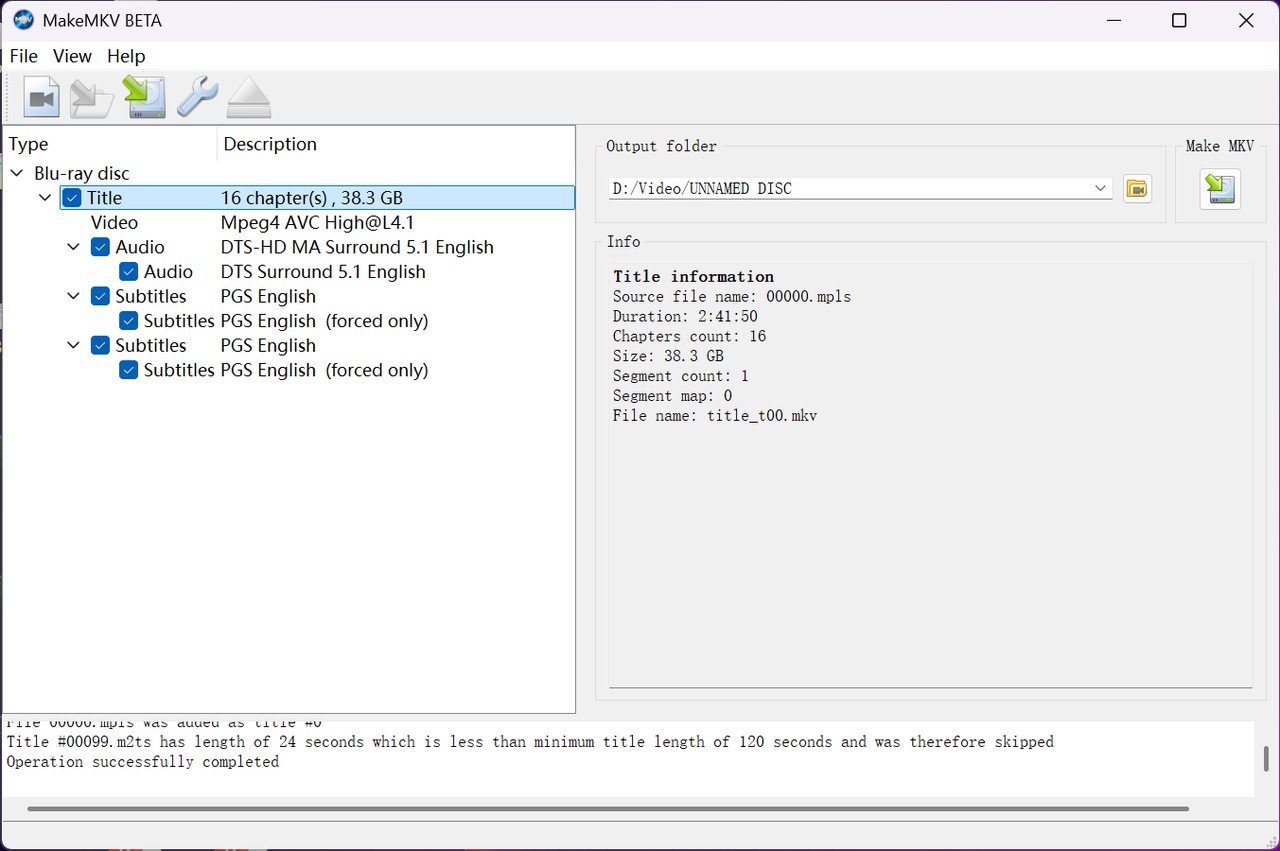
Insert the 4K UHD Blu-ray into the compatible optical drive and launch MakeMKV. Select the optical drive shown in the main window, then click the large Open Disc button. MakeMKV scans the disc and displays the detected titles.
Select the Movie, Audio, and Subtitles
Expand the title you want to save. Check or clear the video, audio, and subtitle tracks in the title tree.
Set the MKV Folder and Start the Remux
Choose the destination under Output folder, then click Make MKV. MakeMKV reads the selected UHD title and saves it as an MKV without re-encoding the video stream.
How to Rip and Compress 4K Blu-ray with MakeMKV and HandBrake
MakeMKV and HandBrake 1.11.2 split the task into two stages. MakeMKV first opens the supported UHD disc and creates a large MKV remux. HandBrake then opens that MKV and re-encodes the video to MP4, MKV, or WebM using H.265/HEVC, H.264, AV1, or another supported encoder.
This method adds control over file size, codec, resolution, audio, subtitles, and HDR encoding, but the HandBrake stage always re-encodes video. HandBrake does not bypass disc copy protection itself, so MakeMKV must handle the readable UHD source first. Supported source audio formats such as TrueHD and DTS-HD can be passed through when the selected output container permits them.
- Reduce large UHD remux files.
- Export MP4, MKV, or WebM.
- Control codec, quality, and resolution.
- Use software or hardware video encoders.
- Require two separate applications.
- Re-encode video in HandBrake.
- Require MakeMKV-compatible UHD access first.
- Depend on encode settings for HDR and Dolby Vision handling.
Create the Source UHD MKV in MakeMKV
Use MakeMKV to open the UHD disc, select the required movie, audio, and subtitle tracks, choose the output folder, and create the MKV.
Open the UHD MKV in HandBrake
Launch HandBrake and click Open Source. Select the MKV created by MakeMKV, then choose the intended output container such as MP4 or MKV.

Set the 4K Video, HDR, and Audio Options
Open the Video tab and select the required encoder. Keep the resolution at 3840×2160 when a 4K output is required. Use a supported 10-bit encoder for HDR10. For Dolby Vision, select a supported encoder and account for the source profile; UHD Blu-ray profile 7.6 is processed from its base layer and converted to profile 8.1.
Open the Audio tab and select the required tracks. Choose a compatible passthrough option when you want to retain a supported source audio track such as TrueHD or DTS-HD.
Save the Encoded File
Set the output filename and destination under Save As, then click Start Encode. HandBrake creates the new file with the codec, quality, HDR, audio, subtitle, and resolution settings you selected.
How to Rip Portected 4K Blu-ray to MKV or MP4 with DVDFab UHD Ripper
DVDFab UHD Ripper can read supported commercial 4K UHD Blu-ray discs, ISO files, and folders and convert them to MKV, MP4, or M2TS. It provides passthrough profiles when the source video should remain unchanged and encoded profiles when you want to reduce the file size or change codec, resolution, or playback compatibility.
DVDFab also provides explicit HDR10, Dolby Vision, SDR, 10-bit, audio, subtitle, and title controls, so disc access and output conversion can stay in one application instead of using MakeMKV and HandBrake separately.
- Handle supported UHD discs and conversion in one program.
- Choose passthrough or encoded output.
- Export MKV, MP4, or M2TS.
- Select HDR10 and Dolby Vision profiles.
- It is a paid software and its free trial allows for 3 complete 4K Blu-ray ripping.
Load the UHD Source in Ripper
Launch DVDFab and open Ripper. Insert the 4K UHD Blu-ray into the compatible drive. To use an existing UHD ISO or folder, click the + button or drag the source into the main interface.

Choose the UHD Output Profile
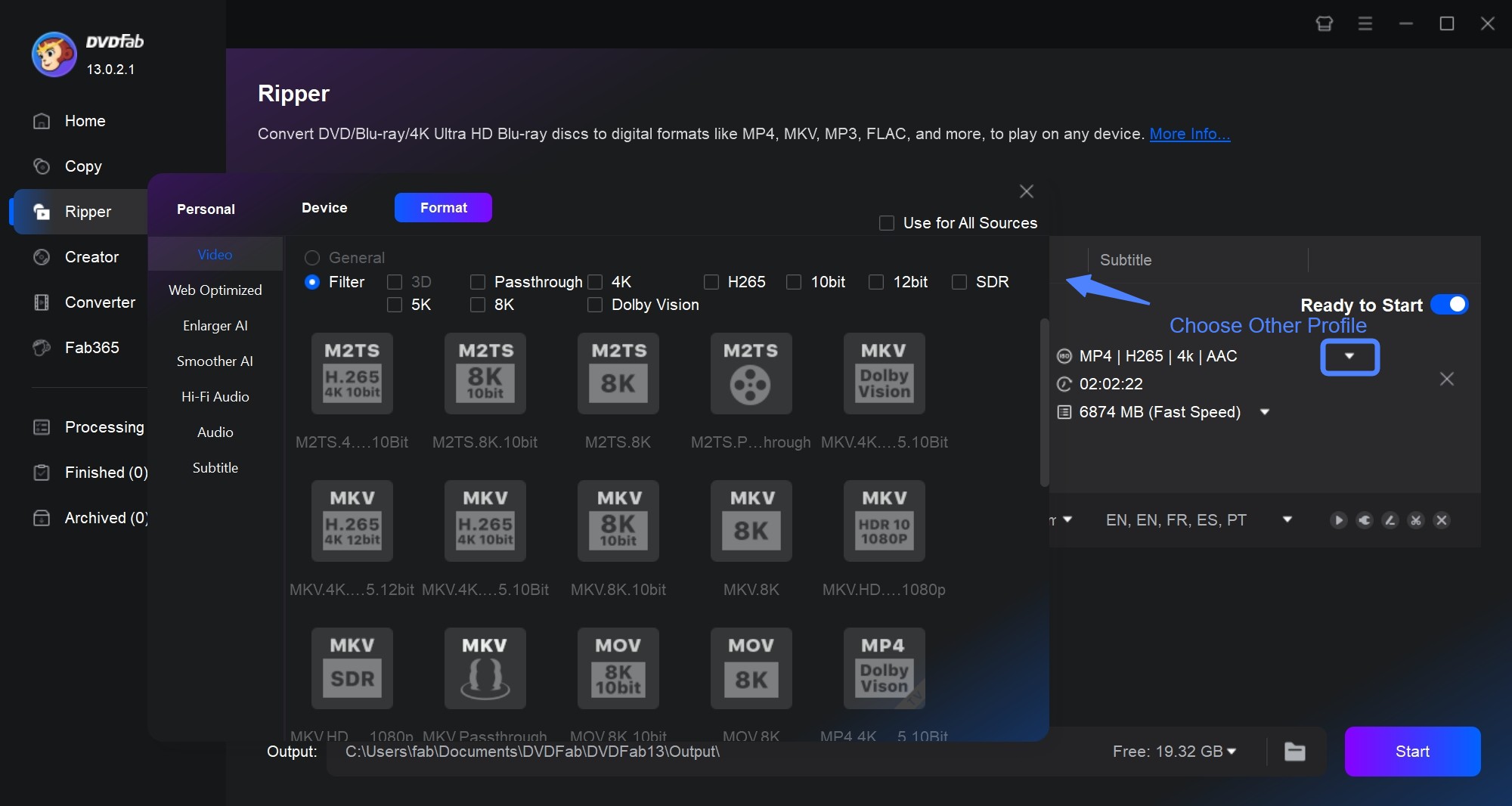
Open the profile switcher and select Choose Other Profile. Choose a passthrough profile when you want to retain the source video stream, or select an MP4, H.265 10-bit, HDR10, Dolby Vision, or other encoded profile when a different output is required.
Select Titles, Tracks, and Video Settings
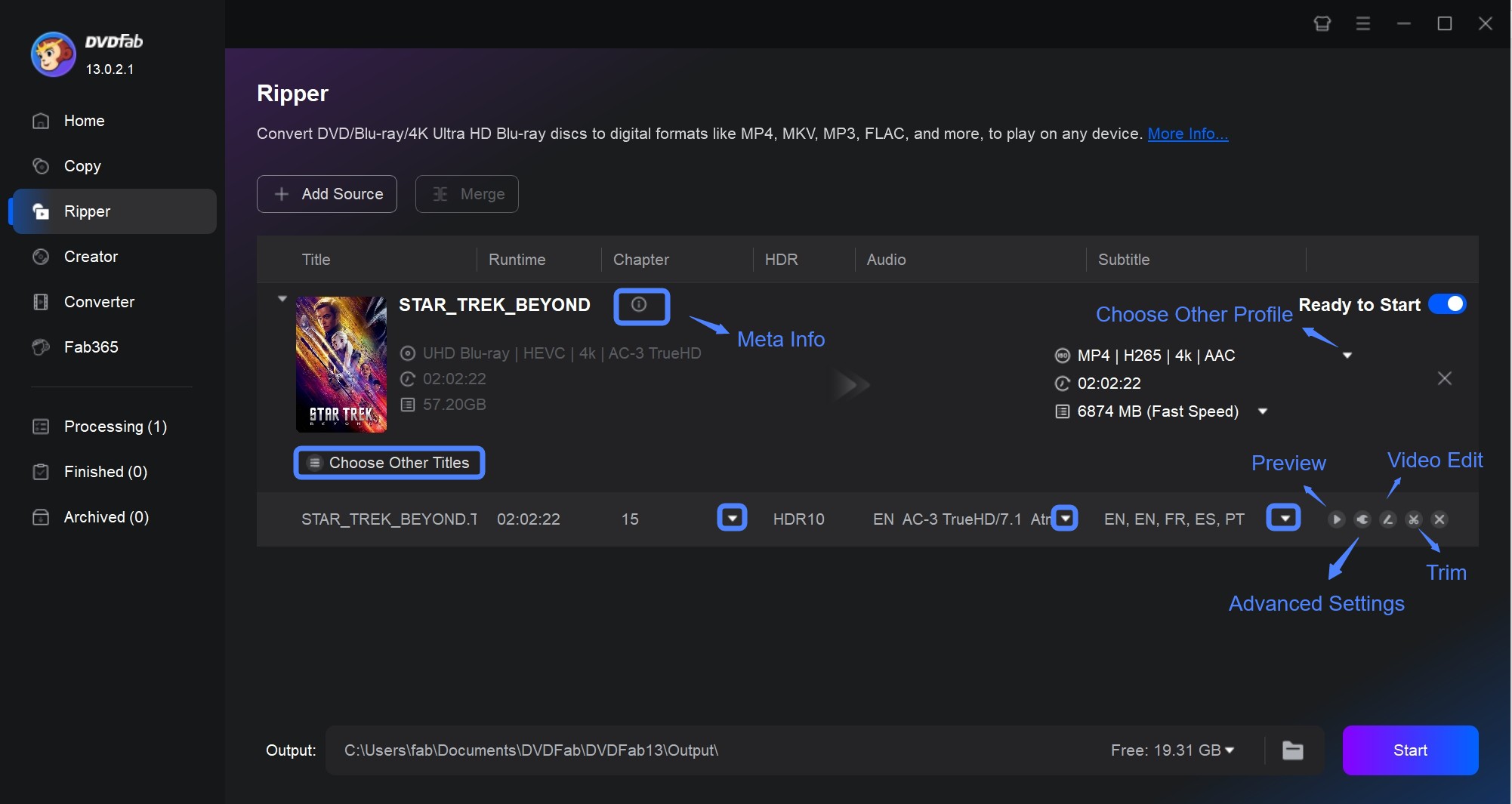
Choose the title to rip and select the required audio and subtitle tracks. Open Advanced Settings to adjust codec, resolution, frame rate, video quality, audio, and subtitle behavior for encoded profiles.
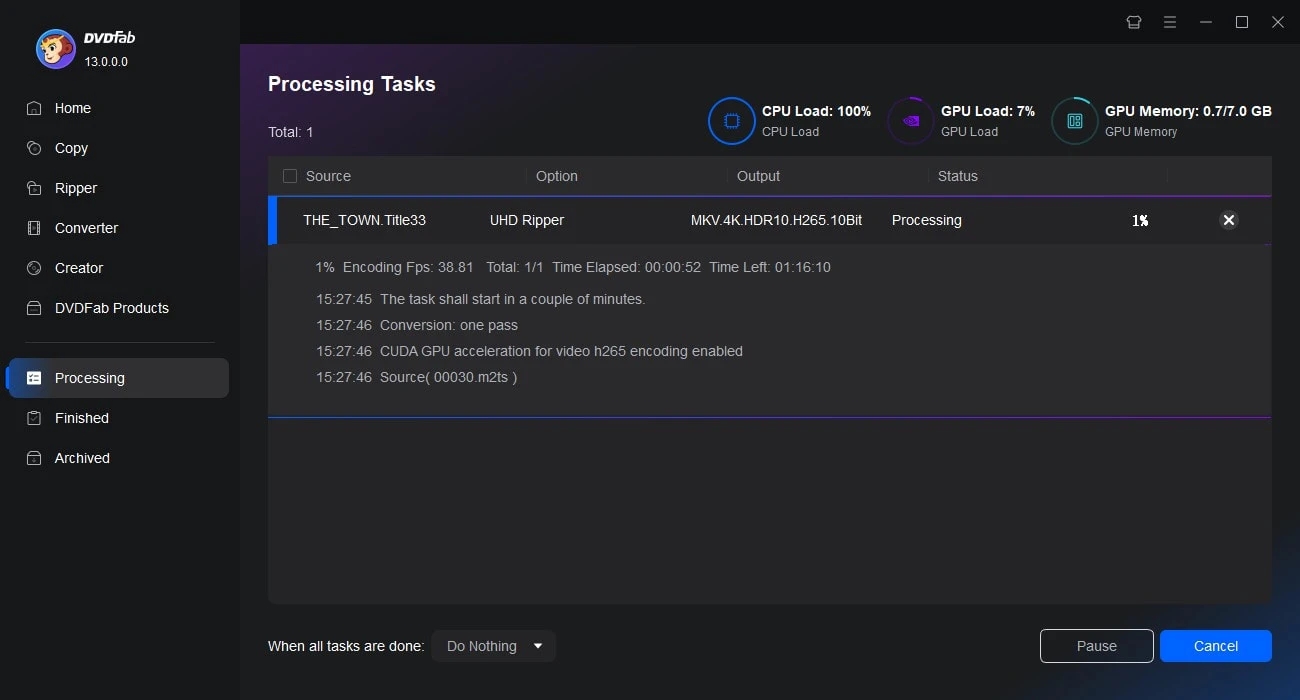
Set the Destination and Start 4K Blu-ray Ripping with DVDFab
Choose the output folder under Save to, then click Start. DVDFab processes the UHD source with the selected passthrough or encoding profile and saves the resulting video to the destination folder.
How to Check Your 4K Blu-ray Rip
A file labeled 4K only confirms one part of the result. I check the video, HDR, audio, subtitle, and chapter information separately before moving a UHD rip into a media library.
- Resolution: Check for 3840×2160 when you intended to keep 4K.
- Video codec: Confirm HEVC/H.265, AV1, H.264, or the codec you deliberately selected.
- HDR format: Check HDR10, HDR10+, or Dolby Vision when the output was intended to retain it.
- Audio tracks: Confirm TrueHD, Atmos, DTS-HD MA, DTS:X, or the encoded format you selected.
- Subtitles: Confirm the required language and forced-subtitle tracks.
- Chapters: Check that chapter markers remain when you intended to keep them.
Then open the file in the software or device where you plan to watch it. Play sections near the beginning, middle, and end, switch between audio and subtitle tracks, and test chapter seeking. For HDR playback, confirm that the target display or player recognizes the HDR format instead of assuming that every 3840×2160 file will trigger HDR.
FAQs
There is no fixed size. A MakeMKV remux keeps the source video stream and can remain tens of gigabytes, while a HandBrake or DVDFab transcode can be smaller. The final size depends on movie length, source bitrate, selected audio tracks, subtitles, codec, quality settings, and resolution.
Yes. MakeMKV lets you select the movie title and the audio or subtitle tracks you want before creating the MKV. DVDFab UHD Ripper also lets you select the title and tracks before starting the rip. Keeping only the main movie reduces the amount of content written to the final file, although the video stream can still be large when you remux instead of transcode.
4K resolution and HDR are separate properties. Check the finished file for HDR10, HDR10+, or Dolby Vision metadata, then confirm that the media player, HDMI path, receiver, and display support that HDR format. A 3840×2160 file can still be SDR or can contain HDR metadata that the playback chain does not recognize.
Conclusion
MakeMKV fits a 4K UHD archive when you want the source video stream in a large MKV without video re-encoding. MakeMKV + HandBrake adds a second encoding stage when you want a smaller MP4 or MKV, a different codec, or tighter control over playback compatibility. DVDFab UHD Ripper combines supported UHD disc access with passthrough and encoded MKV, MP4, or M2TS output in one application.
Whichever method you use, check more than the resolution before archiving the file. Confirm the HDR format, audio tracks, subtitles, chapters, and playback behavior that matter to your UHD collection.