 DVDneXtCOPY DVD Ripper
How to Rip a DVD with HandBrake in 2026: Steps, Settings & Limitations

Summary: HandBrake can rip readable DVDs to MP4 or MKV, but it does not remove DVD copy protection by itself. This guide explains the current HandBrake 1.11.2 workflow, recommended 480p/576p presets, title, audio, subtitle and Queue settings, plus what to do when HandBrake cannot read a protected DVD.
HandBrake is a free, open-source video transcoder that can open readable DVD sources and encode the selected movie or episode into a normal video file. It supports DVD discs and backups such as VIDEO_TS folders and ISO images, but HandBrake itself does not defeat or circumvent DVD copy protection.
I use HandBrake differently depending on the disc. For a homemade or otherwise readable DVD, I open the source directly and focus on choosing the correct title, a suitable 480p or 576p preset, and the audio and subtitles I want to keep. If HandBrake cannot read a commercial DVD, I treat that as a source-access problem rather than an encoding problem; the sections below cover both situations and show where HandBrake ends and another DVD-reading tool may be needed.
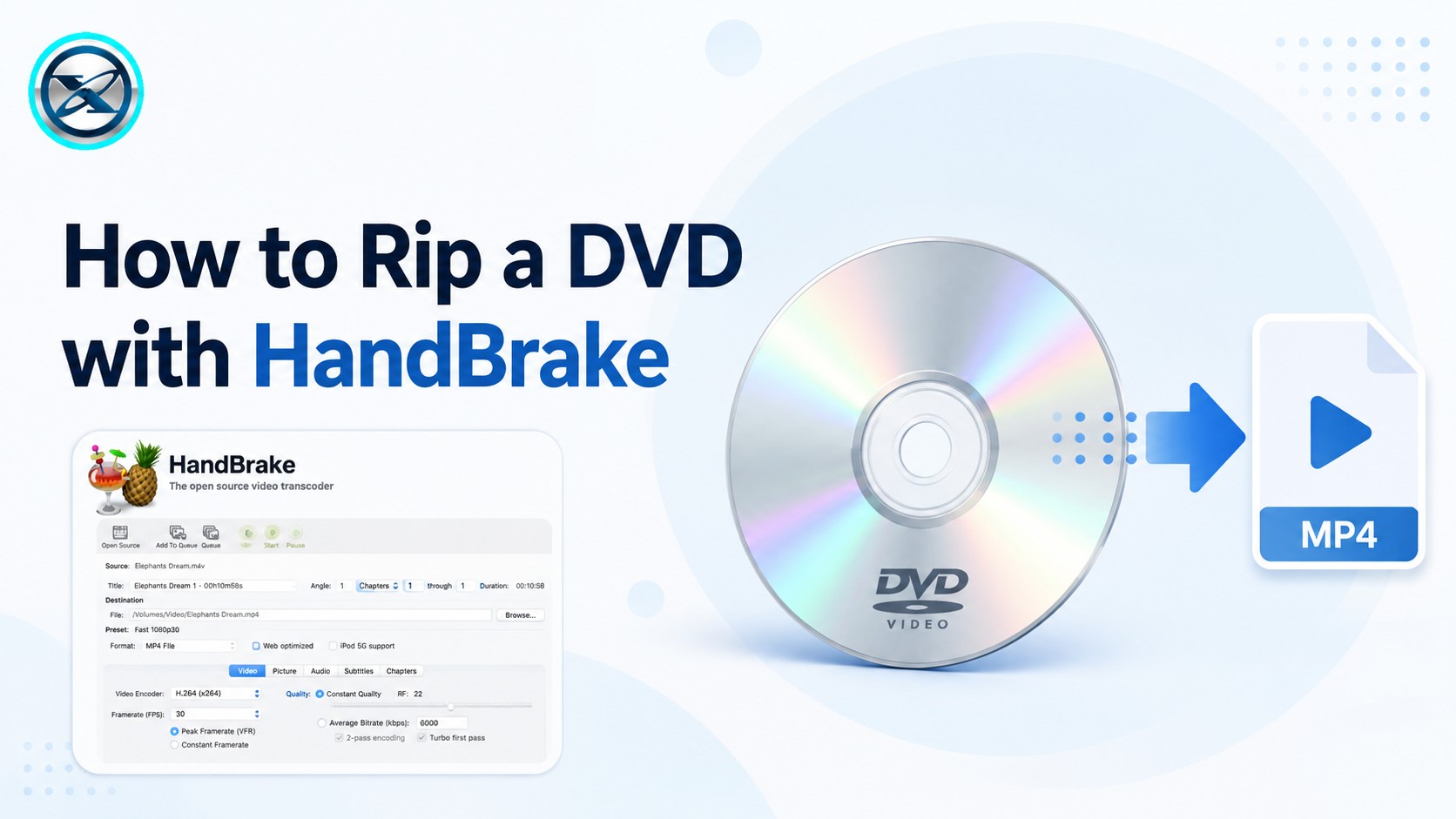
Can HandBrake Rip DVDs?
Yes, as long as HandBrake can read the DVD source. HandBrake can directly open DVD discs, VIDEO_TS folders, and common disc-image sources, but it does not defeat or circumvent copy protection.
| DVD Source | HandBrake Alone | What to Do |
|---|---|---|
| Homemade / unprotected DVD | Yes | Open the DVD directly in HandBrake |
| Readable VIDEO_TS folder | Yes | Open the folder as the source |
| Readable DVD ISO | Yes | Open the ISO directly |
| Copy-protected commercial DVD | Not by itself | Make the source readable first, then encode it with HandBrake |
HandBrake DVD Ripper: What It Can Do
The current HandBrake release is 1.11.2. It runs on Windows, macOS, and Linux and can open DVD sources together with common video files and disc backups. For DVD ripping, its most useful controls include Title and chapter selection, MP4/MKV/WebM output, presets, video quality and codec settings, audio/subtitle selection, chapter markers, preview, and the encoding Queue.
A DVD can contain many Titles rather than one movie file, so HandBrake's Title control is especially important for feature films, bonus content, and TV-series discs. Compatible systems can also use hardware encoders such as NVIDIA NVENC, Intel Quick Sync, AMD VCN, and Apple VideoToolbox to accelerate the video-encoding stage, while filters, audio, subtitles, synchronization, and muxing may still use CPU resources.
Best HandBrake Settings for Ripping a DVD
There is no single setting that fits every DVD. A better starting point is to match the preset to the source and then adjust quality, codec, audio, or subtitles only when the output needs something different.
| DVD Source / Goal | Recommended Starting Preset | Why |
|---|---|---|
| NTSC DVD, balanced | Fast 480p30 | Matches a typical 480-line DVD source |
| PAL DVD, balanced | Fast 576p25 | Matches a typical 576-line PAL source |
| NTSC DVD, higher quality | HQ 480p30 Surround | Higher-quality H.264 encode with surround support |
| PAL DVD, higher quality | HQ 576p25 Surround | Higher-quality PAL-oriented starting point |
| MKV output | H.264 MKV 480p30 / 576p25 | Flexible container for audio and subtitle tracks |
MP4 or MKV
Choose MP4 when broad compatibility with TVs, phones, tablets, and media players matters most. Choose MKV when you want more flexibility for multiple audio or subtitle tracks.
H.264 or H.265
H.264 is the simpler starting point for DVD because it has broad playback support. H.265 can produce a more compact file at similar visual quality in many workflows, but software encoding is generally more demanding and device compatibility should be checked first.
Quality
Start with the preset's default quality setting instead of treating one RF value as mandatory for every disc. In HandBrake's constant-quality workflow, a lower RF generally means higher quality and a larger file, while a higher RF produces a smaller file with more compression. A short preview or test encode is more useful than applying one fixed value to every DVD.
Resolution
DVD sources are standard definition, so 480p30 and 576p25 presets provide clear starting points. A higher-resolution preset name does not automatically upscale a lower-resolution source, and selecting a larger maximum resolution cannot create detail that is absent from the DVD.
How to Rip a DVD with HandBrake
Step 1: Insert and Open the DVD
Install the current version of HandBrake, insert a readable DVD into the optical drive, and launch the application. Choose Open Source, then select the DVD drive. HandBrake scans the disc and loads the available Titles.
You can also open a previously copied VIDEO_TS folder or readable DVD ISO instead of a physical disc.

Step 2: Select the Correct DVD Title
Open the Title menu after the scan finishes. A movie DVD may contain the feature film, trailers, bonus content, and short menu-related clips, while a TV DVD may expose each episode as a separate Title.
The main movie is often one of the longest Titles, but runtime alone is not a guarantee. Compare the duration and chapter count and use Preview to confirm that you selected the correct movie or episode.

Step 3: Choose a DVD Preset
Open the Presets menu. For a typical NTSC DVD, start with Fast 480p30 or HQ 480p30 Surround. For PAL, use Fast 576p25 or HQ 576p25 Surround.
Presets combine multiple compatible encoding settings, so they are a more reliable starting point than manually changing every encoder control before you know what the output requires.

Step 4: Set Format, Audio and Subtitles
Choose MP4 or MKV, then open the Audio tab and select the required language or audio tracks. In Subtitles, add the tracks you want to keep.
DVD subtitles are commonly bitmap-based VOBSUB tracks. With MP4, a VOBSUB track generally needs to be burned into the video; MKV can retain multiple VOBSUB tracks as selectable subtitles. Use Burn In only when you want the subtitle permanently rendered into the picture.

Step 5: Choose the Output Folder and Add Jobs to Queue
Use the Save As or destination controls to select the output filename and folder. The file can be saved to the computer, an external hard drive, or another mounted storage location.
For a DVD containing several episodes or Titles, configure one Title and add it to the Queue, then repeat the process for the other Titles. The Queue is designed for multiple encoding jobs; it should not be interpreted as simultaneous ripping of several DVDs.

Step 6: Start Encode and Check the Output
Click Start Encode. After the job finishes, play part of the output and check the movie or episode length, picture quality, audio language, synchronization, subtitle behavior, and chapter navigation if chapter markers were retained.

Can HandBrake Rip a Copy-Protected DVD?
Not by itself. HandBrake does not defeat or circumvent copy protection. If a commercial DVD cannot be opened, the source has to be made readable before HandBrake can perform the encoding stage.
Older HandBrake guides often mention libdvdcss. It is a separate VideoLAN library rather than a HandBrake feature, and the current libdvdcss release is 1.6.0. It is designed to help applications access DVD data, but it should not be presented as a universal HandBrake plugin for every protected DVD. If HandBrake cannot reliably read the disc, a dedicated DVD-ripping application provides a clearer source-reading workflow.
If HandBrake Cannot Read the DVD: Use DVDneXtCOPY DVD Ripper
DVDneXtCOPY DVD Ripper can load DVD-5, DVD-9, recordable DVDs, ISO images, and DVD folders and convert them to MP4, MKV, AVI, MOV, and other video/audio formats. It handles Region Code, CSS, UOPs, RCE, and Sony ARccOS, covering discs that HandBrake cannot read on its own.
The software also lets you select titles, chapters, audio, and subtitles before ripping and provides GPU acceleration, output profiles, preview, subtitle extraction, and video-editing controls. It currently runs on Windows, so HandBrake remains the broader cross-platform encoder when the source is already readable.
Open DVDneXtCOPY DVD Ripper and add the physical DVD, ISO image, or DVD folder. Allow the application to analyze the source and identify the available movie Titles.
Step 2: Choose the Output and Tracks
Choose MP4, MKV, or another required profile, then select the movie Title, audio, subtitles, and chapter range you want to keep. Open Advanced Settings only when you need to change codec, quality, resolution, or other encoding parameters.

Step 3: Start Ripping a Copy-protected DVD
Choose the output location and click Start. If you prefer HandBrake's presets or compression controls, the readable digital source can subsequently be opened in HandBrake for another encode.
HandBrake DVD Ripping Problems and Fixes
| Problem | What to Check |
|---|---|
| HandBrake cannot open the DVD | The disc may be protected, unreadable, dirty, or poorly mastered |
| Wrong movie is selected | Compare Title runtime and chapter count, then use Preview |
| A TV episode is missing | Check the other DVD Titles and add the required ones to Queue |
| Wrong audio language | Select the required track in the Audio tab |
| Subtitles are missing | Check the DVD VOBSUB/CC track and Burn In settings |
| Output file is too large | Raise RF moderately or use a more efficient codec |
| Encoding takes too long | Start with a Fast preset or use a supported hardware encoder |
| Output will not play on a device | Use a more compatible MP4 or device preset |
FAQ
No. HandBrake encodes selected DVD Titles into normal video files; it does not recreate the interactive DVD menu structure. Use a DVD copy or disc-image workflow if preserving menus and the full disc structure is the priority.
Yes. HandBrake can encode a selected range instead of the entire Title. You can limit the job by chapters, seconds, or frames, which is useful when you only need a scene, a chapter range, or part of an episode.
Yes, when the source audio and output container support it. HandBrake can pass through supported formats such as AC3 and DTS without re-encoding, or encode audio to another supported format. Surround presets can also retain a surround track when compatible with the selected output.
DVD video can contain interlaced or telecined material, which may appear as comb-like lines during motion. HandBrake provides Comb Detect, Decomb, Yadif, Bwdif, and Detelecine filters to correct these artifacts. Start with the preset defaults and only change the filters when the source actually shows the problem.
Conclusion
For a readable or unprotected DVD, HandBrake is the recommended choice when you want a free, cross-platform way to encode a movie or TV episode into MP4 or MKV.
If HandBrake cannot read a protected DVD, DVDneXtCOPY DVD Ripper is the more practical Windows option for opening the disc and creating a readable digital file. HandBrake can still be used afterward when its presets or compression controls are useful.
 Luna MillerOct 8, 2026
How to Block Someone on TikTok: App & Website Guide
 Luna MillerSep 21, 2026
10 Free Sites to Download Subtitles for Movies & TV Shows in 2026
 Luna MillerSep 17, 2026
How to Delete a TikTok Story in 5 Steps (2026)
 Luna MillerSep 16, 2026
How to Fix Cinavia Message Code 3: Start With the Source
![WinX DVD Author Review & Tutorial: Features, How to Use, and Limits [2026]](https://c.dvdnextcopy.com/uploads/images/17884278134315877-5212fbb54f6ef7f5e20bf1765fc74e79.jpg) Luna MillerSep 3, 2026
Luna MillerSep 3, 2026WinX DVD Author Review & Tutorial: Features, How to Use, and Limits [2026]
 Luna MillerAug 28, 2026
Can Xbox One Play DVDs? How to Play DVD on Xbox One in 2026