 DVDneXtCOPY Blu-ray Ripper
7 Best Free Blu-ray Ripper Software in 2026: Reviews & How to Rip Blu-ray

Summary: Blu-ray ripper software reads Blu-ray movie content and extracts or converts selected titles into digital files. DVDneXtCOPY Blu-ray Ripper is my top choice for an all-in-one workflow with supported protected-disc access, title and track selection, editing, and flexible output. MakeMKV is better when preserving the original Blu-ray streams is the priority, while HandBrake is a strong free option for compressing Blu-ray sources it can already read. DVDFab HD Decrypter is another free choice for supported older protected discs, but with narrower protection and output limits.
Table of Contents
Ripping a Blu-ray sounds straightforward until the software you download cannot read the disc, limits the trial to a few minutes, or produces a file that leaves out the audio or subtitles you wanted to keep. Blu-ray rippers can also work in very different ways: some handle supported protected discs directly, some preserve the original streams, while others are mainly designed to re-encode a readable source into a smaller file.
I usually start by checking what is actually on the disc and what I want from the finished rip. For a movie with multiple audio tracks, forced subtitles, commentary, or chapters, preservation matters more to me than simply choosing the smallest output. For everyday playback or a media-server library, file size and compatibility may matter more.
In this guide, I compare seven Blu-ray ripper tools by disc access, input, output, stream preservation, editing, and free or trial limits, then use DVDneXtCOPY Blu-ray Ripper to show how to rip a Blu-ray and verify the finished file.
Quick Comparison of the 7 Best Blu-ray Rippers
Blu-ray ripper software ranges from lossless remuxers to full converters with protected-disc access, video re-encoding, and editing tools. The table below compares system support, price and trial limits, Blu-ray decryption, input and output options, processing method, editing features, and best-fit use cases.
| Blu-ray Ripper | OS | Trial Limits | Protected Blu-ray Access | Input | Output | Processing | Video Editing | Best For |
|---|---|---|---|---|---|---|---|---|
| DVDneXtCOPY Blu-ray Ripper | Windows | 30-day trial, up to 3 Blu-rays | AACS, BD+, BD-J, region codes | Disc, ISO, folder | 1000+ video/audio formats: MP4, MKV, AVI, MP3, FLAC, and other preset profiles | Preservation-oriented profiles + re-encode | Yes | Flexible protected Blu-ray ripping |
| MakeMKV 1.18.4 | Windows, macOS, Linux | Need a Beta key | AACS, BD+ | Blu-ray/DVD disc, ISO, folder | MKV | Remux without normal video re-encoding | No | Original-stream preservation |
| HandBrake 1.11.2 | Windows, macOS, Linux | Free | No built-in decryption | Blu-ray discs, ISO images, folders | MP4, MKV, WebM | Re-encode | Filters and encoding controls | Free Blu-ray compression |
| DVDFab HD Decrypter | Windows, macOS | Free | Supported AACS, RC, UOPs, BD-Live on discs released over one year ago | Disc, ISO, folder | Blu-ray/ISO/folder, MKV, MP4 | 1:1 copy + limited digital output | Yes | Free use with older protected Blu-rays |
| Leawo Blu-ray Ripper | Windows, macOS | Trial converts the first 5 minutes | AACS, BD+, MKB, region codes | Disc, folder, ISO | 180+ mainstream video/audio formats | Lossless-oriented + re-encode | Yes | Format and track flexibility |
| VideoByte BD-DVD Ripper | Windows, macOS | Trial converts 5 minutes per disc | AACS, BD+, region codes | Disc, folder, ISO | 300+ video/audio formats | Lossless option + re-encode | Yes | Blu-ray and DVD collections |
| EaseFab LosslessCopy | Windows, macOS | Trial converts up to 3 minutes per file | AACS, BD+, BD-J, region codes | Disc, folder, ISO | Multi-track MKV/MP4/MOV/AVI + regular formats | Remux + re-encode | Yes | Multi-track preservation |
How I Evaluate Blu-ray Ripper Software
I compare Blu-ray ripper software on the following six points.
- Protected Blu-ray support: Check whether the software can open commercial Blu-ray discs directly or only process unprotected discs and files. Encoding support alone does not mean the program can read a protected disc.
- Disc, ISO, and folder input: Support for all three avoids having to mount an ISO or extract a BDMV folder before ripping.
- Blu-ray Remux or re-encode: A remux keeps the selected video and audio streams without normal video re-encoding, while converting Blu-ray to MP4 with H.264 or H.265 can reduce the file size for storage and playback.
- Track selection: Check whether you can keep or remove specific audio tracks, subtitles, forced subtitles, and chapters before ripping.
- Editing and encoding controls: Crop, trim, subtitle tools, bitrate, resolution, codec, and quality settings matter when you want to modify or compress the movie rather than make a straight remux.
- Free and trial restrictions: Check the maximum title length, number of discs, watermark, and available output functions. A trial that converts only part of a movie cannot be evaluated the same way as software that allows a complete rip.
7 Best Blu-ray Ripper Software Reviewed
1. DVDneXtCOPY Blu-ray Ripper - Best for Flexible Protected Blu-ray Ripping
- OS: Windows 11/10/8.1/8/7
- Protected Blu-ray Access: AACS, BD+, BD-J, region codes
- Input: Blu-ray disc, ISO, folder
- Output: MP4, MKV, AVI, MP3, FLAC, and other video/audio profiles
- Processing: Preservation-oriented profiles and re-encoding options
- Best For: Users who want disc access, track selection, and flexible output in one Blu-ray ripper
DVDneXtCOPY Blu-ray Ripper can process protected BD-25 and BD-50 discs, ISO images, and Blu-ray folders, with support for common protections such as AACS, BD+, BD-J, and region codes. It provides more than 1,000 video and audio profiles, including MP4, MKV, AVI, MP3, and FLAC, together with device presets for TVs, mobile devices, game consoles, and other players. For MKV output, MKV Passthrough can retain the source video stream without re-encoding, while H.264 or H.265 profiles can compress the movie when a smaller file is more important.
Its 3D output support is another advantage for Blu-ray collections that are played on 3D-capable displays or VR headsets. DVDneXtCOPY includes 3D profiles alongside its regular 2D formats, so the Blu-ray can be prepared for 3D playback within the same application instead of creating an intermediate file and converting it again with a separate 3D tool. The profile and Advanced Settings also keep the 3D output choice together with resolution, codec, audio, and subtitle settings.
For further processing, Blu-ray subtitles can be rendered into the video, remuxed into the output file, or extracted as SRT or IDX/Sub files using OCR. The built-in editor supports trimming, cropping, merging, external subtitles, watermarks, and brightness, contrast, and saturation adjustments, while the preview player lets you check the video, audio, and subtitles before conversion. GPU acceleration is also available for supported ripping and encoding tasks.

- One workflow can cover both preservation-focused jobs and smaller playback-file jobs.
- Preset-driven output is convenient when different devices in the same household need different files.
- Separate subtitle output is useful for media-library or accessibility workflows.
- No Mac version.
2. MakeMKV - Best for Preserving Original Blu-ray Streams
- OS: Windows (including 10/11), macOS 10.7+, Linux
- Protected Blu-ray Access: AACS, BD+
- Input: Blu-ray and DVD discs; readable ISO/folder sources
- Output: MKV
- Processing: Stream remux without normal video re-encoding
- Best For: Preserving selected video, audio, subtitle, chapter, and metadata streams
MakeMKV is one of the simplest Blu-ray rippers when the main goal is preservation rather than reducing file size. It reads supported Blu-rays, handles AACS and BD+, and places the selected streams into an MKV container without a conventional video-transcoding stage. HD audio, chapters, metadata, and multiple tracks can remain available in the resulting file.
MakeMKV 1.18.4 is the current release, and all features remain free during the beta period. Because it does not normally shrink the movie through video re-encoding, a feature-length Blu-ray rip can remain large. That makes MakeMKV a better archive-oriented choice than a storage-saving one, and it offers little in the way of editing or device-specific conversion.

- Few output decisions make it easy to create an archive-oriented copy quickly.
- No normal video re-encoding avoids an extra transcoding stage during the rip itself.
- Works well as the first step in a two-stage archive-then-compress workflow.
- Large collections can consume storage quickly because the source video is retained.
- MKV-only output limits direct device-targeted workflows.
- Any trimming, filtering, or further compression has to happen in another program.
3. HandBrake - Best Free Transcoder for Readable Blu-rays
- OS: Windows 11; Windows 10 1909+ (deprecated); macOS 14 Sonoma, 15 Sequoia, and 26 Tahoe; supported Linux distributions
- Protected Blu-ray Access: No built-in copy-protection removal
- Input: Readable Blu-ray discs, ISO images, and folders
- Output: MP4, MKV, WebM
- Processing: Video re-encoding
- Best For: Compressing Blu-ray content that is already readable
HandBrake works well in a Blu-ray ripping workflow when the source can already be read. It can process Blu-ray content, but it does not include built-in support for defeating Blu-ray copy protection. That makes it fundamentally different from Blu-ray ripper software that combines protected-disc access and conversion in the same program.
HandBrake 1.11.2 gives much more control over the encoded result than a simple remuxer. Presets, codec settings, quality controls, cropping, filters, chapters, audio, subtitles, and queue processing make it a practical choice when the goal is to reduce storage requirements or prepare a file for a specific playback environment.

- No paid license or duration cap is required for supported readable sources.
- Useful for standardizing a library around consistent encode settings.
- Preset and queue tools suit repeated compression jobs well.
- Many commercial discs require a separate source-access step before encoding.
- A full re-encode can be unnecessary when the real goal is only stream preservation.
- Beginners may need time to understand quality, codec, and filter choices.
4. DVDFab HD Decrypter - Best Free Option for Older Protected Blu-rays
OS: Windows 7/8/8.1/10/11
Protected Blu-ray Access: AACS, RC, UOPs, and BD-Live on supported discs released more than one year ago
Input: Blu-ray disc, ISO, folder
Output: Blu-ray/ISO/folder, MKV, MP4
Processing: 1:1 backup plus limited digital ripping options
Best For: Free Blu-ray ripping and backup of supported older releases
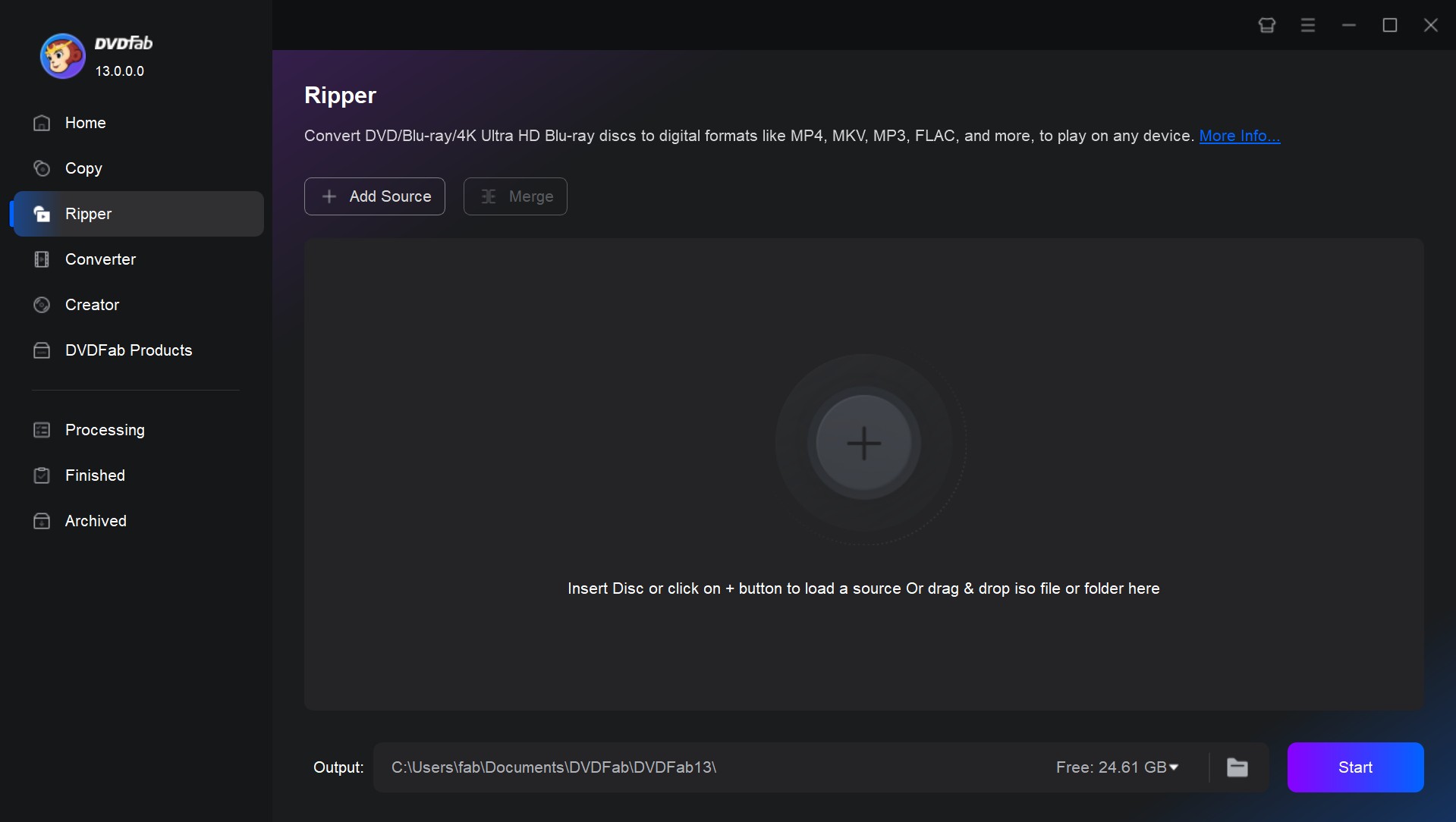
DVDFab HD Decrypter can handle protected Blu-rays that fall within its older-disc support range. Its Blu-ray protection coverage includes AACS, RC, UOPs, and BD-Live on titles released more than one year ago. Full Disc and Main Movie modes are available for preserving a Blu-ray as a disc structure, ISO image, or folder, while MKV and MP4 are available under the free edition's output limits.
It also includes crop, trim, merge, watermark, subtitle, and image-adjustment controls. The main limitation is freshness: HD Decrypter is intended for older supported releases rather than newly protected Blu-rays, and its format/profile range is narrower than its premium version - DVDFab Blu-ray Ripper.
- A practical zero-cost option for collections made up largely of older releases.
- Lets users choose between keeping disc structure and creating a simple playback file.
- No per-title duration cap makes it more usable than short commercial trials.
- Recent protected releases may require a different tool.
- The free profile set is narrow compared with full commercial rippers.
- It is better suited to basic backup and ripping than to broad format customization.
5. Leawo Blu-ray Ripper - Best for Format and Track Flexibility
- OS: Windows 7/8/8.1/10/11; macOS 10.13 High Sierra through macOS 26 Tahoe
- Protected Blu-ray Access: AACS, BD+, MKB, region codes
- Input: Blu-ray disc, folder, ISO
- Output: 180+ mainstream video/audio formats
- Processing: Lossless-oriented and re-encoded output options
- Best For: Users who want detailed format, audio, subtitle, and output control
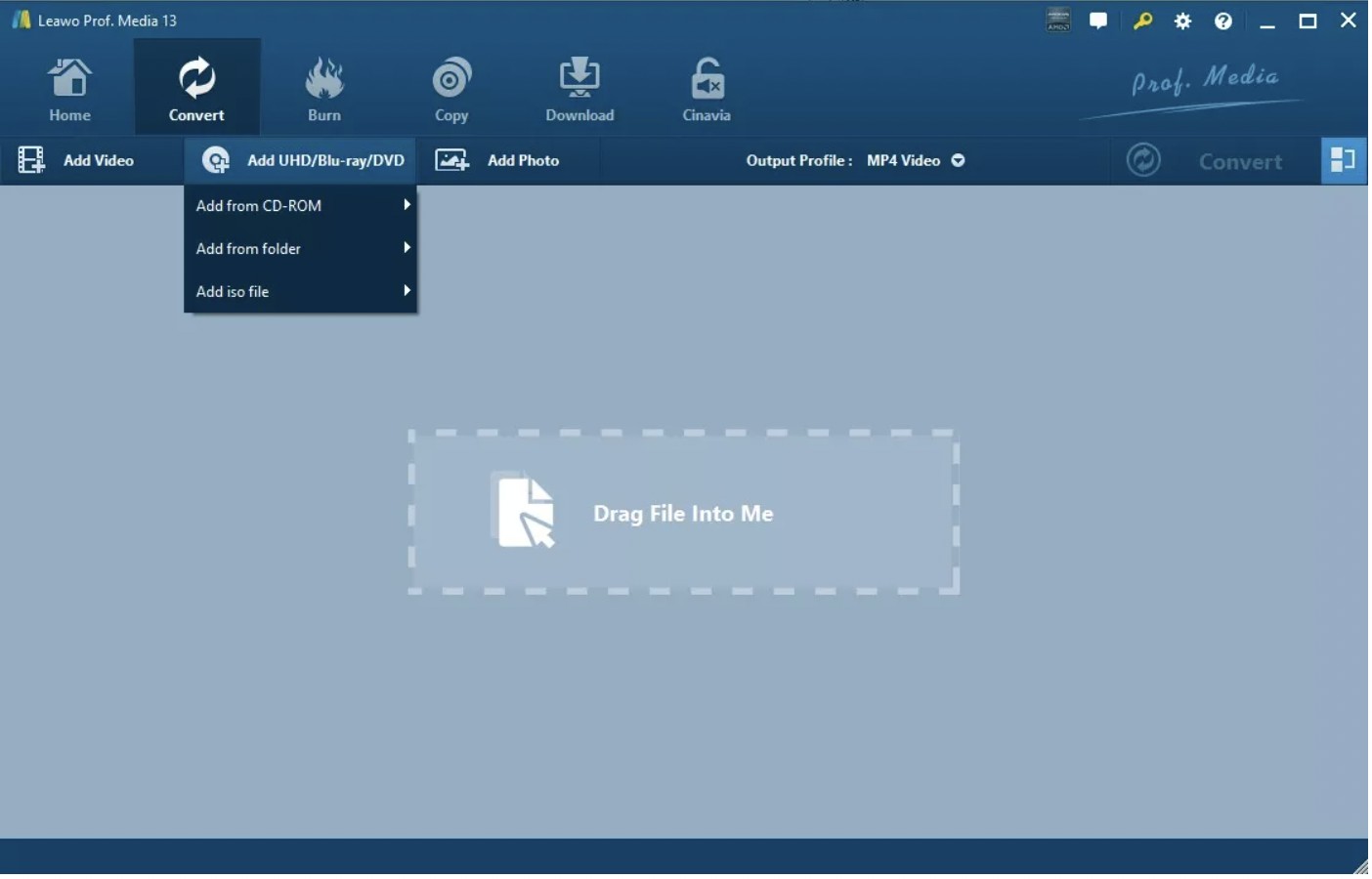
Leawo Blu-ray Ripper combines protected-disc access with a broad set of conversion choices. It accepts Blu-ray discs, folders, and ISO images, handles common commercial Blu-ray protections, and lets users select the main movie, audio tracks, subtitles, and output profile. It can be used either for a higher-preservation output or for a smaller re-encoded file, depending on the selected profile.
Its editor covers trimming, cropping, effects, watermarks, rotation, playback speed, and other adjustments, while codec, bitrate, frame rate, and resolution can be changed separately. The trial converts only the first five minutes of Blu-ray/DVD content, so it is useful for evaluation rather than for finishing a feature-length movie.
- Useful when one collection needs both preservation-oriented and device-friendly outputs.
- Detailed track controls fit discs with several languages or subtitle options.
- Built-in editing reduces the need to move a rip into another app for simple changes.
- The five-minute trial is only enough to check workflow and compatibility.
- The larger feature set adds setup overhead for simple archive jobs.
- A dedicated remuxer is more direct when no editing or re-encoding is needed.
6. VideoByte BD-DVD Ripper - Best for Blu-ray and DVD Collections
- OS: Windows 11/10/8.1/8/7; macOS 10.12 or later
- Protected Blu-ray Access: AACS, BD+, region codes
- Input: Blu-ray/DVD disc, folder, ISO
- Output: 300+ video/audio formats and lossless Blu-ray output options
- Processing: Lossless option and re-encoding
- Best For: Users who want one interface for both Blu-ray and DVD ripping
VideoByte BD-DVD Ripper works with Blu-ray and DVD discs as well as folders and ISO images, making it convenient for mixed physical-media collections. It supports commercial Blu-ray access, regular digital formats, lossless Blu-ray output, title selection, and multiple audio and subtitle tracks.
The built-in editor covers cutting, cropping, rotating, merging, filters, and watermarks. Its trial converts only five minutes of each Blu-ray or DVD, and Mac users should also note that subtitle handling is more restricted in some output workflows.

- Convenient for mixed DVD/Blu-ray libraries that would otherwise need separate workflows.
- Preset-driven conversion is approachable for users who do not want to tune codecs manually.
- Can switch between archive-oriented output and smaller playback files without changing apps.
- The five-minute trial is useful for evaluation, not a feature-length job.
- Mac subtitle behavior deserves extra checking on subtitle-heavy discs.
- The interface offers more tools than necessary for a simple remux-only archive.
7. EaseFab LosslessCopy - Best for Multi-Track Blu-ray Preservation
- OS: Windows 11/10/8/7; macOS 10.13 High Sierra or later
- Protected Blu-ray Access: AACS, BD+, BD-J, region codes
- Input: Blu-ray disc, folder, ISO
- Output: Multi-track MKV, MP4, MOV, AVI plus regular video/audio formats
- Processing: Lossless MKV remux and re-encoded outputs
- Best For: Preserving multiple audio and subtitle tracks while keeping flexible output choices
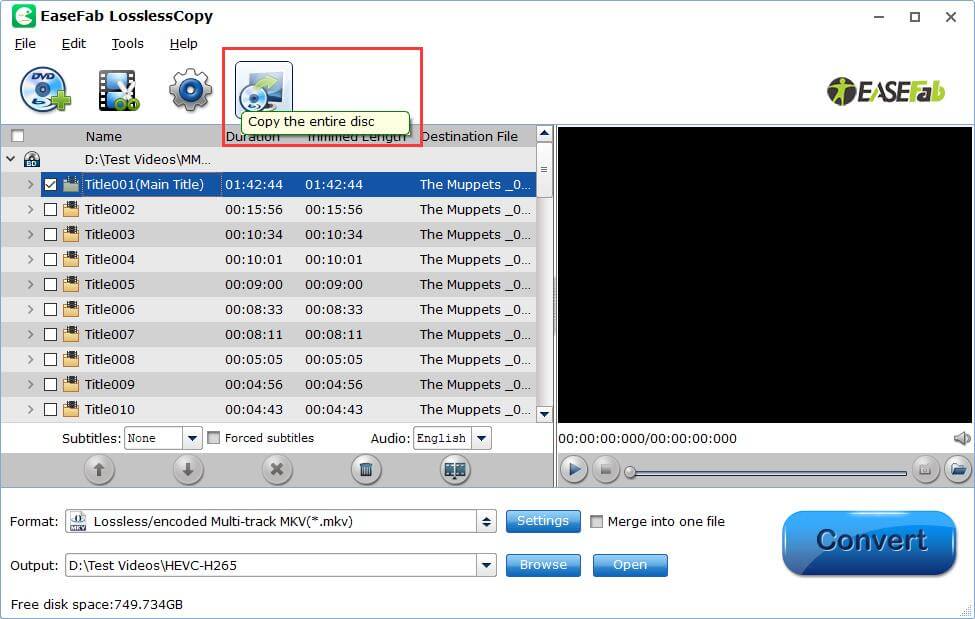
EaseFab LosslessCopy focuses on multi-track Blu-ray ripping. It can load Blu-ray discs, folders, and ISO images, then preserve selected audio and subtitle streams in supported multi-track outputs. Lossless multi-track MKV is the main preservation option, while encoded MKV, MP4, MOV, AVI, and regular digital formats are available when storage or playback requirements differ.
The software also includes trimming, cropping, watermarks, effects, external subtitles, full-disc backup, and main-movie extraction. The trial converts up to three minutes of each Blu-ray or DVD file, which makes it the most restrictive time-limited commercial trial among the tools in this comparison.
- A good fit when several selectable audio or subtitle tracks must stay together.
- Flexible enough to move from archive-style output to smaller files in the same program.
- Useful for collections that mix main-movie extraction with fuller backup needs.
- The three-minute trial gives very little time to assess a long title.
- Users need to distinguish the lossless MKV path from encoded multi-track outputs.
- The larger mode set requires more output decisions than a one-purpose remuxer.
How to Rip Blu-ray with DVDneXtCOPY Blu-ray Ripper
Across the seven Blu-ray rippers above, DVDneXtCOPY Blu-ray Ripper is my top recommendation for readers who want the widest range of Blu-ray ripping functions in one workflow. Below, I'll use DVDneXtCOPY Blu-ray Ripper as the example to show how to rip a Blu-ray and how to choose the output settings based on whether you want to preserve more of the source or reduce the finished file size.
Step 1: Load the Blu-ray Source
Download DVDneXtCOPY Blu-ray Ripper from the official site. Then insert the Blu-ray into the PC drive connected to your computer. Launch DVDneXtCOPY and switch to the "Ripper" module. It will automatically detect the disc in the drive and start to analyze it.

Step 2: Choose the Title, Tracks, and Output
Select the title you want to rip, then choose the audio tracks, subtitles, and chapters that should remain available in the finished file.

Next, cOpen the profile panel to choose the output format you want to use. Regular Video, Audio, and subtitle formats are under the Format tab. You can also choose a Device option, such as Huawei, Apple, Xbox, etc.

Go to the Edit window to personalize your video. Crop and change the aspect ratio, apply effects like white balance and contrast, add watermarks including text and picture, add subtitles, and adjust audio volume and playback speed.

Step 3: Start Ripping Your Blu-ray and Check the File
Choose the output folder and click Start. DVDneXtCOPY displays the task progress while the Blu-ray is being processed.
I do not stop at the completed progress bar. Open the finished file and check a short section near the beginning, middle, and end. Switch through the audio and subtitle tracks you selected, and test chapter navigation when the chosen output supports it.
If the movie is going into Plex or a local media library, this is also a good time to give it a clear title and release year before moving it to permanent storage.
FAQs
Not by itself. HandBrake can process Blu-ray sources that are already readable, but it does not include built-in support for defeating copy protection. A protected commercial Blu-ray therefore needs an appropriate source-access step before HandBrake can handle the encoding stage.
Choose based on what you want to keep. A remux or other preservation-oriented output is better when original video, multiple audio tracks, subtitles, and chapters matter most. A re-encoded output makes more sense when storage space and everyday playback compatibility matter more than preserving the original streams.
Conclusion
Choose your Blu-ray ripper based on what you want to keep in the final file. Use passthrough when preserving the original video, audio, and subtitle streams matters most, or choose an encoded MP4 or MKV when you need a smaller file for regular playback. DVDneXtCOPY Blu-ray Ripper supports both types of output, along with title, audio, subtitle, editing, and preview controls. Before adding the rip to your media library, check the video quality and make sure the intended audio and subtitle tracks are present.
 Steven VanceSep 17, 2026
How to Rip Blu-ray on Mac in 2026: 4 Workflows, 5 Methods
![How to Rip 3D Blu Ray: Pick MVC or SBS Before You Start [2026]](https://images.dvdnextcopy.com/2026/09/15/OCieIQbnp92l67jxKZzrGV_sFMToZiaa/feature_cover.jpg) Steven VanceSep 16, 2026
Steven VanceSep 16, 2026How to Rip 3D Blu Ray: Pick MVC or SBS Before You Start [2026]
 Steven VanceSep 15, 2026
Convert BDMV to MP4 on Windows or Mac: Choose the Right Method
 Luna MillerSep 15, 2026
How to Convert BDMV to MKV in 2026: Folder, Remux, or Re-Encode?
 Luna MillerSep 15, 2026
Blu-ray Authoring Software for Windows and Mac: 2026 Picks by Project
 Luna MillerSep 8, 2026
Best Free Blu-ray Copy Software in 2026: Reviews & How-to Guide