 DVDneXtCOPY
How to Fix Cinavia Message Code 3: Start With the Source

Summary: Cinavia Message Code 3 can mute audio on a legitimate disc, backup, or local file. This guide separates disc, file, server, and player causes, then gives low-risk checks, temporary-workaround limits, lawful backup boundaries, and clear next steps for each source.
Table of Contents
When a purchased DVD suddenly loses sound and shows Cinavia Message Code 3, the player is reacting to an audio code and the current playback path. I start with the source because a retail disc, personal backup, local file, and console each calls for a different next step.
What Cinavia Message Code 3 Means
Cinavia Message Code 3 means the player detected a Cinavia code in the audio that does not match the authorized playback path. The message mutes audio, but it does not prove that the player is defective or that the person holding the disc did anything wrong.
Why the Player Mutes Audio
Cinavia is an audio watermark system used on some commercial releases. A compatible player checks the code during playback and displays the warning when the code signals that the current copy or path is not authorized for that use.
The official Cinavia technology explanation describes this detection model. In plain terms, the “Cinavia audio muted” notice identifies a source-and-playback mismatch, not a faulty player.
Start With the Disc or File Source
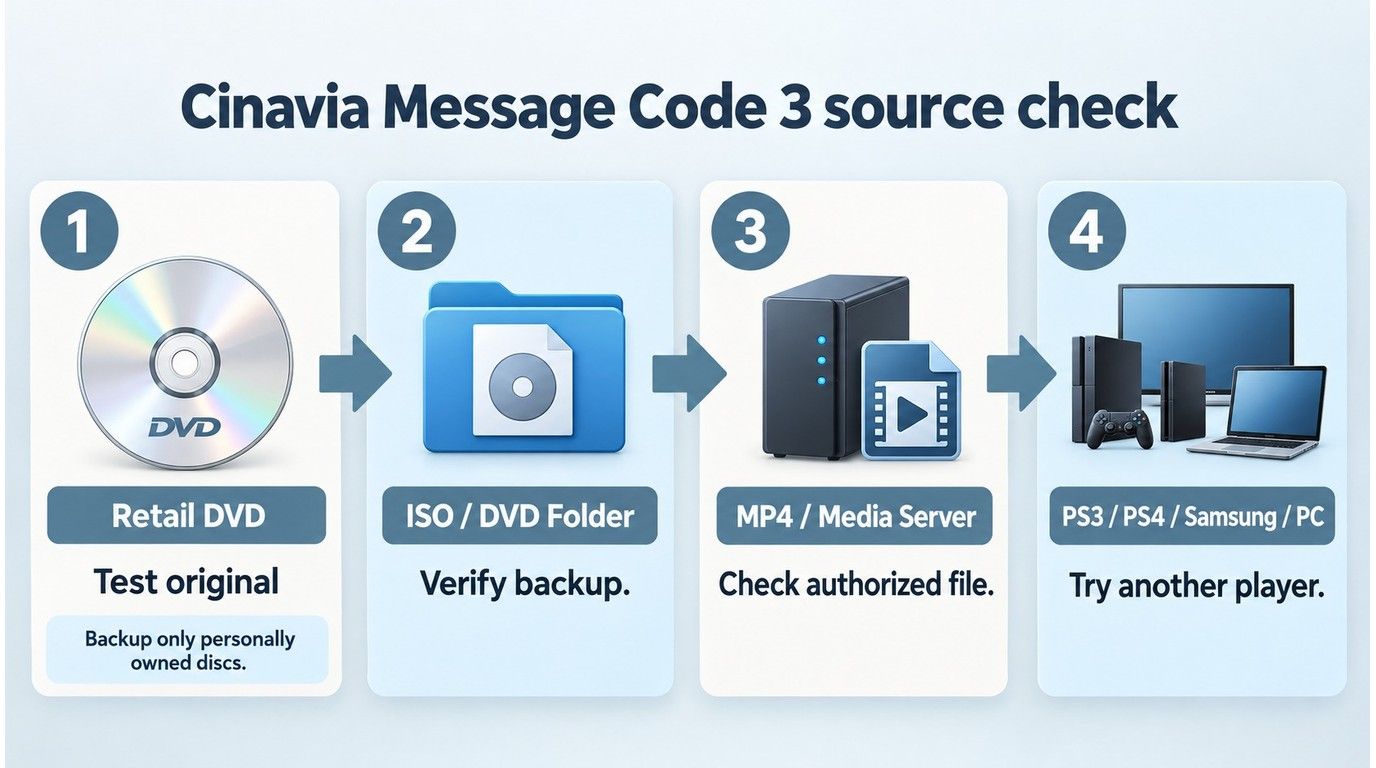
The source decides the safest response. Check whether you have a purchased or rented disc, an authorized personal backup, a local file, or a device-only symptom before changing settings or adding software.
| Source type | Playback path | Safe first check | Next step |
| Purchased or rented disc | Disc in player or console | Inspect disc; update player | Replace or return disc |
| Personal backup, ISO, or folder | Authorized local copy | Compare with original disc | Recreate from lawful source |
| Local MP4 or media-server file | Computer, console, or server | Test the original source | Review file and player path |
| Player or console symptom | PS3, PS4, Samsung, computer | Update firmware or app | Use official device support |
Purchased or Rented Disc
A purchased DVD Cinavia warning can be a legitimate disc error. Clean and inspect the disc, confirm that the player firmware is current, and test the disc in another compatible player if one is available. If the same retail or rental disc still triggers Code 3, request a replacement from the retailer, rental provider, or distributor.
This is the shortest useful path. I would not add software until the original disc and player have been separated as possible causes, because a defective or incorrectly authored disc needs replacement rather than another processing step.
Personal Backup or Local File
For an authorized personal backup, compare the local copy with the lawfully owned original. If the original disc plays normally but the backup does not, recreate the copy from the original source and review the selected title and audio track.
An authorized DVD to ISO copy is still a distinct playback path. An ISO, DVD folder, MP4, or media-server stream should be diagnosed as a file path, not treated as proof that the disc or player is faulty.
Low-Risk Checks Before Any Software
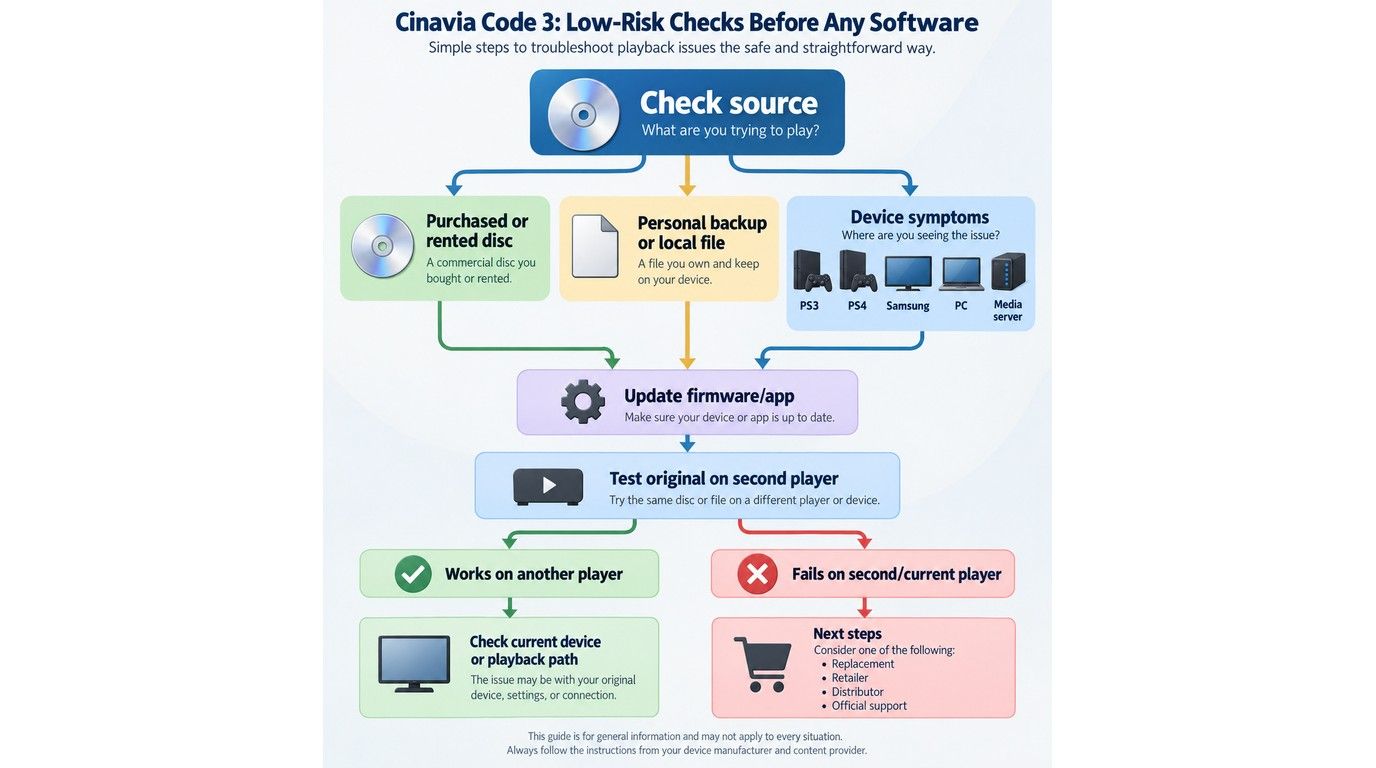
Begin with source, firmware, and playback checks. These steps preserve the original evidence and keep a disc problem from being mistaken for a console, computer, or file-conversion problem.
Player, Console, and Computer Checks
For Cinavia Code 3 on PS4 or PS3, play the original disc directly, install the current system software through the console settings, and retry from the start. A local file served to a PS3 is a different path from a retail disc, so compare it with the original source before changing server settings.
For Cinavia Code 3 on a Samsung player, update the player firmware, power-cycle the device, and test a known-good commercial disc. On a computer, check whether the warning appears in one playback application or across multiple authorized players; that distinction separates an app problem from the file itself.
I stop device troubleshooting once the same purchased disc fails on a second current player. At that point, replacement or distributor support gives a clearer answer than repeating temporary playback changes.
Temporary Workarounds and Their Limits
A temporary Cinavia workaround does not change the source condition. Pausing, skipping ahead, switching an audio track, or playing other content can restore sound briefly, but the same path can trigger the mute again.
Older community advice also describes changing the PS3 system clock. Treat that as unofficial and temporary, not as the preferred fix. It can interrupt the warning for a session, yet Cinavia Code 3 on PS3 can return because the underlying source and playback path remain unchanged.
How to Remove Cinavia Message Code 3 Permanently
While temporary workarounds may help you bypass Cinavia Message Code 3 for a short time, they do not offer a lasting fix. For users seeking a permanent solution, removing the Cinavia watermark from the disc is the only reliable option.
DVDFab DVD Cinavia Removal can completely eliminate the Cinavia watermark from protected DVDs. This ensures clean, high-quality AC3 audio with uninterrupted playback. Seamlessly integrated with the DVDFab DVD Copy module, it works in both Full Disc and Main Movie modes, making the process simple even for beginners.
This software is compatible with Windows 11/10/8.1/8/7 (32/64 bit) and macOS 12 or newer, ensuring broad accessibility for users. Keep reading to learn more about its key features.
1. Straightforward and Permanent Cinavia Removal
DVDFab recovers corrupted DVD audio tracks produced by the Cinavia watermark, producing clean, high-quality AC3 audio output. Furthermore, the permanent removal of Cinavia assures that the watermark does not come back in subsequent upgrades.
2. Excellent Compatibility Across All Cinavia-Affected Devices
It is very compatible with all the Cinavia-affected devices, including PS3 or PS4, DVD or Blu-ray players/UHD, and a lot more. After completely removing the Cinavia protection, you can fully enjoy your movies. Discs with Cinavia protection removed are compatible with all devices.
3. Create Exceptional Lossless AC3 Audio Tracks
DVDFab features a sophisticated removal algorithm capable of identifying and eliminating Cinavia watermarks embedded within audio tracks. It recovers the audio tracks by replacing them with the original audio, producing a nearly lossless AC3 audio track.
In addition to its outstanding functions, DVDFab DVD Cinavia Removal has an easy-to-use interface. It makes it simple for users to remove the Cinavia watermark from affected DVDs. Let's check out how to use DVDFab DVD Cinavia Removal to eliminate Cinavia Message Code 3.
Steps to Remove Cinavia Message Code 3 with DVDFab DVD Cinavia Removal
Step 1: Download DVDFab DVD Copy and launch it
Download and launch DVDFab 13 and select the Copy module.
Insert the disc into the device optical drive. If your source is an ISO file, all you have to do is drag it to the program

Step 2: Select the audio track that is protected by Cinavia
Choose the track impacted by Cinavia in the Audio selection box.
Press the Cinavia logo until a slash is displayed on it.
Choose either DVD 5 or DVD 9 for the output size.
Select the output directory to initiate the backup process.

Step 3: Start Cinavia removal.
Click Start to begin the removal process. The Cinavia watermark will be completely removed, resulting in a lossless audio experience.

Frequently Asked Questions
Why Does the Audio Mute Again?
The sound returns only until the player detects the same condition again. Pausing, skipping, changing tracks, or adjusting an old console setting is temporary; use the source table above to choose a lasting next step.
Does MP4 Conversion Remove Cinavia?
No. Converting a disc to MP4 or re-encoding a file does not by itself establish that the audio watermark is absent. Test the authorized output on the intended player and compare it with the original source.
Is CinEX HD Still a Current Option?
As of September 2026, the former CinEX HD domain no longer provides a maintained official product site or current official distribution. Avoid installers from unknown third-party mirrors and use an official disc, device, retailer, or software-support path instead.
Is Code 3 a Region-Code Error?
No. Cinavia Message Code 3 concerns an audio watermark and playback authorization, while a DVD region code controls geographic playback compatibility. A region error usually blocks playback rather than starting the movie and muting its audio later.
Conclusion
If a legitimate purchased DVD loses audio, inspect the disc, update the player, test another compatible player, and seek a replacement when the symptom follows the disc. For an authorized backup or local file, compare it with the original and isolate the file, server, and player paths.
My rule is simple: source first, tool second. That order keeps a retail-disc fault from turning into unnecessary software work, and it keeps ordinary DVD Copy features from being mistaken for a Cinavia-specific fix.
 Luna MillerOct 8, 2026
How to Block Someone on TikTok: App & Website Guide
 Luna MillerSep 21, 2026
10 Free Sites to Download Subtitles for Movies & TV Shows in 2026
 Luna MillerSep 17, 2026
How to Delete a TikTok Story in 5 Steps (2026)
![WinX DVD Author Review & Tutorial: Features, How to Use, and Limits [2026]](https://c.dvdnextcopy.com/uploads/images/17884278134315877-5212fbb54f6ef7f5e20bf1765fc74e79.jpg) Luna MillerSep 3, 2026
Luna MillerSep 3, 2026WinX DVD Author Review & Tutorial: Features, How to Use, and Limits [2026]
 Luna MillerAug 31, 2026
How to Rip a DVD with HandBrake in 2026: Steps, Settings & Limitations
 Luna MillerAug 28, 2026
Can Xbox One Play DVDs? How to Play DVD on Xbox One in 2026