 DVDneXtCOPY DVD Ripper
Can Xbox One Play DVDs? How to Play DVD on Xbox One in 2026

Summary: Yes. Xbox One, Xbox One S, and Xbox One X can play DVDs with Microsoft’s Blu-ray Player app because they include optical drives. Xbox One S All-Digital Edition cannot read physical DVDs. Learn how to start playback, fix disc, app, and region problems, and use DVD content on an Xbox without a disc drive.
Yes. The original Xbox One, Xbox One S, and Xbox One X can play DVDs when Microsoft’s Blu-ray Player app is installed. Xbox One S All-Digital Edition cannot read physical DVDs because it has no optical drive.
When I troubleshoot DVD playback on an Xbox One, I first confirm the console model, then check the Blu-ray Player app, the disc itself, and its region. If the console has no disc drive, the DVD must be converted on a computer into a compatible video file before the content can be played there.
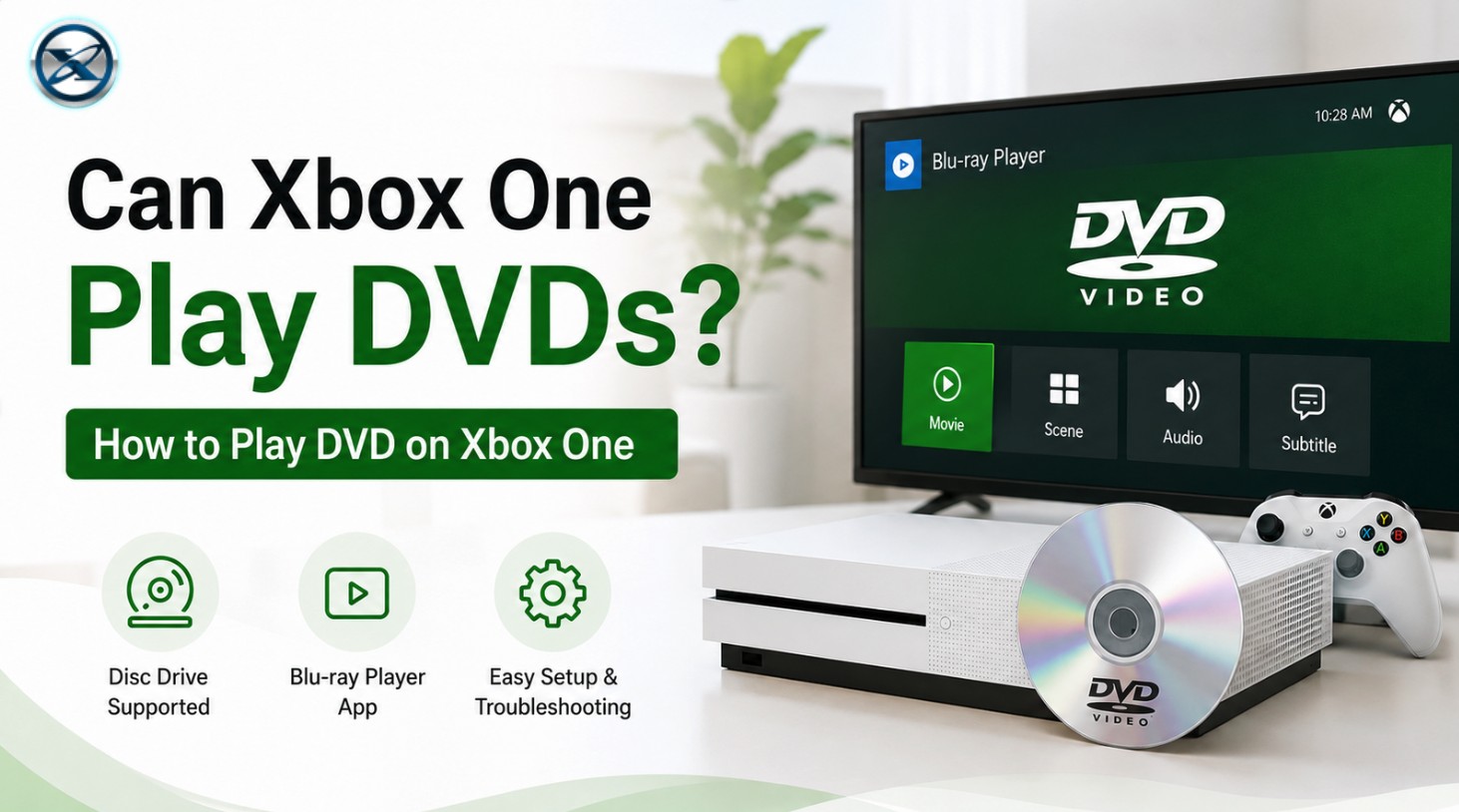
Can Xbox One Play DVDs? Check Your Model First
DVD playback depends on whether the console has an optical drive. The original Xbox One uses a Blu-ray drive, while Xbox One S and Xbox One X use 4K UHD Blu-ray drives. Xbox One S All-Digital Edition has no disc drive.
| Console | Generation | Physical DVD Playback | Optical Drive | Notes |
|---|---|---|---|---|
| Xbox One | Xbox One | Yes | Blu-ray | Requires Blu-ray Player app |
| Xbox One S | Xbox One | Yes | 4K UHD Blu-ray | Plays DVD, Blu-ray, and UHD Blu-ray |
| Xbox One X | Xbox One | Yes | 4K UHD Blu-ray | Plays DVD, Blu-ray, and UHD Blu-ray |
| Xbox One S All-Digital Edition | Xbox One | No | None | Cannot read physical discs |
| Xbox Series X (disc-drive model) | Xbox Series | Yes | 4K UHD Blu-ray | Newer generation; included for comparison |
| Xbox Series S | Xbox Series | No | None | Digital-only console |
For the rest of this guide, “Xbox One” refers to the disc-equipped Xbox One, Xbox One S, and Xbox One X unless stated otherwise. If you are checking an older console, see whether Xbox 360 plays Blu-ray.
How to Play a DVD on Xbox One
A disc-equipped Xbox One uses Microsoft’s Blu-ray Player app for DVD and Blu-ray movie playback. Once the app is installed, the normal process is short.
Step 1: Install the Blu-ray Player App
Turn on the Xbox One and connect it to the internet. Open the Microsoft Store, search for Blu-ray Player, select Microsoft’s app, and install it. If the app is already installed, open My games & apps and check the Apps section before downloading it again.

Step 2: Insert the DVD and Start Playback
Insert the DVD into the optical drive. Blu-ray Player should open the disc automatically. If it does not, open My games & apps, launch Blu-ray Player, and select the inserted disc.
Use the DVD menu to choose the movie, chapters, audio language, or subtitles when those options are available on the disc. If the console does not detect the DVD at all, use the troubleshooting checks below before changing playback settings.
Step 3: Change Disc Playback Settings If Needed
Xbox One includes Disc & Blu-ray settings for options such as automatic disc playback. If you want the movie to start as soon as a disc is inserted, open the console settings and enable the automatic disc-play option.
Region settings only matter when a region-coded DVD is rejected. They do not need to be checked for every disc that already plays normally.
What to Do If Xbox One Won't Play a DVD
A failed DVD does not automatically mean the optical drive is broken. Check the disc, Blu-ray Player app, region, and drive behavior in that order.
Xbox One Does Not Detect the DVD
Remove the disc and inspect the playing surface. Dust, fingerprints, and deeper scratches can prevent the drive from reading it. Clean the disc with a soft lint-free cloth, wiping from the center toward the outer edge, then insert it again.
Try another DVD that is known to work. If one disc fails but another DVD plays normally, the first disc is the stronger suspect. If several known-good movie DVDs are not detected, continue with the app and drive checks below.
Blu-ray Player Is Missing or Won't Open
Confirm that Blu-ray Player is installed and can open on its own. If the app fails to start, quit it, restart the Xbox One, check for an update, and reinstall it from the Microsoft Store if necessary.
Correct the app problem before assuming that the optical drive itself has failed.
DVD Region Does Not Match the Console
Commercial DVDs can carry region codes. A region-coded DVD normally needs to match the DVD region supported by the console. Check the region symbol on the DVD case or disc if the movie is rejected even though other DVDs play normally.
Region-free or all-region DVDs do not carry a single-region restriction, so they are not blocked by a mismatch between two numbered DVD regions.
The Console Reads Games but Not Movie Discs
If Xbox game discs work but several DVDs do not, check Blu-ray Player first. Try another known-good DVD and, if available, a standard Blu-ray movie. Reinstall Blu-ray Player and fully restart the console before treating the problem as a drive failure.
If several movie discs still fail while game discs continue to work, use Xbox Support to check current service or repair options. One failed DVD is not enough to diagnose the drive.
How to Watch DVD Content on Xbox One S All-Digital Edition
Xbox One S All-Digital Edition cannot play DVDs directly because it has no optical drive. To watch video from a DVD on this console, you first need to read the disc on a computer and convert the content you want to keep into a compatible digital video file. The result is a regular video file for Xbox playback, not DVD-Video played from the physical disc.
DVDneXtCOPY DVD Ripper can convert a copy-protected DVD disc, ISO image, or DVD folder to MP4, MKV, AVI, and other digital formats. Before conversion, you can select the movie title, audio track, and subtitles you want to keep, and use the built-in editor to make basic changes to the video.
For Xbox One playback, MP4 with H.264 video is a straightforward starting point because Xbox One supports H.264-based video. MKV is also supported, but the container alone does not determine compatibility—the video and audio codecs stored inside it must also be supported by the console.

A short conversion sequence is enough: load the DVD or DVD image, choose an MP4/H.264 profile, keep the title and tracks you need, and save the finished file. For the complete conversion process, see how to rip a DVD.
The same physical-disc limitation applies to Xbox Series S because it also has no optical drive.
FAQs
For normal DVD movie playback, install Microsoft’s Blu-ray Player app first. The optical drive can read the disc, but Blu-ray Player provides the movie-disc playback function.
A burned disc may play if it has been properly authored and finalized as a compatible DVD-Video disc and the Xbox drive can read the recordable media. Playback should not be treated as guaranteed because recordable-disc compatibility can vary.
A data DVD containing MP4 or MKV files is different from DVD-Video. Copying video files onto a blank DVD does not create the DVD-Video structure used for movie-disc playback.
Conclusion
Yes, Xbox One can play DVDs on the original Xbox One, Xbox One S, and Xbox One X. Install Microsoft’s Blu-ray Player app, insert the disc, and use the DVD menu for normal playback. Xbox One S All-Digital Edition cannot read physical DVDs because it has no optical drive.
If a supported Xbox One will not play a DVD, check the disc condition, Blu-ray Player app, region code, and optical drive before converting the movie to another format. Digital conversion is mainly useful for a console without a drive or when you want to stop depending on the physical DVD for future playback.
 Luna MillerOct 8, 2026
How to Block Someone on TikTok: App & Website Guide
 Luna MillerSep 21, 2026
10 Free Sites to Download Subtitles for Movies & TV Shows in 2026
 Luna MillerSep 17, 2026
How to Delete a TikTok Story in 5 Steps (2026)
 Luna MillerSep 16, 2026
How to Fix Cinavia Message Code 3: Start With the Source
![WinX DVD Author Review & Tutorial: Features, How to Use, and Limits [2026]](https://c.dvdnextcopy.com/uploads/images/17884278134315877-5212fbb54f6ef7f5e20bf1765fc74e79.jpg) Luna MillerSep 3, 2026
Luna MillerSep 3, 2026WinX DVD Author Review & Tutorial: Features, How to Use, and Limits [2026]
 Luna MillerAug 31, 2026
How to Rip a DVD with HandBrake in 2026: Steps, Settings & Limitations