 DVDneXtCOPY DVD Ripper
Movavi Video Converter Review 2026: Features, Pros, and Cons

Summary: Movavi Video Converter is a good tool for everyday video, audio, and image conversion when you value presets, batch processing, and a simple Windows/macOS interface. Its trial is limited, protected DVDs and DRM-protected files are not supported, and SuperSpeed or AI upscaling should be judged within their actual conditions rather than from headline claims alone. Third-party reviews are generally positive about ease of use and conversion speed, but the source, metadata, licensing terms, and finished output still deserve a check before you commit to a purchase or a large batch.
Table of Contents
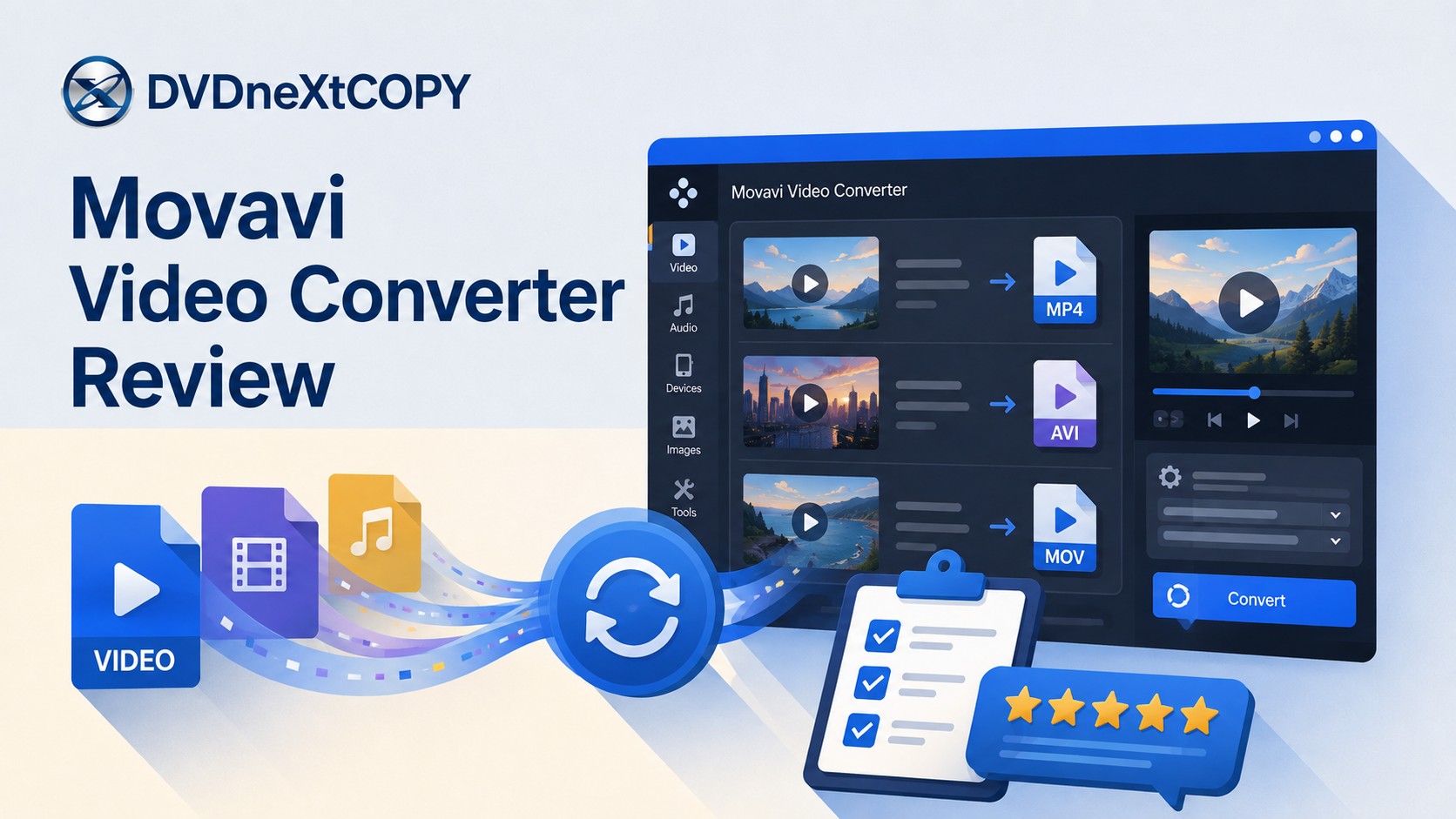
Movavi Video Converter makes the most sense when the source is already an ordinary video, audio, image, VOB, or other readable media file and you want a different format, smaller file, or device-ready output. The current Movavi Video Converter 2026 release runs on Windows and macOS and combines file conversion with device presets, batch processing, basic editing, SuperSpeed conversion, compression controls, and AI upscaling.
The source matters as much as the feature list. Movavi does not support converting copy-protected DVDs or DRM-protected media, its free download is a restricted trial rather than a permanent free edition, and its 8× upscaling option should not be confused with turning every old source into native 8K video. For routine file conversion, I find the product positioning easy to understand; for protected commercial DVDs or complete disc preservation, I would choose a tool designed around optical-disc sources instead.
Movavi Video Converter Review: Quick Verdict

Movavi Video Converter 2026 is currently listed as version 24.4.0. The Windows build supports Windows 10 and 11 64-bit, while the Mac version requires macOS 12 or later. Its strongest use case is straightforward conversion of normal media files without requiring the user to configure every codec setting manually.
I would not give it a made-up star score without a supplied hands-on benchmark. The more useful verdict is conditional: Movavi is a convenient choice for repeated everyday file conversion, but it is a weaker choice when the job depends on protected optical discs, full-disc menus, ISO preservation, or deeper editing controls.
| Review Point | Verdict |
|---|---|
| Best for | Everyday video, audio, and image conversion |
| Platforms | Windows 10/11 64-bit and macOS 12+ |
| Version checked | Movavi Video Converter 2026, version 24.4.0 |
| Formats and presets | 180+ formats and 200+ device profiles |
| Trial | 7 days with output restrictions |
| SuperSpeed | Most useful when the conversion can keep the existing codec |
| AI upscaling | 2×, 4×, and 8× enlargement options; not automatically native 8K detail |
| Protected DVD / DRM | Not supported by Movavi |
| Full-disc ISO/menu preservation | Not the program's main purpose |
| Verdict | Convenient for normal files; look elsewhere for protected discs or complete disc structure |
For safety, I would download the installer directly from Movavi rather than a mirror or modified package. This article does not include an independent malware scan of the current installer, so I would not turn the vendor's own safety statements into a blanket claim that every download source is risk-free.
What Do Movavi Video Converter Users Say?
Third-party feedback broadly supports Movavi's strongest use case: simple everyday file conversion. As checked in August 2026, G2 lists Movavi Video Converter at 4.8/5 from 60 reviews, while Capterra lists it at 4.9/5 from 63 reviews. Across those reviews, users repeatedly mention an easy interface, quick setup, presets, and fast conversion as practical strengths.
The specific negative comments are more useful for judging where the software may fall short: G2 users mention limited advanced editing and encoding controls, while Capterra reviews include complaints about DRM-protected files and a case where embedded cover art was not preserved. These are individual user experiences rather than universal results, but they are good reasons to reopen the finished file and check the metadata, audio, subtitles, or other elements that matter to you.
Movavi Video Converter Pros and Cons
Pros: Movavi keeps common conversion tasks approachable, supports Windows and macOS, offers a broad range of ordinary media formats and device presets, handles batch jobs, and includes enough trimming, cropping, subtitle, and compression controls for simple preparation work. Ease of use and speed are also the two strengths that appear most consistently in current third-party feedback.
Cons: The trial has meaningful export restrictions, copy-protected DVDs and DRM-protected files are outside Movavi's supported range, and it is not intended to preserve a complete optical disc with menus and original navigation. Users looking for deeper editing or encoding control may also find the converter-focused interface limiting.
What Movavi Video Converter Does Well
Format Conversion and Device Presets
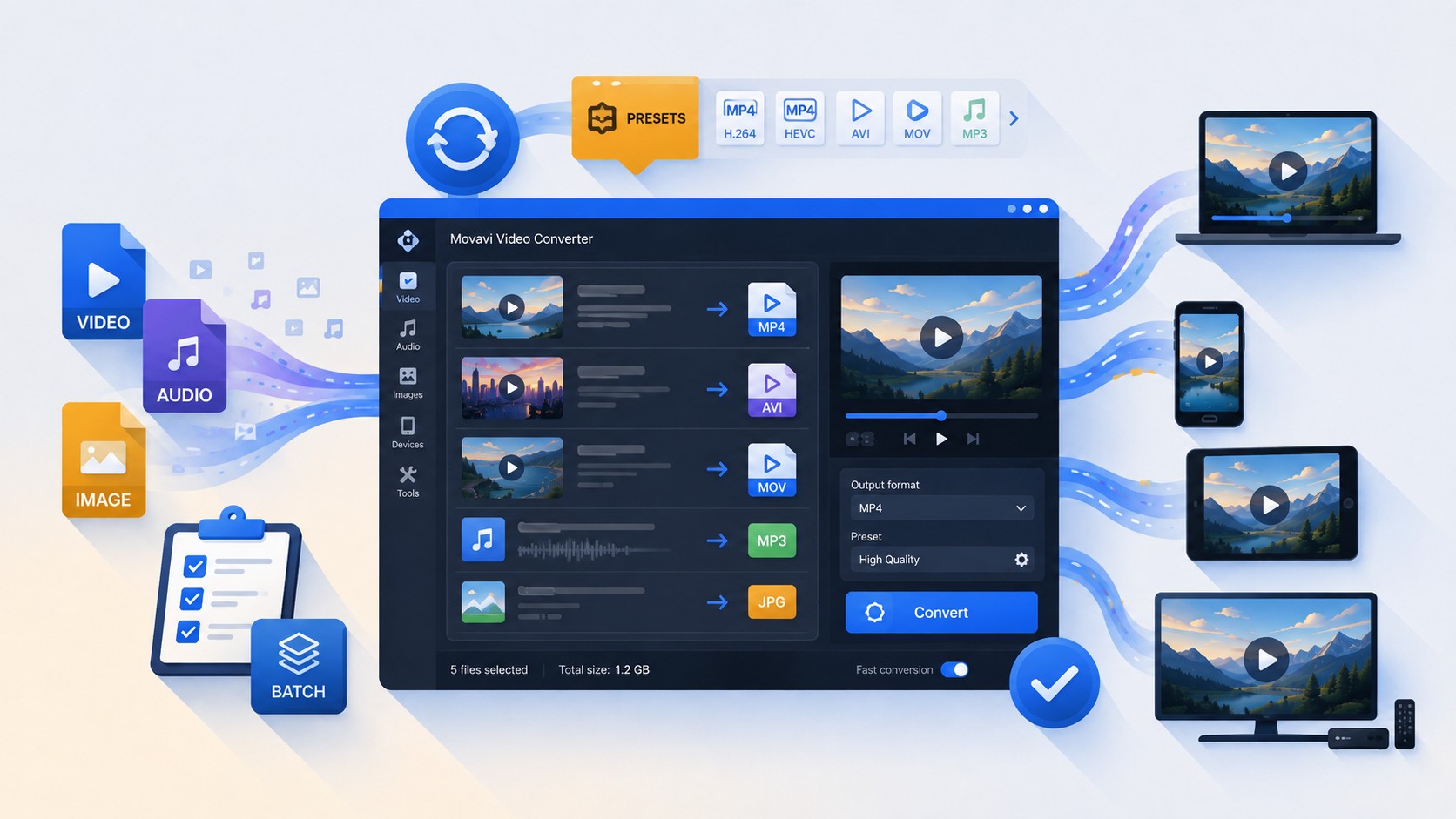
For ordinary digital media, Movavi covers the common jobs expected from a dedicated converter. Its current product pages advertise more than 180 supported formats and more than 200 device profiles, with options for video, audio, and image conversion. Batch processing is available when several files need the same output.
The device presets are more useful to me than the raw format count. A file ending in .mp4 can still contain a video or audio stream that a particular device does not support, so choosing a device-oriented preset can reduce the amount of codec configuration needed.
Basic editing is integrated into the conversion stage. Trimming, cropping, rotating, merging, color adjustments, audio controls, and subtitle functions are enough for preparing a file when a full editing project is unnecessary. The limitation is depth: if the job becomes a serious editing or compositing project, a converter is no longer the right category of software.
SuperSpeed: Fast When the Conversion Can Keep the Existing Codec
SuperSpeed is more interesting once its condition is clear. Movavi says the mode is available for compatible conversions when you do not need to change the input codec. In that situation, the program can move the existing media streams into a suitable output rather than perform the same kind of full re-encode required by an ordinary transcode.
That distinction matters more than Movavi's headline speed figure. I would not assume every source can use SuperSpeed, and I would not present the company's “up to 79×” figure as a result from this review. A codec change, incompatible target format, or processing step that requires re-encoding can put the job back onto a normal conversion path.
Quality language also needs the same boundary. If the video stream is passed through without re-encoding, the encoded video itself can remain unchanged. Once the video is transcoded to another codec or bitrate, the process should not be broadly described as lossless.
AI Upscaling: 8× Is Not the Same as Native 8K
Movavi labels its enlargement feature AI Upscaling and currently provides 2×, 4×, and 8× scale options. The final frame size depends on the resolution you start with and the selected scale.
The important limit is what that number means. An 8× enlargement setting is not a promise that every clip becomes native 8K material, and a larger output should not be described as restored original high-resolution detail. I would use the feature when a larger output frame is useful for playback or editing, then compare a short sample before applying it to a whole batch.
Where Movavi Video Converter Falls Short
The Free Trial Has Real Export Limits
Movavi Video Converter is not a permanently free desktop converter. The current trial lasts seven days and is designed for evaluating the program rather than producing unrestricted final exports.
| Trial Limitation | What It Means |
|---|---|
| 7-day trial | The evaluation period is time-limited |
| Trial watermark on output videos | A trial video is not a clean paid-version deliverable |
| Audio limited to half the file | The trial cannot create a full-length audio conversion |
| SuperSpeed limited to half the video | You can evaluate the mode but not create a complete SuperSpeed output |
I would use the trial to answer concrete questions before paying: does the source open, is the target format available, does the device preset work, and does a short output preserve the picture, audio, and metadata you care about?
Copy-Protected DVDs Are Not Supported
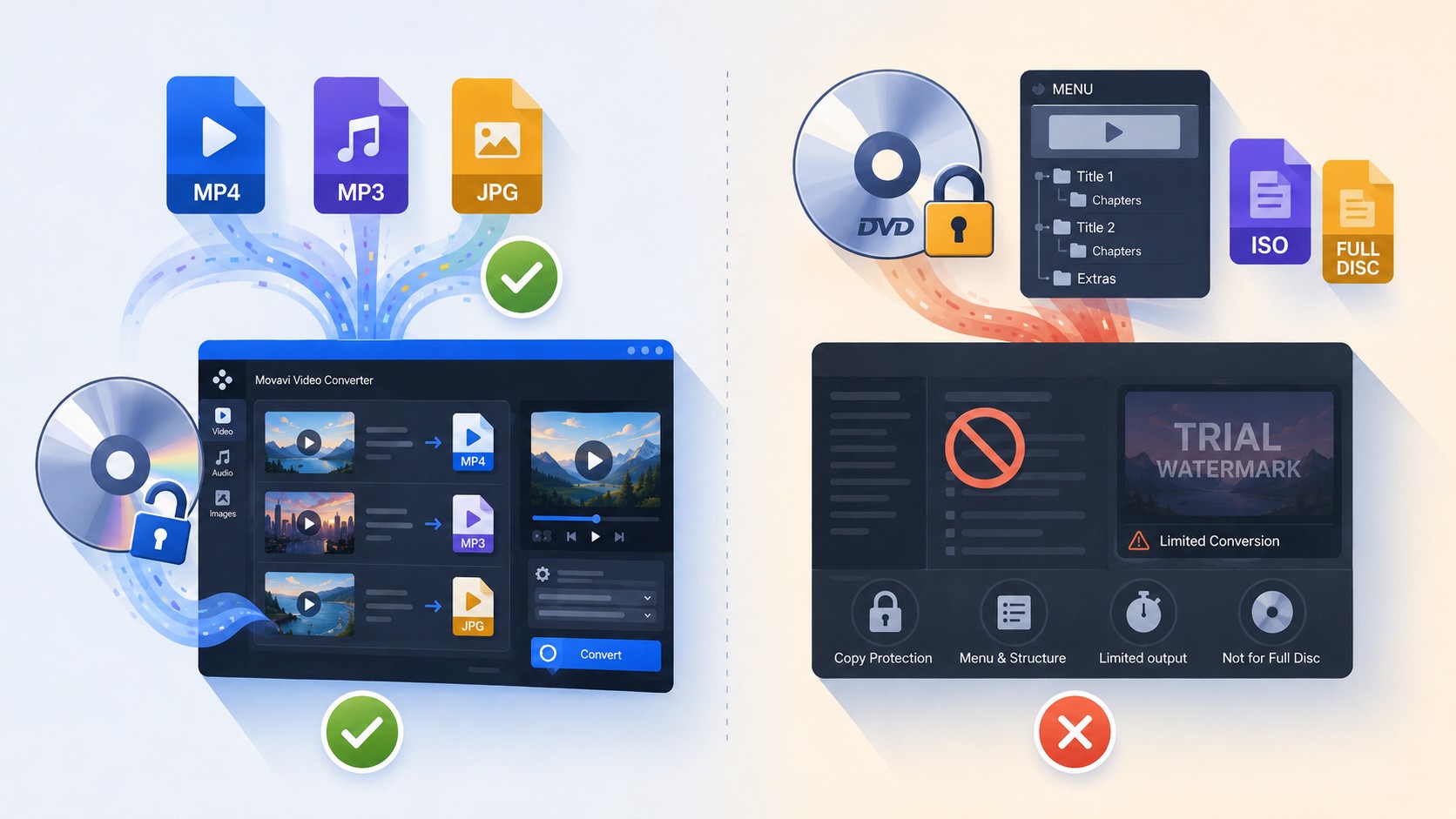
This is an important limit for a review published on a DVD-focused site. Movavi can work with DVD and VOB content in supported cases, but the company states that its programs do not remove or bypass DVD copy protection. If copy protection is detected, the protected DVD contents cannot be converted in Movavi.
An unprotected or home-recorded DVD therefore should not be treated as the same source as a protected commercial movie disc. A disc can also fail because of damage or unusual DVD structure, so check whether it plays normally and whether the expected VOB content is readable before blaming the converter.
There is also evidence that buyers can encounter this limitation after purchase. A recent third-party store review described a user discovering that a copyright-protected DVD could not be converted. One report cannot establish a universal user experience, but in this case it matches Movavi's documented restriction closely enough that I would verify the disc source before buying the program specifically for DVD conversion.
It Is a File Converter, Not a Full Disc Preservation Tool
A standalone MP4 and a complete disc backup preserve different things. If you only need the main movie for a phone, television, media server, or editor, a normal video file is convenient and easy to organize.
A disc can contain more than its main title. Multiple audio tracks, subtitle tracks, commentary, bonus material, chapters, and menus may matter to a collection. Converting one title to MP4 does not preserve the original DVD menu or navigation structure.
MKV can keep selected video, audio, subtitle, and chapter streams, but it still should not be described as a clone of the original DVD structure. If the goal is to retain menus and the full disc layout, an ISO or DVD folder belongs to a different backup task.
Movavi Video Converter Pricing: Is It Worth Paying For?
Pricing checked August 11, 2026. Movavi sells Video Converter through subscription and lifetime-license options, but the prices shown on its store can change by locale and promotion. I would check the current store amount before purchasing rather than rely on an old fixed price table in a review.
The license type matters too. Movavi describes a lifetime license as ongoing use of the specific major version purchased, including its minor updates. A later major version may require a new license. A subscription, by contrast, provides access for the paid subscription period and can include major-version updates while the subscription remains active.
The refund wording deserves a careful read before checkout. Movavi currently allows refund requests within 14 calendar days when a purchase meets specific conditions in its policy, such as unresolved qualifying technical or activation problems. Changing your mind after activation or deciding that you no longer need the software is not presented as a blanket refund reason.
I would also separate product quality from billing feedback. Movavi's broader Trustpilot profile contains both positive support reports and complaints involving recurring subscriptions, cancellation, trial expectations, and refunds. Those reports cover the Movavi brand rather than Video Converter alone, so they are not evidence about encoding quality, but they are a good reason to check renewal settings and refund eligibility before entering payment details.
When the Paid Version Makes Sense
- You regularly convert ordinary video, audio, or image files.
- You want the same converter available on Windows or macOS.
- Device presets save you from configuring codecs repeatedly.
- You often process several files with the same settings.
- Basic trim, crop, subtitle, compression, or enlargement tools reduce the need to open another application.
- You have already tested your actual source and target during the trial.
When I Would Skip It
- You only need an occasional conversion that a free transcoder can already handle.
- Your files are DRM-protected.
- Your main task is converting protected commercial DVDs.
- You need a full-disc ISO, DVD folder, menu, or complete disc structure.
- You need deeper editing or encoding controls rather than convenient presets.
- You expect every conversion to use SuperSpeed or every enlarged output to gain native high-resolution detail.
How to Convert a Video with Movavi
The useful part of the Movavi interface is that an ordinary conversion does not need a long manual. Add the source, decide where the finished file will be used, change only the settings the target requires, and verify a sample before processing a larger queue.

Add the Source and Choose the Output
Open Movavi Video Converter and use Add Media to add the video, audio, or image file you want to convert. You can also drag supported files into the conversion queue.

Choose the target from the Video, Audio, or Devices area. I would select the output based on the player or application that will use the result rather than choosing a format because its name is familiar.

Adjust Only the Settings the Output Needs
Resolution, bitrate, file size, codec, trimming, subtitles, and other controls should solve a specific output requirement. Raising the resolution does not restore detail that was never present in the source, while lowering bitrate or changing codec normally means another encode.
If storage size is the goal, Movavi's file-size controls can help estimate a target, but make a short sample before applying an aggressive reduction to a long video.

When SuperSpeed is available and the conversion can keep the existing codec, it is worth considering. If the target requires a different codec or processing that forces re-encoding, expect a conventional conversion instead.
Convert a Sample and Check the Result
A completed progress bar is not the end of the review process. Reopen a sample and confirm the expected duration, picture shape, resolution, audio synchronization, subtitle behavior, and playback on the intended device.
If metadata matters, check that too. A third-party user report about missing embedded cover art is a good reminder that successful media conversion and complete metadata preservation are not the same thing.
Once the sample behaves as expected, process the remaining files with the same settings.
Who Should Use Movavi—and Who Should Choose Something Else?
Choose Movavi for Everyday File Conversion
Movavi Video Converter is a sensible choice when the source is already a readable digital media file and the goal is another format, a device-oriented output, a smaller file, or a few basic changes before export. Presets, batch processing, trimming, compression, subtitle functions, and AI enlargement keep those tasks in one application.
The tradeoff is that this convenience comes from a paid converter with a restricted trial and a narrower job than a full editor or disc-backup application. I would choose it after testing the exact source and destination I plan to use, not simply because the supported-format count is high.
Use a Disc-Specific Tool for Protected DVDs
When Movavi rejects a commercial DVD because the disc is protected, the source has moved outside ordinary file conversion. DVDneXtCOPY DVD Ripper is the Windows disc-oriented option covered here: for media you own or are authorized to convert where local law permits, it can load a protected DVD source, identify the titles, and let you select the movie, chapters, audio tracks, subtitles, and a digital output such as MP4.
I would not describe DVDneXtCOPY as a universal replacement for Movavi. Movavi remains the more natural choice when the input is an ordinary video, audio, or image file and you need general file conversion on Windows or macOS. DVDneXtCOPY becomes relevant when the input itself is a DVD that needs disc-specific handling; it is also Windows-only, so it does not replace Movavi's macOS use case.
FAQs About Movavi Video Converter
No. Movavi Video Converter has a seven-day trial rather than an unrestricted permanent free version. The trial adds a watermark to video exports, converts only half of an audio file, and limits SuperSpeed conversion to half of the video.
No. Movavi states that its programs do not remove or bypass DVD copy protection, and protected DVD content cannot be converted when that protection is detected.
No. Movavi offers 2×, 4×, and 8× enlargement options, but the final dimensions depend on the source and selected scale. Enlarging a file should not be described as restoring native high-resolution source detail.
Conclusion
Movavi Video Converter works best as a convenient desktop converter for ordinary video, audio, and image files. Its format support, device presets, batch processing, basic editing, SuperSpeed option, and enlargement controls can keep routine file preparation in one application, and current third-party reviews consistently reinforce ease of use as one of its main strengths.
The purchase decision becomes clearer once the limits are included. The free download is a seven-day restricted trial, SuperSpeed only applies to compatible conversions, enlargement should not be confused with restored native detail, and protected DVDs sit outside Movavi's supported conversion range. Subscription, renewal, and refund conditions are also worth checking before checkout rather than after a project has started.
For normal file conversion, test the real source and target during the trial and reopen a sample before committing a large batch. If the job begins with a protected commercial DVD, use an appropriate disc-specific application where permitted; if the goal is to keep menus and the full original disc structure, choose a full-disc backup format rather than treating a standalone MP4 as the same result.
 Luna MillerOct 8, 2026
How to Block Someone on TikTok: App & Website Guide
 Luna MillerSep 21, 2026
10 Free Sites to Download Subtitles for Movies & TV Shows in 2026
 Luna MillerSep 17, 2026
How to Delete a TikTok Story in 5 Steps (2026)
 Luna MillerSep 16, 2026
How to Fix Cinavia Message Code 3: Start With the Source
![WinX DVD Author Review & Tutorial: Features, How to Use, and Limits [2026]](https://c.dvdnextcopy.com/uploads/images/17884278134315877-5212fbb54f6ef7f5e20bf1765fc74e79.jpg) Luna MillerSep 3, 2026
Luna MillerSep 3, 2026WinX DVD Author Review & Tutorial: Features, How to Use, and Limits [2026]
 Luna MillerAug 31, 2026
How to Rip a DVD with HandBrake in 2026: Steps, Settings & Limitations