 DVDneXtCOPY DVD Ripper
Can Wii Play DVDs? What Works and What Doesn't [2026]

Summary: Stock Nintendo Wii consoles do not play DVD-Video natively. Some older RVL-001 units can read DVDs through WiiMC after Homebrew is installed, while RVL-101 and newer drive revisions cannot. If the Wii drive cannot read the disc, a Windows PC can convert the DVD to a WiiMC-friendly 480p MP4 for playback through WiiMC—not through the stock Wii system.
Table of Contents
You insert a movie DVD into a Nintendo Wii, but the Disc Channel never recognizes it as a playable movie. That is normal: retail Wii consoles were built for Wii game discs rather than DVD-Video movies, and Nintendo never enabled native DVD movie playback on Wii or Wii mini.
When I look at the available workarounds, I first separate the official Wii capability from what Homebrew software can add. Some older original Wii consoles can read movie DVDs through WiiMC after Homebrew is already installed, while later Wii drives cannot read standard DVDs at all. Below, I'll show which Wii models may work, how WiiMC handles direct DVD playback, and what to do when the Wii drive itself cannot read the disc.
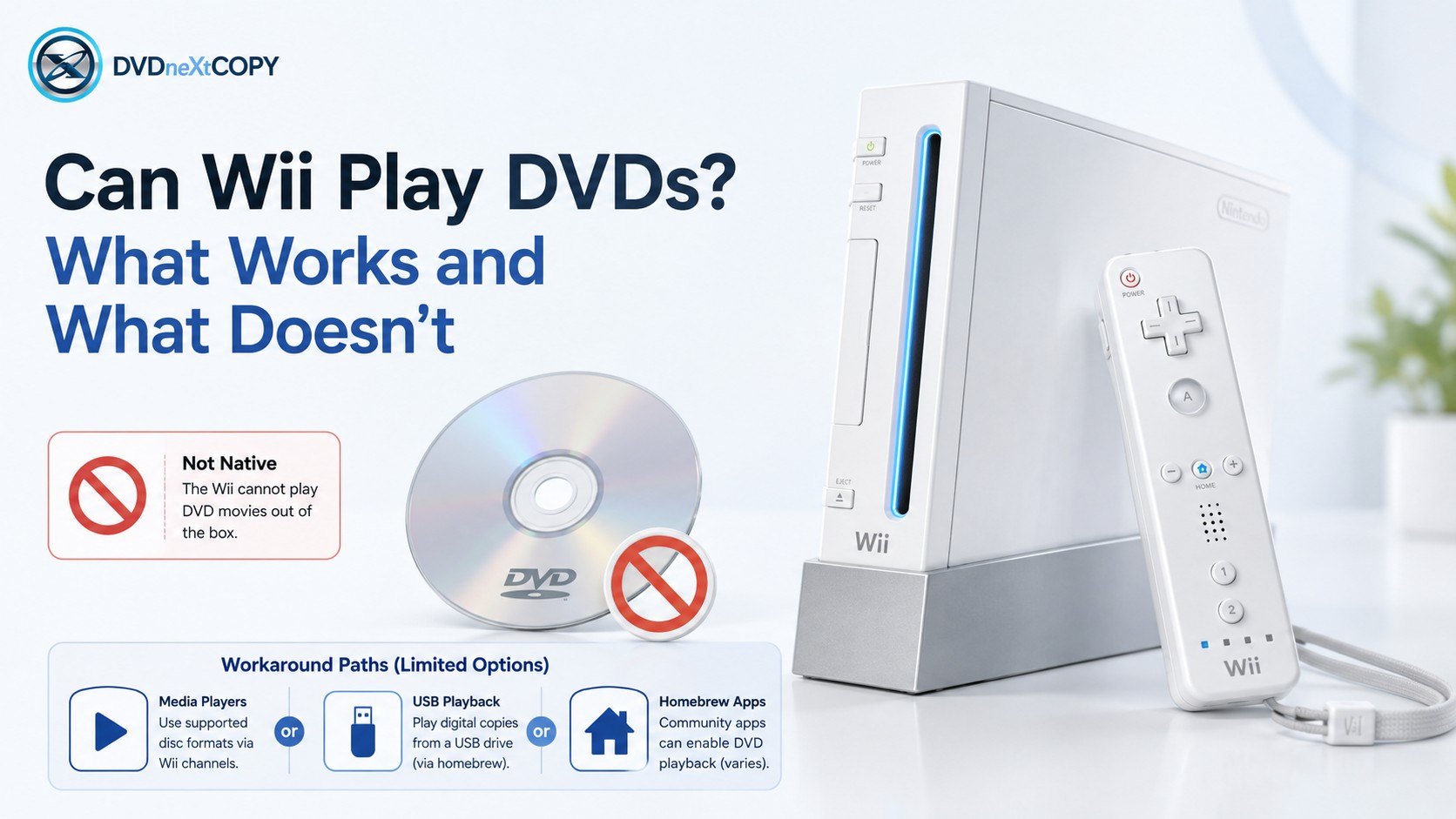
Can a Wii Play DVDs Natively?
No Wii model provides official DVD movie playback. Nintendo states that Wii and Wii mini do not play DVD, HD-DVD, Blu-ray, music CDs, or movies stored on SD cards, USB drives, or other portable storage.
The Wii model matters only when you consider an unofficial Homebrew workaround. Some original RVL-001 units contain older optical drives that can read standard DVDs, while later drive revisions cannot. WiiBrew notes that you cannot reliably identify a DVD-readable RVL-001 drive from the console’s appearance alone.
| Wii Model | Native DVD Playback | WiiMC / Homebrew DVD Playback | What to Know |
|---|---|---|---|
| Original Wii RVL-001 | No | Some units may work | Optical-drive revision varies, and appearance alone does not reliably identify a DVD-readable drive. |
| Wii Family Edition RVL-101 | No | No direct DVD reading with the internal drive | The internal drive cannot read standard DVDs. |
| Wii mini RVL-201 | No | Not a practical direct-DVD route for this guide | No SD card slot and no built-in online functionality; its Homebrew path differs substantially from a standard Wii. |
How to Play a DVD on a Compatible Wii with WiiMC
WiiMC is an unofficial Homebrew media player that adds DVD playback, DVD menus, and video-file playback to compatible Wii systems. WiiMC documentation states that DVD playback requires Homebrew Channel 1.0.8 or the WiiMC channel and does not require cIOS. It also warns that DVD playback does not work on newer Wii consoles whose internal drives cannot read standard DVDs.
This section assumes that Homebrew and WiiMC are already installed. Installing or modifying the Wii system is a separate task; this article focuses only on DVD playback after WiiMC is available.
Step 1: Open WiiMC on the Homebrewed Wii
Start the Wii and launch WiiMC from the Homebrew Channel or installed WiiMC channel.
Step 2: Insert the DVD and Open the DVD Menu
Insert the movie DVD into the Wii optical drive, then open the DVD option in WiiMC. On a compatible older drive, WiiMC can read the disc and load its DVD menu or main title.
Step 3: Play the Movie and Select Audio or Subtitles
Choose the movie or menu item you want to play. WiiMC supports DVD menus and lets you switch subtitles on or off and adjust the selected audio during playback.
If the Wii Drive Can't Read DVDs: Convert the DVD for WiiMC
If the Wii optical drive cannot read a movie DVD, you can prepare the video on a Windows computer and let WiiMC play the resulting file from supported storage or network media. This does not make a stock Wii play MP4 or AVI files; the digital-file method only applies when WiiMC or another compatible Homebrew media player is already installed.
DVDneXtCOPY DVD Ripper can convert protected DVD sources to MP4, MKV, AVI, MOV, and other digital formats on Windows. Its Advanced Settings let you change video codec, resolution, bitrate, and frame rate, while the main interface lets you select titles, chapters, audio tracks, and subtitles.
For WiiMC, the useful part is the ability to create a lower-resolution H.264 file instead of relying on the Wii optical drive. DVDneXtCOPY can also crop, trim, merge, add watermarks, and add external subtitles before export. The limitation is important: DVDneXtCOPY does not add native video playback to a stock Wii, and exporting 1080p or 4K video offers no practical benefit because Wii hardware output is limited to 480p or 576i.
Step 1: Load the DVD in DVDneXtCOPY
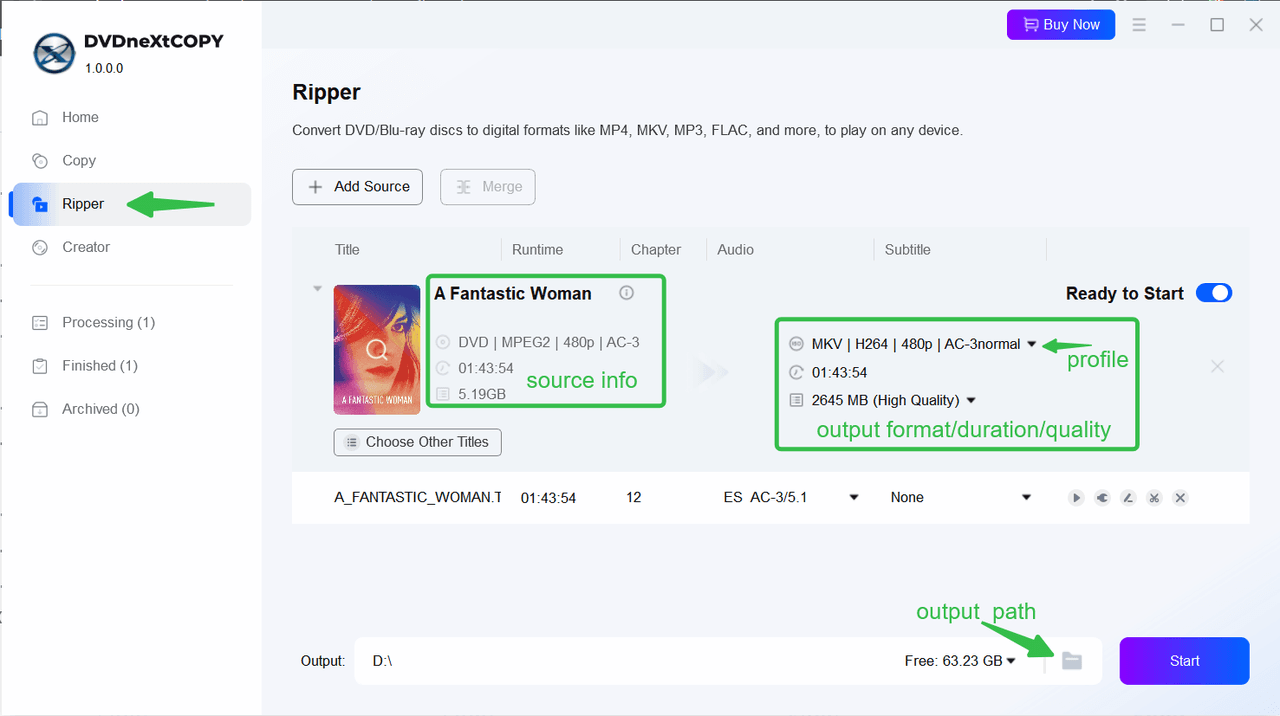
Launch DVDneXtCOPY and open the Ripper module. Insert the DVD into the computer’s optical drive, or click Add Source to load a DVD folder or ISO.

Step 2: Select MP4 as the Output
Open the output profile selector, choose Format > Video, and select an MP4/H.264 profile. Select the movie title, chapter range, audio track, and subtitles you want to include.

Step 3: Set a WiiMC-Friendly Resolution
Open Advanced Settings and keep the output at 720×480 or below for practical H.264 playback in WiiMC. Adjust the video codec, bitrate, frame rate, audio, and subtitle settings as needed.

Step 4: Rip and Save the DVD Video for WiiMC Playback
Choose the output folder and click Start. After conversion, move the video to storage or a network location that your WiiMC setup can access, then open the file from WiiMC.
What Video Formats and Resolutions Can WiiMC Play?
The Wii is a standard-definition console, so output compatibility matters more than keeping the original video at HD resolution. WiiMC documents the following practical playback ranges:
| Video Type | Typical WiiMC Support | Practical Use |
|---|---|---|
| H.264 in MP4 / MKV | Usually up to about 720×480p | Recommended general digital-video option |
| Xvid / DivX AVI | Usually up to about 656×352 | Useful for older AVI collections |
| MPEG-2 MPG | Up to about 720×480 | Suitable for DVD-style video |
| 720p / 1080p video | Not reliable on Wii hardware | Avoid as a Wii playback target |
WiiMC lists some file types with higher container-level limits, but its own limitations note that the Wii does not have enough processing power for reliable 720p/1080p playback or downscaling. Wii video output itself is limited to 480p or 576i.
FAQs
You cannot reliably tell from the console's exterior. WiiBrew notes that RVL-001 systems were produced with different optical-drive revisions, and there is no dependable visual difference between a DVD-readable drive and a later drive that only reads Wii and GameCube discs. If WiiMC is already installed, testing a known-good DVD is the practical way to confirm whether that particular drive can read standard DVDs.
No. Current WiiMC documentation says DVD playback requires Homebrew Channel 1.0.8 or the WiiMC channel and does not require cIOS. DVDX is an older Homebrew component that became redundant after the Homebrew Channel and newer libraries added direct hardware access.
Conclusion
A stock Nintendo Wii does not play DVD movies, and there is no official Wii DVD Player app. Some older original RVL-001 consoles can read DVDs through WiiMC after Homebrew is already installed, but compatibility depends on the optical-drive revision. The RVL-101 Wii Family Edition uses a drive that cannot read standard DVDs, so direct DVD playback is not available through that drive.
If a homebrewed Wii cannot read the physical DVD, ripping your DVD movie on a computer provides another WiiMC playback route. DVDneXtCOPY DVD Ripper can prepare a lower-resolution MP4 for WiiMC, but WiiMC—not the stock Wii system—is what makes the video playable afterward.
 Luna MillerOct 8, 2026
How to Block Someone on TikTok: App & Website Guide
 Luna MillerSep 21, 2026
10 Free Sites to Download Subtitles for Movies & TV Shows in 2026
 Luna MillerSep 17, 2026
How to Delete a TikTok Story in 5 Steps (2026)
 Luna MillerSep 16, 2026
How to Fix Cinavia Message Code 3: Start With the Source
![WinX DVD Author Review & Tutorial: Features, How to Use, and Limits [2026]](https://c.dvdnextcopy.com/uploads/images/17884278134315877-5212fbb54f6ef7f5e20bf1765fc74e79.jpg) Luna MillerSep 3, 2026
Luna MillerSep 3, 2026WinX DVD Author Review & Tutorial: Features, How to Use, and Limits [2026]
 Luna MillerAug 31, 2026
How to Rip a DVD with HandBrake in 2026: Steps, Settings & Limitations