 DVDneXtCOPY Blu-ray Ripper
How to Convert BDMV to MKV in 2026: Folder, Remux, or Re-Encode?

Summary: This guide explains what BDMV files contain, why a complete folder or ISO is safer than a single M2TS segment, and how remuxing differs from re-encoding. It compares five BDMV-to-MKV options, shows how to preserve tracks and subtitles, and helps readers choose a workflow for Windows or macOS.
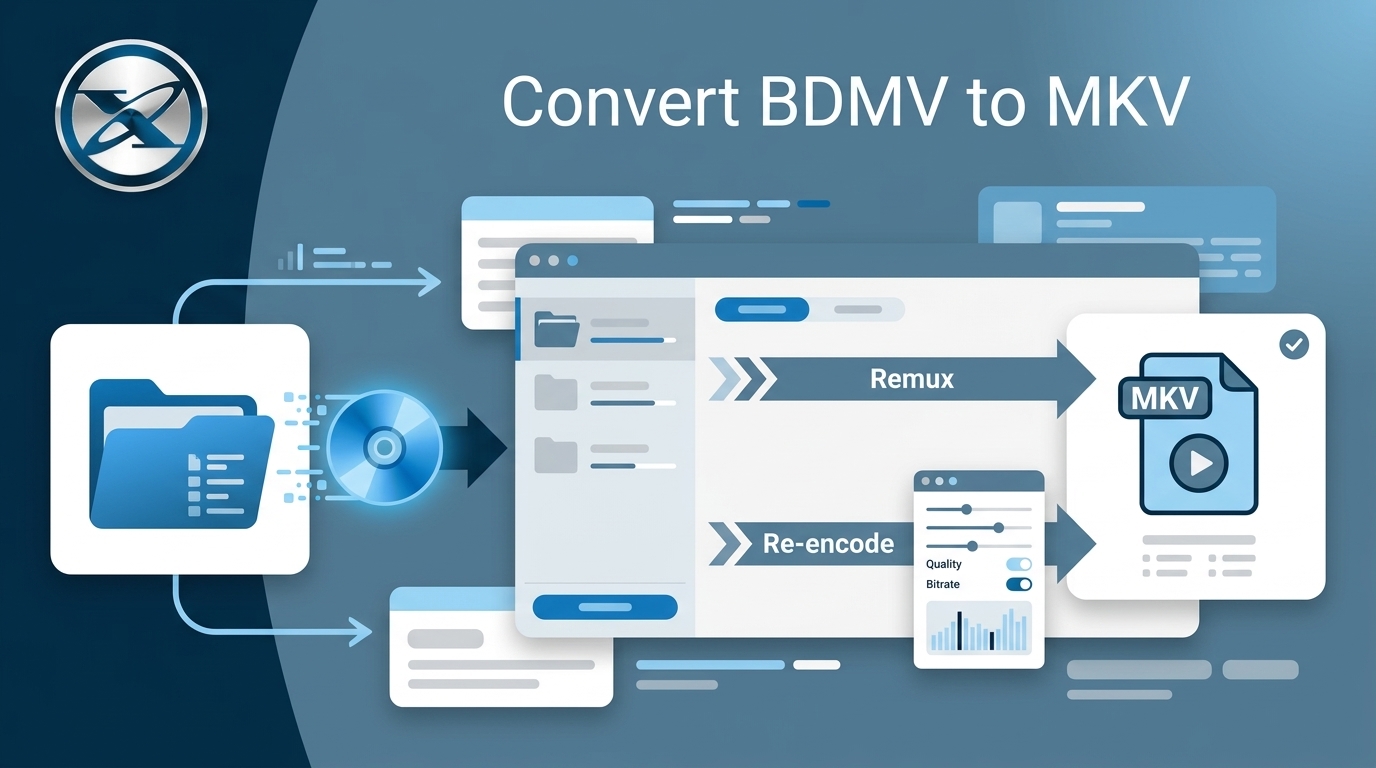
Converting BDMV to MKV works best when you open the complete Blu-ray folder, disc, or ISO so its playlists can identify the main title and join segmented STREAM files. A remux keeps the existing video stream, while a smaller MKV requires re-encoding. The five options below cover both paths.
What BDMV to MKV Conversion Actually Does
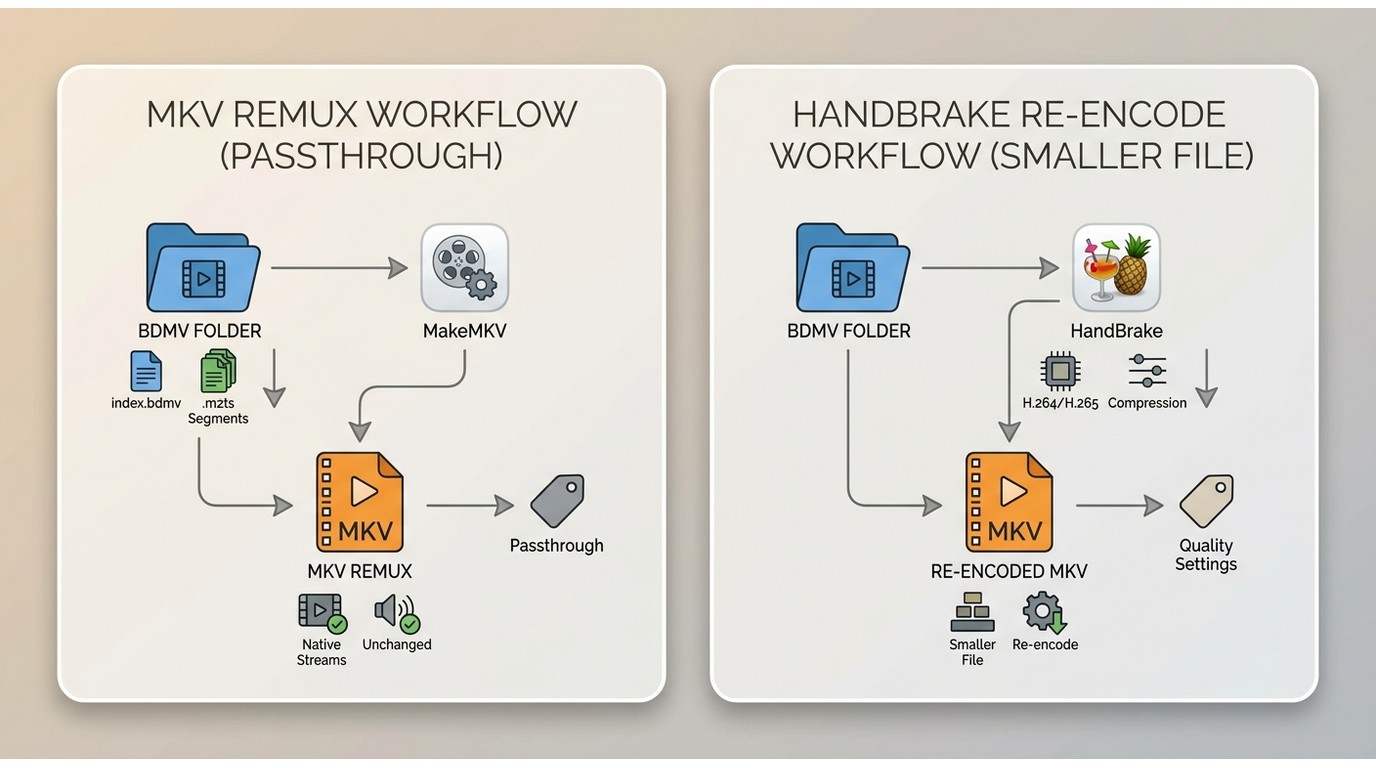
The BDMV meaning is "Blu-ray Disc Movie Information." A BDMV file stores navigation and playlist data for a Blu-ray source, while the video and audio streams usually sit in the STREAM folder. Converting a BDMV file to MKV means selecting the title and tracks, then placing the selected streams in an MKV container.
The goal is a file you can open in a desktop player or media library without keeping the full disc menu structure. The result still depends on the source, the selected title, the output mode, and the player you plan to use.
Remuxing Versus Re-Encoding
A remux BDMV operation changes the container while keeping the existing encoded streams. People often call the result a lossless MKV workflow when no video or audio is re-encoded, but that process does not make the underlying video data smaller.
- Choose remuxing when preserving the selected video, audio, subtitles, chapters, and metadata matters more than file size.
- Choose re-encoding when you need a smaller file for a laptop, phone, or media server. A codec and quality setting reduce size by changing the encoded video, so some source detail is traded away.
I start with remuxing when the original stream is the priority. If the resulting file is too large for the target device, I make a separate re-encoded copy instead of replacing the first file.
Choose the Right BDMV Source Path
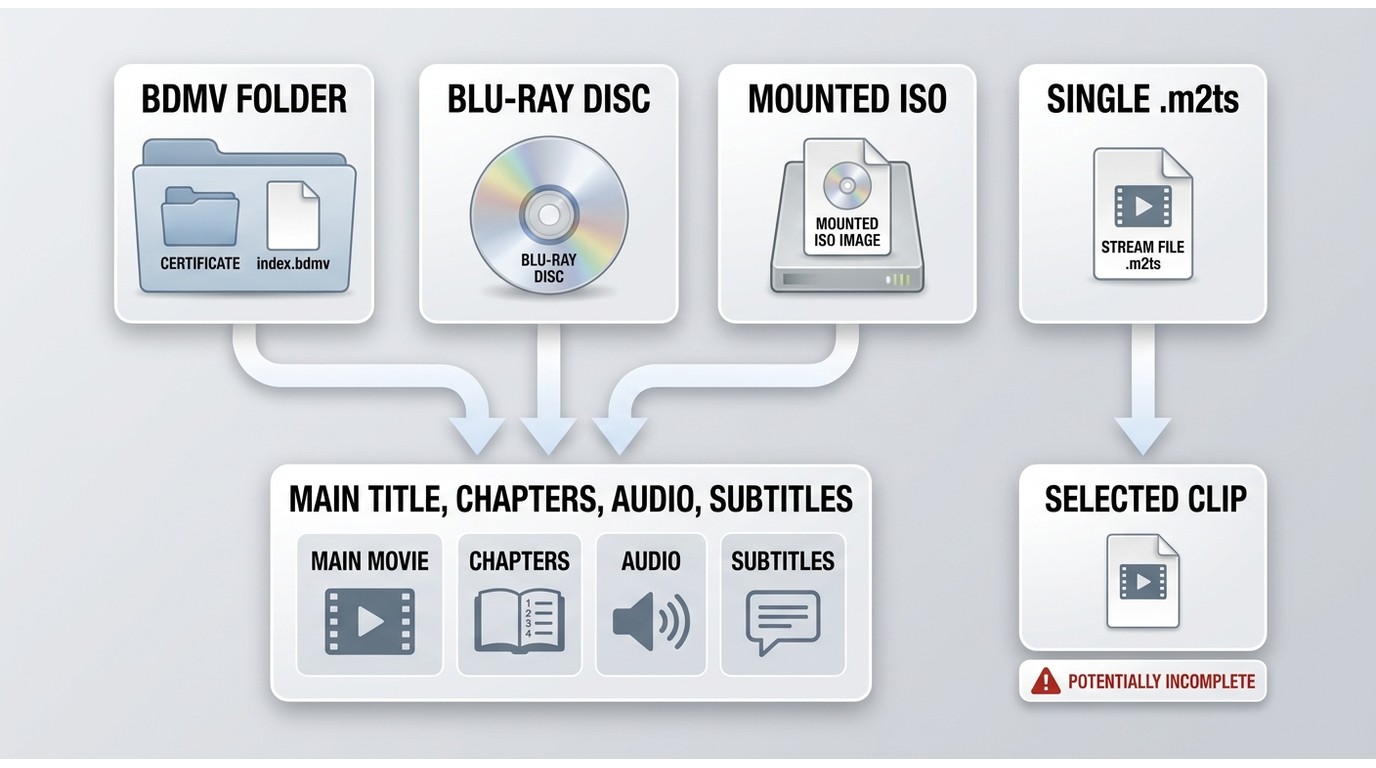
A complete BDMV folder gives a converter the index, playlist, and segment information it needs. Opening the folder, disc, or ISO is usually safer than choosing one arbitrary .m2ts file from STREAM.
Folder, Disc, ISO, or Single M2TS
Start with the source that still contains its navigation data. The index.bdmv file points the application toward the disc structure, while playlists identify titles and the longest main movie. Several short STREAM files may be segments of that one title.
- BDMV folder: open the top-level folder that contains BDMV and CERTIFICATE folders.
- Blu-ray disc: load the disc through a compatible optical drive so the application can read its structure.
- ISO: mount or load the complete image when the folder structure is preserved inside it.
- Single M2TS: use it only when you know that file is a complete title; it may be one segment without the correct playlist, chapters, or subtitles.
On my Windows 11 Pro desktop with a Pioneer BDR-XD08UMB-S drive, I use the title tree as the checkpoint: if the main movie and its tracks appear before output selection, the source path is complete enough to continue.
Readable Versus Copy-Protected Sources
HandBrake BDMV conversion starts with a readable folder or file. HandBrake's documented source workflow does not open a copy-protected Blu-ray source by itself, so it is not the right first step when the application cannot read the disc structure.
MakeMKV BDMV workflows and compatible disc rippers can inspect a source that HandBrake cannot read, then create a local MKV for later encoding. For content you are authorized to access, where permitted by platform terms and applicable law, choose a tool that matches the source path instead of expecting one converter to cover every disc.
HandBrake suits readable sources and size-focused encoding. MakeMKV suits title-and-track selection for a remux. Neither is a sensible choice when you need extensive editing inside the same conversion step.
Five BDMV to MKV Converter Options
This BDMV converter list covers five ways to convert BDMV to MKV, from a Windows Blu-ray ripper to open-source encoders. If you searched for the best MKV file converter, start with the source-path and output trade-offs rather than a generic feature count.
DVDneXtCOPY Blu-ray Ripper
DVDneXtCOPY Blu-ray Ripper can load protected Blu-ray discs, ISO files, and BDMV folders on Windows 11/10/8.1/8/7, then create configurable MKV output. Its profile menu also lets you switch to MP4 through convert BDMV to MP4 when a playback device expects that container.
- MP4, MKV, AVI, MP3, FLAC, WAV, SRT, and IDX/Sub output options.
- 1000+ output configurations and 245+ device presets.
- Passthrough for keeping the existing audio and video streams, plus H.264 and H.265 profiles.
- GPU acceleration and batch tasks for several titles or sources.
- Subtitle OCR/SRT extraction, selectable tracks, preview, and basic trim, crop, merge, and color controls.
On my Windows 11 Pro workstation, I treat the preview panel as the final check before Start: the selected subtitle and audio entries should be visible before the MKV is written. DVDneXtCOPY Blu-ray Ripper is a good match for authorized personal offline work that needs output and subtitle controls.
How to Convert BDMV to MKV with DVDneXtCOPY Blu-ray Ripper
Step 1: Open the Ripper Module, select "Add Source," and choose the complete BDMV folder, disc, or ISO. Drag and drop is also available in the main window.

Step 2: Open "Choose Other Profile," go to "Format," and select MKV or Passthrough MKV. Use "Advanced Settings" and "Video Editor" only for changes you can confirm in the preview.

Step 3: Pick an output folder, check the title and track selections, and select "Start."

HandBrake
HandBrake is an open-source encoder for readable sources on Windows, macOS, and Linux. It can open a readable BDMV folder or video file, produce an MKV, and expose codec, quality, chapter, audio, subtitle, and filter controls. Its role here is re-encoding, not a no-change remux of an unreadable disc.
HandBrake is a good match when you want a smaller, device-targeted MKV. It is not a good match for copy-protected Blu-ray sources that the app cannot read, or for a simple remux where keeping the original stream is the priority.
How to Convert a Readable BDMV Folder to MKV with HandBrake
Step 1: Install HandBrake for your operating system and open the application.

Step 2: Select "Folder" or "File," choose the BDMV source, set MKV as the format, adjust the quality and codec settings, and select "Start Encode."

MakeMKV
MakeMKV can inspect a Blu-ray disc or complete folder, show its titles, and let you choose the movie, audio, subtitle, chapter, and metadata streams for an MKV remux. A MakeMKV BDMV conversion is therefore useful when the selected streams should stay in their existing encoded form.
It is a good match for a focused remux with title and track control. It is not a good match when you need a smaller re-encode, filters, or timeline editing in the same application. Availability and source behavior can vary with the current build and disc.
How to Convert BDMV to MKV with MakeMKV
Step 1: Launch MakeMKV and load the Blu-ray disc or the complete BDMV folder.

Step 2: Let the scan finish, open the title tree, and select the main title plus the audio, subtitle, chapter, and metadata items you want to keep. Choose the destination folder.

Step 3: Select "Make MKV" and wait for the selected streams to be written to the destination.
EaseFab Blu-ray Ripper
EaseFab Blu-ray Ripper is a Windows and macOS option for loading a Blu-ray disc, BDMV folder, or ISO and choosing MKV or MP4 output. Its interface also exposes audio, video, subtitle, and editing controls, so it suits readers who want more than a one-click remux.
It is a reasonable choice when those output and editing controls matter. Readers who need Linux support or a minimal title-to-MKV remux should look at another entry in the list.
How to Convert a BDMV Folder to MKV with EaseFab Blu-ray Ripper
Step 1: Open the application, select "Load Disc," and choose the Blu-ray disc, BDMV folder, or ISO source.

Step 2: Select the main title and the tracks to keep, open "Profile," choose MKV, and adjust only the settings required for the target player.

Step 3: Select a destination folder and choose "Convert" to create the MKV.
VideoByte BD-DVD Ripper
VideoByte BD-DVD Ripper offers a Windows and macOS interface for loading a Blu-ray folder or disc, choosing MKV or MP4, and retaining selected audio and subtitle tracks. It also presents 2D and 3D output choices for compatible sources.
This option fits readers who want a short, guided sequence with a few output controls. It is less suitable when Linux support, deep track metadata control, or a pure remux is the deciding requirement.
How to Convert BDMV to MKV with VideoByte BD-DVD Ripper
Step 1: Open the home screen, select "Load Blu-ray," choose "Load Blu-ray Folder," and browse to the BDMV folder.

Step 2: Open "Rip All To," choose MKV or MP4, and use the gear icon beside the profile when you need a different quality setting.

Step 3: Set any required sample rate, bitrate, or resolution values, select the destination, and choose "Rip All." The completed MKV appears in that folder when the job finishes.

Preserve Tracks, Subtitles, and Chapters
BDMV subtitles, BDMV audio tracks, and BDMV chapters are retained only when the selected title and output mode carry them forward. A remux can keep selected streams and metadata; re-encoding can change the video and audio, while rendered subtitles become part of the picture.
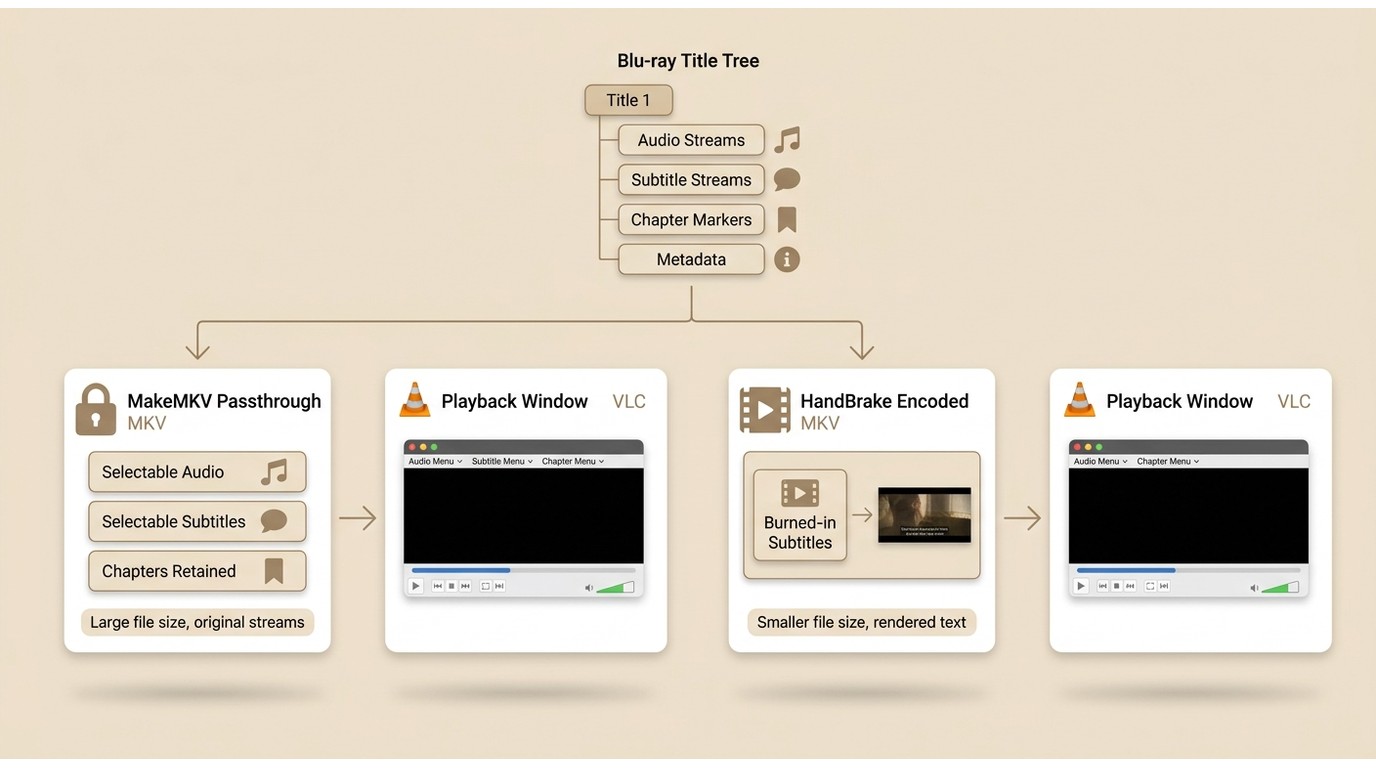
- Audio: select the language and codec you need before starting, then remove duplicate commentary tracks if space matters.
- Subtitles: choose switchable subtitles when the player supports them, or render a subtitle into the video when a fixed caption is required.
- Chapters: keep the chapter map for disc-like navigation, or omit it when the target player does not display chapter markers.
The same title-and-track checks apply when you use this Blu-ray ripping guide to prepare a disc source for MKV. On my Windows 11 Pro desktop, I open the finished file in VLC and confirm that the chosen audio and subtitle entries appear in their menus; if a track is missing, I return to title selection instead of editing the finished file.
My usual recommendation is to keep one Passthrough or remux copy as the reference, then create a smaller encoded copy for a specific device. That preserves a clean fallback while keeping the playback file manageable.
Compare BDMV to MKV Converters
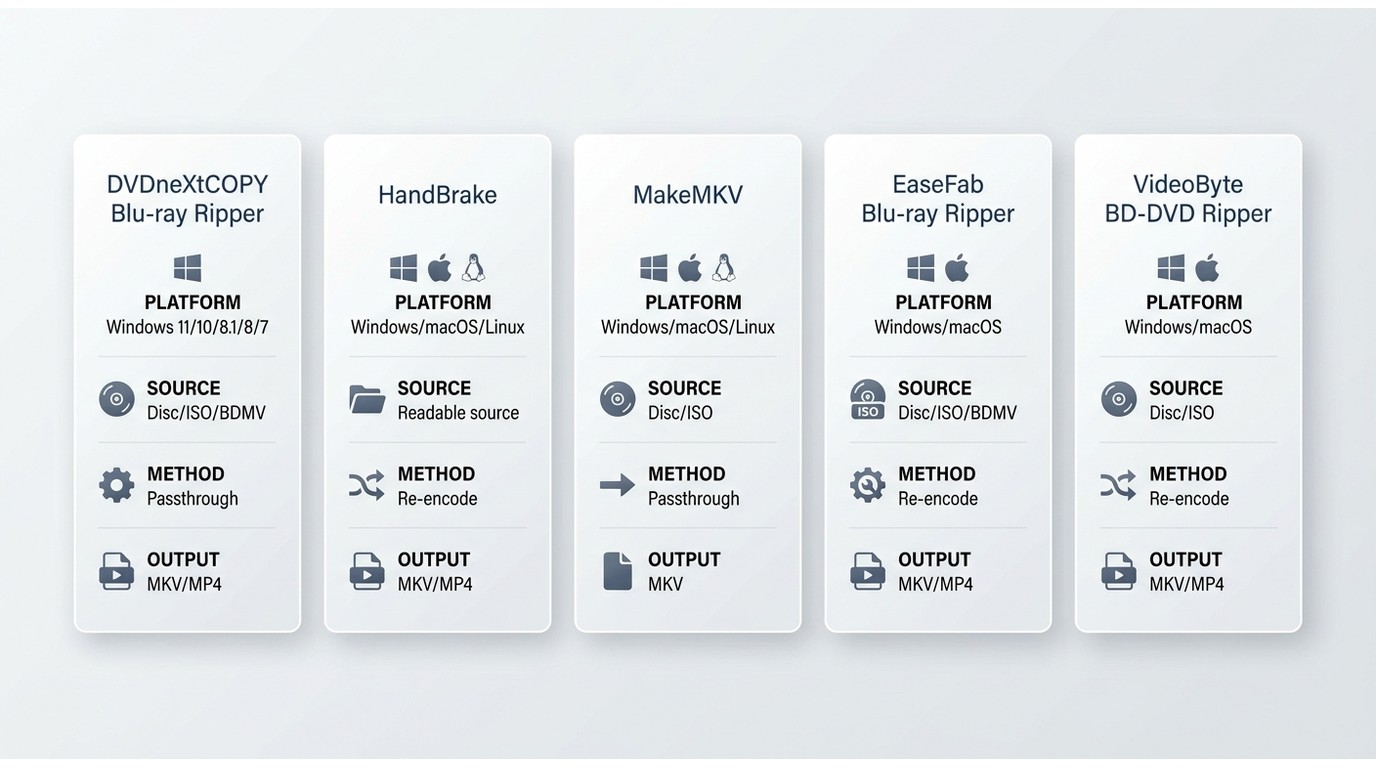
Readers searching for the best BDMV to MKV converter 2026 often need one quick distinction: a Windows-only desktop ripper offers more Blu-ray-specific controls, while HandBrake and MakeMKV provide broader operating-system coverage with different output goals. The BDMV to MKV Mac question usually comes down to source readability and whether you want a remux or a smaller encode.
Availability shown below is current as of September 2026. The table keeps the differences visible without turning every tool into a feature catalogue.
| Tool | Windows/macOS/Linux | Source path | Output and size control | Track handling |
|---|---|---|---|---|
| DVDneXtCOPY Blu-ray Ripper | Windows 11/10/8.1/8/7 | Disc, ISO, BDMV folder | MKV/MP4, Passthrough, H.264/H.265 | Audio, subtitles, OCR/SRT, chapters |
| HandBrake | Windows, macOS, Linux | Readable folder or file | MKV re-encode, quality controls | Audio, subtitles, chapters |
| MakeMKV | Windows, macOS, Linux | Disc or complete folder | MKV remux | Title, audio, subtitles, chapters, metadata |
| EaseFab Blu-ray Ripper | Windows, macOS | Disc, ISO, BDMV folder | MKV/MP4, re-encode settings | Audio, subtitles, editing choices |
| VideoByte BD-DVD Ripper | Windows, macOS | Disc or BDMV folder | MKV/MP4, quality choices | Audio, subtitles, 2D/3D options |
FAQs
Yes. Open the complete folder, disc, or ISO through its index and playlist structure, choose the main title, and check that the segmented STREAM files appear under that title. This avoids treating one .m2ts segment as the whole movie.
Use HandBrake directly when the source is readable and you want a smaller encode. Use a compatible ripper or MakeMKV first when HandBrake cannot read the source, then pass the resulting local MKV to HandBrake if another size reduction is needed.
Conclusion
Match the tool to the source before you adjust the output. For a complete readable folder and a smaller device file, HandBrake is the straightforward encoder. For a title-focused remux, MakeMKV is simpler. For Windows users who need Blu-ray source handling, subtitle OCR/SRT, batch tasks, and configurable profiles, DVDneXtCOPY Blu-ray Ripper adds more controls.
I would keep the decision simple: remux when retaining the original streams is the priority, re-encode when a smaller file matters, and open the complete folder, disc, or ISO whenever possible. Use DVDneXtCOPY only with personal legally owned disc content, follow applicable local law, and do not share or resell backup files.
 Steven VanceSep 17, 2026
How to Rip Blu-ray on Mac in 2026: 4 Workflows, 5 Methods
![How to Rip 3D Blu Ray: Pick MVC or SBS Before You Start [2026]](https://images.dvdnextcopy.com/2026/09/15/OCieIQbnp92l67jxKZzrGV_sFMToZiaa/feature_cover.jpg) Steven VanceSep 16, 2026
Steven VanceSep 16, 2026How to Rip 3D Blu Ray: Pick MVC or SBS Before You Start [2026]
 Steven VanceSep 15, 2026
Convert BDMV to MP4 on Windows or Mac: Choose the Right Method
 Luna MillerSep 15, 2026
Blu-ray Authoring Software for Windows and Mac: 2026 Picks by Project
 Luna MillerSep 8, 2026
Best Free Blu-ray Copy Software in 2026: Reviews & How-to Guide
 Luna MillerSep 8, 2026
7 Best Free Blu-ray Ripper Software in 2026: Reviews & How to Rip Blu-ray