 DVDneXtCOPY Blu-ray Ripper
How to Rip 3D Blu Ray: Pick MVC or SBS Before You Start [2026]

Summary: Choose the 3D layout your playback device accepts before ripping. This guide covers MVC, SBS, and TAB, then walks through source loading, track selection, verification, troubleshooting, subtitles, audio, and lawful personal backups.
Table of Contents
A 3D Blu-ray rip can finish without errors and still look flat in a headset. To rip a 3D Blu-ray correctly, confirm what your player accepts, preserve MVC for compatible hardware, or convert the disc to SBS or TAB before checking one sample on the target device.
When I map this job, I start at the screen where the file will play, not at the drive tray. A normal-looking 2D image often means the file and player disagree about the 3D layout. My rule is that the player, not the disc label, should make the format decision. The steps below show how to choose MVC, SBS, or TAB, rip a native 3D Blu-ray with DVDneXtCOPY, and check the finished file before committing the rest of your discs.
Start With Your Playback Device, Not the Disc
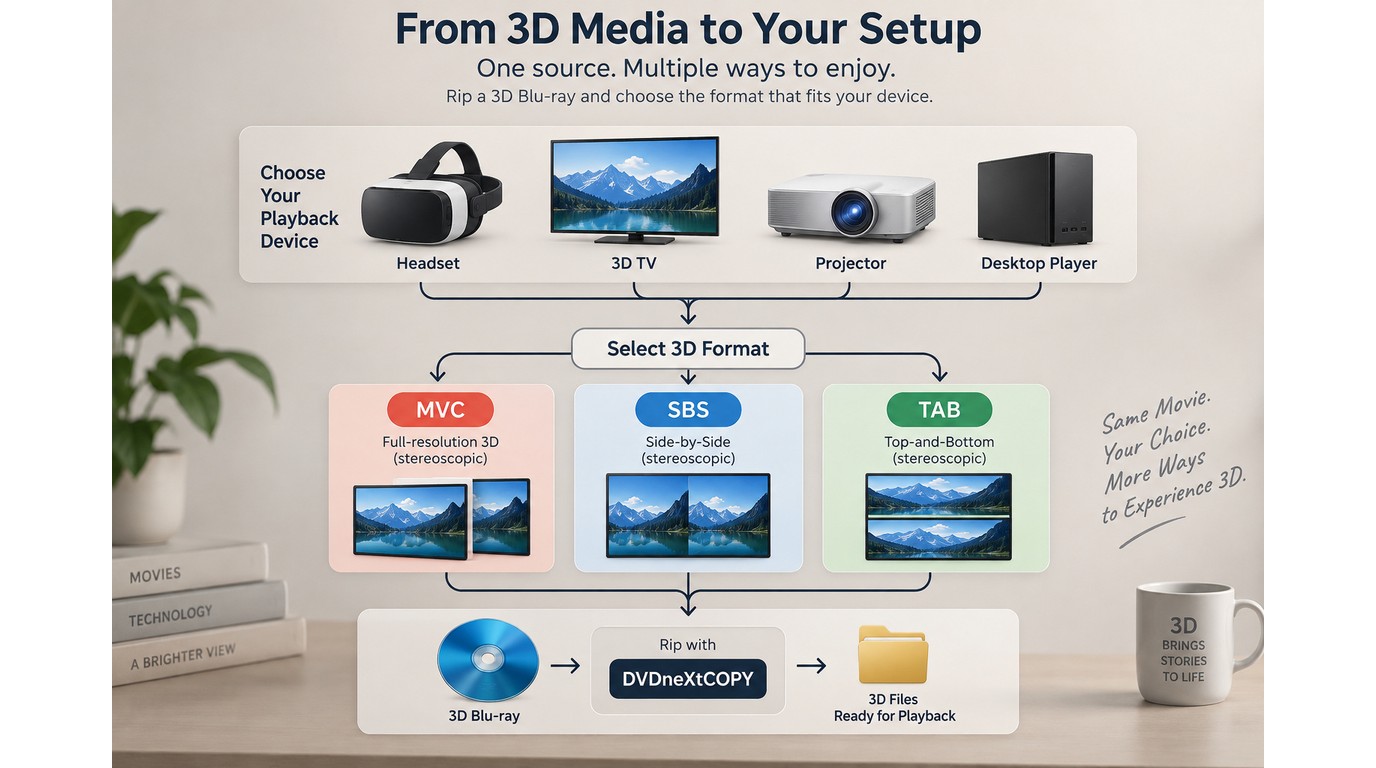
Choose MVC, SBS, or TAB by checking the formats your final playback device can decode and display. A file that preserves more source data is still the wrong file if your headset, TV, projector, or desktop player opens it as ordinary 2D video.
Check Whether the Player Accepts MVC, SBS, or TAB
Open the player or device documentation and look for an explicit 3D mode. "Plays MKV" is not enough because MKV is a container, while MVC, SBS, and TAB describe how the two eye views are stored. One r/Xreal poster had SBS working but still needed to determine "whether raw Blu-ray MVC MKVs can be played directly without SBS conversion." Check your device for that exact distinction before encoding.
Decide Whether Quality or Broad Playback Matters More
Preserve MVC when the complete playback chain supports it and you want to avoid a new video encode. Pick SBS or TAB when the target device expects a packed image. My choice would follow the device requirement even if that means encoding, because an unsupported MVC file preserves data you cannot see in 3D.
Write Down the Required Container, Audio, and Subtitle Behavior
Make a short target note before loading the disc: container, 3D layout, preferred audio language, subtitle mode, and playback device. If you need a broader introduction to containers and disc sources, the Blu-ray ripping overview explains the basic disc-to-file choices. Keep this note beside the profile screen so each later selection has a visible purpose.
MVC, SBS, or TAB: Which 3D Format Fits?
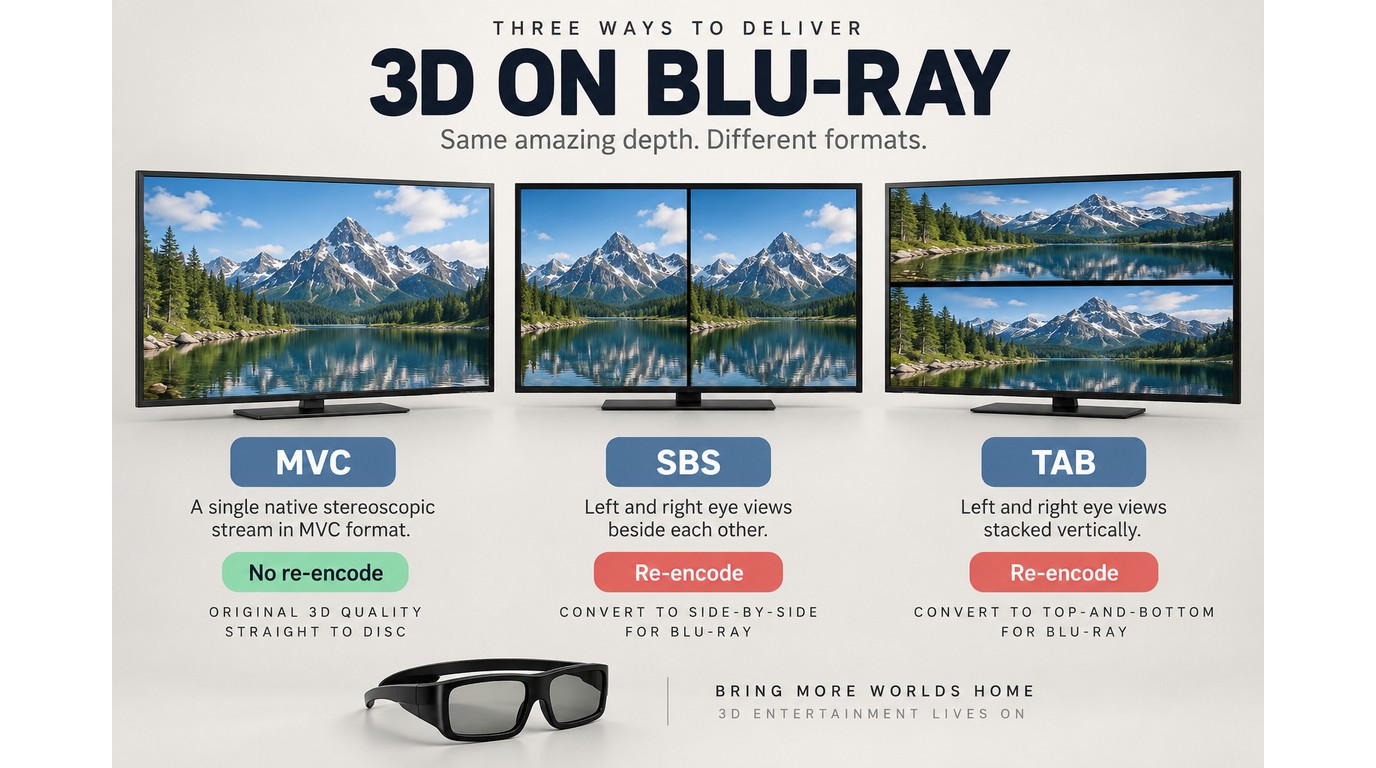
MVC keeps the native stereoscopic video structure when it is passed through in a compatible container. SBS places the left and right views beside each other, while TAB stacks them vertically; both packed layouts require encoding and a matching 3D mode on the player or display.
| Output layout | Re-encoding | What changes | Playback fit | Check before ripping |
|---|---|---|---|---|
| MVC | No with passthrough | Native streams retained | MVC-capable players | Confirm MVC decoding |
| SBS | Yes | Views placed side by side | Many headsets and displays | Check Full or Half SBS |
| TAB | Yes | Views stacked vertically | TAB-capable displays | Check player and display mode |
The table points to one useful conclusion: format labels matter only when the target device recognizes them. That choice carries into DVDneXtCOPY's profile screen: check whether the loaded source exposes the needed 3D data, review the selected tracks, and choose only a documented output your player accepts.
MVC for Players That Support the Native 3D Stream
MVC is the preservation choice for hardware or software that can decode the Blu-ray 3D stream directly. A passthrough or remux avoids re-encoding, but the container and player must retain and read the needed 3D information. If the player opens only the base view, the result will look like a clean 2D movie.
SBS for Headsets and Players That Expect Side-by-Side Video
SBS is useful when the player has a Side-by-Side mode but no direct MVC path. Full SBS keeps more horizontal image information than Half SBS, while Half SBS reduces the stored width of each eye view and is easier for some playback setups to accept. Select the version named by the device instead of assuming every SBS option behaves alike.
TAB When the Display Expects Top-and-Bottom Video
TAB serves the same compatibility purpose as SBS but stacks the eye views. Choose it only when both the player and display expose a Top-and-Bottom or Over-Under setting. If the screen shows two images after playback starts, switch the display to that matching 3D mode before changing the file.
How to Rip a 3D Blu-ray With DVDneXtCOPY Blu-ray Ripper
DVDneXtCOPY Blu-ray Ripper can load protected Blu-ray discs, ISO images, and folders and convert the selected title to standard 2D formats or supported 3D video profiles. For 3D output, you can select a profile designed for playback on 3D-capable TVs, media players, or VR headsets, while title, audio, subtitle, and output settings can all be configured before conversion.
The software also supports common Blu-ray protections such as AACS, BD+, BD-J, and region codes. Its built-in editor lets you crop or trim the video, add watermarks or external subtitles, merge clips, and adjust brightness, contrast, and saturation. Subtitles can be rendered into the video, remuxed into the output file, or extracted as SRT or IDX/Sub files. GPU acceleration is available for supported encoding tasks, and the built-in player lets you preview the video, audio, and subtitles before starting the full conversion.
Key Features:
- Convert Blu-ray discs, ISO images, and folders to supported 2D or 3D video profiles.
- Process supported protected Blu-rays with AACS, BD+, BD-J, and region-code protection.
- Convert Blu-rays to MP4, MKV, AVI, MP3, FLAC, and other video or audio formats.
- Select titles, audio tracks, subtitles, and output settings before conversion.
- Crop, trim, merge, add subtitles or watermarks, and adjust basic image settings.
- Preview the selected video, audio, and subtitles before conversion.
- Use GPU acceleration for supported video encoding tasks.
Step 1: Load the Native 3D Blu-ray Disc, ISO, or Folder
Open DVDneXtCOPY Blu-ray Ripper and load the source from the optical drive, or add the 3D Blu-ray ISO or folder stored on the computer. Wait for the scan to finish before changing output settings.

If several playlists appear, compare their runtimes and select the main movie. Check that the expected chapters are present before moving to the 3D profile, especially when the disc includes trailers, extras, or alternate cuts.
Step 2: Choose MVC, SBS, or TAB as the 3D Output
Open the output profile selector and go to the available 3D video profiles. Choose the format that matches the device you identified before loading the disc.
- MVC: Choose the MVC passthrough option when the player supports the native Blu-ray 3D stream and you want to avoid a video re-encode.
- SBS: Choose a Side-by-Side profile for a headset, TV, projector, or player configured for SBS playback.
- TAB: Choose a Top-and-Bottom profile when the display or player documentation specifically calls for TAB or Over-Under 3D.
Do not select MVC simply because it retains more of the original disc structure. If the target player reads only the base video view, an MVC file can open as a normal 2D movie even though the rip itself is intact.

Step 3: Configure the 3D Layout, Audio, and Subtitles
For SBS or TAB output, open the advanced video or 3D settings and choose the layout required by the playback device. With SBS, check whether the device expects Half SBS or Full SBS. Half SBS stores both eye views inside a narrower overall frame and is easier for many playback setups to handle, while Full SBS keeps more horizontal image information and requires more storage and decoder bandwidth.
Next, select the audio track and subtitle mode you want to keep. Remove extra languages only when you are sure they are unnecessary. If the output will be re-encoded, choose H.264 or H.265 according to the target player's codec support rather than assuming the newer codec is automatically the better choice.
For MVC passthrough, keep the native 3D stream instead of switching to an SBS or TAB encode. The main settings to check are then the selected movie title, audio tracks, subtitles, container, and destination.

Step 4: Preview the Selection, Set the Destination, and Start
Open the built-in preview and check that the selected title, audio track, and subtitle choice match the movie you want to save. For SBS or TAB, confirm that the preview reflects the expected packed layout. Set an output folder with enough free space, then start the rip.
Encoded SBS and TAB profiles can use hardware acceleration on supported systems. MVC passthrough does not perform the same full video encode, so processing time depends more heavily on disc reading, drive performance, stream processing, and file writing.
Step 5: Test the Finished 3D File on the Target Device
Open the finished file on the headset, TV, projector, or player you actually plan to use. Select the matching MVC, Side-by-Side, or Top-and-Bottom playback mode and check a scene with obvious foreground and background separation. Confirm the audio track and subtitles at the same time.
Do this with one file before adding more discs or titles to the queue. A completed progress bar proves that the file was written; the target device is what confirms that the selected 3D layout works in practice.
Verify the First File Before You Queue More Titles
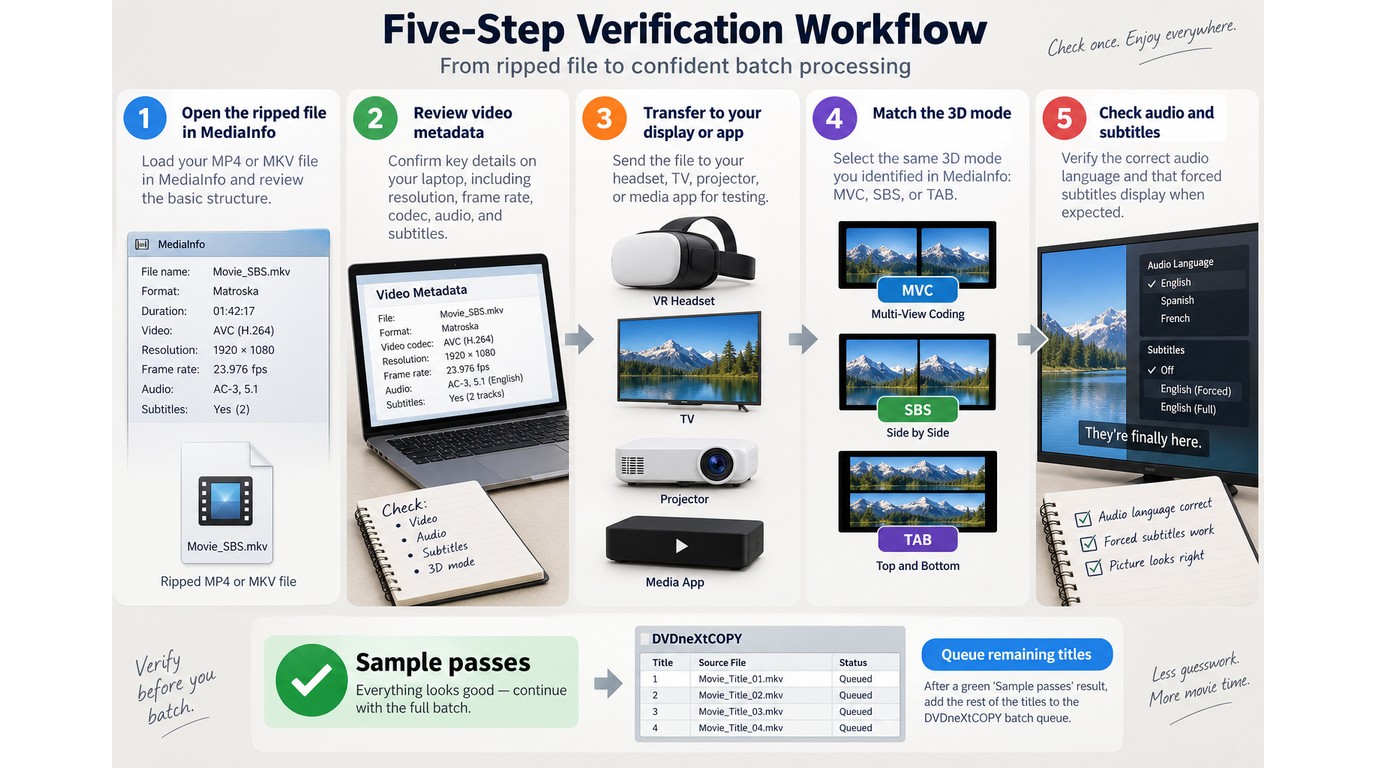
A finished progress bar confirms that a file was written, not that the file will play in 3D. DVDneXtCOPY's preview helps catch the wrong title, audio track, subtitle selection, or output profile before the rip; the target device still needs to confirm the finished file's stereoscopic layout. Check the first output in this order before adding more titles:
- Inspect its container and video metadata.
- Play a short scene on the intended device.
- Activate the matching 3D display mode.
- Check audio and forced subtitles.
- Queue the remaining jobs only after those checks pass.
Inspect the Container and 3D Stream Information
Open the file in MediaInfo or another metadata reader. Check the container, video codec, frame size, audio tracks, subtitle tracks, and any 3D format information the file exposes. For an MVC result, confirm that the expected dependent 3D view was retained; for SBS or TAB, confirm that the frame contains both eye views before the player interprets it.
Play a Short Sample on the Intended Device
Move the file to the headset, TV, projector, or media application you named at the start. Play a scene with clear foreground and background separation. Desktop playback alone is not decisive if the final device uses a different decoder or 3D mode.
Check the 3D Mode, Audio Track, and Forced Subtitles
Select MVC, SBS, or TAB in the player or display settings to match the file. The picture should combine into one stereoscopic view, the chosen language should play, and forced subtitles should appear when the scene calls for them. If the image is reversed, look for a left-right swap setting before encoding again.
Queue the Remaining Titles Only After the Sample Passes
One verified file gives you a known profile and track selection for the remaining jobs. This check matters because a wrong layout can consume many hours without producing usable playback. One r/Xreal poster noted that "every mistake means you have to start the multi-hour encoding process all over again." The completed sample is your permission to add the next title, not the completed scan.
Why a 3D Rip Plays Flat or Shows Two Pictures
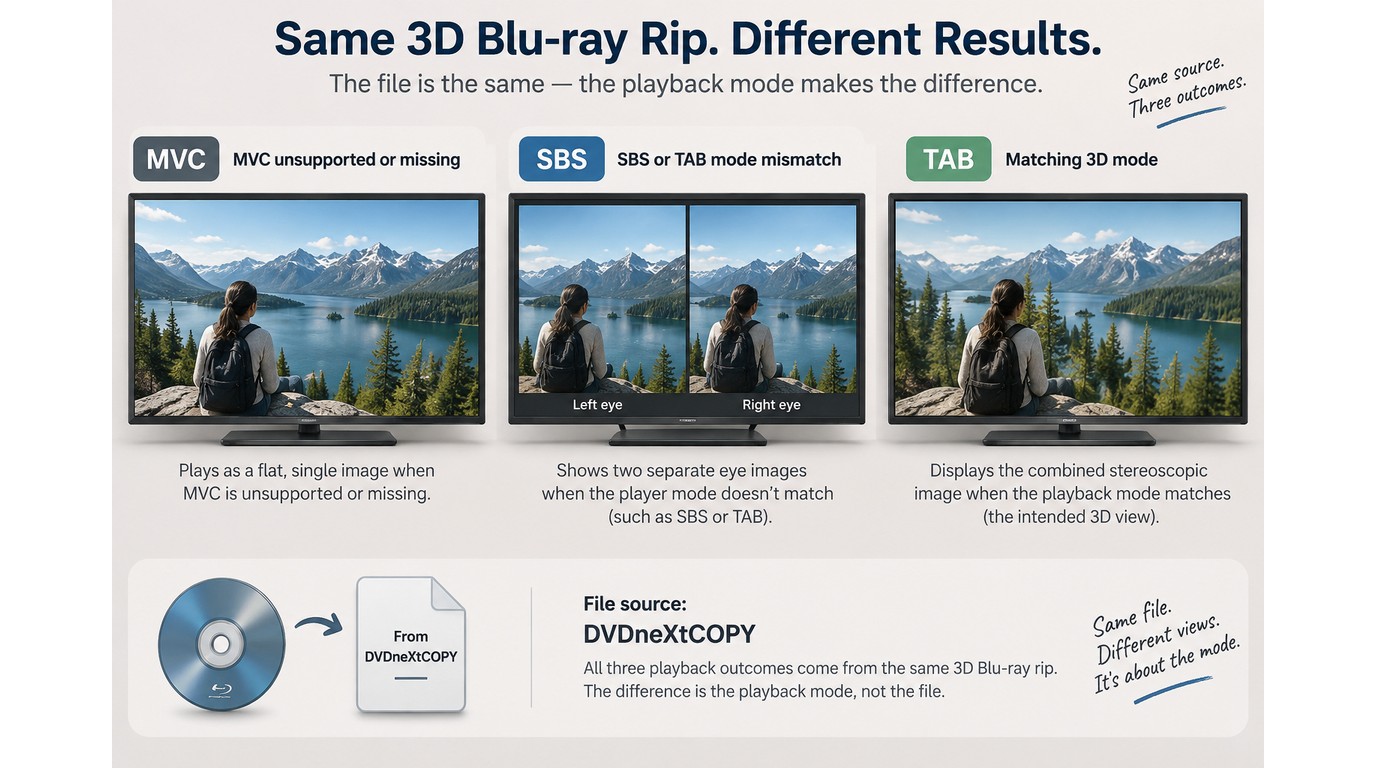
A flat picture usually means the MVC information is missing or the player does not support it. Two visible pictures usually mean the SBS or TAB file is intact, but the player or display has not switched to the matching 3D mode. Diagnose the symptom before repeating the rip.
The MVC Information Was Not Preserved
Check the selected output profile and file metadata first. With DVDneXtCOPY, use the MVC passthrough profile when you want to retain the native Blu-ray 3D stream. If the finished file contains only the base video view, an MVC-aware player has no second-eye information to use and will display the movie in 2D. Return to the source and profile settings, confirm that MVC passthrough is selected, and create another sample before processing the whole disc.
The Player Does Not Support the Selected Layout
A correct MVC file can still look flat in software that reads only its 2D base view. An SBS file can also fail if the player expects TAB or has no 3D display mode. Test the same file on the intended device and open its 3D settings before changing codecs or repeating the rip.
The Display Has Not Switched to the Matching 3D Mode
Two side-by-side or stacked pictures are often a useful sign: both eye views are present. Open the display menu and select Side-by-Side for SBS or Top-and-Bottom for TAB. If the combined image has uncomfortable depth, check whether the left and right views need swapping.
One Disc or Playlist Needs a Separate Check
Do not turn one successful disc into a rule for the whole set. One r/makemkv poster described a two-disc set where "the first disc ripped perfectly fine" but the second returned an error. A damaged surface, different playlist, drive read issue, or newer protection can isolate the failure to one disc. Rescan that source, compare its title list, and avoid changing a profile that already produced a working file from the first disc.
Protect Image Quality, Subtitles, and Audio During Conversion
Preserve the native 3D streams with MVC passthrough when the player supports them. When you encode SBS or TAB, protect the useful result by choosing the packed layout your device expects, keeping the needed subtitle mode and audio track, and checking those choices before the full conversion.
Use MVC Passthrough When the Player Supports Native 3D
DVDneXtCOPY's MVC passthrough option retains the native Blu-ray 3D stream without converting it to SBS or TAB. That makes it the preservation-oriented choice when the complete playback chain can decode MVC. The advantage disappears if the player reads only the base view or does not support the selected container.
An MKV can also keep multiple audio and subtitle tracks alongside the video; the Blu-ray-to-MKV guide explains the broader container choice. If the target device does not support MVC, an encoded SBS or TAB file is more useful than a source-faithful file that opens flat.
Choose Full SBS or Half SBS With File Size and Playback in Mind
Full SBS retains more horizontal image information for the two views, while Half SBS packs each view into less horizontal space. The encoded file also depends on codec, bitrate or quality control, and the source itself. Select the SBS type named by your headset or player, preview a short section, and compare fine lines, faces, and text. I would not spend a long encode on Full SBS until the target device has confirmed that it accepts that exact layout.
Keep Forced and Selectable Subtitles Usable in 3D
Subtitle mode changes what you can adjust later. Hard subtitles become part of the picture and cannot be switched off. Remuxed subtitles remain selectable when the container and player support them. IDX/Sub retains bitmap subtitles, while SRT extraction uses OCR to turn the subtitle images into text and should be checked for recognition errors.
External subtitles need an extra 3D check because a normal 2D subtitle position may sit awkwardly over a packed image. Load the subtitle in the preview, inspect a line near the screen edge, and confirm placement again on the target device. If forced dialogue is missing, return to the subtitle list and select the forced track or an appropriate hard-subtitle mode before repeating the full title.
Select the Needed Audio Track and Check Synchronization
Keep the soundtrack your playback setup can decode and remove extra languages only when you are sure they are unnecessary. Preview dialogue, music, and a subtitle cue together. After conversion, jump to a scene later in the movie and check that speech, picture, and subtitles still align. A correct opening minute does not prove that a long encode stayed synchronized to the end.
FAQs
Can VLC Rip a 3D Blu-ray?
VLC is mainly a media player, not a complete process for reading a protected 3D Blu-ray, preserving MVC, selecting every needed track, and producing a checked output. It can help inspect playable files, but use a disc-ripping tool for the source and verify the result on the final 3D device.
ADoes MakeMKV Convert a 3D Blu-ray to SBS?
MakeMKV can place Blu-ray streams into an MKV and can preserve MVC data when the disc and settings allow it. It does not create an SBS encode by itself. If your headset expects SBS, the MVC-capable MKV needs a separate conversion step.
ACan You Watch a Ripped 3D Blu-ray Without a 3D TV?
Yes, if another playback setup supports the file's 3D layout. A compatible VR headset, 3D projector, or computer-and-display combination can replace a 3D TV. The device still has to accept MVC, SBS, or TAB and activate the matching display mode.
AIs Blu-ray 3D Discontinued?
Blu-ray 3D is not a service with a single shutdown date. New 3D TVs, players, and disc releases are much less common than they once were, but existing Blu-ray 3D discs can still be read and played with compatible hardware and software.
ACan You Convert a 3D Blu-ray to 2D?
Yes. A 2D output keeps one view or uses a standard 2D profile, so the file plays on ordinary screens without the stereoscopic effect. Make a separate copy if you also want to preserve a 3D version for compatible equipment.
AIs It Legal to Rip a 3D Blu-ray You Own?
The answer depends on local copyright and anti-circumvention law. Ownership of a disc does not automatically permit every method in every jurisdiction. Keep any backup for personal, noncommercial use, retain the original disc, and do not distribute or resell the file.
AConclusion
For Windows users who want to rip a native 3D Blu-ray without building a multi-program conversion process, DVDneXtCOPY Blu-ray Ripper is my recommended starting point. It can load a 3D Blu-ray disc, ISO, or folder and handle MVC, SBS, or TAB from the same ripping process while keeping the movie title, audio, subtitle, and output controls together.
Choose MVC passthrough when the player supports the native Blu-ray 3D stream and preservation is the priority. Choose SBS or TAB when the headset, TV, projector, or media player requires a packed 3D layout. Whichever format you use, test one finished file on the actual playback device for 3D depth, eye order, audio, and subtitles before you queue the rest of your discs.
 Steven VanceSep 17, 2026
How to Rip Blu-ray on Mac in 2026: 4 Workflows, 5 Methods
 Steven VanceSep 15, 2026
Convert BDMV to MP4 on Windows or Mac: Choose the Right Method
 Luna MillerSep 15, 2026
How to Convert BDMV to MKV in 2026: Folder, Remux, or Re-Encode?
 Luna MillerSep 15, 2026
Blu-ray Authoring Software for Windows and Mac: 2026 Picks by Project
 Luna MillerSep 8, 2026
Best Free Blu-ray Copy Software in 2026: Reviews & How-to Guide
 Luna MillerSep 8, 2026
7 Best Free Blu-ray Ripper Software in 2026: Reviews & How to Rip Blu-ray