 DVDneXtCOPY Blu-ray Ripper
How to Convert Blu-ray to Digital: 4 Tested Methods in 2026

Summary: Converting Blu-ray to digital can mean preserving the original streams in a lossless MKV or creating a smaller MP4/MKV for easier playback. This guide compares DVDneXtCOPY Blu-ray Ripper, MakeMKV, MakeMKV with HandBrake, and DVDFab Blu-ray Ripper for direct conversion, remuxing, and compression.
Table of Contents
Converting a Blu-ray to digital is useful when you want the movie available from a hard drive, NAS, or media server instead of loading the disc each time. The result can be a lossless MKV that keeps the original streams, a compressed MKV or MP4 that saves storage space, or an audio-only file for concert and music discs.
The practical choice comes down to what you want to preserve. For a home-theater library, I would keep a remux with the original video, audio, chapters, and subtitles; for everyday playback or a tighter storage budget, I would compress the movie after the disc is readable. The four tools below with cover both Blu-ray digitizing paths.
What Kind of Blu-ray Digital Copy Do You Need?
A Blu-ray digital copy can preserve the original streams or trade some of that fidelity for a smaller, more compatible file. Decide on the output type before choosing the Blu-ray to MP4 converter.
| Digital Copy | What Happens | Typical File Size | Best For |
|---|---|---|---|
| Lossless MKV / Remux | Keeps the selected original video and audio streams without re-encoding | Large | Home theater, NAS, preserving Blu-ray quality |
| Compressed MKV | Re-encodes the video while retaining flexible audio and subtitle support | Medium | Plex or NAS libraries with lower storage use |
| MP4 | Re-encodes the movie into a broadly compatible container | Smaller | TVs, tablets, phones, and general playback |
| Audio-only | Extracts selected Blu-ray audio without the video | Small | Concert discs, soundtracks, and audio collections |
What Do You Need to Digitize a Blu-ray?
You need a Blu-ray drive that can read the source disc, enough free storage for the output, and software that matches the type of Blu-ray you are converting. A remux can require tens of gigabytes because the original streams are retained, while a compressed MP4 or MKV can be much smaller depending on codec, bitrate, resolution, audio, and quality settings.
If the source is a commercial Blu-ray, the software also needs to support the protection used by that disc. A general-purpose transcoder such as HandBrake does not provide copy-protection removal by itself. This guide focuses on standard Blu-ray rather than Ultra HD Blu-ray, which can require different drives and software support.
Blu-ray to Digital Converters: Which Method Should You Use?
| Method | OS | Blu-ray Protection | Digital Output | Re-encoding | Best For |
|---|---|---|---|---|---|
| DVDneXtCOPY Blu-ray Ripper | Windows | AACS, BD+, BD-J, RC | MP4, MKV, AVI, audio, and more | Optional depending on profile | Direct Blu-ray-to-digital conversion |
| MakeMKV | Windows / macOS / Linux | AACS, BD+ | MKV | No | Lossless digital Blu-ray copy |
| MakeMKV + HandBrake | Windows / macOS / Linux | MakeMKV reads the disc first | MP4 / MKV / WebM | Yes | Smaller digital files |
| DVDFab Blu-ray Ripper | Windows / macOS | AACS, BD+, BD-J, RC, and other supported protections | MP4, MKV, M2TS, audio, and more | Optional depending on profile | Direct protected Blu-ray conversion with Windows and Mac versions |
How to Convert Blu-ray to Digital with DVDneXtCOPY Blu-ray Ripper
OS: Windows
Blu-ray sources: BD-25 / BD-50 disc, ISO, folder
Protection: AACS, BD+, BD-J, region code
Output: MP4, MKV, AVI, MP3, FLAC, and other video/audio formats
Best for: Directly converting protected Blu-rays into different digital formats
DVDneXtCOPY Blu-ray Ripper can load physical Blu-ray discs, ISO images, and folders, handle AACS, BD+, BD-J, and region-code restrictions, and convert selected titles to formats such as MP4, MKV, AVI, MP3, and FLAC. Its profile workflow also lets you choose titles, chapters, audio tracks, and subtitles rather than automatically converting everything on the disc.
The program adds GPU hardware acceleration, Advanced Settings, preview, subtitle OCR, and a built-in editor for crop, trim, merge, watermark, external subtitles, and picture adjustments. These controls are useful when the digital copy needs additional preparation, but the core workflow remains straightforward: load the source, choose the output profile and tracks, then save the result.
Step 1: Load the Blu-ray
Launch DVDneXtCOPY and open the Ripper module. Insert the Blu-ray into the connected optical drive. If the source is already stored as an ISO image or Blu-ray folder, click Add or drag the source into the main interface.

Step 2: Choose the Digital Format and Quality
Open Choose Other Profile and select the output. Choose MKV when you want a flexible container for multiple tracks, MP4 when broad device compatibility matters more, or a lossless output profile when retaining source quality is the priority. Audio profiles such as FLAC can be used when you only need the soundtrack.

Step 3: Select Titles, Audio, Subtitles and Settings
Select the movie title and chapter range, then choose the audio and subtitle tracks you want to keep. Open Advanced Settings if you need to change codec, bitrate, resolution, frame rate, audio channels, or other encoding parameters. The optional editor can be used for trimming, cropping, merging, subtitles, watermarks, or picture adjustments.

Step 4: start to Convert Blu-ray to Digital
Choose the output folder, review the selected title, profile, audio, and subtitles, then click Start. DVDneXtCOPY converts the Blu-ray and saves the digital video or audio file to the selected destination.
Convert Blu-ray to Lossless Digital Copy with MakeMKV
OS: Windows / macOS / Linux
Protection: AACS, BD+
Output: MKV
Best for: Keeping Blu-ray video, HD audio, chapters, and multiple tracks without re-encoding
MakeMKV takes a different approach from a normal video converter. The current MakeMKV 1.18.4, released June 15, 2026, saves selected Blu-ray streams into an MKV container without normal video re-encoding. It can preserve the video, HD audio, subtitles, chapters, and metadata selected from the disc.
This makes MakeMKV suitable when preserving the source streams matters more than storage size. The trade-off is that the output can remain very large, and MakeMKV outputs MKV rather than MP4. A smaller file or another container requires a second transcoding step.
Step 1: Open the Blu-ray Disc
Install MakeMKV, insert the Blu-ray, and launch the application. Select the optical drive under Source, then click the large Open Blu-ray Disc button.

Step 2: Select the Movie, Audio and Subtitles
Expand the main movie title and keep the video, audio, and subtitle streams you want in the digital copy. Deselect unnecessary tracks if you want to reduce the output size without re-encoding the selected video stream.

Step 3: Save the MKV
Select the output folder and click Make MKV. MakeMKV reads the selected streams from the disc and stores them in the MKV container without a normal video encode.
Compress a Blu-ray Digital Copy with MakeMKV and HandBrake
OS: Windows / macOS / Linux
Blu-ray access: MakeMKV reads the protected disc first
Output: MP4 / MKV / WebM
Best for: Reducing the size of a Blu-ray digital copy
HandBrake is useful after the Blu-ray has already been made accessible. It does not defeat copy protection, so it should not be presented as a standalone decrypter for a protected commercial disc. The practical workflow is to create an MKV with MakeMKV first, then use HandBrake to compress or change the container.
HandBrake 1.11.2, released March 22, 2026, can encode to MP4, MKV, or WebM and provides controls for codec, quality, resolution, frame rate, audio, subtitles, and filters. Because this stage re-encodes the video, it takes additional processing time but can substantially reduce storage use.
Step 1: Create the Source MKV
Use the MakeMKV method above to create a readable MKV from the Blu-ray. Keep only the audio and subtitle tracks you expect to use in the final file if you want to simplify the HandBrake job.
Step 2: Open the MKV in HandBrake
Launch HandBrake and open the MakeMKV file as the Source. HandBrake scans the movie and displays its video, audio, and subtitle information.

Step 3: Choose MP4 or MKV Settings
Choose the container and preset based on the intended playback device. MP4 offers broad compatibility, while MKV is more flexible for multiple tracks. Set an appropriate quality level, codec, and resolution, then review the Audio and Subtitles tabs before encoding.

Step 4: Start Encoding a Blu-ray Digital Copy
Choose the output filename and location, then click Start Encode. HandBrake creates the smaller digital file from the MakeMKV source.

How to Convert Blu-ray to Digital with DVDFab Blu-ray Ripper
OS: Windows / macOS
Blu-ray sources: Disc, ISO, folder
Protection: AACS, BD+, BD-J, region code, country code, and other supported protections
Output: MP4, MKV, M2TS, FLAC, and other video/audio formats
Best for: Direct protected Blu-ray conversion with native Windows and Mac versions
DVDFab Blu-ray Ripper combines disc reading, remuxing, and transcoding in one application. It supports Blu-ray disc, ISO, and folder input; MP4, MKV, M2TS, and audio output; and both passthrough/lossless and compressed profiles. Its current protection support includes AACS, BD+, BD-J, region code, and country code.
The current Windows DVDFab 13 build is 13.0.6.5, while the Mac branch is 13.0.6.3 and provides builds for Intel and Apple Silicon systems. The Mac workflow can also use VideoToolbox hardware acceleration where supported, making DVDFab the cross-platform direct-conversion option in this comparison.
Step 1: Load the Blu-ray
Launch DVDFab, select Ripper, and insert the Blu-ray. You can also click Add Source or drag a Blu-ray ISO/folder into the interface.
Step 2: Choose the Digital Output
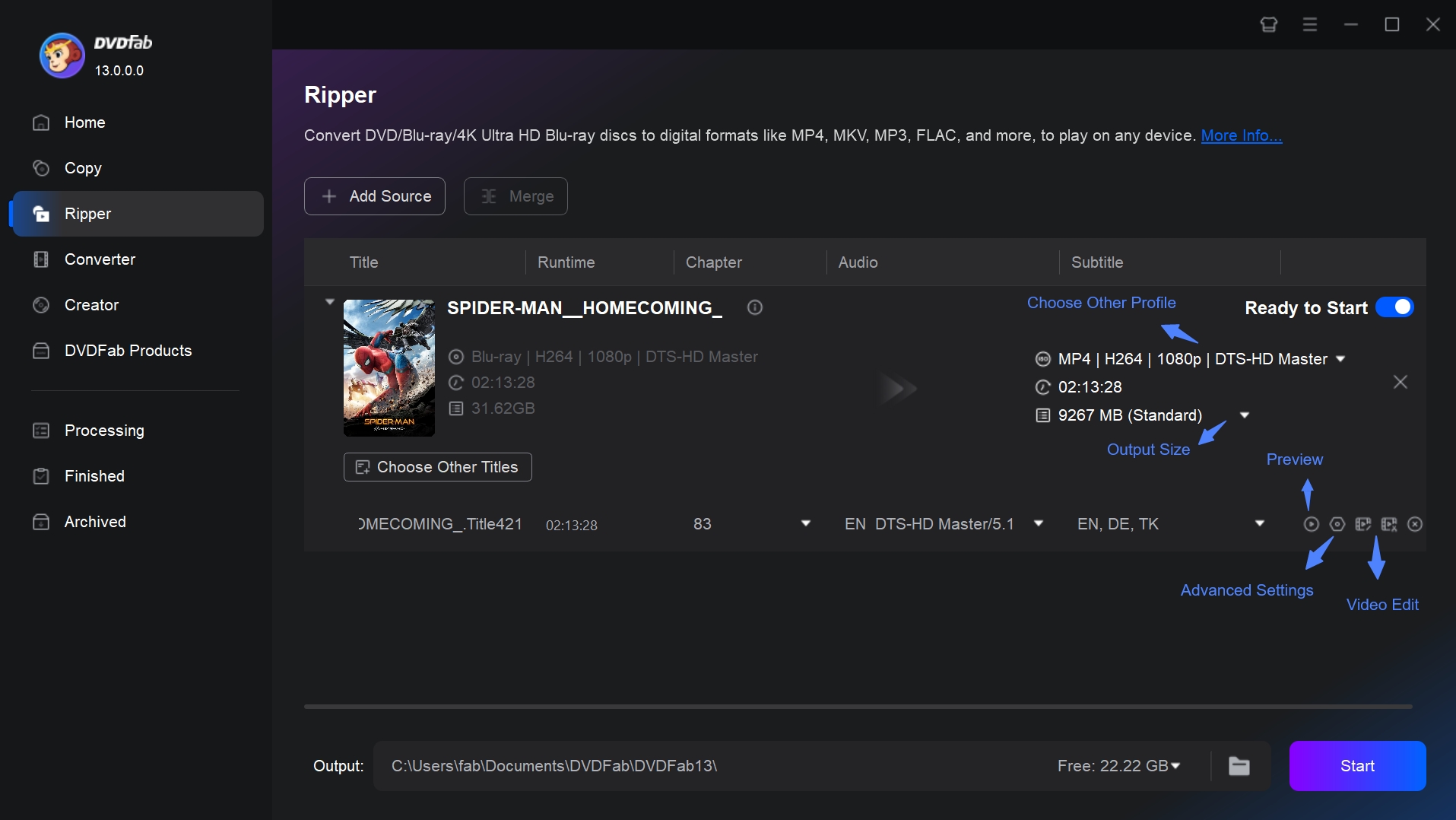
Open Choose Other Profile and select MP4, MKV, M2TS, or another output according to how you plan to use the digital copy. Use a passthrough profile when retaining the source streams matters most, or a compressed profile when reducing storage is the priority.
Step 3: Select Titles, Audio and Subtitles
Choose the movie title and tracks you want to keep. Open Advanced Settings when you need to change codec, resolution, bitrate, frame rate, or audio parameters.
Step 4: Save the Digital Copy
Set the output location and click Start. DVDFab processes the Blu-ray with the selected profile and saves the resulting digital file.
FAQs
No. Some Blu-ray combination packages include a redeemable digital code, but whether a specific release includes one depends on the package and studio. A packaged digital code is separate from converting the Blu-ray yourself with ripping software, and redemption can be subject to validity, expiration, region, or account restrictions.
Usually not when you convert the disc to a normal MP4 or MKV movie file. These workflows keep selected video, audio, subtitles, and chapters rather than the interactive Blu-ray menu structure. Bonus titles can be converted separately, but if preserving the complete disc structure and menus is the priority, use a full Blu-ray backup such as an ISO or BDMV folder instead.
No. Blu-ray ripping reads data from the disc; it does not erase or rewrite a prerecorded movie disc. However, scratches, fingerprints, dust, or a defective disc can cause read errors during conversion, so the physical condition of the disc can affect whether the process completes successfully.
A Blu-ray can contain the main movie, bonus features, alternate cuts, localized playlists, short clips, and multiple playlists that look similar. Start with the feature-length runtime, then verify the chapter count, audio, and subtitle tracks before converting. Some discs also use many similar playlists, so identifying the correct main title may require additional checking.
Conclusion
For a digital Blu-ray copy that keeps the original streams, MakeMKV offers the simplest remux workflow. If storage size matters more, HandBrake can compress that MKV into a smaller MP4 or MKV after the disc has been read successfully.
DVDneXtCOPY Blu-ray Ripper and DVDFab Blu-ray Ripper combine disc reading and format conversion in one application, giving you more direct control over output format, tracks, and compression. Choose between remuxing and transcoding based on the balance you want between source fidelity, file size, and playback compatibility.
 Steven VanceSep 17, 2026
How to Rip Blu-ray on Mac in 2026: 4 Workflows, 5 Methods
![How to Rip 3D Blu Ray: Pick MVC or SBS Before You Start [2026]](https://images.dvdnextcopy.com/2026/09/15/OCieIQbnp92l67jxKZzrGV_sFMToZiaa/feature_cover.jpg) Steven VanceSep 16, 2026
Steven VanceSep 16, 2026How to Rip 3D Blu Ray: Pick MVC or SBS Before You Start [2026]
 Steven VanceSep 15, 2026
Convert BDMV to MP4 on Windows or Mac: Choose the Right Method
 Luna MillerSep 15, 2026
How to Convert BDMV to MKV in 2026: Folder, Remux, or Re-Encode?
 Luna MillerSep 15, 2026
Blu-ray Authoring Software for Windows and Mac: 2026 Picks by Project
 Luna MillerSep 8, 2026
Best Free Blu-ray Copy Software in 2026: Reviews & How-to Guide