 DVDneXtCOPY DVD Ripper
How to Convert DVD to MP4 on Windows and Mac: 7 Best Ways in 2026

Summary: To convert DVD to MP4, I recommend DVDneXtCOPY DVD Ripper on Windows when you need a dedicated workflow for DVD, ISO, or folder sources with title, audio, subtitle, Passthrough, and H.264 or H.265 controls. For readable DVDs, HandBrake is the strongest free option, while DVDFab is the dedicated alternative I would compare on Mac. This guide also compares seven DVD to MP4 converters, explains practical MP4 settings, shows how to edit a DVD before conversion, and covers the checks I make on the finished MP4.
Table of Contents
Converting a DVD to MP4 can involve more than choosing MP4 from an output menu. The source may be a physical disc, ISO image, or DVD folder, and the right workflow changes depending on whether the DVD is directly readable, which title and tracks you need, and whether you want to keep the original video stream or create a smaller H.264 or H.265 file.
In this guide, I compare seven current DVD to MP4 converter options for Windows and Mac, then walk through a complete DVDneXtCOPY workflow on Windows. I also explain H.264 versus H.265, passthrough versus re encoding, practical audio and subtitle choices, and the checks I make when an MP4 looks, sounds, or plays differently from expected.
7 Best DVD to MP4 Converter Options in 2026
I do not rank these DVD to MP4 converters by advertised speed multipliers or by the number of formats printed on a product page. What matters more is whether the software can read the DVD, whether MP4 H.264 and H.265 are available, whether I can retain the original video stream when that makes sense, and whether I can choose the audio and subtitles before the job begins.
| DVD to MP4 converter | OS | Commercial DVD support | Input | H.264 MP4 | H.265 MP4 | MP4 video passthrough | Main limitation | Best for |
| DVDneXtCOPY DVD Ripper | Windows | Broad | DVD, ISO, Folder | Yes | Yes | Yes | Windows only | Windows commercial DVDs |
| HandBrake | Windows, Mac, Linux | No built in support | Readable DVD, files | Yes | Yes | No | Video always re encoded | Free readable DVDs |
| DVDFab DVD Ripper | Windows, Mac | Broad | DVD, ISO, Folder | Yes | Yes | MKV passthrough | Paid for full use | Mac and commercial DVDs |
| VLC Media Player | Windows, Mac, Linux | No built in support | Readable DVD, files | Yes | Profile dependent | No | Less disc focused | Occasional conversion |
| WinX DVD Ripper | Windows, Mac | Yes, trial limited | DVD, ISO, Folder | Yes | Yes | No | 5 minute trial output | Alternative commercial GUI |
| Movavi Video Converter | Windows, Mac | No | Readable DVD folder, video | Yes | Yes | No | No protected DVDs | General video conversion |
| Freemake Video Converter | Windows | Source dependent | DVD, Folder | Yes | Profile dependent | No | Logo on free output | Free Windows conversion |
1. DVDneXtCOPY DVD Ripper: Best DVD to MP4 Converter for Windows
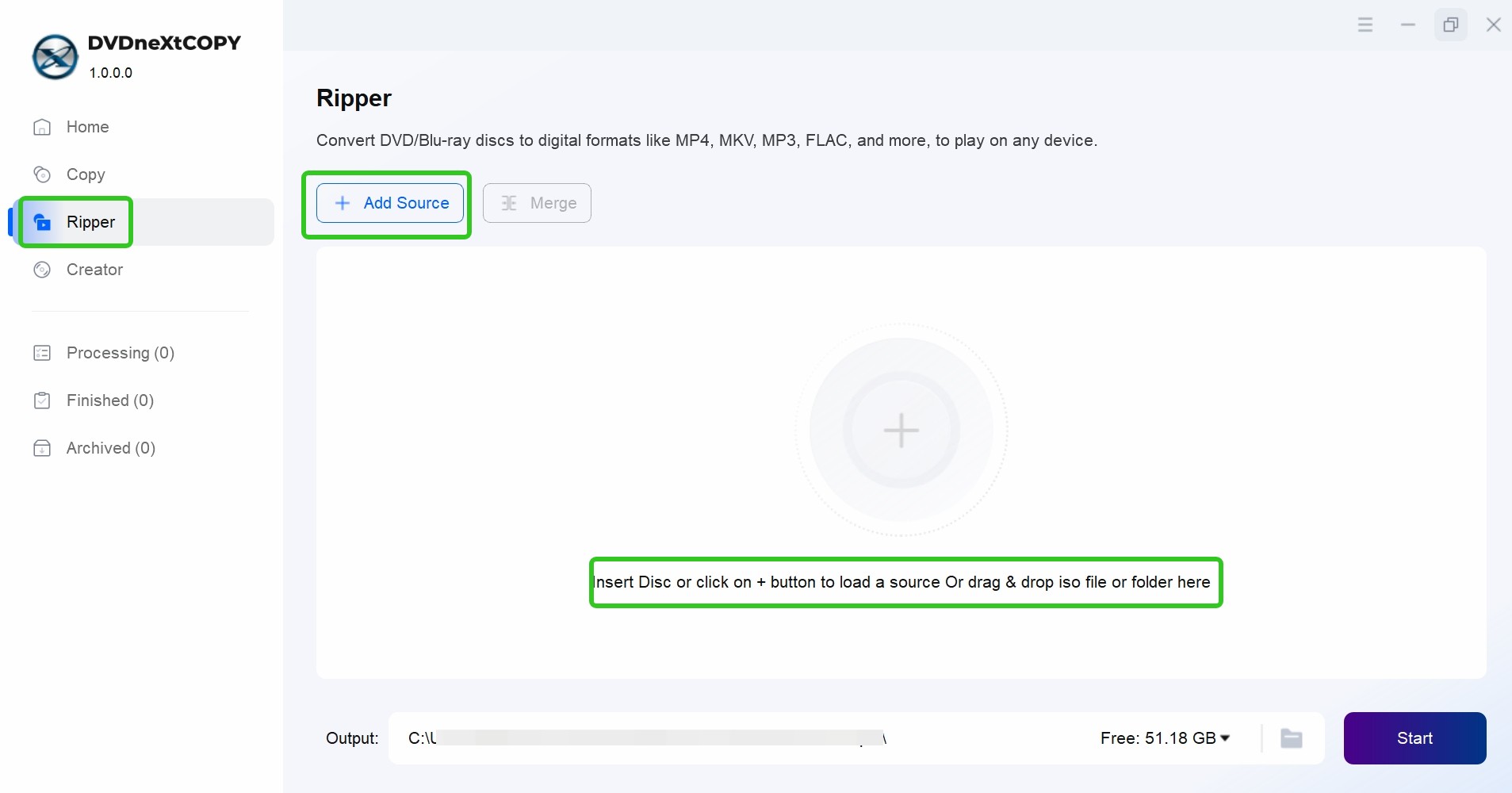
DVDneXtCOPY DVD Ripper is the DVD to MP4 converter I would start with on Windows when the source requires more than an ordinary video transcoder. It accepts a protected DVD, ISO image, or DVD folder, then lets me choose the title, chapter range, audio tracks, subtitles, and output profile before conversion. MP4 can be created through a normal encoded profile or through a Passthrough workflow when retaining the existing encoded streams makes more sense.
What I find more useful than a long format list is the choice between preserving the source stream and deliberately creating a new H.264 or H.265 file. For a movie I plan to keep on a NAS, source preservation may matter more. For playback on phones, tablets, TVs, or laptops, I usually prefer a modern MP4 encode. The title, audio, subtitle, SRT extraction, trim, crop, and merge controls also keep most of the decision making inside one workflow. The limitation is straightforward: DVDneXtCOPY is currently a Windows product, and its trial is limited to three DVDs within 30 days.
2. HandBrake: Best Free DVD to MP4 Converter for Readable DVDs

HandBrake is the free DVD to MP4 converter I would use first when the DVD already opens normally. It runs on Windows, macOS, and Linux and can encode readable DVD sources to MP4 with H.264 or H.265 video. Its presets, chapter selection, subtitle controls, filters, and quality settings make it particularly useful when the real goal is to turn DVD video into a smaller and more compatible MP4.
I would choose HandBrake before paying for another tool when the source is a home recorded disc or another DVD that HandBrake can read directly. The important technical distinction is that HandBrake always creates a new video encode. It does not provide video passthrough, even though supported audio tracks can be passed through. HandBrake also does not include technology for handling DVD copy protection, so I would not position it as the free solution for every commercial movie DVD.
3. DVDFab DVD Ripper: Best DVD to MP4 Converter for Commercial DVDs
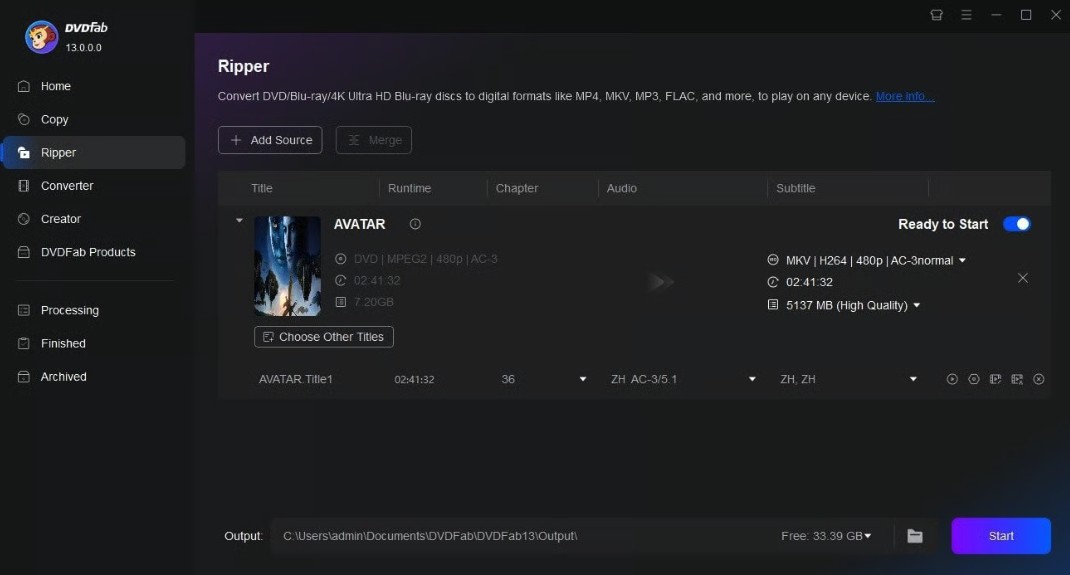
DVDFab DVD Ripper is the best DVD-to-MP4 converter when I need to rip a DVD with complex protection. It is the only software that keeps updating to support the latest DVD releases. It runs on Windows and macOS, accepts DVD discs, ISO images, and VIDEO_TS folders, and provides MP4 profiles using H.264, H.265, and other codecs. Titles, audio tracks, subtitles, bitrate, resolution, and other parameters can all be selected before the ripping process starts.
On a Mac, this is where I would move when HandBrake is not enough for the source. I would still use HandBrake for a straightforward readable DVD because it costs nothing and already produces excellent MP4 files. DVDFab becomes more useful when title detection, commercial DVD handling, multiple tracks, or a more disc focused interface matters. Mac users comparing dedicated options can also weigh the broader differences among current DVD rippers for Mac before choosing a paid workflow.
4. VLC Media Player: Best for Occasional DVD Conversion

VLC Media Player can serve as a basic DVD to MP4 converter when the disc is readable and I only need an occasional conversion. VLC can open DVD sources and use its conversion and transcoding system to write a local media file. Although VLC can remux compatible streams in general, I treat DVD to MP4 here mainly as a transcoding workflow because stream copy depends on codec and container compatibility.
I use VLC because it is convenient, not because it gives me the clearest DVD ripping interface. If the disc contains several episodes, multiple movie versions, commentary tracks, or complicated subtitle choices, I prefer a dedicated ripper or HandBrake. For a simple disc that already plays correctly in VLC, however, there is little reason to install another application just to test one conversion.
5. WinX DVD Ripper: Best Trial Alternative for Windows and Mac

WinX DVD Ripper is another DVD to MP4 converter for users who prefer a conventional commercial interface. It accepts DVD discs, ISO images, and folders and includes MP4 profiles using H.264 and HEVC. Current Mac releases also support Apple Silicon and newer encoding capabilities.
I would use the trial mainly to judge whether I like the interface and whether the DVD loads correctly. It gives me another option when DVDneXtCOPY or DVDFab does not fit the workflow, but I would not present a trial as a genuinely free way to finish a full DVD library. The useful distinction is that WinX offers ordinary re encoded outputs alongside source oriented copy functions.
6. Movavi Video Converter: Best for Readable DVD Folders and General Video
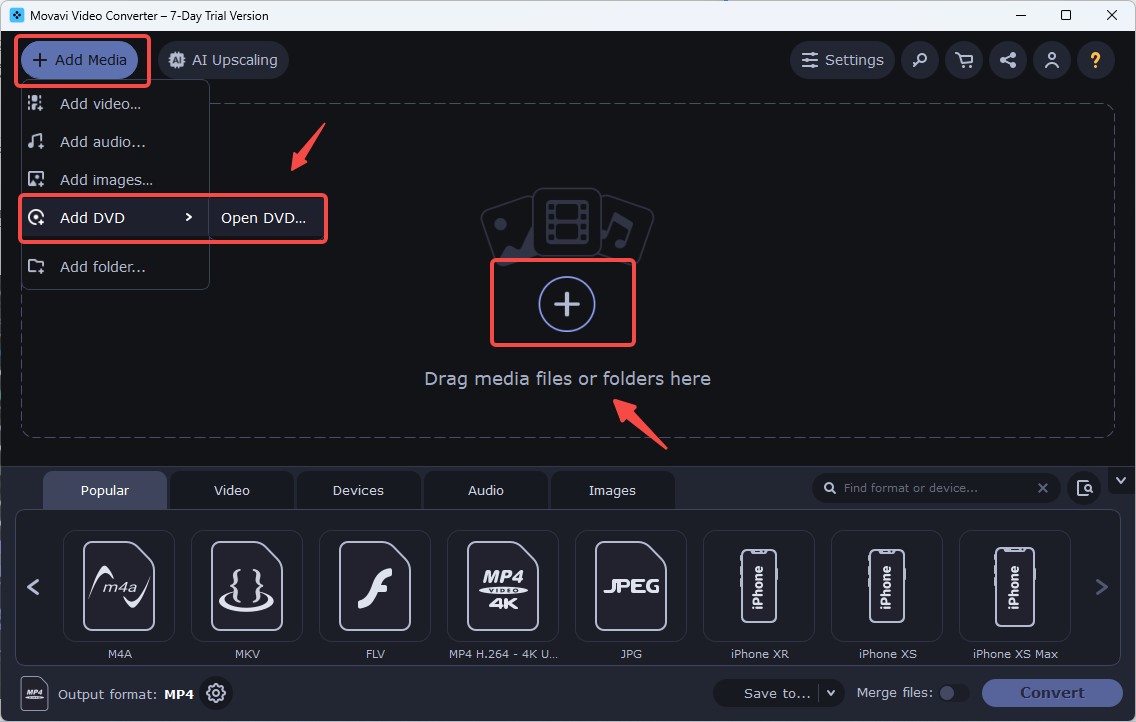
Movavi Video Converter is better treated as a general video converter that can turn readable DVD material into MP4 than as a commercial DVD ripper. It runs on Windows and Mac, including current Apple Silicon Macs, and provides a polished interface for normal video conversion, compression, and basic editing.
I would use Movavi when I already have a readable VIDEO_TS folder or when DVD conversion is only one task among many ordinary video files. I would not choose it first for a commercial movie DVD because copy protected DVD media is outside its intended conversion workflow. Its strength is the general media experience rather than deep DVD title and track management.
7. Freemake Video Converter: Free Windows Option with Branded Output
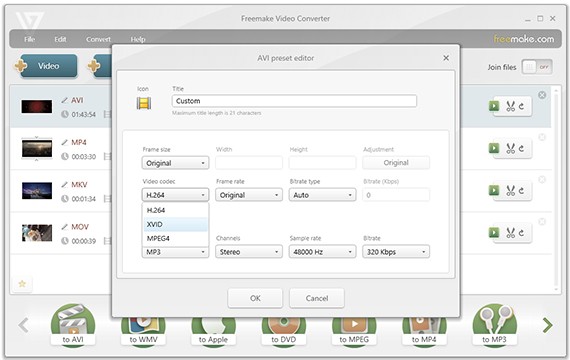
Freemake Video Converter is a free DVD to MP4 converter for Windows when I need to convert a readable source without a time limit. It combines DVD conversion with ordinary video conversion, so it can be convenient when the same computer also handles camera files, downloaded videos, or other media.
The important free limitation is the finished output rather than the runtime. Freemake allows free conversion without a duration cap, but the resulting clips contain Freemake branding unless the Remove Branding option is purchased. I therefore see it as useful for testing and casual conversion, but not necessarily the best zero cost option when I need a clean final MP4.
How to Rip DVD to MP4 on Windows 10/11 with DVDneXtCOPY DVD Ripper
For a Windows commercial DVD workflow, these are the settings I check before I start. Spending another minute confirming the title, MP4 profile, audio, and subtitles is easier than discovering the wrong track after a feature length movie has finished.
Step 1. Load the DVD, ISO, or Folder
Launch DVDneXtCOPY and open the Ripper module. Insert the physical DVD into the optical drive. If the source is already stored as an ISO image or DVD folder, add it from the computer instead. Before selecting an output, check the titles that were detected.
Step 2. Select the Main Title, Audio and Subtitles
On the main interface, select specific titles or rip the entire DVD. Choose audio tracks, extract subtitles to SRT format, add external subtitles, and check the embedded copy protection by clicking the Info option.
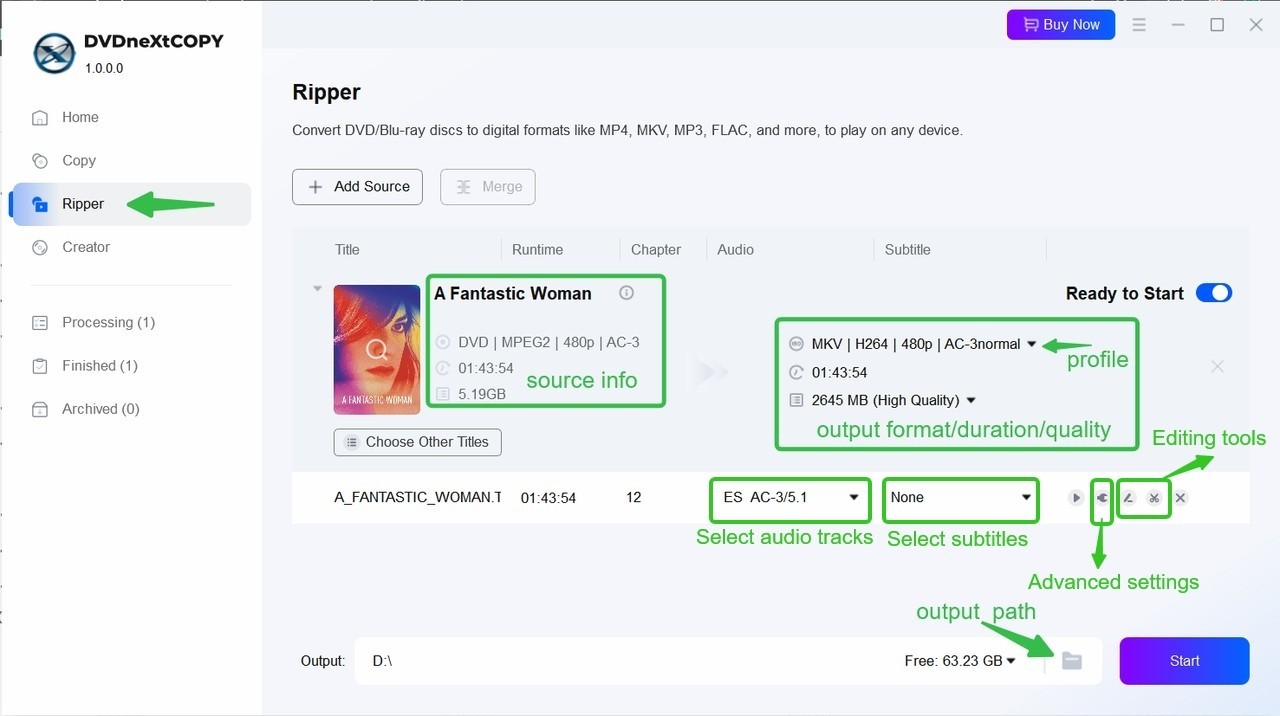
Step 3. Choose MP4 H.264, H.265, or Passthrough
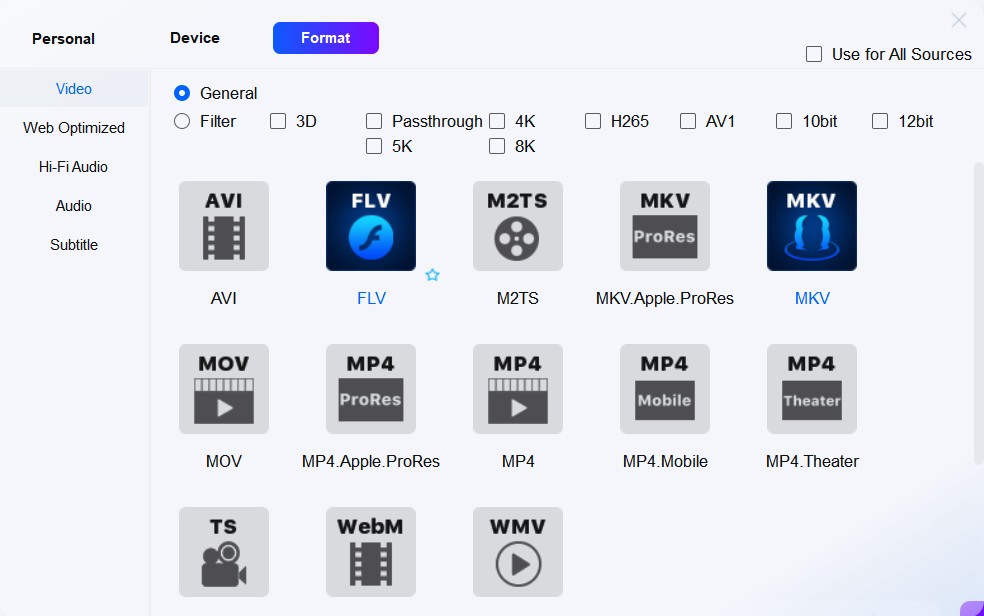
For most devices, I start with an MP4 H.264 profile because compatibility is usually the safest. I use H.265 when the playback device supports HEVC and storage matters more. I choose Passthrough when I want to keep the existing encoded source streams rather than create a new video encode. When I want to convert a DVD to MP4 for broad playback compatibility, H.264 is usually the first profile I test.
Step 4. Edit the DVD Before Conversion
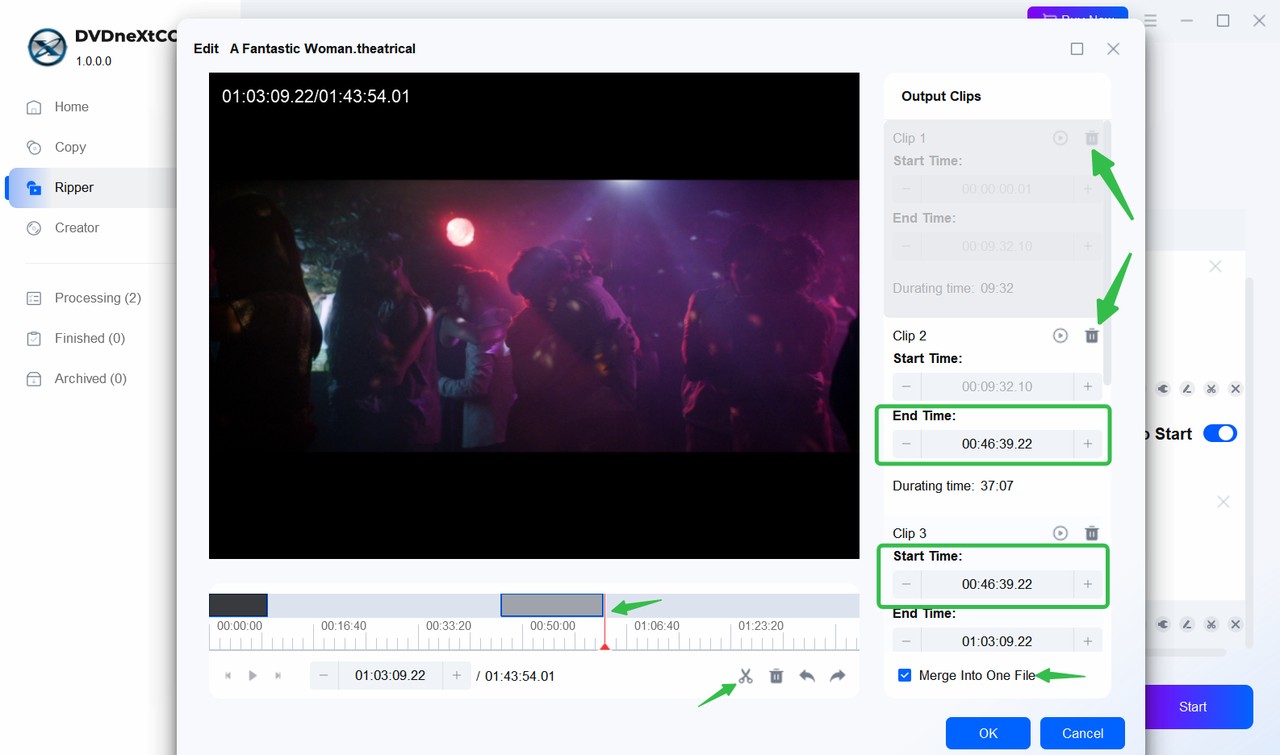
If the DVD needs a small adjustment, open Video Edit or Trim before starting the conversion. I use Video Edit to crop or rotate the picture, adjust brightness and contrast, add a text or image watermark, add external subtitles, change audio volume, reduce background noise, or adjust playback speed when needed. Trim is useful for removing scenes I do not want in the final MP4, and the remaining clips can be merged into one output file.
Step 5. Start the Conversion and Verify the MP4
Choose the destination folder and start the job. When it finishes, open the MP4 from the destination folder rather than assuming the completed progress bar means everything is correct.

Best DVD to MP4 Converter Settings for a DVD
There is no single MP4 profile that is ideal for every DVD. My default choices depend on whether compatibility, storage, or source preservation matters most.
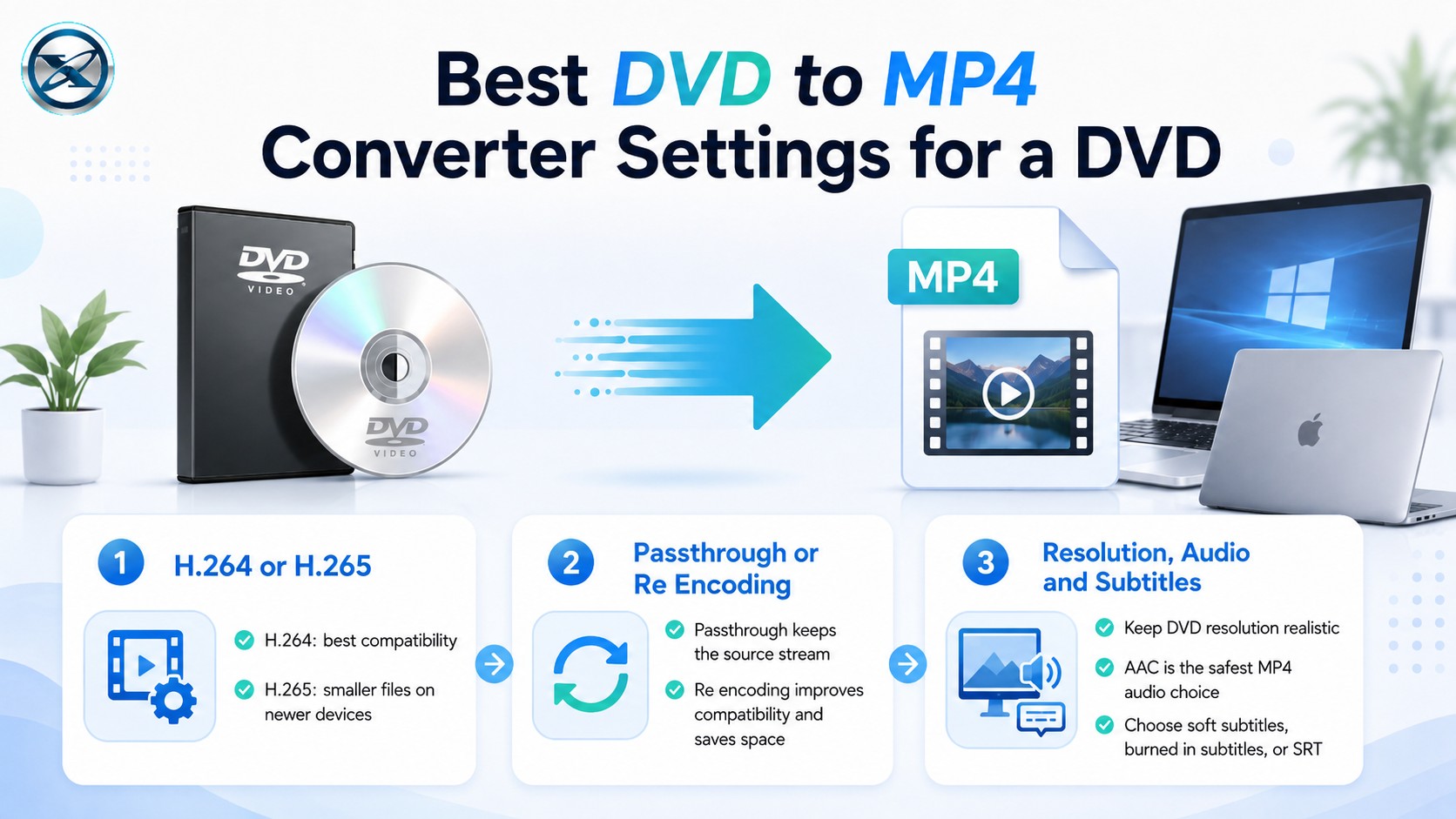
H.264 or H.265
For most DVD to MP4 conversions, H.264 is my default. It works on a very wide range of TVs, streaming devices, phones, tablets, media servers, and editing software. I use H.265 when the playback hardware is fairly recent, I want to reduce storage use, and I do not need maximum compatibility with old devices.
A smaller H.265 file is not automatically better. Compatibility matters more than saving a few hundred megabytes if the TV cannot decode the result.
Passthrough or Re Encoding
Passthrough keeps the existing encoded stream instead of generating a new one. It avoids another generation of video compression and usually keeps more of the source data, but the file may remain relatively large and the original DVD video codec may not be ideal for every device.
Re encoding creates a new stream, usually H.264 or H.265 in this article. That takes more processing but can substantially improve compatibility and reduce storage requirements. For everyday MP4 playback, I usually re encode. For preservation or later processing, I consider Passthrough first.
Resolution, Audio, and Subtitles
I normally keep a DVD close to its source resolution. A standard DVD is a standard definition source. Exporting it on a 1080p or 4K canvas does not recreate fine image detail that was never on the disc. Upscaling can still be useful for a particular playback workflow, but I do not describe a larger resolution number as an automatic quality improvement.
For audio, AAC is usually my safest MP4 choice when compatibility matters. For subtitles, I choose soft subtitles when I want to switch them on and off, rendered subtitles when the text must always appear, or SRT files when I want subtitles stored separately for editing or media server use.
How to Check and Fix a Converted MP4
I treat verification and troubleshooting as one task. Most DVD conversion problems are easier to diagnose when I know exactly what I expected from the MP4. If the DVD does not load at all, I check the optical drive and the physical disc first. A protected source is also outside HandBrake's built in capabilities, so changing an H.264 setting will not solve a source reading problem.
Check the Beginning, Middle, and End
Do not judge a two hour movie from the first minute. I play a section near the start, another around the middle, and another close to the end. This helps catch incomplete conversions, playback that stops midway, audio sync problems that become worse later, and damaged source sectors that only affect part of the movie.
Check Audio and Subtitles
If the MP4 has no sound, first confirm that the correct source audio track was selected. Also check whether the output audio codec is supported by the player. For subtitles, confirm the correct language, the correct track, whether soft subtitles appear when enabled, and whether rendered subtitles are positioned correctly.
Check Aspect Ratio and Interlacing
Older DVDs can expose two common visual problems. The first is a stretched image, such as a 4:3 program displayed as 16:9. The second is visible horizontal combing during motion. That usually means an interlaced source needs appropriate deinterlacing or decomb processing during a new encode. I only enable these filters when the source actually needs them.
Check File Size and Playback Compatibility
If the MP4 is much larger than expected, check whether you selected Passthrough or a high bitrate profile. If it is much smaller than expected, check the codec, quality setting, resolution, and audio configuration before assuming something went wrong. If a new H.265 MP4 plays on the computer but not on an older television, codec compatibility is usually the first thing I test.
FAQs About DVD to MP4 Conversion
Can MP4 keep multiple audio tracks and subtitles?
Yes. MP4 can contain multiple audio and subtitle tracks when the selected codecs and playback software support them. Before conversion, check the track selections rather than assuming every soundtrack and subtitle will automatically be copied.
ACan Windows Media Player convert a DVD to MP4?
Windows Media Player is primarily a playback application, not a dedicated DVD to MP4 converter. For a readable DVD, HandBrake is a more appropriate free conversion tool. For commercial DVD workflows on Windows, a dedicated ripper such as DVDneXtCOPY provides title, audio, subtitle, and MP4 output controls.
ACan QuickTime convert a DVD to MP4?
QuickTime Player is not a DVD ripping application. On a Mac, use a DVD capable converter that can read the source and export MP4 rather than treating QuickTime as a disc ripping tool.
ACan I convert DVD to MP4 online?
A web converter is usually a poor fit for a physical DVD. DVD video can span several VOB files and include multiple titles, audio tracks, subtitles, and disc navigation. Uploading one VOB file does not necessarily represent the entire movie correctly.
AWhy does a DVD contain several titles when I only want one movie?
A DVD can contain the main movie, trailers, bonus features, alternate cuts, episodes, menus, and short navigation titles. The longest title is often the movie, but not always. Compare duration and preview the title when possible before starting a long conversion.
ACan I move the finished MP4 to a TV, NAS, or external drive?
Yes. Once the DVD has been converted into a standard MP4 file, you can move it like other media. Make sure the destination has enough storage and that the playback device supports the video and audio codecs used in the MP4.
AConclusion
The best DVD to MP4 converter depends on the source more than the size of the feature list. For a commercial DVD on Windows, I would start with DVDneXtCOPY DVD Ripper because it combines title and track selection with both Passthrough and H.264 or H.265 re encoding in one workflow. For a readable DVD, HandBrake remains my first free option. On Mac, HandBrake is still the sensible starting point for readable sources, while DVDFab is the dedicated option I would compare when a commercial DVD needs more disc focused handling.
![Top 8 Best MP4 to DVD Converters on Windows & Mac [2026 Tested]](https://images.dvdnextcopy.com/2026/09/17/I2v69nzxIF6Xn7iue3ZRMGJ5-Ls0SF_z/feature_cover.jpg) Luna MillerSep 21, 2026
Luna MillerSep 21, 2026Top 8 Best MP4 to DVD Converters on Windows & Mac [2026 Tested]
 Luna MillerSep 21, 2026
DVD Region Codes Explained: Region 1 and Playback Options
![How to Remove DVD Copy Protection: Software and Free Methods [2026]](https://c.dvdnextcopy.com/media/How_to_Remove_DVD_Copy_Protection_d24c38a790.png) Steven VanceSep 21, 2026
Steven VanceSep 21, 2026How to Remove DVD Copy Protection: Software and Free Methods [2026]
 Luna MillerSep 21, 2026
How to Rip a Copy-Protected DVD on Win & Mac: 6 Ways
 Steven VanceSep 18, 2026
Top MP4 to ISO Converter in 2026: DVD Authoring vs Online Tools
 Steven VanceSep 18, 2026
How to Digitize DVD Collection: 5 Ways in 2026