 DVDneXtCOPY DVD Ripper
Convert ISO to MKV: No Re-encoding, Smaller Files & Batch Conversion

Summary: To convert ISO to MKV, use Passthrough when you want to keep the existing video stream, or re-encode when you need a smaller file. DVDneXtCOPY DVD Ripper supports DVD ISO conversion with Passthrough, encoded MKV, and batch jobs, while DVDFab, MakeMKV, and HandBrake cover cross-platform, no-re-encode, and compressed MKV needs. For a Blu-ray ISO, use Blu-ray-capable software such as DVDneXtCOPY Blu-ray Ripper.
Table of Contents
A video-disc ISO can contain the main movie, episodes, bonus titles, several audio tracks, subtitles, and chapters. Before you convert ISO to MKV, decide which of that content you actually want outside the disc image and whether the finished MKV should keep the existing video stream or become a smaller re-encoded file.
This process applies to DVD and Blu-ray video ISO images, not arbitrary software or data ISO files. Changing the container from ISO to MKV also does not guarantee a smaller file: a remux keeps the existing encoded stream, while transcoding creates a new stream that can reduce size or change the codec.
Choose Your ISO-to-MKV Result: Keep the Original Streams or Make a Smaller File
Use Passthrough or remuxing when another video encode would add no value. For DVD ISO sources, DVDneXtCOPY and DVDFab DVD Ripper can keep the existing audio and video encoding with MKV Passthrough, while MakeMKV extracts selected titles and tracks without re-encoding the video. These methods are useful when preserving the source stream matters more than shrinking the file.
Use re-encoding when storage, codec choice, or playback compatibility matters more. For DVD ISO sources, DVDneXtCOPY and DVDFab DVD Ripper can switch to encoded MKV profiles, while HandBrake creates a new MKV video stream with encoders such as H.264 or H.265. That extra encode takes more processing time, but it gives you direct control over file size and output compatibility.
| Goal | What happens to the video | Suitable method | Typical file-size result |
|---|---|---|---|
| Keep the existing streams | No new video encode | DVDneXtCOPY or DVDFab Passthrough for DVD ISO; MakeMKV for DVD/Blu-ray ISO | Often remains relatively large |
| Create a smaller MKV | Video is re-encoded | DVDneXtCOPY or DVDFab encoded profile for DVD ISO; HandBrake for readable DVD/Blu-ray ISO | Can be substantially smaller |
| Convert many ISO sources | Multiple conversion jobs are queued | DVDneXtCOPY, DVDFab, or HandBrake queue | Depends on each output setting |
One ISO Can Produce One MKV or Several MKV Files
An ISO does not necessarily map to one MKV. A movie disc may only need the main feature, while a TV or bonus disc can contain several separate titles that are easier to manage as individual files.
- One ISO, one main title: save the feature as one MKV.
- One ISO, several titles: save episodes or extras as separate MKVs when that keeps the library clearer.
- Several ISO files: create separate conversion jobs and process them as a batch.
Merging every detected title into one file should be an intentional choice rather than the default. If you only need a more universal output container instead of MKV, see the guide to convert ISO to MP4.
Convert ISO to MKV with DVDneXtCOPY: Passthrough or Re-encode
DVDneXtCOPY DVD Ripper covers both main ways to convert ISO to MKV on Windows. After loading a DVD ISO, you can choose the title, audio, subtitles, and chapters, then use MKV Passthrough when you want the existing audio and video encoding or switch to an encoded MKV when file size and codec settings matter more.
The useful difference is that you do not have to move between a remux-only tool and a separate transcoder when different ISOs need different results. Batch Mode and the Task Queue also make more sense once several disc images need processing.
How to Convert an ISO to MKV with DVDneXtCOPY
Step 1: Load the video ISO. Open DVDneXtCOPY, switch to the Ripper module, and use +Add Source to select the ISO. Check the detected title and runtime before moving on.

Step 2: Select the content you need. Choose the movie or episode, then keep the audio and subtitle tracks you expect to use later. If the ISO contains several titles, decide whether they should become separate MKVs before adding anything to the queue.

Step 3: Choose Passthrough or an encoded MKV. Select MKV Passthrough when avoiding video re-encoding is the priority. Choose an encoded MKV profile when you need to change codec, resolution, bitrate, frame rate, or file size.
- #1 Convert ISO to MKV without Losing Quality: Open the profile panel, and pick "Passthrough" as the filter. You will have two options, one MKV and the other VOB. Choose MKV Passthrough as a profile.

- #2 Convert ISO to MKV with High Quality: Still, on the profile panel, under Format > Video > General, pick the MKV profiles you want.

After you pick the profile, back on the main interface, you can click on the Wrench button to open the Advanced Settings panel to change resolution, bitrate, framerate, codec of video or audio, and the subtitle mode you prefer.
Step 4: Start the conversion. Finally, simply click on the folder icon at the bottom of the DVDneXtCOPY interface to change the output path, then press "Start" to begin transferring the ISO to MKV format.
Convert ISO to MKV with DVDFab DVD Ripper on Windows and Mac
DVDFab DVD Ripper is the cross-platform software that can convert ISO to MKV without being locked to one output method. It can load DVD ISO images on Windows or Mac and create MKV Passthrough when you want to keep the existing streams, or an encoded MKV such as H.265 when a smaller file matters more. You can also choose the title, audio tracks, and subtitles before the job starts.
Its strongest point in this comparison is flexibility across both platforms: the same program covers the remux-versus-compress decision that would otherwise send you to separate tools, and multiple conversions can be queued when several ISO files are waiting.
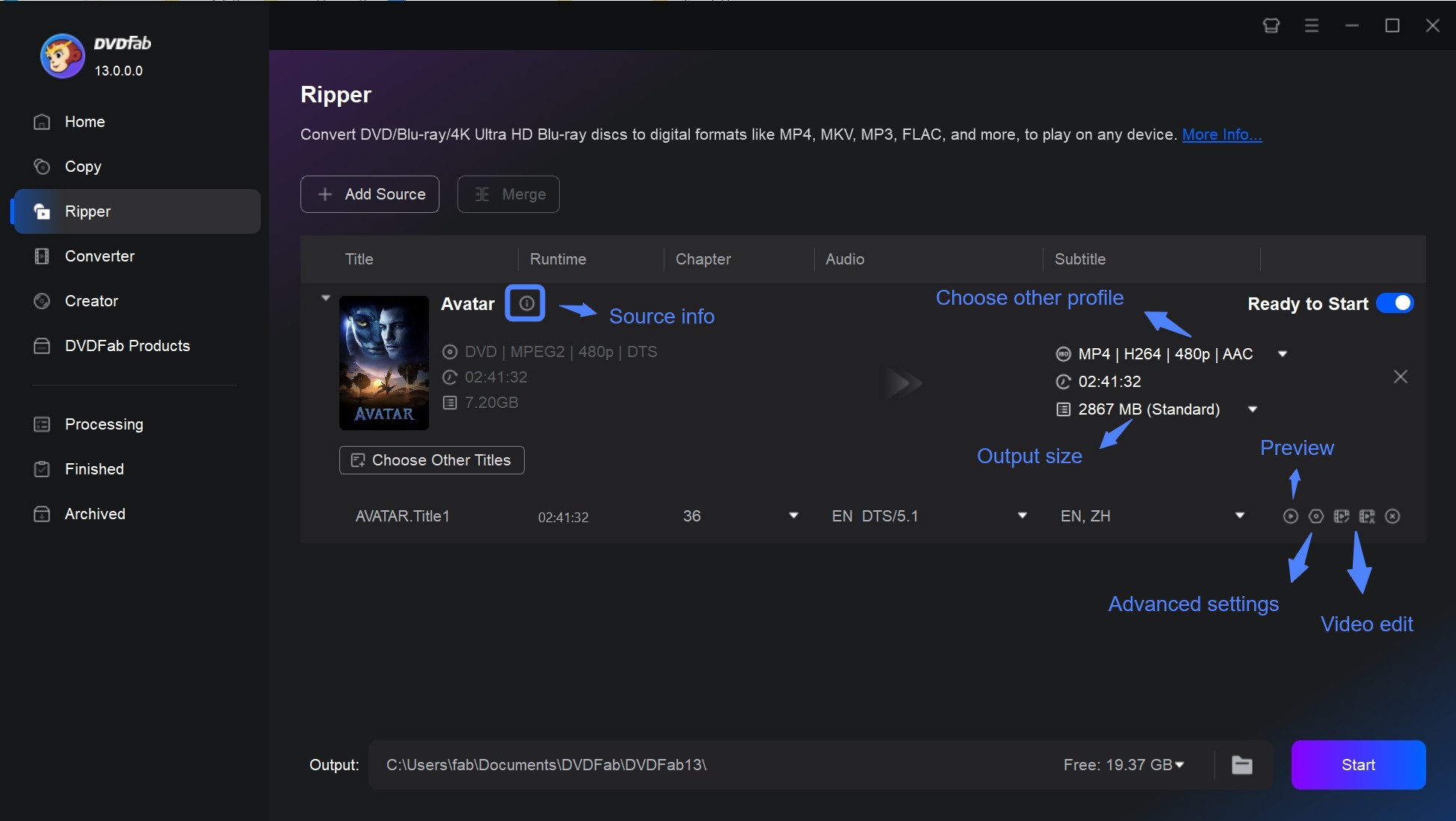
How to Convert ISO to MKV with DVDFab DVD Ripper
- Open the Ripper module and add the DVD ISO you want to process.
- Choose MKV Passthrough when you want to keep the existing video and audio streams, or select an encoded MKV profile such as H.265 when reducing file size matters more.
- Select the title, audio tracks, and subtitles you want in the finished file, then review any codec or quality settings before starting.
- Add additional ISO conversions to the queue when several disc images need processing, and give every output a unique name.
- Start the jobs, then reopen the completed MKVs and check runtime, audio, subtitles, chapters, and playback before archiving the source ISOs.
Convert ISO to MKV with MakeMKV Without Re-encoding
MakeMKV is the most focused option here when ISO to MKV means taking selected video content out of a disc image without creating a new video encode. Open the ISO, inspect the title tree, keep the movie or episodes you want with their audio and subtitle tracks, and save those selected streams as MKV files.
There is no quality-versus-file-size tuning stage for the video, which makes MakeMKV straightforward when the existing stream is already what you want to preserve. The same strength explains its limitation: a large stream inside the ISO will usually remain large in the MKV, so MakeMKV is not the right choice when the real goal is a smaller H.265 library file.
How to Convert ISO to MKV with MakeMKV
- Install and open MakeMKV.
- Choose File > Open files and select the video ISO.
- Wait for the title tree to appear, then choose the movie, episodes, audio tracks, and subtitles you want to keep.
- Set the output folder.
- Select Make MKV.
- Reopen the finished MKV and check runtime, audio, subtitles, and chapters.

With episodic ISO images, name each output immediately after checking it. A folder full of files named only by title number becomes difficult to organize once the original disc structure is no longer in front of you.
Convert ISO to MKV with HandBrake for Smaller Files
HandBrake takes the opposite route. When you convert ISO to MKV with HandBrake, the video is transcoded into a new output stream, so you can select a codec and quality target instead of carrying the existing video encoding into the new container unchanged.
That makes HandBrake useful when a remuxed MKV is too large or when another codec fits the intended player better. The tradeoff is encoding time and another generation of compression. HandBrake also expects readable, unprotected DVD or Blu-ray sources, so it is not a universal way to open every disc image.
How to Convert ISO to MKV with HandBrake
- Open the readable video-disc ISO and let HandBrake scan the available titles.
- Select the correct movie or episode and confirm the runtime.
- Choose MKV as the output container.
- Select an encoder and quality target that fit the file size and playback requirements you actually have.
- Choose the audio and subtitle tracks you want in the finished MKV.
- Encode a short sample first when the quality setting is uncertain.
- Select Start Encode for one job or Add to Queue when several jobs are ready.
- Reopen the finished MKV and check playback, audio, subtitles, and chapters.

How to Batch Convert Multiple ISO Files to MKV
Batch conversion should mean multiple ISO sources or multiple conversion jobs, not simply several titles detected inside one ISO. If you have several disc images, give each conversion its own title selection, output name, and destination before starting the queue.
Batch ISO to MKV with DVDneXtCOPY
DVDneXtCOPY DVD Ripper can help you batch convert ISO to MKV. You can prepare multiple ISO ripping jobs, add them to the Task Queue, and let the software move through the tasks in sequence, while each job keeps its own title, audio, subtitle, and MKV settings.
- Load the first ISO and choose the title, audio, subtitles, and MKV output.
- Add that conversion to the Task Queue.
- Load the next ISO and create another job rather than adding another title from the first source.
- Check file names and destinations for every queued job.
- Start the queue and let the tasks process in sequence.
- Open outputs from different points in the queue and verify that the expected titles and tracks were kept.
TV-disc batches need extra attention because title numbers and episode order are not always the same. Name each finished file as soon as its episode is confirmed.
Queue Encoded ISO Jobs with HandBrake
HandBrake also lets you set up multiple encode jobs in its Queue. This is useful when the ISO sources are readable and the goal is a smaller, re-encoded MKV rather than an original-stream remux.
Open each ISO, choose the title, MKV container, encoder, quality target, audio, and subtitles, then select Add to Queue. Repeat with the remaining sources and check the destination names before starting the queue. Unique output names matter when several jobs are prepared at once.
Check the MKV Before You Delete or Archive the ISO
An MKV that exists on disk is not automatically a successful conversion. Before deleting the ISO or moving it to cold storage, reopen the output and check the parts that would be inconvenient to recover later.
- Title: Confirm that the file is the movie or episode you intended to extract.
- Runtime: Compare it with the expected feature or episode length.
- Audio: Switch through the languages, commentary, or surround tracks you chose to keep.
- Subtitles: Confirm that the required tracks can be selected and displayed.
- Chapters: Test chapter navigation when chapter markers matter.
- Video: If the file was re-encoded, confirm that its codec works on the intended player or server.
- Naming: Give movies, seasons, episodes, and discs names that will still make sense after the ISO is no longer mounted.
Batch jobs deserve an extra spot check. Open outputs from different points in the queue and look for duplicate names, wrong title selection, missing tracks, or settings that carried over when they should not have.
Do not delete the ISO simply because the MKV is smaller. An ISO preserves the disc image and structure, while an MKV normally represents selected video content and tracks. If menus, extras, or full-disc structure still matter, keep the ISO as the archival copy and use the MKV as the easier playback copy.
FAQs
Does converting ISO to MKV lose quality?
Not necessarily. Passthrough or MakeMKV-style remuxing can keep the existing video stream without re-encoding it, while HandBrake and other encoded profiles create a new video stream and therefore involve transcoding.
AWhy is my MKV almost as large as the ISO?
Changing the container does not automatically compress the video. If the existing video stream was remuxed into MKV without re-encoding, most of that stream's original size remains; use an encoded profile when reducing size is the priority.
ACan MakeMKV open an ISO directly?
Yes. MakeMKV can open a file from the hard drive, show the detected titles and tracks, and save the selected content as MKV.
ACan HandBrake convert ISO to MKV without re-encoding?
Not for the video. HandBrake is a video transcoder, so its role here is to encode a new MKV video stream, although compatible audio tracks can use pass-through options.
ACan I convert a Blu-ray ISO to MKV?
Yes. DVDneXtCOPY Blu-ray Ripper can load a protected Blu-ray ISO and convert it to MKV while letting you choose the title, audio tracks, subtitles, and output profile. MakeMKV is another option when you want to keep the existing video streams without re-encoding, while HandBrake can encode readable, unprotected Blu-ray ISO sources to MKV.
AConclusion
Choose DVDneXtCOPY DVD Ripper when you want one Windows program that can switch between Passthrough and encoded MKV and queue several conversion jobs. Choose DVDFab DVD Ripper when you want similar remux-or-re-encode flexibility on either Windows or Mac. Choose MakeMKV when the priority is extracting selected titles and tracks without a new video encode, and choose HandBrake when the ISO is readable and a smaller, newly encoded MKV is the result you actually want.
Whichever method you use, keep the ISO until the finished MKV has been reopened and checked. A smaller or more convenient file is useful only if it still contains the title, audio, subtitles, and chapters you expected.
 Luna MillerOct 8, 2026
How to Block Someone on TikTok: App & Website Guide
 Luna MillerSep 21, 2026
10 Free Sites to Download Subtitles for Movies & TV Shows in 2026
 Luna MillerSep 17, 2026
How to Delete a TikTok Story in 5 Steps (2026)
 Luna MillerSep 16, 2026
How to Fix Cinavia Message Code 3: Start With the Source
![WinX DVD Author Review & Tutorial: Features, How to Use, and Limits [2026]](https://c.dvdnextcopy.com/uploads/images/17884278134315877-5212fbb54f6ef7f5e20bf1765fc74e79.jpg) Luna MillerSep 3, 2026
Luna MillerSep 3, 2026WinX DVD Author Review & Tutorial: Features, How to Use, and Limits [2026]
 Luna MillerAug 31, 2026
How to Rip a DVD with HandBrake in 2026: Steps, Settings & Limitations