 DVDneXtCOPY DVD Ripper
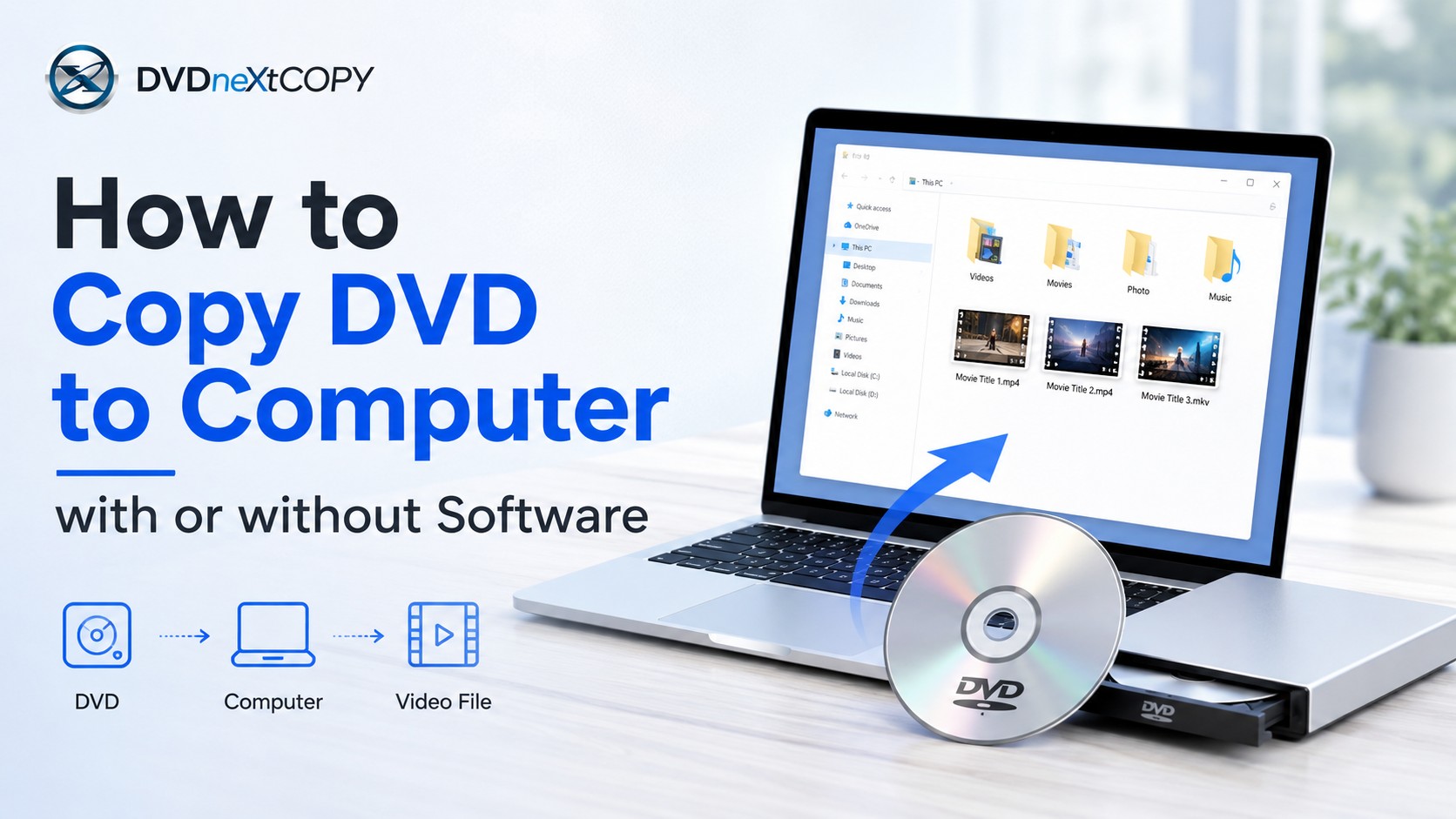
How to Copy a DVD to a Computer in 2026 (With or Without Software)

Summary: To copy a DVD to a computer without software, use File Explorer on Windows or Finder on Mac when the disc contains files your computer can read directly. For movie DVDs, a dedicated DVD ripper gives you more control: you can choose the main title, chapters, audio tracks, and subtitles, then save the movie as MP4 or MKV for easier playback and storage. For Windows users, I recommend DVDneXtCOPY DVD Ripper because it puts these controls in one workflow.
Table of Contents
When I copy a DVD to a computer, I first check what is actually on the disc instead of choosing software immediately. A data DVD or a disc made from personal recordings may contain files that Windows or macOS can copy directly. A movie DVD is different: if I want a single video that is easier to play later, I need to decide which title, audio track, subtitles, and chapters should go into the finished file.
The methods below cover both cases. You can start with File Explorer or Finder when the DVD contains readable files, or use a DVD ripping tool when you need to save the movie as an MP4, MKV, or another digital video format.
Can You Copy a DVD to a Computer? Quick Answer
Yes, but the method depends on the DVD and the file you want at the end.
| What you have or want | Method to start with | Result |
|---|---|---|
| A data DVD with readable files | File Explorer on Windows or Finder on Mac | The original files copied to a folder |
| A home-recorded or otherwise readable video DVD | File Explorer/Finder, HandBrake, or VLC depending on the source | Original files or a converted video |
| A movie saved as one convenient video file | DVDneXtCOPY DVD Ripper (Windows) or DVDFab DVD Ripper | MP4, MKV, or another supported video format |
| A movie with several audio or subtitle tracks you want to retain | MakeMKV or another ripper with track selection | MKV with selected tracks |
| A readable DVD video that needs a smaller file | HandBrake | Re-encoded MP4, MKV, or WebM |
An MP4 is usually the simpler choice when playback compatibility matters. An MKV is useful when you want several audio tracks, subtitle tracks, or chapters in one file. Copying and ripping are also slightly different tasks: copying can mean moving existing readable files from the disc to the computer, while ripping usually means extracting DVD video and saving it in another digital container or encoding format.
How to Copy a DVD to a Computer Without Software
You do not always need to install a DVD ripper. If your computer can read the files normally, Windows File Explorer or macOS Finder can copy them just like files from another removable drive.
This is the route I would try first for data discs, personal archives, and home-recorded DVDs with files that open normally. Commercial movie DVDs are a different case, so I would not spend time forcing File Explorer or Finder to do a job they are not designed for.
Copy DVD Files to a Windows Computer with File Explorer
- Insert the DVD into the computer's optical drive.
- Open File Explorer.
- Select the DVD drive and open it.
- Locate the files or folders you want to keep.
- Create a destination folder on your computer.
- Copy the selected files into that folder.
- Open several of the copied files from the hard drive to confirm that they work.
Do not assume that seeing a VIDEO_TS folder means you already have an easy-to-use movie file. A DVD-Video structure can contain several VOB, IFO, and BUP files, and the title you actually want may be divided across them. If your goal is one MP4 or MKV, use one of the conversion methods below instead.
Copy DVD Files to a Mac with Finder
- Insert the DVD into an external or built-in optical drive.
- Open Finder and select the disc in the sidebar.
- Browse the files on the DVD.
- Create a folder on the Mac for the copied content.
- Drag the readable files from the disc into that folder.
- Wait until the copy finishes.
- Open the copied files from the Mac rather than from the disc to verify them.
Finder can copy accessible files to another folder, but the result is only as useful as the files on the source disc. If the DVD contains a movie structure rather than ordinary files you want to preserve as-is, conversion to a video file may be more convenient for later playback.
Why Drag-and-Drop Sometimes Does Not Work
A failed copy can have several causes. The disc may be scratched, the optical drive may have trouble reading it, the DVD may contain a structure that is inconvenient to use outside a DVD player, or access controls may prevent ordinary file copying.
Check the physical disc first. If other discs work in the same drive but this one repeatedly reports read errors, clean the disc gently from the center toward the outer edge and try again. If the files copy successfully but are awkward to play, the problem may be the DVD structure rather than the drive.
If a commercial DVD plays from the drive but its files will not copy normally, I stop treating it as a drag-and-drop problem. At that point, please try the following method to rip your DVDs and save them on computer.
How to Copy or Rip a DVD to Your Computer with Professional Software
If you want a normal video file rather than the original disc files, a DVD ripper or transcoder gives you more control over the title, output format, audio, subtitles, and file size.
The five tools below serve different purposes. DVDneXtCOPY and DVDFab provide broader DVD-to-video controls, MakeMKV focuses on retaining source streams in MKV, HandBrake is strongest when you need to re-encode and compress a readable source, and VLC can handle an occasional conversion without installing another media application.
1. DVDneXtCOPY DVD Ripper: Flexible MP4 and MKV Output
DVDneXtCOPY DVD Ripper is the first tool I would use to copy a DVD to a computer on Windows when I want an MP4 or MKV. It can process both newer releases and protected titles, with preset output profiles for different computers, mobile devices, and media players. I can also select the titles, audio tracks, and subtitles I want to keep, adjust video and audio parameters, and use the built-in editing tools before export

How to save a DVD to your computer with DVDneXtCOPY
- Launch DVDneXtCOPY and open the Ripper module.
- Insert the DVD and let the program load the source.
- Select an output profile such as MP4 or MKV.
- Check the detected title and chapter range.
- Select the audio and subtitle tracks you want to keep.
- Adjust the video or audio settings only if you need a different codec, resolution, subtitle mode, or file size.
- Choose the output folder.
- Click Start.
- Reopen the finished file and test the selected tracks before moving it into your library.

2. DVDFab DVD Ripper: More Output Profiles and Encoding Controls
When I want to copy a DVD to my computer with more profile and encoding control, DVDFab DVD Ripper is the alternative I would compare with DVDneXtCOPY. It can load a protected disc, ISO, or VIDEO_TS source, then lets me choose the output profile, audio, subtitles, codec, resolution, and quality before the job starts.
Its main advantage is flexibility: I can use MKV Passthrough when I want to keep the source streams, or pick a compressed profile when file size matters more. The tradeoff is that DVDFab gives me more settings to review than MakeMKV, so it is a better fit when I actually need those encoding choices rather than when I just want a quick MKV extraction.
How to rip a DVD to your computer with DVDFab
- Open DVDFab and choose the Ripper module.
- Insert the DVD and load the source.
- Open the profile selector and choose the required video format.
- Select the main title or another title you want to save.
- Review the audio tracks and subtitles.
- Adjust encoding settings only when necessary.
- Select the destination folder on the computer.
- Start the ripping task.
- Play the result and confirm that the expected audio and subtitle tracks are present.

3. MakeMKV: Keep Source Streams in an MKV
If my goal is to save a DVD to computer as an MKV without a video re-encode, MakeMKV takes the cleanest route of these five tools. I open the disc, choose the title and tracks, and keep multiple audio tracks, subtitles, chapters, and metadata together in one MKV when preserving the source streams matters more than shrinking the file.
That makes MakeMKV useful when I want to keep the movie close to the source instead of reducing the file size immediately. The tradeoff is storage: because it is not shrinking the video through a new encode, the resulting file can remain relatively large. MakeMKV also produces MKV rather than a small MP4 aimed at phones or limited-storage devices, so a second HandBrake conversion may make sense later if space becomes the priority.
How to copy a DVD to MKV with MakeMKV
- Insert the DVD and open MakeMKV.
- Select the optical drive and open the disc.
- Wait for MakeMKV to analyze the titles.
- Expand the title you want to keep.
- Select the required audio and subtitle tracks.
- Choose an output folder.
- Click Make MKV.
- Open the finished MKV in a compatible player and switch through the selected tracks.

The main limitation is not the ripping process but the output choice: MakeMKV is built around MKV, and the file can stay close to the source size. If I need a smaller MP4 afterward, I would treat HandBrake as a second step rather than force MakeMKV into a job it is not meant to do.
4. HandBrake: Compress a Readable DVD to MP4 or MKV
When I want to transfer readable DVD video to a computer and make the file smaller, HandBrake is the tool I reach for. It can open readable DVD sources and encode them to MP4, MKV, or WebM, with controls for video quality, audio, subtitles, chapters, dimensions, and other settings that affect playback and file size.
HandBrake is the tool I would use when the source already opens correctly and the next job is compression. It always re-encodes the video, so I use it when I want a smaller MP4 or MKV, not when I am trying to keep the original video stream untouched. It is also not the tool I would choose for a DVD that the program cannot read because of access controls.
How to save readable DVD video with HandBrake
- Open HandBrake and select the DVD or copied DVD source.
- Choose the title you want to encode.
- Start with an appropriate preset rather than changing every setting manually.
- Choose MP4 or MKV as the output container.
- Review the audio and subtitle tabs.
- Select the destination file.
- Start the encode.
- Reopen the finished video and check picture, audio, subtitles, and chapters.

5. VLC: An Occasional Basic Conversion
If I only need to copy a readable DVD to my computer as a video file once in a while, VLC can be enough. It is primarily a media player, but its Convert/Save tools can take a readable source, apply a conversion profile, and save the result as a local file without adding another general-purpose media app.
Its advantage is convenience rather than detailed DVD-library control. VLC's conversion interface works with profiles and destination files, but a dedicated DVD ripper or MakeMKV gives a clearer view of titles, audio tracks, and subtitles when a disc contains several versions or extras. I would use VLC for a simple source that already opens correctly, not as the first choice for sorting through a complicated multi-title DVD.
A basic VLC conversion
- Insert the readable DVD.
- Open VLC and select the disc as the source.
- Use the conversion or stream-output controls.
- Choose a conversion profile.
- Set the destination file and folder.
- Start the conversion.
- Play the saved file from the computer and verify the result.

Choose the Right Software to Copy a DVD to Your Computer
| Tool or method | Best suited to | MP4 | MKV | Multiple audio/subtitle tracks | Video re-encoding |
|---|---|---|---|---|---|
| File Explorer / Finder | Directly readable DVD files | No conversion | No conversion | Depends on original files | No |
| DVDneXtCOPY DVD Ripper | Choosing titles, tracks, and flexible video output | Yes | Yes | Yes | Depends on selected profile |
| DVDFab DVD Ripper | More profile and encoding choices | Yes | Yes | Yes | Optional depending on profile |
| MakeMKV | Retaining source streams in one MKV | No | Yes | Yes | No |
| HandBrake | Compression and playback compatibility | Yes | Yes | Yes | Yes |
| VLC | Occasional basic conversion | Profile-dependent | Profile-dependent | Less disc-focused control | Typically when transcoding |
How to Check the Video After You Copy a DVD to Your Computer
Copying a DVD to a computer is not finished when the progress bar reaches 100%. The useful result is a file that reopens correctly and still contains the movie, audio, subtitles, and chapters you intended to keep.
I check the finished file before I remove a temporary source or move the video into long-term storage.
Reopen the Video from the Computer
Eject the disc or otherwise make sure you are playing the new file rather than the original DVD. Watch a short section near the beginning, middle, and end. This catches obvious read or encoding problems without requiring you to watch the entire movie again.
Check Audio, Subtitles, and Chapters
If you selected more than one audio or subtitle track, switch between them. Confirm that the main audio track plays, commentary or alternate audio is present if selected, required subtitle tracks appear, subtitle timing is usable, and chapters can be selected when the output format and player support them.
Name and Store the Finished File
Use names that will still make sense after you copy more discs. For a movie, use a pattern such as Movie Title (Year).mkv. For a television collection, use Show Name - S01E03 - Episode Title.mkv. If one DVD contains bonus features or several titles, label them before starting the next disc.
Keep the verified file in its intended storage location and maintain another backup if the video matters enough that you do not want a single drive failure to remove it.
FAQs
Do I need a built-in DVD drive to copy a DVD to my computer?
No. An external USB DVD drive works as long as your computer recognizes it and the drive can read the disc type. If a disc does not appear, test another disc or USB port before changing ripping software.
ACan I save the copied DVD directly to an external hard drive?
Yes. Choose a writable folder on the external drive as the destination, keep the drive connected until the job finishes, and reopen the finished file from that drive before treating the copy as complete.
AHow much free space do I need to copy a DVD to a computer?
It depends on the method. Direct copying, remuxing, or Passthrough can stay close to the source size, while a re-encoded MP4 or MKV may be smaller. Leave extra working space on the destination drive instead of filling it to its limit.
AWhy does a DVD ripper show several titles for one DVD?
A DVD can contain the main movie, episodes, extras, alternate cuts, trailers, or other title entries. Compare runtime and chapter count, and preview the title when the software provides that option, before starting a long conversion.
ACan I copy only the main movie or one episode from a DVD?
Yes, when the ripping tool lets you choose individual DVD titles. Select the movie or episode you want, then keep only the audio and subtitle tracks needed for that title instead of processing every detected item.
ACan I move the finished MP4 or MKV to another computer or NAS?
Yes. After you verify the finished video, you can copy or move it like another media file. Make sure the player on the other computer, TV, or NAS client supports the container, video codec, audio codec, and subtitle type you selected.
AConclusion
The simplest way to copy a DVD to a computer is File Explorer or Finder when the disc already contains readable files. You do not need a DVD ripper just to move ordinary files from one storage device to another.
For a movie you want to save as a normal video, choose the tool according to the output rather than the size of its feature list. DVDneXtCOPY DVD Ripper and DVDFab DVD Ripper provide broader title, track, and output controls; MakeMKV is useful when keeping source streams in MKV matters; HandBrake makes more sense when compression and re-encoding are the goal; and VLC can cover an occasional simple conversion.
Whichever method you use, reopen the finished file before considering the job complete. Check the beginning, middle, and end, switch through the audio and subtitle tracks you intended to keep, and give the file a useful name before moving on to the next DVD.
![Top 8 Best MP4 to DVD Converters on Windows & Mac [2026 Tested]](https://images.dvdnextcopy.com/2026/09/17/I2v69nzxIF6Xn7iue3ZRMGJ5-Ls0SF_z/feature_cover.jpg) Luna MillerSep 21, 2026
Luna MillerSep 21, 2026Top 8 Best MP4 to DVD Converters on Windows & Mac [2026 Tested]
 Luna MillerSep 21, 2026
DVD Region Codes Explained: Region 1 and Playback Options
![How to Remove DVD Copy Protection: Software and Free Methods [2026]](https://c.dvdnextcopy.com/media/How_to_Remove_DVD_Copy_Protection_d24c38a790.png) Steven VanceSep 21, 2026
Steven VanceSep 21, 2026How to Remove DVD Copy Protection: Software and Free Methods [2026]
 Luna MillerSep 21, 2026
How to Rip a Copy-Protected DVD on Win & Mac: 6 Ways
 Steven VanceSep 18, 2026
Top MP4 to ISO Converter in 2026: DVD Authoring vs Online Tools
 Steven VanceSep 18, 2026
How to Digitize DVD Collection: 5 Ways in 2026