 DVDneXtCOPY DVD Ripper
How to Digitize DVD Collection: 5 Ways in 2026

Summary: You can digitize DVDs with DVDneXtCOPY DVD Ripper, HandBrake, MakeMKV plus HandBrake, VLC, or a transfer service. The best method depends on whether the disc is protected, whether you want MP4/MKV or a fuller archive, and how much control you need over subtitles, audio, and chapters.
A DVD collection becomes easier to browse when each disc is saved as a playable digital file, but I do not choose MP4, MKV, or an archive copy until I know what is actually on the disc. A homemade DVD, a commercial movie disc, and a title with several subtitle or commentary tracks can need different handling.
The best way to digitize DVDs also depends on what you want after the conversion. A compact MP4 works well for everyday playback, while MKV can keep more selectable tracks. If preserving the disc structure matters more than creating one video file, a full-disc archive is a different job.
Below are five DVD ripper software tools to digitize DVDs, followed by a direct comparison of when each method makes sense and what I check before storing the finished files.
Can You Digitize DVDs? What You Need First
Yes. You can digitize a DVD by saving its video as a digital file such as MP4 or MKV, or by creating a larger archive copy when retaining more of the original disc matters.
For a DIY conversion, you normally need a computer, a compatible optical drive, enough storage for the output, and software that can read the DVD you have. Homemade and otherwise unprotected DVDs are usually the simplest sources. Commercial DVDs can use access controls or disc structures that general-purpose video transcoders do not handle themselves.
Before choosing software, decide what you want to keep. A single movie file may be enough for normal playback, while a disc with commentary, several subtitle tracks, alternate cuts, or bonus material needs more attention. If you do not have a computer or optical drive, a transfer service or standalone recording device can provide another route.
5 Best Ways to Digitize DVDs
The five methods below solve different versions of the same task. I would choose between them according to the DVD, the output I want, and how much control I need over titles, audio, subtitles, and storage.
1. DVDneXtCOPY DVD Ripper for Commercial DVDs
DVDneXtCOPY DVD Ripper is a Windows desktop option for turning a DVD disc, ISO image, or DVD folder into a normal video or audio file. For commercial DVDs, the vendor documents support for common DVD access protections, although the actual result still depends on the disc, drive, software version, and applicable rules.
Its output profiles include MP4, MKV, AVI, MOV, MP3, FLAC, WAV, SRT, and other format or device configurations. MKV Passthrough can retain the selected original video and audio streams without re-encoding, while H.264 or H.265 profiles are available when reducing file size or changing playback compatibility matters.
The title screen also lets you choose chapters, audio tracks, and subtitles before conversion. Subtitle options include selectable or rendered subtitles as well as separate subtitle extraction where supported. Batch processing is useful when several titles or discs need similar settings, and hardware acceleration can be used for applicable encoding tasks.
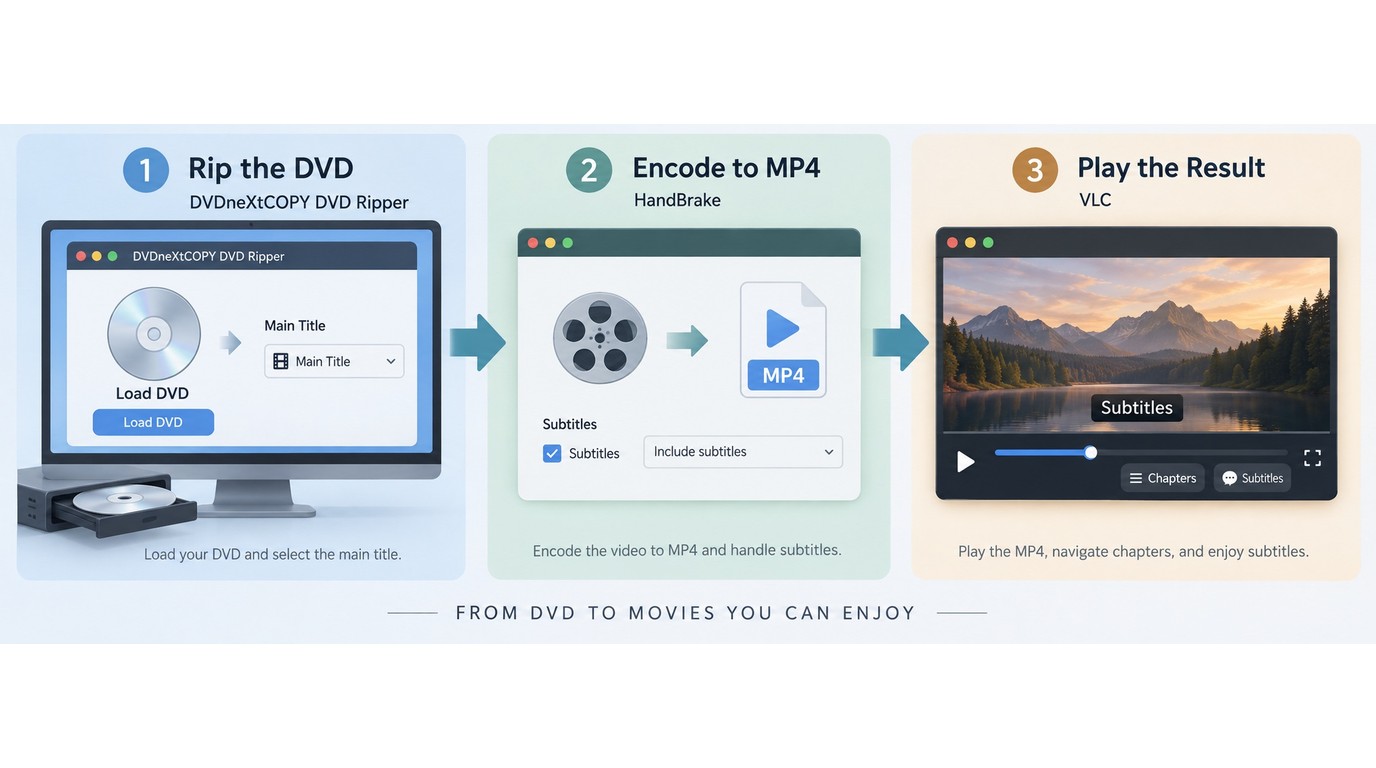
On a Windows 11 Pro desktop with an AMD Ryzen 7 7700 and ASUS BW-16D1X-U, I loaded a DVD-9, chose a main-title MP4 profile, and checked the result in VLC; the chapter list and selected subtitle track were available in that file. This check applies to that source and output rather than every DVD.
How to Digitize DVDs Using DVDneXtCOPY DVD Ripper
Step 1: Load the DVD. Open DVDneXtCOPY DVD Ripper and insert the DVD. You can also load a DVD ISO file or DVD folder.

Step 2: Choose the file, tracks, and subtitles. Select an output profile such as MP4 or MKV. Check the detected title, chapter range, audio tracks, and subtitles before starting. If you need a separate subtitle file, open the subtitle profile options and select SRT where appropriate.

Use Advanced Settings or the editing controls only when they serve the intended player, screen, subtitle track, or file size.

Step 3: Start and check the finished file. Choose the destination folder and start the task. When it finishes, reopen the file rather than relying only on the completed progress bar. Check the beginning, a middle section, and the end of the movie. If subtitles, commentary, or chapters matter, switch through those items before filing the DVD away.

2. HandBrake for Homemade or Unprotected DVDs
HandBrake is a free, open-source video transcoder for Windows, macOS, and Linux. It can open DVD sources and convert readable video to MP4, MKV, or WebM, but HandBrake itself does not defeat or circumvent DVD copy protection.
That distinction matters. HandBrake is a good starting point for homemade DVDs, unprotected discs, DVD folders it can already read, or an MKV created by another program. It should not be treated as a universal commercial-DVD reader.
Its main strength is encoding control. You can select a preset, video codec, audio tracks, subtitles, chapters, cropping, resizing, and deinterlacing settings. Because HandBrake re-encodes video rather than passing the original video stream through unchanged, I use it when file size or playback compatibility matters more than retaining the original encoded stream.
How to Digitize DVDs Using HandBrake
Step 1: Open the DVD. Install and open HandBrake, then select the DVD from the Source Selection screen.

Step 2: Select the correct title. Wait for the scan to finish. Check the detected titles and select the one whose runtime matches the movie or episode you want.

Step 3: Choose the output and encode. Select an MP4, MKV, or WebM preset according to the player and file size you need. Review the audio, subtitle, and chapter options, choose the destination folder, and start the encode.
Step 4: Verify the file. Play the opening, a middle scene, and the ending. Check the subtitle and chapter controls if you intended to keep them.
HandBrake is one of the simplest free choices when the DVD can already be read. Its limitation is source access, not a lack of encoding controls.
3. MakeMKV + HandBrake for Archive and Playback Copies
MakeMKV followed by HandBrake works well when I want two different results from the same DVD: a larger MKV that keeps the selected source streams and a smaller file for everyday playback.
MakeMKV reads the disc and saves selected titles as MKV without a normal video re-encode. The MKV container can retain multiple audio tracks, subtitle tracks, chapters, and related track information. HandBrake can then open that MKV and encode a smaller MP4 or MKV for TVs, phones, tablets, or other devices.
How to Digitize DVDs Using MakeMKV + HandBrake
- Open the DVD in MakeMKV and review the detected titles.
- Select the movie or episodes and the audio and subtitle tracks you want to keep.
- Save the selected content as an MKV.
- Open that MKV in HandBrake.
- Choose an MP4 or MKV preset and configure the playback copy.
- Reopen both outputs before deciding which files to archive.
On Windows 11 Pro with a Samsung 990 PRO NVMe drive, I reopened the source MKV in MediaInfo, encoded an MP4 in HandBrake, and switched subtitle tracks in VLC; the title and chapter markers remained available in the test file.
This method uses more storage because you may keep both files. It also adds a second processing stage. The advantage is that the larger MKV can remain available if you later decide to create a different playback copy without reading the DVD again.
4. VLC for Simple Unprotected DVD Conversions
VLC is primarily a media player, but its Convert / Save and transcoding functions can also save readable media in another format. For a small number of simple, unprotected DVDs, that can be enough.
The interface provides fewer DVD-specific controls than a dedicated ripper or HandBrake. I would use VLC when the disc already opens correctly and the goal is a basic playback file rather than detailed control over several titles, tracks, or archive copies.
How to Digitize DVDs Using VLC
Step 1: Open Convert / Save. Open VLC, choose Media > Convert / Save, and select the DVD source.

Step 2: Select the disc content. Choose the disc device and review the title, chapter, audio, or track options available for the source.

Step 3: Choose an output profile. Select an appropriate conversion profile, such as an H.264 profile in an MP4 container, and set the destination filename.
Step 4: Convert and test the file. Start the conversion and reopen the result in VLC. A normal video file will not reproduce the original interactive DVD menu, and some disc metadata may not carry over.

VLC is useful when simplicity and zero software cost matter more than DVD-specific control. If the disc does not open reliably, repeatedly changing output profiles will not solve a source-access problem.
5. DVD Digitization Services or Standalone Hardware
A computer is not the only way to digitize DVDs. A mail-in transfer service can process the discs and return digital files, while standalone recording hardware can create a file without a general-purpose computer.
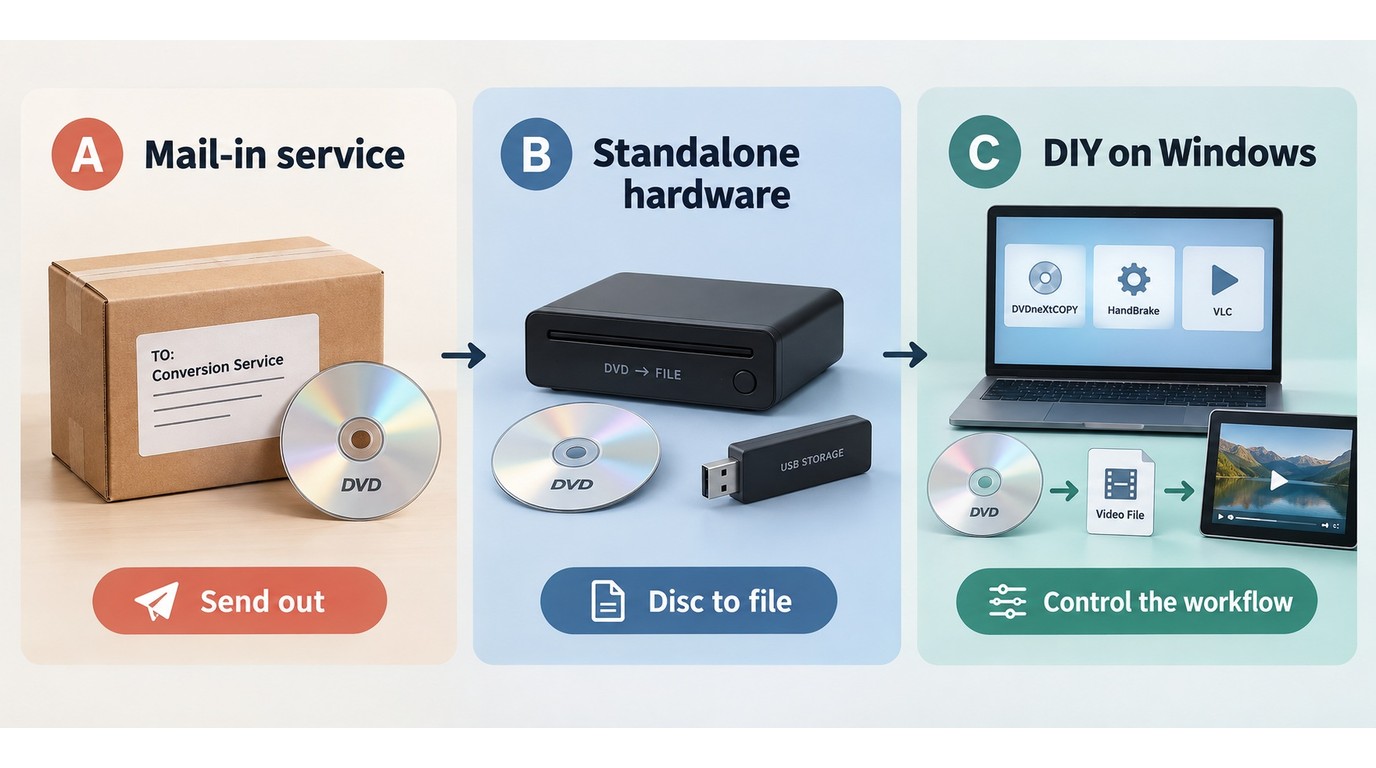
A mail-in service reduces the amount of software and drive setup you need to manage yourself. In exchange, shipping, handling, privacy, turnaround time, delivered format, and the provider's source restrictions become part of the decision.
Standalone hardware keeps the disc in your possession and can be convenient when you do not want to configure desktop software. The available output formats, subtitle support, track controls, and recording quality depend on the device.
- A few easy, unprotected discs favor free DIY tools when the computer and drive are already available.
- A large collection may justify paid software or hardware when repeatable settings and batch queues reduce repeated setup.
- A service can make sense when equipment, storage, or time is the limiting factor; compare the provider's current quote, handling terms, and delivered format.
I would use a service when time or equipment is the main constraint. If a specific commentary track, subtitle option, title choice, or filename matters, I prefer a method that lets me inspect those items before the source leaves my hands.
What Is the Best Way to Digitize DVDs?
There is no single method that is best for every DVD. The most useful choice depends on whether the disc is readable by the software, what you want the finished file to contain, and whether you want to manage the conversion yourself.
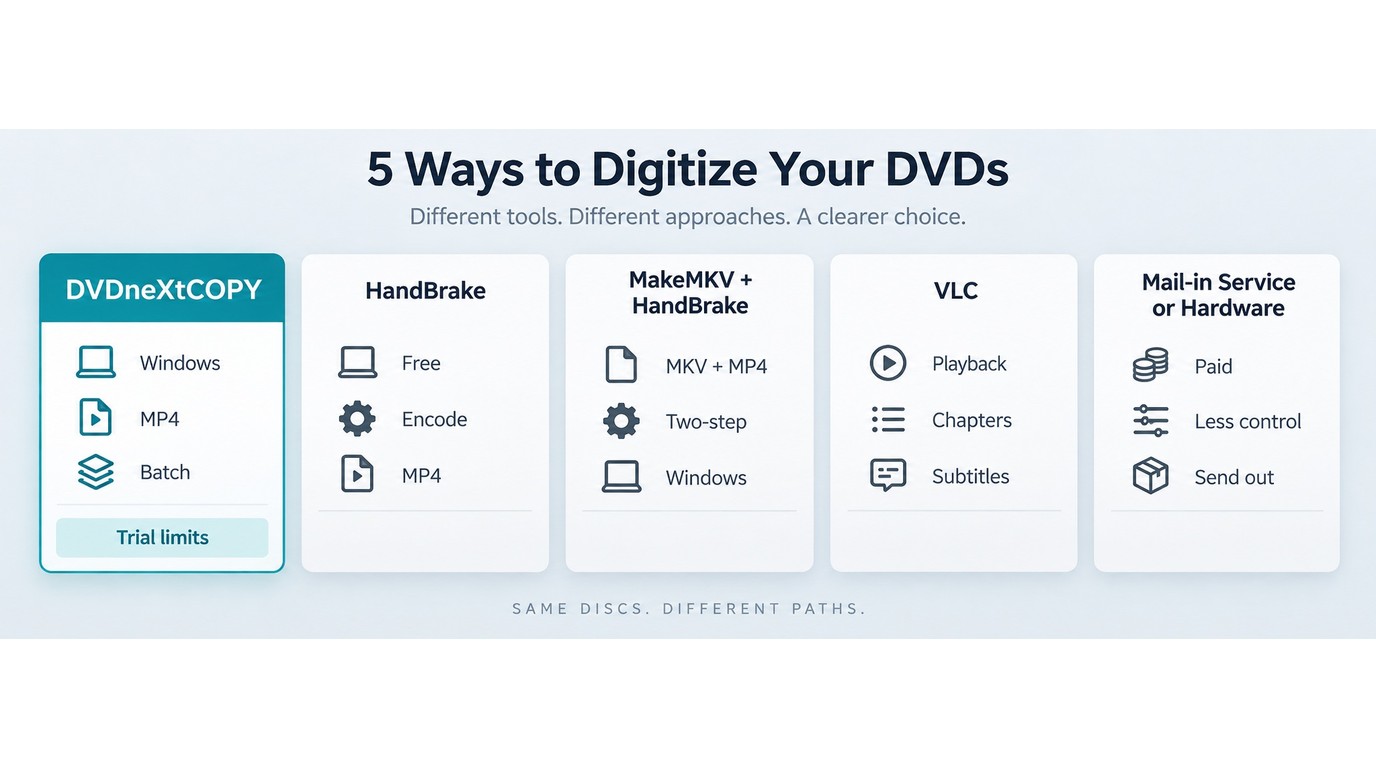
| Method | Best for | DVD type | Typical output | Computer needed | Main trade-off |
|---|---|---|---|---|---|
| DVDneXtCOPY DVD Ripper | Larger Windows collections and commercial DVDs requiring supported disc access | DVD discs, ISO files, folders; common protections documented by the vendor | MP4, MKV, and other profiles | Yes | Paid software |
| HandBrake | Free conversion with detailed encoding control | Homemade, unprotected, or otherwise readable DVDs | MP4, MKV, WebM | Yes | Does not handle copy protection itself |
| MakeMKV + HandBrake | Keeping a larger source copy plus a smaller playback copy | DVDs readable by MakeMKV | MKV plus MP4/MKV | Yes | Two stages and more storage |
| VLC | A few basic conversions | Readable or unprotected DVDs | Common playback files | Yes | Fewer DVD-specific controls |
| Service or standalone hardware | People without a suitable computer, drive, or time for DIY conversion | Depends on the provider or device | Depends on the service or hardware | Not always | Less control and possible per-disc cost |
Sources: HandBrake's official site, MakeMKV's official site, and VLC's official site, checked September 2026. Interfaces and specifications can change.
For a few homemade DVDs, I would start with HandBrake before paying for another program. VLC can be enough when the disc is simple and only a basic file is needed.
MakeMKV followed by HandBrake is more useful when I want to retain a larger source copy and still create a compact playback file. A dedicated DVD ripper becomes more relevant when the collection includes commercial discs that a general-purpose transcoder cannot read directly, or when repeatable track, subtitle, batch, and output controls matter.
A service or standalone device is the alternative when equipment and setup time matter more than hands-on control.
What to Keep When Digitizing DVDs
Digitizing a DVD is not only about getting a video file onto the hard drive. Before starting a large collection, I decide which parts of the disc I may want again later.
Choose MP4, MKV, or an Archive Copy
MP4 is usually the easiest starting point when the finished file needs broad playback compatibility. A normal H.264 MP4 can work across many computers, TVs, media players, phones, and tablets, although actual support still depends on the codecs and device.
MKV is useful when keeping several selectable audio or subtitle tracks matters. It can also hold chapter information and a wider combination of streams than a simple playback-focused file.
An archive-oriented copy serves a different purpose. A source MKV can retain selected original streams without another video encode, while a full-disc ISO or DVD folder is more appropriate when menus and complete disc structure must stay together. A full-disc archive takes more space and is less convenient for everyday playback, so it should not be confused with creating an MP4.
Compressed playback files and archive files do not have to be mutually exclusive. For discs that matter to me, I may keep a larger source copy and create a separate MP4 for routine playback. Readers comparing MP4 encoding choices can use the convert DVD to MP4 guide for a deeper look at codec and profile decisions.
Check Titles, Subtitles, Audio, and Chapters
A completed progress bar only tells you that the software finished the task. It does not confirm that the correct movie, audio track, subtitle, or chapter set made it into the output.
- Title and runtime: Compare the runtime with the feature or episode you intended to save.
- Beginning, middle, and ending: Play samples from all three areas to catch a wrong title or incomplete file.
- Audio tracks: Switch between the tracks you intended to keep, including commentary when relevant.
- Subtitles: Confirm that selectable, forced, or rendered subtitles behave as expected.
- Chapters: Test several chapter jumps if chapter navigation matters.
- File information: MediaInfo can show the container, video stream, audio tracks, subtitles, and chapters stored in the file.
For television DVDs or discs containing several similar titles, runtime alone may not be enough. Check the opening and ending of each selected title before queuing an entire set.
With the ASUS BW-16D1X-U on Windows 11 Pro, I checked a DVD-9 by selecting its main title, keeping one commentary track, and opening the result in VLC; the file played from the beginning through the end without a missing section in that check.
I also rescanned a disc that showed a long title list, selected the runtime-matching title, and checked the opening, middle, and ending in VLC. That separated a title-selection error from a bad read in that check.
Once the file passes those checks, give it a stable name such as Title (Year) or Series - S01E01 before moving it into the main library. Keeping another copy on a separate drive or storage location protects the digital file from becoming the only copy.
FAQs About Digitizing DVDs
Q
How much storage should I plan for a digitized DVD collection?
Start by converting one or two representative DVDs using the format and quality settings you intend to keep. Check those file sizes, multiply them by the approximate number of titles, and leave additional room for a second copy. Keeping a source MKV or full-disc archive as well as a compressed MP4 requires more storage than retaining only playback files.
A
Q
Why can't my DVD digitization software read the disc?
Inspect and clean the disc, reconnect the optical drive, and try another compatible drive if one is available. If the disc opens but shows many similar titles, compare their runtimes and preview the likely feature. Some commercial DVDs also use access controls or disc structures that general-purpose transcoders do not handle themselves.
A
Q
Can I digitize DVDs on a Mac?
Yes. HandBrake, MakeMKV, and VLC are available on macOS for sources they can read, while the DVDneXtCOPY DVD Ripper method described here is Windows-only. Choose the tool according to the disc, the output you want, and whether the source is readable by that application.
A
Final Thoughts
The best DVD digitization method is the one that gives you a file you can still use after the disc is back on the shelf. Before converting an entire collection, test one representative DVD, reopen the result, and confirm that the movie, audio, subtitles, and chapters you care about are actually there.
I also keep the archive decision separate from the playback decision. A smaller MP4 is convenient to watch, while a larger MKV or full-disc copy can make more sense when preservation matters. Making that choice before the first large batch prevents you from discovering later that an important track or part of the disc was never saved.
![Top 8 Best MP4 to DVD Converters on Windows & Mac [2026 Tested]](https://images.dvdnextcopy.com/2026/09/17/I2v69nzxIF6Xn7iue3ZRMGJ5-Ls0SF_z/feature_cover.jpg) Luna MillerSep 21, 2026
Luna MillerSep 21, 2026Top 8 Best MP4 to DVD Converters on Windows & Mac [2026 Tested]
 Luna MillerSep 21, 2026
DVD Region Codes Explained: Region 1 and Playback Options
![How to Remove DVD Copy Protection: Software and Free Methods [2026]](https://c.dvdnextcopy.com/media/How_to_Remove_DVD_Copy_Protection_d24c38a790.png) Steven VanceSep 21, 2026
Steven VanceSep 21, 2026How to Remove DVD Copy Protection: Software and Free Methods [2026]
 Luna MillerSep 21, 2026
How to Rip a Copy-Protected DVD on Win & Mac: 6 Ways
 Steven VanceSep 18, 2026
Top MP4 to ISO Converter in 2026: DVD Authoring vs Online Tools
 Steven VanceSep 17, 2026
3 Best Free DVD Maker Tools for Playable DVDs in 2026