 DVDneXtCOPY DVD Ripper
Does PS5 Play DVDs? 5 Models, Limits, and Fixes

Summary: This guide explains how to play DVDs on the PS5. The PS5 Standard Edition supports DVD playback, while the Digital Edition requires converting DVDs to digital formats. We will also provide a step-by-step guide for ripping DVDs using software like DVDneXtCOPY DVD Ripper for seamless playback on the PS5.
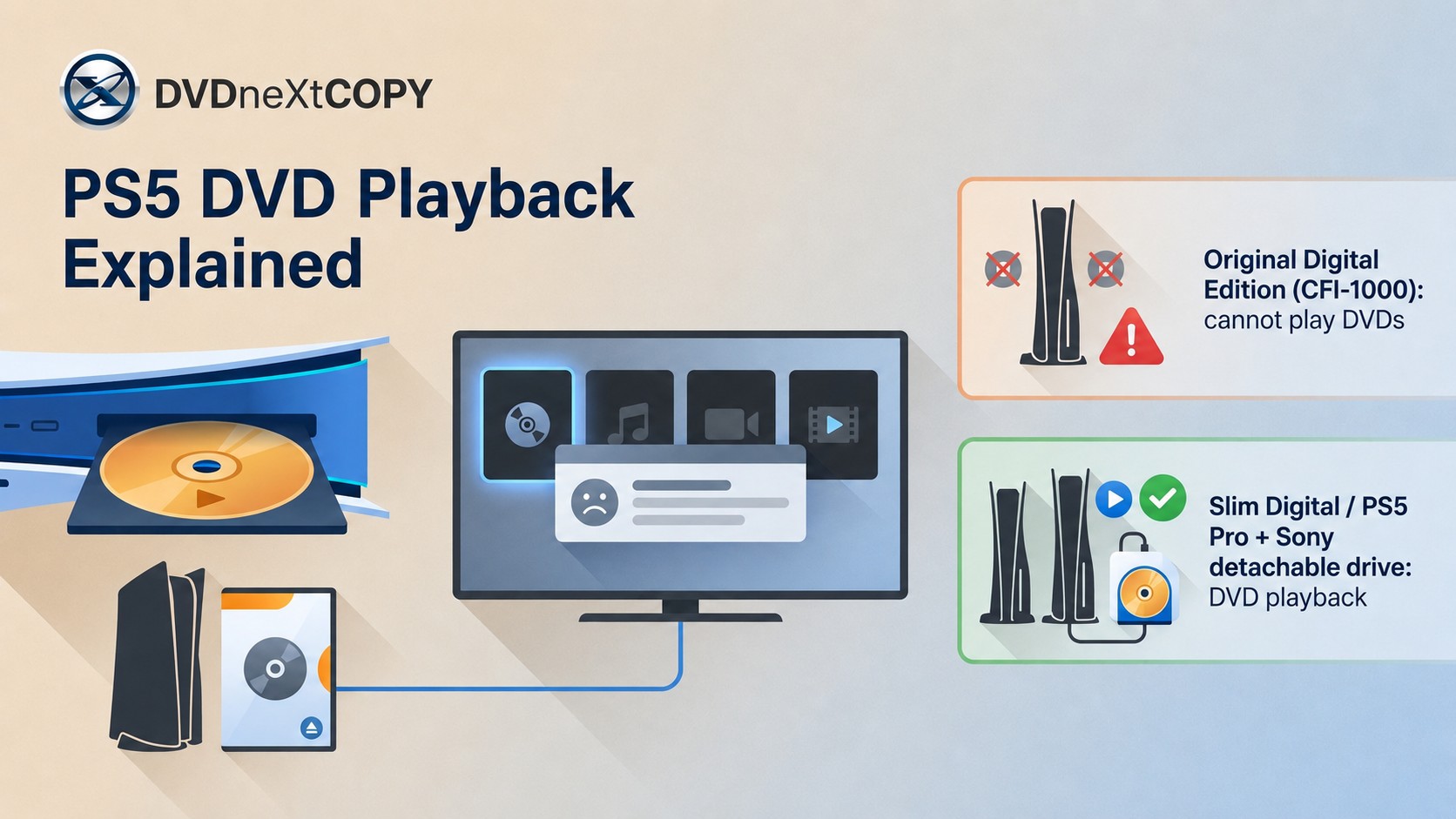
Table of Contents
Does PS5 play DVDs? Yes, if your console has a compatible built-in disc drive or a supported Sony detachable drive. The model matters more than the word “Digital”: some PS5 Digital models can add Sony’s drive, while the original Digital Edition cannot. This article covers the model differences, supported discs, playback steps, and fixes when a PS5 will not read a DVD.
Can PS5 Play DVDs? Model-by-Model Answer
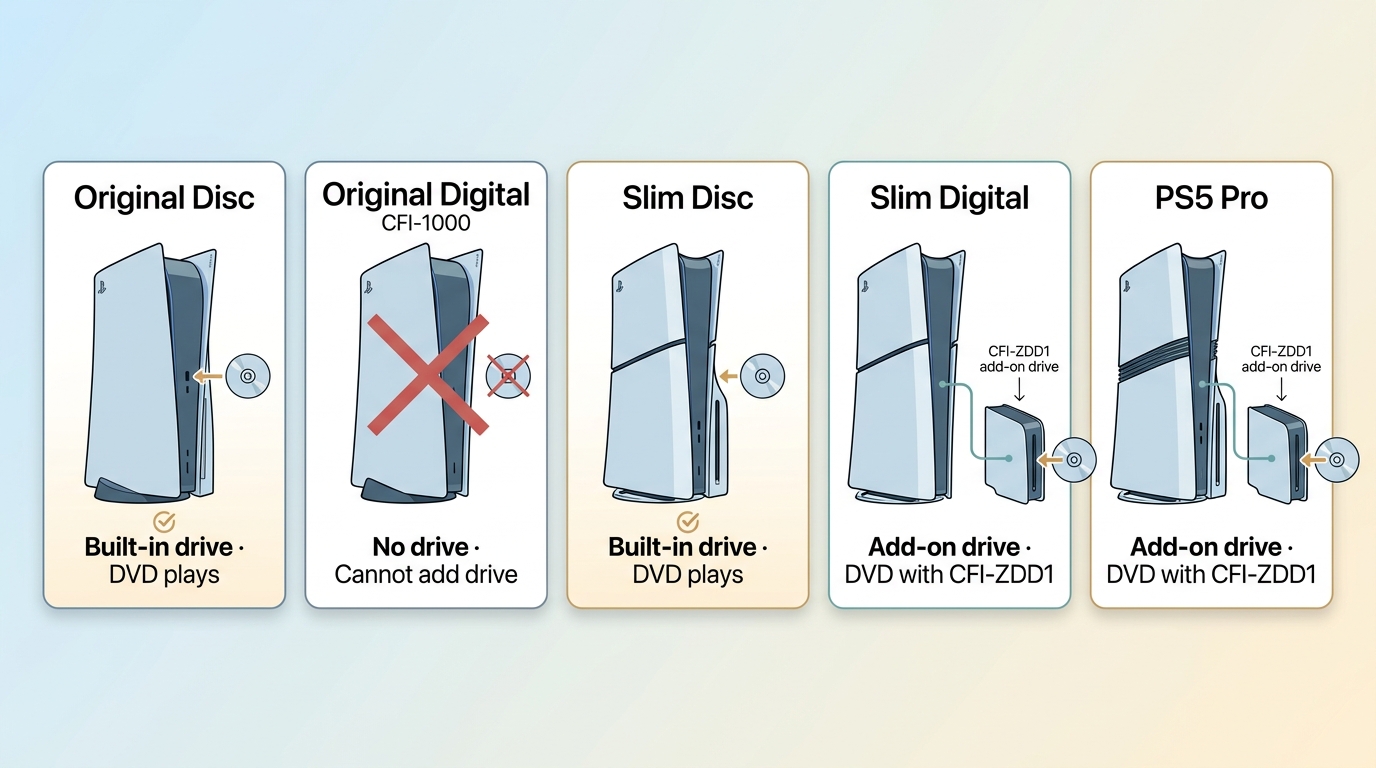
Yes, a PlayStation 5 can play standard DVDs when it has a compatible disc drive. The direct answer is simple: built-in-drive models play DVDs, and certain newer Digital models can do so after pairing Sony’s supported detachable disc drive.
| PS5 configuration | Built-in drive | Sony detachable drive | DVD playback path |
|---|---|---|---|
| Original PS5 Disc Edition | Yes | Not needed | Insert a supported DVD |
| Original PS5 Digital Edition (CFI-1000) | No | No | USB video files only |
| PS5 Slim Disc Edition | Yes | Not needed | Insert a supported DVD |
| PS5 Slim Digital Edition (CFI-2000/2100) | No | Yes | Pair Sony’s drive, then insert DVD |
| PS5 Pro (CFI-7000) | No | Yes | Pair Sony’s drive, then insert DVD |
as of August 2026
For most people, the console model and compatible drive determine PS5 DVD support, not “Digital” by itself. That distinction matters if you are buying a console mainly to watch DVDs on PS5.
People comparing PS5 compatibility with how to play DVDs on PS4 should check the hardware first. On PS5, a built-in drive or Sony’s supported detachable drive is what enables direct disc playback.
Supported and Unsupported Disc Formats
DVD playback depends on the disc media, its condition, and its region compatibility. MP4, MKV, and WebM are USB video-file containers, not DVD formats.
| Media type | PS5 result | Notes |
|---|---|---|
| DVD-ROM | Supported | Compatible disc-drive PS5 required |
| Finalized DVD-R/RW | Supported | Video or VR mode |
| Finalized DVD+R/RW | Supported | Compatible disc-drive PS5 required |
| Audio CDs | Unsupported | Not a PS5 playback format |
| Unfinalized, 8 cm, or non-circular discs | Unsupported | May not be recognized |
| Damaged, repaired, or dirty discs | May fail | Clean and inspect first |
I would check finalization before anything else with recordable DVDs. A disc can look clean and still fail because it was never finalized for playback.
DVD Options for Digital PS5 Models
For PS5 Slim Digital Edition models in the CFI-2000/2100 series and PS5 Pro models in the CFI-7000 series, Sony’s CFI-ZDD1 detachable disc drive is the direct route to DVD playback. The drive needs an internet connection when it is paired with the console, but ordinary DVD viewing after setup should not be treated as an always-online activity.
Official drive options by model
The original PS5 Digital Edition (CFI-1000) cannot add Sony’s detachable drive. If you own that model, or specifically want a USB video file for your library, a local-file copy can be an alternative for content you are authorized to access, where permitted by platform terms and applicable law.
Local-file option for USB playback
DVDneXtCOPY DVD Ripper is a Windows application that can convert protected DVD, ISO, and DVD-folder sources to formats such as MP4 or MKV, select audio tracks and subtitles, and use Passthrough when you want to retain the original streams without re-encoding. It also supports GPU acceleration and batch processing, although actual processing time depends on the PC, drive, disc condition, and output settings.
- Best for: an original PS5 Digital Edition owner who needs an authorized local copy for USB playback or media-library organization.
- Not ideal for: a newer compatible Digital PS5 owner who simply wants to insert and watch DVDs, since Sony’s detachable drive is more direct.
For readers who need the local-file option, DVDneXtCOPY DVD Ripper can create common video or audio outputs from DVD, ISO, and DVD-folder sources. Choose the format, audio tracks, subtitles, and file settings based on how you plan to play and store the result.
- GPU Acceleration and Batch Processing
GPU acceleration and batch processing are available; processing time varies with the computer, drive, disc condition, and output settings.
- DVD Source Support
The software can load DVD discs, ISO files, and DVD folders, with compatibility depending on the disc, drive, system, and current software version.
- Flexible Output Choices
Choose from DVD-5, DVD-9, DVD+R, DVD-R sources, ISO files, and folders when supported by the disc and drive.
- 1000+ Output Configurations
Output profiles include MP4, MKV, AVI, MOV, and other format, codec, and device combinations. USB playback still depends on the PS5-supported container and codec.
- Basic Video Editing
Trim, crop, add subtitles or watermarks, and adjust basic output settings when needed.
- Task Queue
Add multiple DVD tasks to the queue, and the next task begins after the current one finishes.
Create a USB video file with DVDneXtCOPY DVD Ripper
Open DVDneXtCOPY DVD Ripper and load the source
Open the application, choose “Ripper,” select “Add Source,” and choose the DVD drive, ISO file, or DVD folder.

Next, choose "Ripper" on the left, then insert your DVD, click "Add Source," and select your DVD drive.
Choose the output format and adjust settings

Choose a PS5-compatible USB video format and select the audio tracks and subtitles you want to keep. MP4 and MKV are common choices, but playback depends on the container, codec, and USB-drive setup.
Click the "Start" button

Select an output folder and click “Start.” When the file is complete, reopen it on the PC and confirm the expected audio and subtitle tracks before moving it to USB storage.
Play the ripped file on your PS5 Digital Edition

Insert a USB drive into your PC. Make a new folder on the USB drive and copy the ripped file into it. Then, eject the USB drive from your PC.
On your PS5 home screen, go to Media Library. Next, attach the USB drive to your console.
Select the USB tab on the far right. Then, select the file you want to play on your PS5.
Playing DVDs on a Disc-Drive PS5
A PS5 with a compatible built-in drive or paired Sony detachable drive can play a supported DVD directly. Insert the disc in the correct orientation, then select the disc from Media home if it does not open automatically.
Step 1: Confirm that the console has a compatible drive and that the DVD is clean, finalized, and supported.
Step 2: Insert the DVD in the correct orientation.
Step 3: Select the disc from Media home if the movie does not launch automatically.

Step 4: Use the on-screen controls to play the movie and change available audio, subtitle, or menu settings.
For occasional viewing, the DualSense controller is enough. I find a media remote more comfortable for longer movie sessions because it gives you dedicated playback controls.
Make sure your DVD is compatible with PS5. Do not use unsupported disc formats, unfinished, filthy, damaged, broken, deformed, or fixed DVDs; otherwise, you might get a disc not recognized error or anything similar.
When PS5 Won’t Read a DVD
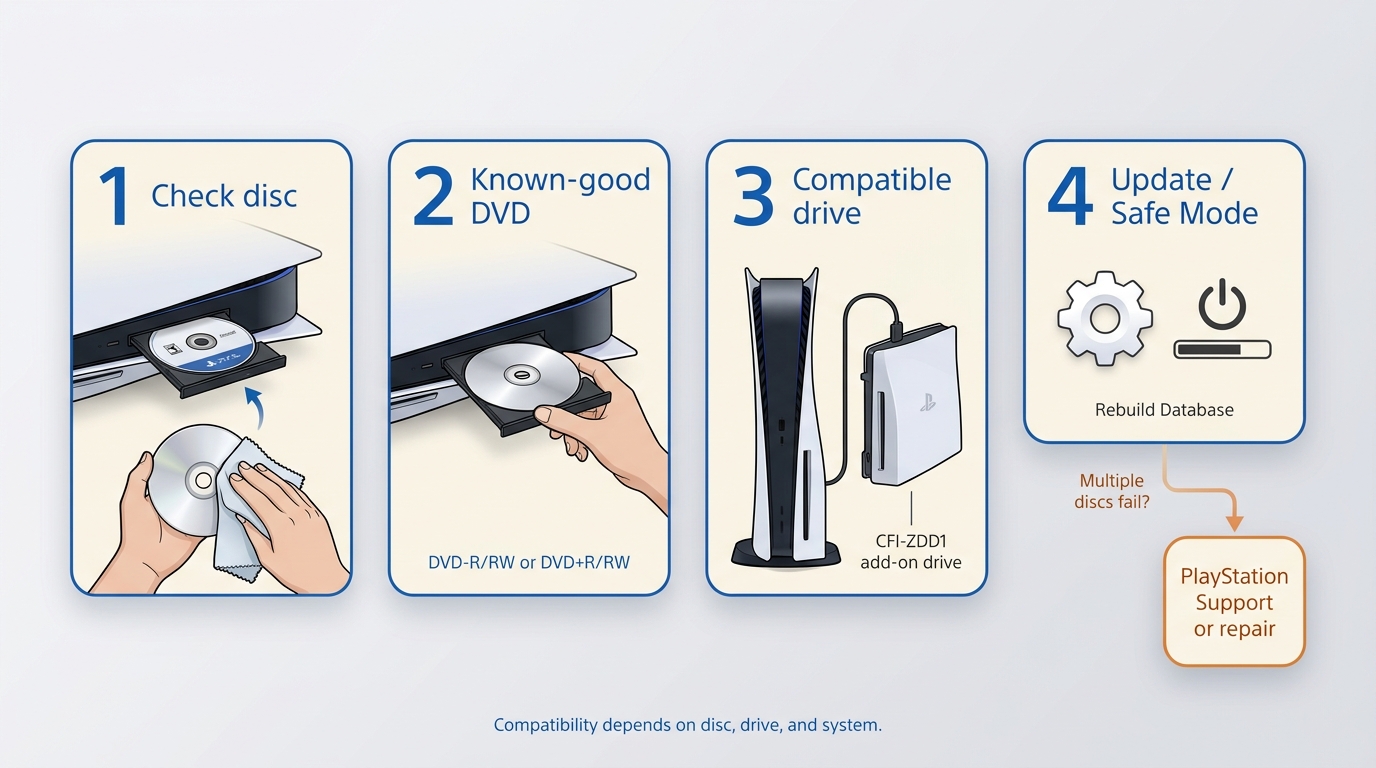
If a PS5 will not read a DVD, start with the disc and work outward. Confirm that the disc is inserted correctly, gently clean it with a soft lint-free cloth, and test another known-good supported DVD. A clean-looking disc can still fail if it is unfinalized, region-incompatible, damaged, or an unsupported media type.
Quick disc and drive checks
Check that the console has a compatible built-in drive or a paired Sony detachable drive. Rule out CDs, unfinalized recordable DVDs, 8 cm discs, non-circular discs, and repaired or badly scratched media before changing console settings.
Software and Safe Mode fixes
If more than one supported disc fails, update the PS5 system software and use the relevant Safe Mode database option. Rebuild Database can help when media items fail to appear correctly, while repeated freezes or crashes with known-good discs point beyond a single damaged DVD.
When to request a repair
Request PlayStation repair support if multiple known-good discs fail after the basic checks and system maintenance. Once a console repeatedly rejects different supported DVDs, continued cleaning and reinserting is usually less useful than having the drive assessed.
Conclusion
A PS5 can play DVDs when it has a compatible built-in disc drive or a supported paired Sony detachable drive. The original CFI-1000 Digital Edition is the important exception because it cannot add Sony’s drive.
For direct viewing, using the compatible drive is the simpler choice. A USB video file can make sense for an authorized local copy you want to organize or play from storage, but it is an optional alternative rather than the default answer for every Digital PS5 owner.
FAQs
Can a PS5 Play DVDs From Any Region?
No. DVD playback on PS5 is region-limited, so a Region 1 DVD on PS5 may not play if the console’s DVD region does not match. Follow any current on-screen PS5 prompts for region settings, and do not rely on Windows-style DVD region instructions because they do not apply to the console.
ACan PS5 Play CDs or Unfinalized DVDs?
No. PS5 does not play audio CDs, and an unfinalized recordable DVD may not be recognized. For recordable media, use a finalized DVD-R/RW or DVD+R/RW in a supported mode; the physical-media table above lists the main supported and unsupported cases.
AWhich USB Video Formats Work on PS5?
USB video playback is separate from DVD-Video playback. PS5 media guidance lists MP4 with H.264/MPEG-4 AVC video and AAC LC audio, MKV with H.264/MPEG-4 AVC video and AAC LC audio, and WebM with VP9 video and Opus audio. Use a FAT32 or exFAT USB drive, place files in an appropriate folder, and remember that a matching container alone does not guarantee playback if the codec settings are unsupported.
ACan I Use a USB DVD Drive With PS5?
No. An ordinary USB DVD drive is not a substitute for a PS5 disc drive. Direct DVD playback requires a compatible built-in drive or, on supported PS5 Slim Digital and PS5 Pro models, Sony’s paired CFI-ZDD1 detachable drive.
AIs PS5 a Good Everyday DVD Player?
It is convenient for occasional DVD viewing if you already own a PS5 with a compatible drive. For frequent movie watching, a dedicated DVD or Blu-ray player may be more comfortable because it uses less console power and usually offers simpler remote-based controls.
A![Top 8 Best MP4 to DVD Converters on Windows & Mac [2026 Tested]](https://images.dvdnextcopy.com/2026/09/17/I2v69nzxIF6Xn7iue3ZRMGJ5-Ls0SF_z/feature_cover.jpg) Luna MillerSep 21, 2026
Luna MillerSep 21, 2026Top 8 Best MP4 to DVD Converters on Windows & Mac [2026 Tested]
 Luna MillerSep 21, 2026
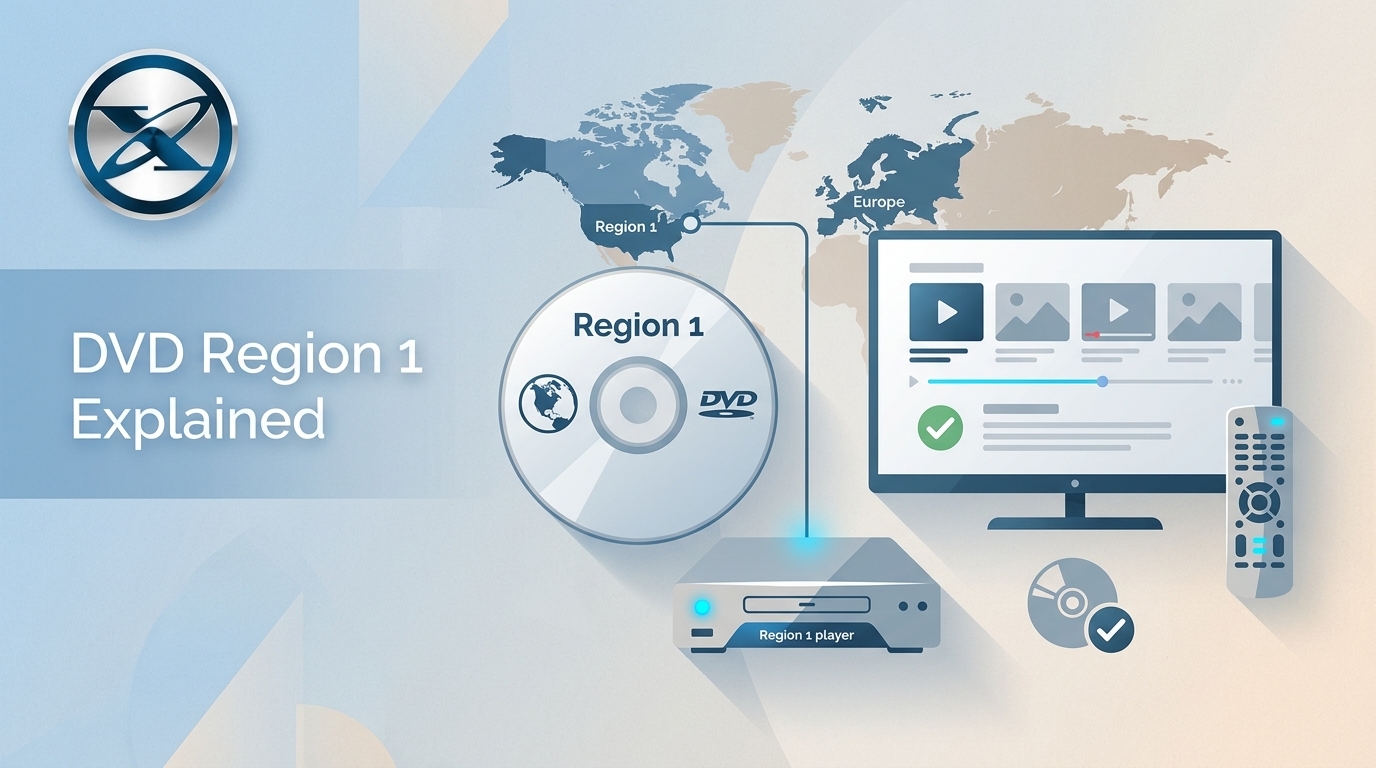
DVD Region Codes Explained: Region 1 and Playback Options
![How to Remove DVD Copy Protection: Software and Free Methods [2026]](https://c.dvdnextcopy.com/media/How_to_Remove_DVD_Copy_Protection_d24c38a790.png) Steven VanceSep 21, 2026
Steven VanceSep 21, 2026How to Remove DVD Copy Protection: Software and Free Methods [2026]
 Luna MillerSep 21, 2026
How to Rip a Copy-Protected DVD on Win & Mac: 6 Ways
 Steven VanceSep 18, 2026
Top MP4 to ISO Converter in 2026: DVD Authoring vs Online Tools
 Steven VanceSep 18, 2026
How to Digitize DVD Collection: 5 Ways in 2026