 DVDneXtCOPY DVD Copy
Tested DVD Copy Software in 2026: 6 Tools for DVD, ISO & Folder

Summary: DVDneXtCOPY DVD Copy is my first pick for Windows because its seven copy modes cover Full Disc, Main Movie, Clone/Burn, Split, Merge, Customize, and a distinctive DVD-to-Blu-ray mode, with output to DVD/Blu-ray disc, ISO, or folder. DVDFab is the broader Windows/Mac alternative, while WinX, DVD-Cloner, iFunia, and Freemake fit narrower needs. Whichever tool you choose, verify the finished disc, ISO, or folder before treating the copy as complete.
Table of Contents
A good DVD copy is not always a bit-for-bit clone. If a disc includes menus, commentary tracks, deleted scenes, and several subtitle options, I may want the whole disc. For a movie I only plan to watch, keeping the main title can be enough. And when an 8.5 GB DVD-9 needs to fit on a 4.7 GB DVD-5, compression becomes part of the decision.
That is why I compare DVD copy software by what it actually lets me preserve: the full disc or selected titles, the output as a blank DVD, ISO, or folder, the audio and subtitles that remain, and whether the finished copy still opens and plays the way I expect.
Best DVD Copy Software: Quick Comparison
The table keeps the comparison short and focuses on the differences that matter most for a DVD copy.
| Tools | OS | Disc decryption | Copy modes | DVD9 to DVD5 | Output | Best for |
|---|---|---|---|---|---|---|
| DVDneXtCOPY DVD Copy | Win | CSS, RC/RCE, APS, UOPs, ARccOS/RipGuard, Disney | 7: Full Disc, Main Movie, Clone, Split, Merge,Custom, DVD to Blu-ray | Yes | DVD/BD, ISO, Folder | Flexible Windows copying |
| DVDFab DVD Copy | Win, Mac | CSS, RC/RCE, APS, UOPs, ARccOS/RipGuard, Disney, and the latest protection | 6: Full Disc, Main Movie, Clone, Split, Merge, Custom | Yes | DVD, ISO, Folder | Advanced copy control |
| WinX DVD Copy Pro | Win | CSS, RCE, UOPs, APS, ARccOS, Disney | 9: Disc, ISO, VIDEO_TS, MPEG-2, Chapter, Video, Audio, ISO Mount, Burner | No | DVD, ISO, Folder, MPEG-2 | Windows 1:1 copies |
| DVD-Cloner XR | Win, Mac | CSS, RC/RCE, APS, UOPs, ARccOS/RipGuard, Macrovision | 7: 1:1, Complete, Movie Only, Split, Custom, Burn, Combine | Yes | DVD, ISO, Folder | DVD + Blu-ray collections |
| iFunia DVD Copy | Win, Mac | CSS, ARccOS, UOPs, CopyGuard, Region | 3: Full, Main, Custom | Yes | DVD, ISO, Folder | Simple copy modes |
| Freemake DVD Copy | Win | Not specified | Full, Main/Selected, Edit, Merge | Not specified | DVD, ISO, Folder, Video | Free Windows option |
How I Test DVD Copy Software
When I compare DVD copying software, I start with the output rather than the length of the feature list. A Full Disc copy should keep the navigation and extras I chose to preserve. A Main Movie copy should remove the material I intentionally left out without losing the audio or subtitle tracks I selected. An ISO or DVD folder should reopen cleanly instead of becoming a file I never check again.
I use the same six questions for every program: Can it run on the operating system I am using? Can it read the protected DVD I need to copy? Can I choose Full Disc, Main Movie, or selected titles? Can I output to another DVD, ISO, or folder? Can it make a same-capacity DVD-9-to-DVD-9 copy? And if I need DVD-9-to-DVD-5, can I control what stays before compression begins?
6 Best DVD Copy Software in 2026
1. DVDneXtCOPY DVD Copy: Best Overall for Flexible Copy Modes
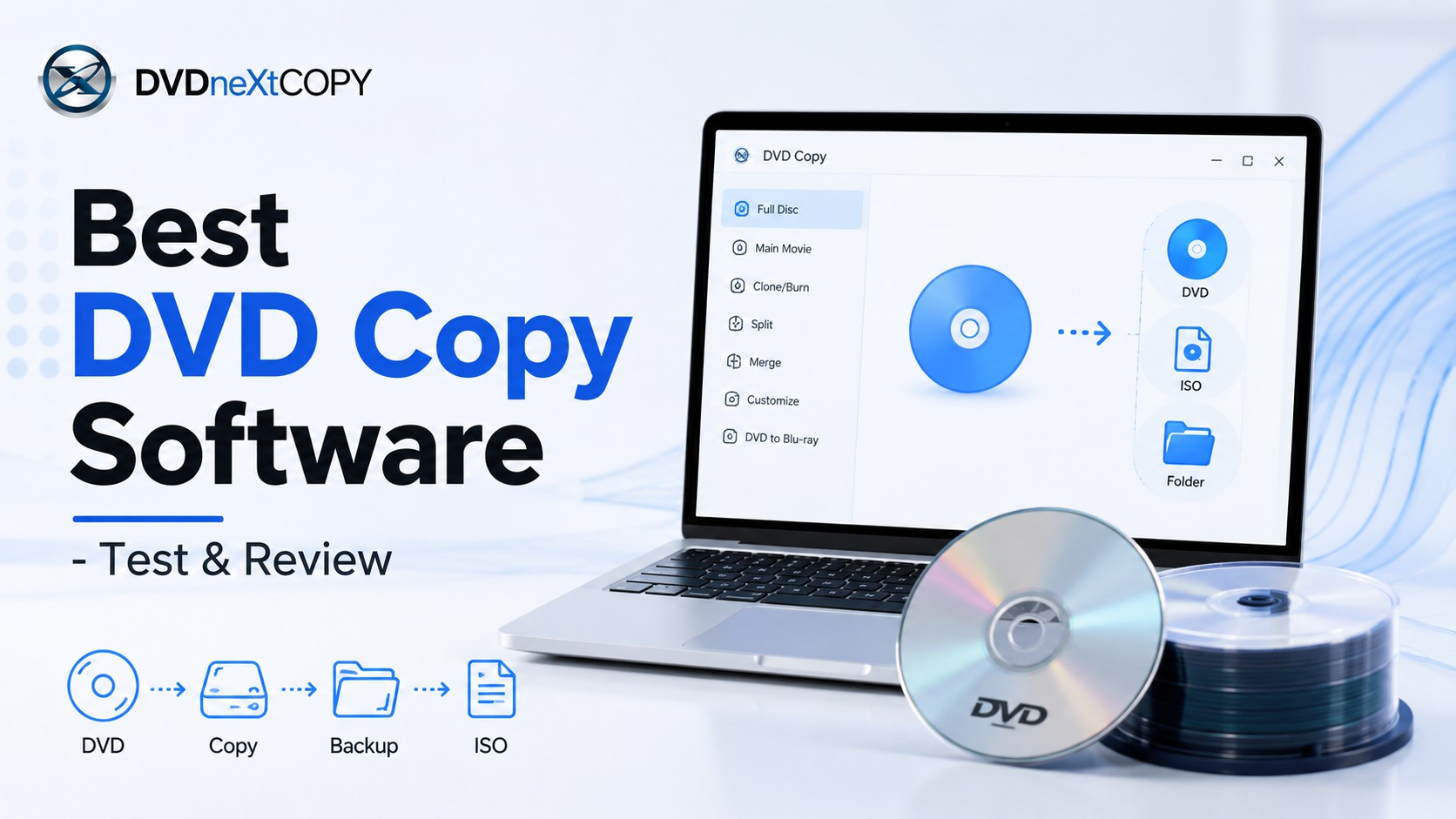
DVDneXtCOPY DVD Copy is a Windows DVD copy software that can backup protected DVDs and move between a complete backup and a selective one without changing programs. It has seven copy modes: Full Disc, Main Movie, Clone/Burn, Split, Merge, Customize, and DVD to Blu-ray. That last mode is the unusual one in this comparison: it lets me move DVD content into a Blu-ray-format project when I want a higher-capacity physical destination instead of another DVD. Standard DVD jobs can be written to a blank disc or saved as an ISO or DVD folder.
What I like most is that the preservation choice happens before I start the job. If a disc has commentary and bonus material I still use, I can keep the full structure; if those extras do not matter, I can move to Main Movie or Customize instead of carrying unused content into every backup. For larger projects, Split and Merge also give me ways to reorganize content instead of relying only on compression.
Best fit: Windows users who want several DVD copy modes in one program, including a DVD-to-Blu-ray path.

2. DVDFab DVD Copy: Best for Advanced Copy Controls
DVDFab DVD Copy is another full-featured DVD copying software option for copying a complete disc, the main movie, selected titles, or a 1:1 clone. Its six modes cover Full Disc, Main Movie, Clone/Burn, Split, Merge, and Customize, and projects can be sent to a blank DVD, ISO, or DVD folder on Windows or macOS.
I would choose DVDFab when I need to move between different disc structures and protection types on both Windows and Mac. Split is useful when I would rather divide a DVD-9 across two DVD-5 discs, while Customize gives me a cleaner way to keep selected titles and tracks without carrying every extra into the copy.
Best fit: Windows or Mac users who regularly switch between full-disc, selected-title, split, merge, and compressed copies.

3. WinX DVD Copy Pro: Best for Windows 1:1 DVD Copies
WinX DVD Copy Pro packs nine DVD-copy and backup functions into one Windows interface: DVD-to-DVD clone, DVD-to-ISO, DVD-to-VIDEO_TS, single MPEG-2 copy, chapter copy, video-only extraction, audio-only extraction, ISO mounting, and DVD burning. Its 1:1 paths are a direct fit when the destination has the same capacity as the source.
I see WinX as a traditional backup toolbox rather than a compression-oriented copier. I would use it when I want a same-capacity disc clone or a quick ISO/VIDEO_TS archive, especially when I also want the built-in mount and burn tools available without opening another program.
Best fit: Windows users who mainly want 1:1 DVD, ISO, VIDEO_TS, or MPEG-2 copies.

4. DVD-Cloner XR: Best for DVD and Blu-ray Collections
DVD-Cloner XR is software to copy DVDs with both quick and detailed paths. Its DVD tools include 1:1 copy, Movie Complete, Movie Only, Split, Customized Copy, burning a DVD from a hard-drive source, and combining multiple DVDs. The same product family also extends into Blu-ray and UHD work, with DVD output to disc, ISO, or folder.
I would use the Express side when I want a quick DVD-5 or compressed DVD-9 copy, then move to Expert only when I need title, audio, subtitle, split, or combine controls. That two-level design makes more sense to me than exposing every advanced option on the first screen.
Best fit: Users managing DVDs alongside Blu-ray discs who want both quick and detailed copy modes.

5. iFunia DVD Copy: Best Simple Option for Windows and Mac
iFunia DVD Copy keeps its DVD copy software choices to three main modes: Full Movie, Main Movie, and Custom. It can copy a disc to another disc, ISO, or DVD folder, burn an ISO or VIDEO_TS folder back to DVD, and compress DVD-9 to DVD-5 on Windows or Mac.
I like this structure when I want the copy decision to stay simple. Full Movie, Main Movie, and Custom cover the choices I make most often with an ordinary DVD collection, and the built-in preview gives me a chance to check the title and tracks before I commit the job.
Best fit: Windows and Mac users who prefer a smaller set of clearly separated copy modes.

6. Freemake DVD Copy: Best Free Windows Option
Freemake DVD Copy is free DVD copy software for Windows that combines disc copying with video conversion. It can copy a DVD to another disc, create an ISO or VIDEO_TS folder, keep only selected movie content, merge DVDs, and convert DVD video into formats such as MP4, AVI, or MKV.
I would use Freemake when budget is the first constraint and I want one application that can move between a physical copy and a normal video file. Its strength is breadth rather than deep disc-structure control, so I would keep the dedicated copy tools above for jobs where I need named Full Disc, Split, Clone, or detailed protection handling.
Best fit: Windows users who want a free combination of DVD copying, ISO/folder output, and basic video conversion.

How to Copy a DVD with DVDneXtCOPY DVD Copy
Because DVDneXtCOPY offers several copy paths, I start by deciding what I want the finished backup to be: a complete disc, the main movie, a selected set of titles, or a Blu-ray-format project. From there, the process is simply load the source, choose the copy mode, set the target, and verify the result before moving on to the next disc.
Step 1. Load the DVD
Insert the source DVD and open the Copy module. Before changing anything, check that the detected disc and titles match the DVD you inserted.
Step 2. Choose the Copy Mode
Use Full Disc when menus and extras matter, Main Movie when you only need the feature, or Customize when you want specific titles, chapters, audio tracks, or subtitles. Clone/Burn is the better choice for a same-capacity 1:1 copy, Split can divide a DVD-9 over two DVD-5 discs, and DVD to Blu-ray is available when the destination is a Blu-ray-format project.

Step 3. Select DVD, ISO, or Folder Output
Choose a blank DVD when the copy will be used in a conventional DVD player. Use ISO when you want the disc structure stored as one image file, or DVD folder when you want the VIDEO_TS structure accessible on a hard drive. If a DVD-9 source is going to DVD-5, expect compression unless the selected content has already been reduced enough to fit.
Step 4. Start the Copy and Check the Result
Start the copy only after checking the selected titles, audio, subtitles, destination, and target disc size. When it finishes, open the new ISO or folder, or reinsert the burned DVD, and confirm that the result contains what you selected.

How to Check a DVD Copy After It Finishes
A progress bar only confirms that the copying task stopped. It does not confirm that the result is the version of the disc you intended to keep.
For a Burned DVD
Reinsert the finished disc and check that it opens normally. For Full Disc, open the menu, start the main movie, switch chapters, test the audio and subtitles you kept, and open one or two extras. For Main Movie, only expect the title and tracks you chose.
For an ISO or DVD Folder
Mount or open the ISO with compatible software and navigate it as a DVD rather than checking only that the file exists. For a DVD folder, open the VIDEO_TS structure with a DVD-capable player. I check at least the beginning, middle, and end of the main movie and switch any commentary or alternate-language tracks I intended to keep.
For a DVD-9 to DVD-5 Copy
Compression changes how much video data fits on the destination. I pay particular attention to motion, smoke, water, film grain, and dark gradients, where aggressive MPEG-2 compression is easier to notice. If the result is not acceptable, I would remove unneeded extras or audio tracks, use a DVD-9 destination, or split the disc instead of pushing compression further.
Which DVD Copy Software Should You Choose?
For a Windows DVD collection, DVDneXtCOPY DVD Copy is my first recommendation because Full Disc, Main Movie, Clone/Burn, Split, Merge, Customize, and DVD to Blu-ray cover the copy decisions I use most often, while DVD/Blu-ray disc, ISO, and folder output keep the destination flexible.
Choose DVDFab DVD Copy when you want similarly broad controls on Windows or Mac. Choose WinX DVD Copy Pro when same-capacity 1:1 copying is more important than DVD-9-to-DVD-5 compression. DVD-Cloner XR suits a mixed DVD/Blu-ray collection, iFunia DVD Copy is the simpler Windows/Mac choice, and Freemake is the free Windows option for readable discs.
FAQs About DVD Copy Software
What is the difference between DVD copy software and a DVD ripper?
DVD copy software normally keeps DVD structure and outputs another DVD, an ISO image, or a VIDEO_TS folder. A DVD ripper software extracts titles into ordinary video files such as MP4 or MKV for playback without DVD navigation.
ADo I need two DVD drives to copy a DVD to another DVD?
No. With one drive, save the source as an ISO or DVD folder first, swap in a blank DVD, and burn the saved copy. Two drives only make direct disc-to-disc copying more convenient.
ACan I save a DVD copy directly to an external hard drive?
Yes. Choose ISO or DVD folder output and set a folder on the external drive as the destination. Leave enough free space for the full source, especially for a DVD-9.
AShould I keep a DVD as an ISO or a DVD folder?
Choose ISO when you want one image file that is easy to archive or mount. Choose a DVD folder when you want direct access to the VIDEO_TS structure without mounting an image first.
ACan I use DVD copy software if my laptop has no optical drive?
Yes, but you need an external DVD drive to read a physical disc. If the source is already stored as an ISO or DVD folder, compatible copy software can work with that source without a physical disc in the drive.
AWhy does a burned DVD fail even when the copy process finished?
Check the blank media, burner compatibility, write errors, and whether the source itself had read problems. Reopen an ISO or folder copy first when possible so you can separate a source-read problem from a burn problem.
AConclusion
The best DVD copy software depends less on the number of features and more on the copy you want to reopen later. Full Disc is the safer choice when menus, extras, multiple titles, and navigation matter. Main Movie is cleaner when the feature itself is all you need. A same-capacity clone avoids DVD-9-to-DVD-5 compression, while a smaller destination forces a choice between compression, removing content, or splitting the disc.
For Windows, I would start with DVDneXtCOPY DVD Copy because its seven copy modes cover those decisions without forcing every disc through the same route, and its DVD-to-Blu-ray option gives me a physical-disc path the other DVD Copy modules here do not expose as a dedicated mode. DVDFab is the broader Windows/Mac alternative when you need more advanced controls, while WinX, DVD-Cloner, iFunia, and Freemake each make more sense for narrower requirements.
![Top 8 Best MP4 to DVD Converters on Windows & Mac [2026 Tested]](https://images.dvdnextcopy.com/2026/09/17/I2v69nzxIF6Xn7iue3ZRMGJ5-Ls0SF_z/feature_cover.jpg) Luna MillerSep 21, 2026
Luna MillerSep 21, 2026Top 8 Best MP4 to DVD Converters on Windows & Mac [2026 Tested]
 Luna MillerSep 21, 2026
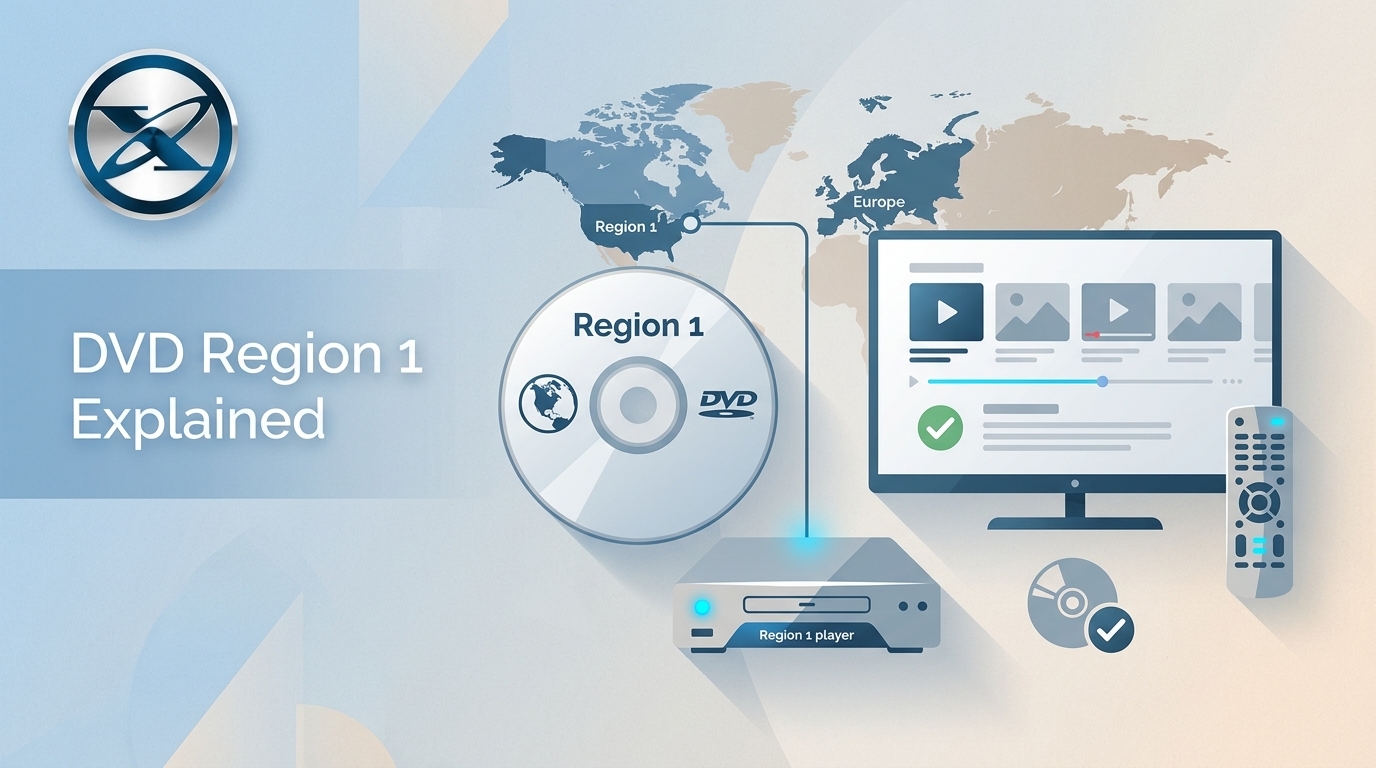
DVD Region Codes Explained: Region 1 and Playback Options
![How to Remove DVD Copy Protection: Software and Free Methods [2026]](https://c.dvdnextcopy.com/media/How_to_Remove_DVD_Copy_Protection_d24c38a790.png) Steven VanceSep 21, 2026
Steven VanceSep 21, 2026How to Remove DVD Copy Protection: Software and Free Methods [2026]
 Luna MillerSep 21, 2026
How to Rip a Copy-Protected DVD on Win & Mac: 6 Ways
 Steven VanceSep 18, 2026
Top MP4 to ISO Converter in 2026: DVD Authoring vs Online Tools
 Steven VanceSep 18, 2026
How to Digitize DVD Collection: 5 Ways in 2026