 DVDneXtCOPY DVD Ripper
15 Tested Free DVD Rippers in 2026 [Windows, Mac, & Linux]

Summary: If you only need a truly free DVD ripper for a readable disc, start with HandBrake for re-encoding or MakeMKV for a source-stream MKV. When those free tools stop fitting the disc or workflow, DVDneXtCOPY DVD Ripper is my first Windows upgrade pick because it handles DVD/ISO/folder inputs, title and track selection, and both video passthrough and re-encoding in one workflow. This guide compares 15 freeware, free-tier, and trial tools so you can see what is actually free before you install.
Table of Contents
I am careful with the word free when I compare DVD ripping software. A Free Download button can mean completely free software, a beta that needs periodic renewal, a permanent free edition with narrower output choices, or a trial that stops after a few minutes.
In this guide, I separate those categories first, then look at the disc types each DVD ripper tool can read, whether it can keep the source video without re-encoding, whether it can re-encode to a smaller or more compatible file, and what happens when the free limit is reached.
![15 Tested Free DVD Rippers in 2026 [Windows, Mac, & Linux]](https://c.dvdnextcopy.com/uploads/images/17872127886440792-789e652bb30390386e9a042f41497cc8.jpg)
Best Free DVD Rippers: Quick Comparison
The table keeps the free status and the two main ripping paths separate: video passthrough/remux keeps the existing encoded video stream, while video re-encoding creates a new video stream for a different codec, size, or compatibility target.
| DVD ripper | Free status | OS | Protected DVD support | Input | Main output | Video remux | Video re-encode | Main limitation | Best for |
|---|---|---|---|---|---|---|---|---|---|
| DVDneXtCOPY DVD Ripper | 30-day trial / 3 DVDs | Windows | Broad commercial DVD support | Disc, ISO, Folder | MP4, MKV, Audio | Yes | Yes | Trial limit | Best upgrade from free tools |
| HandBrake | Free / open source | Win, Mac, Linux | None built in | Readable DVD, files | MP4, MKV, WebM | No | Yes | Protected sources unsupported | Compression |
| MakeMKV | Free beta model | Win, Mac, Linux | DVD support | Disc | MKV | Yes | No | MKV only; large files | Preserve source streams |
| DVDFab HD Decrypter | Permanent free tier | Win, Mac | Older protections | Disc, ISO, Folder | MP4, MKV, ISO, Folder | No | Yes | New discs limited | Older commercial DVDs |
| VLC | Free / open source | Win, Mac, Linux | None built in | Disc, files | Profile-based | Yes | Yes | Basic disc workflow | Occasional use |
| WonderFox Free DVD Ripper Speedy | Free edition | Windows | Common protections | Disc, ISO, Folder | MPG | No | Yes | Free output is MPG | Simple Windows ripping |
| VidCoder | Free / open source | Windows | None built in | Readable DVD, video | MP4, MKV | No | Yes | Windows only | HandBrake-style encoding |
| XMedia Recode | Freeware | Windows | Unprotected DVDs | DVD, files | Many formats | Yes | Yes | Complex settings | Fine encoding control |
| FFmpeg | Free / open source | Win, Mac, Linux | No decryption | Drive, ISO, Folder | User-defined | Yes | Yes | Command line | Power users |
| Freemake Video Converter | Freeware | Windows | Source-dependent | DVD, Folder | MP4, MKV, etc. | No | Yes | Freemake logo in free output | DVD + video conversion |
| WinX DVD Ripper | Trial | Win, Mac | Limited in trial | Disc, ISO, Folder | MP4, MOV, MPEG-2 | No | Yes | 5-minute trial output | Beginner-friendly trial |
| AnyMP4 Free DVD Ripper | Free edition | Mac | Unencrypted DVDs | Disc, ISO, Folder | MP4, MKV, etc. | No | Yes | Unencrypted source only | Simple Mac ripping |
| Tipard DVD Ripper | Free trial | Win, Mac | Limited in trial | Disc, ISO, Folder | MP4, MKV, ISO, Folder | Yes | Yes | Full use requires license | More output/edit controls |
| VideoByte BD-DVD Ripper | Free trial | Win, Mac | Limited in trial | Disc, ISO, Folder | MP4, MKV, ISO, Folder | Yes, lossless modes | Yes | 5-minute video limit | DVD + Blu-ray users |
| Leawo DVD Ripper | Free trial | Win, Mac | Limited in trial | Disc, ISO, Folder | MP4, MKV, Audio | No | Yes | 5-minute trial output | Commercial alternative |
How I Test Free DVD Ripper Software
What "Free" Actually Means
I separate the tools into four groups before I compare features. HandBrake, VLC, VidCoder, XMedia Recode, and FFmpeg are genuine freeware or open-source tools. MakeMKV uses a beta model. DVDFab HD Decrypter, WonderFox, Freemake, and AnyMP4 provide a continuing free tier or free edition with narrower capabilities. DVDneXtCOPY, WinX, Tipard, VideoByte, and Leawo are better treated as trials or upgrades.
Can It Read the DVD I Actually Have?
A homemade DVD and a modern commercial movie DVD are different tests. For readable discs, I care more about output quality, track control, and file size. For commercial discs, I first check whether the tool can read that disc at all. I do not give one blanket "Yes" to protection handling because free tiers often cover only older or simpler discs.
Can It Passthrough or Re-encode the Video?
This is the distinction I care about most after free status. MakeMKV is built around remuxing the source streams into MKV. HandBrake always creates a new video encode, although it can pass through supported audio formats. DVDneXtCOPY, VLC, Tipard, FFmpeg, and XMedia Recode can cover both paths, which gives me more choice between preserving the existing stream and creating a smaller or more compatible output.
What Is the Free Limitation?
I check the limitation before I install anything: a five-minute output, a disc-count limit, one free format, older-disc-only support, or a paid feature gate. Those restrictions tell me more than a speed multiplier or a "high quality" label.
15 Best Free DVD Rippers and Free-Trial Tools
1. DVDneXtCOPY DVD Ripper: Best Upgrade from Free DVD Rippers
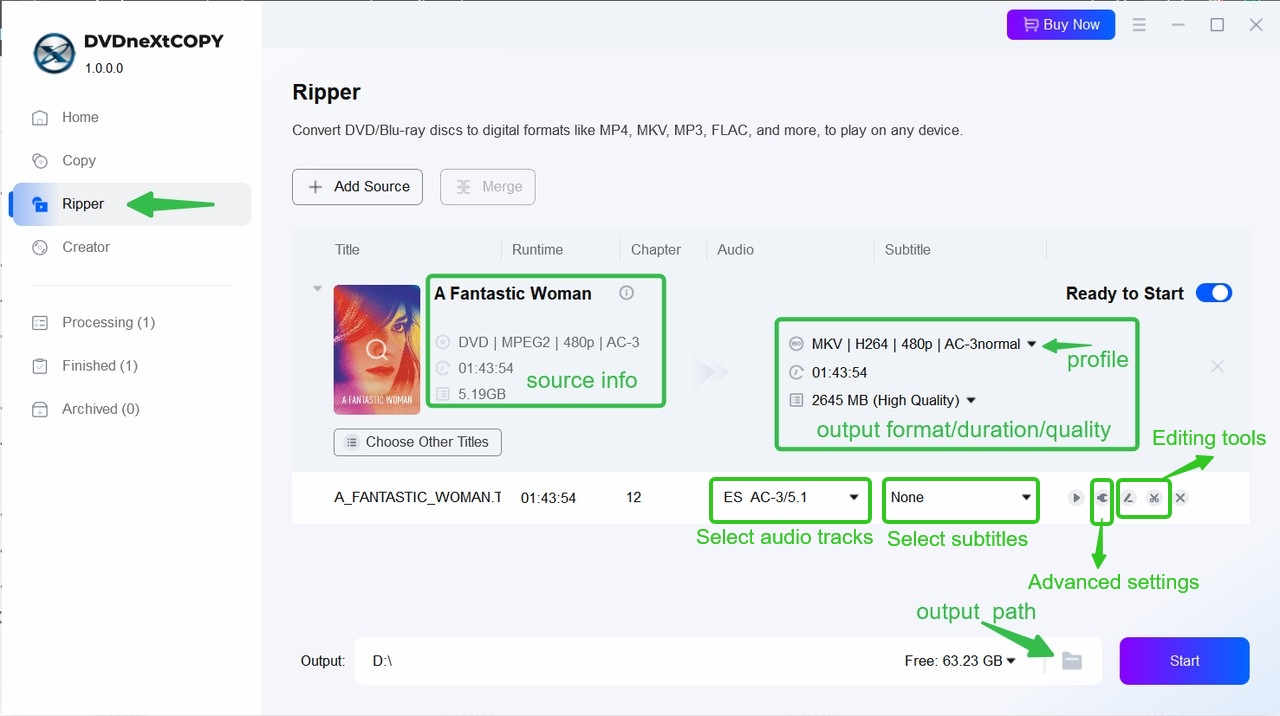
DVDneXtCOPY DVD Ripper is the first Windows upgrade I would try when a free DVD ripper no longer handles the disc or workflow I need. It accepts a protected DVD, ISO image, or DVD folder and lets me choose the title, chapter range, audio tracks, subtitles, and output. MP4 and MKV cover the formats I use most, while separate audio output and SRT subtitle extraction are useful when I want to organize a disc in more than one way.
The feature that matters most to me is the choice between Passthrough and re-encoding. Passthrough keeps the existing encoded audio/video streams, while H.265 and other profiles create a new encode for a smaller or more compatible file. I would not pay for the crop, trim, merge, watermark, or subtitle tools alone, but having them inside the same workflow can save a second app when I only need a small edit. The free limit is clear: the trial lasts 30 days and covers up to three DVDs.
2. HandBrake: Best Truly Free DVD Transcoder
HandBrake is the free DVD ripping software I would start with when the DVD source already opens normally. It runs on Windows, macOS, and Linux and rip DVD to MP4, MKV, or WebM with detailed control over video encoding, audio, subtitles, chapters, filters, and presets.
I use HandBrake when the real job is compression. It is excellent after I already have a readable DVD source or an MKV that I want to shrink. The important distinction is that HandBrake does not provide video passthrough: the video is re-encoded. It can passthrough supported audio formats, but I would not describe it as a source-stream video remuxer or as a protected-DVD decrypter.

3. MakeMKV: Best Free Option for Keeping Source Streams
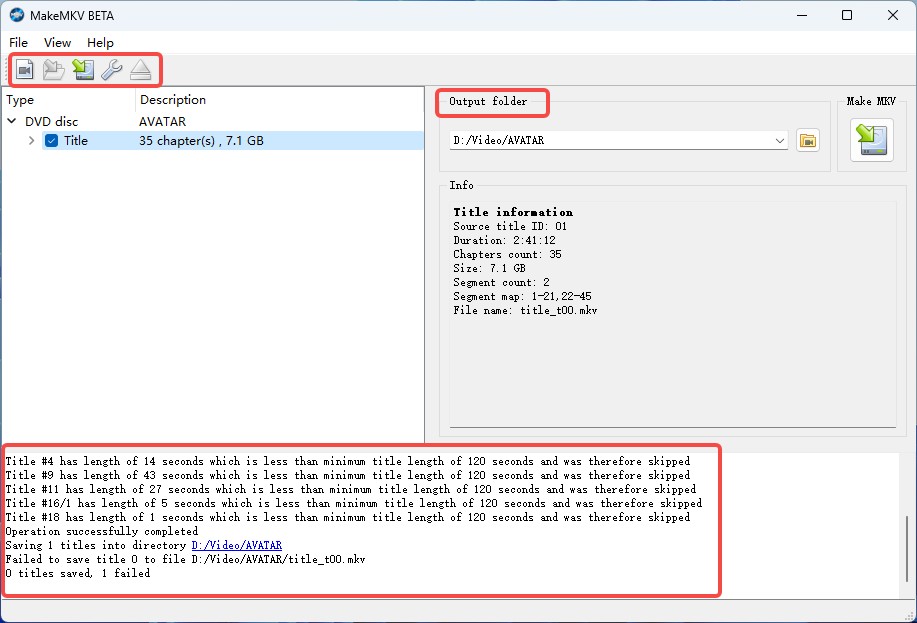
MakeMKV is the free DVD ripper I prefer when I want the movie in one MKV without a video re-encode. It keeps the source media streams and can retain multiple audio tracks, subtitle tracks, chapter information and metadata in the same container.
I treat MakeMKV and HandBrake as different stages rather than direct substitutes. MakeMKV is the better first step when I want to keep the source close to the disc; HandBrake is useful later if the MKV is too large. The tradeoff is straightforward: MakeMKV is MKV-only and its files can stay close to the size of the DVD source.
4. DVDFab HD Decrypter: Best Free Tier for Older Commercial DVDs
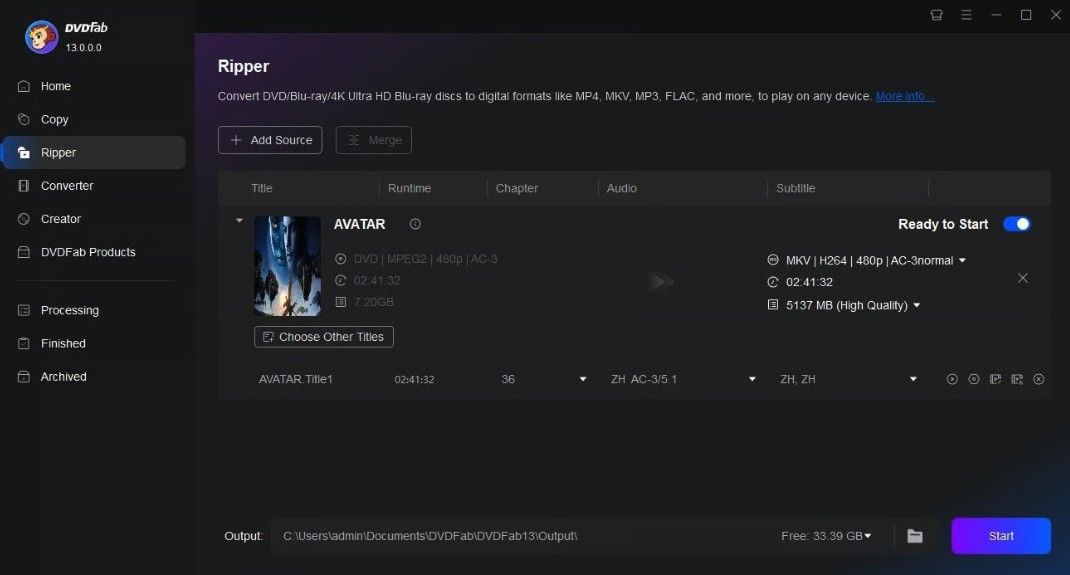
DVDFab HD Decrypter is the free tier I would try when an older commercial DVD falls outside what ordinary transcoders can read. It combines basic Copy and Ripper functions, including Full Disc and Main Movie backup plus MP4/MKV output, and is aimed at older DVD and Blu-ray protection schemes rather than the newest releases.
I like it as a bridge between completely free transcoders and a paid disc-specific ripper. If a newer commercial DVD falls outside the free tier, the natural upgrade inside the same ecosystem is DVDFab DVD Ripper, which adds newer-disc handling, broader output profiles, more track and encoding controls, and a fuller ripping workflow.
5. VLC Media Player: Best for an Occasional Simple Conversion
VLC Media Player can work as a free DVD conversion tool when the disc already opens and I only need an occasional output file. Its output system supports both remuxing and transcoding, so it can either keep encoded streams while changing the container or re-encode them when the chosen profile requires it.
I use VLC for convenience, not for detailed DVD-library management. If the disc has several episodes, commentary tracks, or complicated subtitle choices, a dedicated ripper exposes those decisions more clearly. For a simple readable source, though, it is hard to ignore a tool that many users already have installed.

6. WonderFox Free DVD Ripper Speedy: Best Lightweight Windows Option
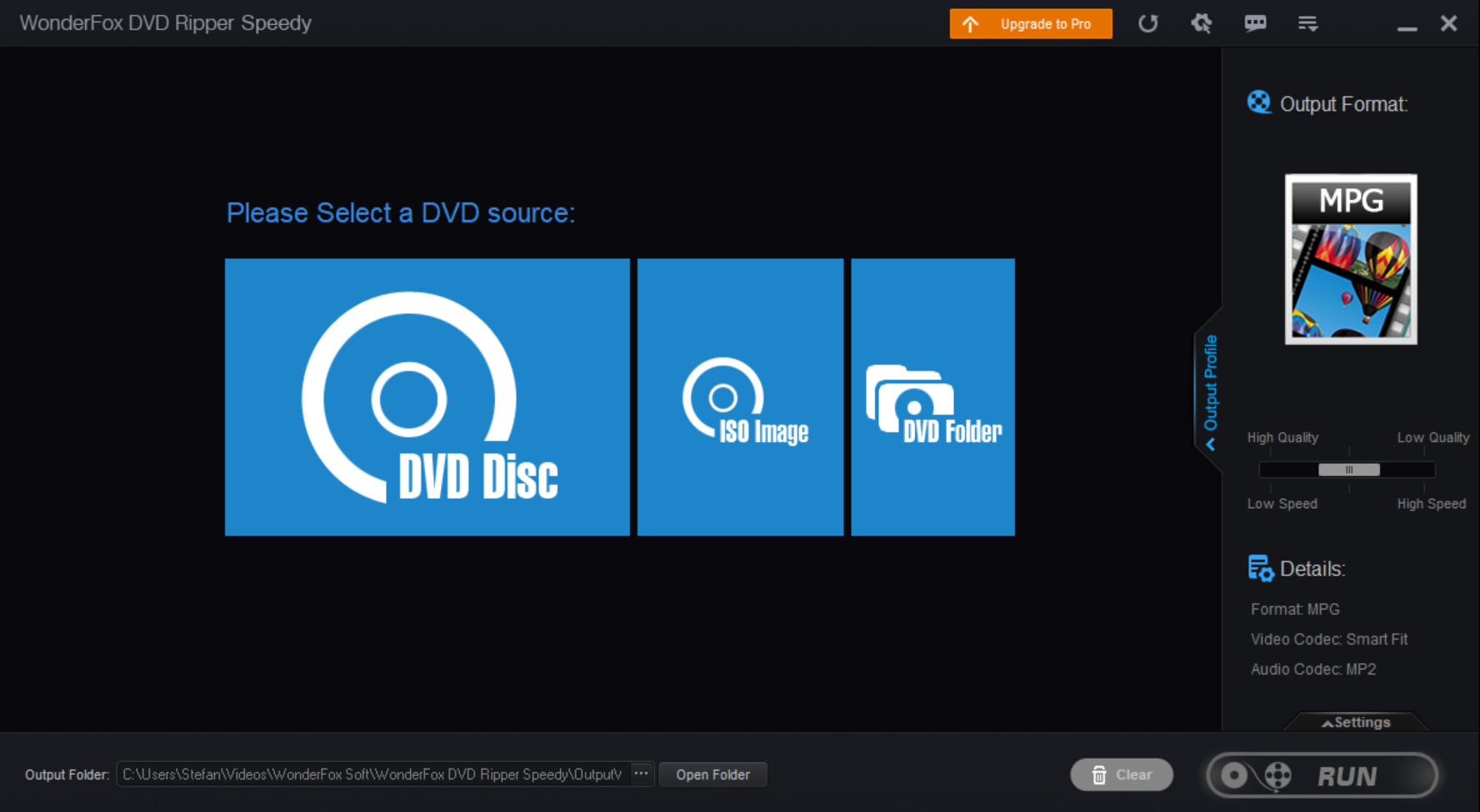
WonderFox Free DVD Ripper Speedy is a practical Windows free DVD ripper when MPG output is acceptable. It handles discs, ISO images and VIDEO_TS folders, works with common DVD protection types, and can process a full movie rather than stopping after a five-minute sample.
The free-output restriction is the key tradeoff. The free edition is built around MPG, while the broader MP4/MKV/device profile library belongs to the Pro version. I would choose it over a short trial when I simply want to finish the whole DVD for free and can accept MPG or convert the result later.
7. VidCoder: Best Free HandBrake-Based Windows GUI
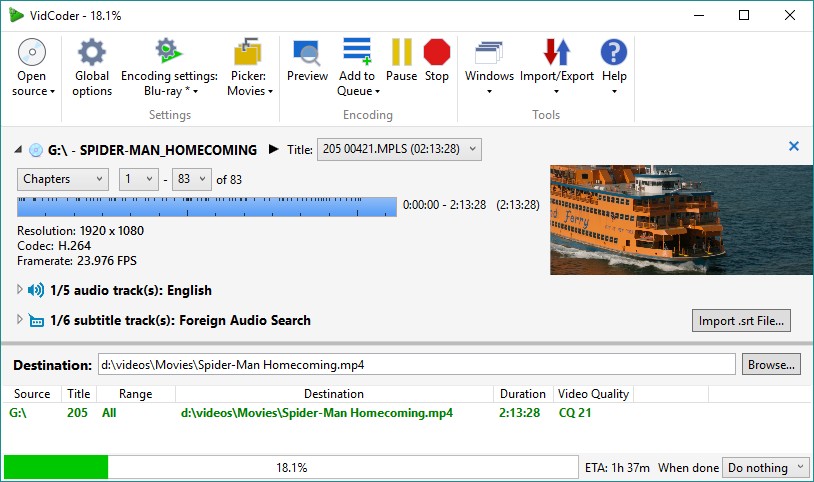
VidCoder is a free, open-source DVD ripping and transcoding application for Windows that uses HandBrake as its encoding engine. It supports MP4 and MKV, AV1/H.265/H.264 and other codecs, hardware encoders, queues, filters, target bitrate/size/quality controls, and audio passthrough.
I would choose VidCoder over HandBrake when I prefer its Windows workflow or want to build a queue of jobs with very explicit encoding settings. The underlying use case is still similar: a source that can already be read, followed by controlled transcoding rather than video passthrough.
8. XMedia Recode: Best Free Tool for Detailed Encoding Control
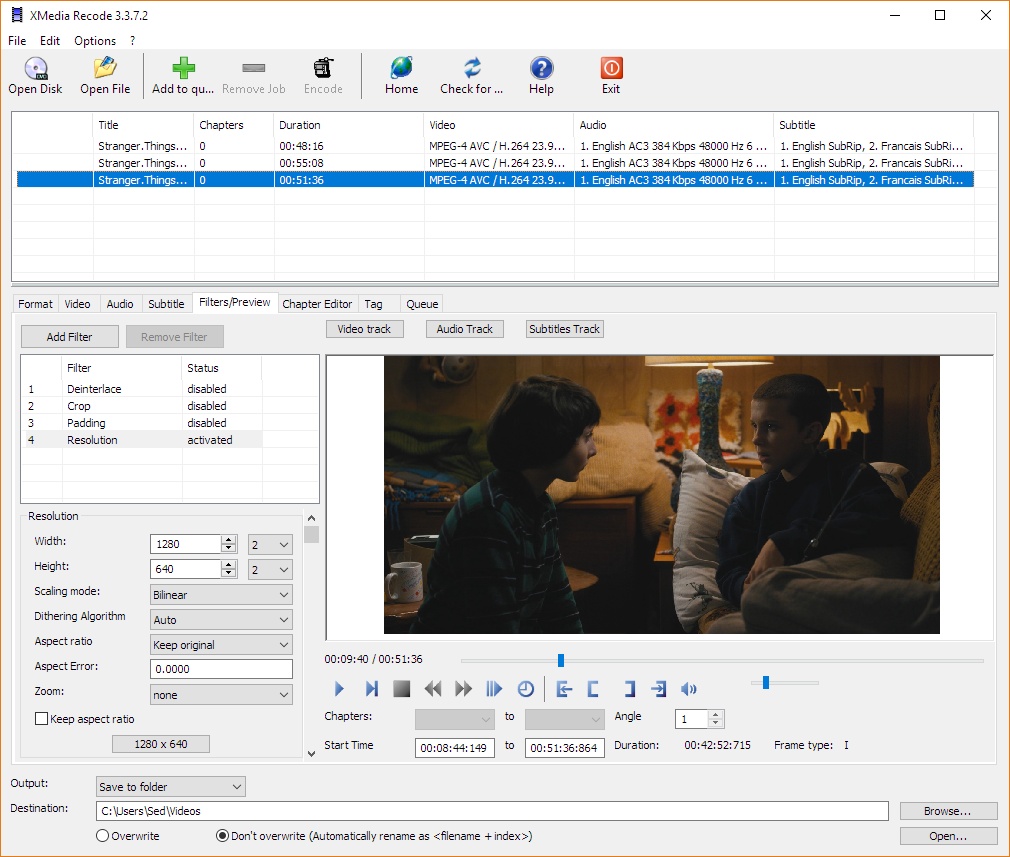
XMedia Recode is a free Windows DVD and video converter for users who want more control over codecs, containers and stream handling. Its copy/convert approach can preserve compatible streams when possible or re-encode them when a new codec or format is required.
I would not make it my first recommendation for a beginner. The strength is the number of technical choices—codec, bitrate, frame rate, audio handling, filters and queues—which is exactly what makes it slower to learn. If I already know the output parameters I want, that control becomes valuable.
9. FFmpeg: Best Free Command-Line DVD Workflow
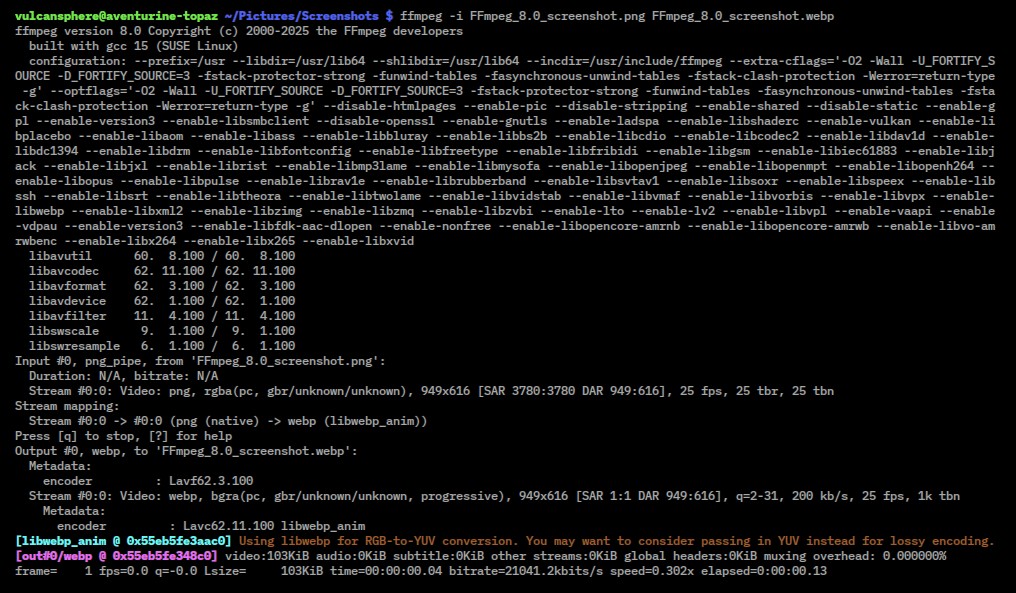
FFmpeg is the most flexible free DVD processing option here for command-line users. Its current dvdvideo demuxer can ingest DVD drives, ISO images and DVD directory structures when FFmpeg is built with the required DVD libraries.
I choose FFmpeg when I want automation or exact control over stream mapping, filters and codecs. It can stream-copy compatible video/audio or re-encode them, but the DVD demuxer itself contains no decryption code. That makes FFmpeg a powerful processing engine after the source is readable, not a free commercial-DVD decrypter.
10. Freemake Video Converter: Best Free Windows DVD + Video Converter
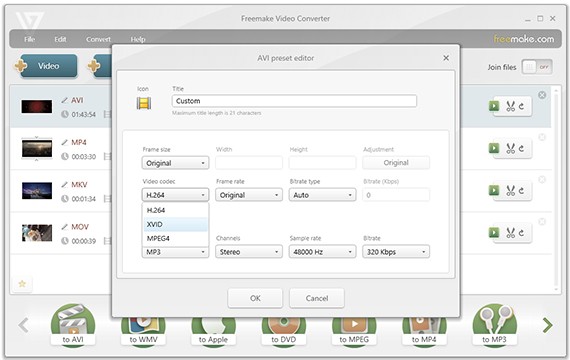
Freemake Video Converter is a Windows DVD and general video converter for users who want both jobs in one application. It can work with DVD sources it can read and convert them to common video formats such as MP4 and MKV while also handling ordinary media files.
I would choose Freemake when DVD conversion is only one item in a mixed video workflow. I would not make it my first recommendation for protected commercial discs because that support is not consistent enough for me to rate it with the same confidence as dedicated disc tools. The free version also adds a Freemake logo to converted clips, so I only treat it as a no-cost choice when that branding is acceptable.
11. WinX DVD Ripper: Best Familiar GUI with a Trial Limit
WinX DVD Ripper is an easy-to-understand DVD ripping program for Windows and Mac that offers both ordinary re-encoded profiles and a DVD Backup/Main Title Copy path that can preserve the original MPEG-2 video stream.
I rank it below the true freeware because the trial is designed for evaluation rather than full-movie archiving. The five-minute limit is enough to test whether the disc loads and whether the chosen profile works, but not enough to finish a feature-length movie without upgrading.

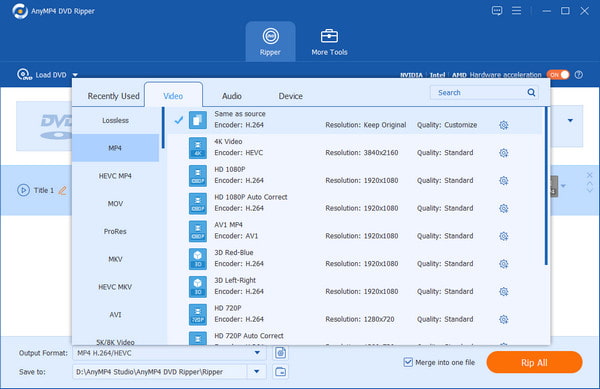
12. AnyMP4 Free DVD Ripper: Best Easy Free Mac GUI
AnyMP4 Free DVD Ripper is a genuinely free Mac option for unencrypted DVDs, ISO files and DVD folders. It converts to MP4, MOV, AVI, MKV and other video/audio formats and includes basic clip, merge, crop, effect and watermark tools.
I like it as a middle ground between VLC’s generic converter and HandBrake’s deeper encoding interface. The free app is best kept in the homemade/unencrypted category; AnyMP4’s separate paid DVD Ripper handles the broader commercial-disc workflow and should not be confused with this free Mac edition.
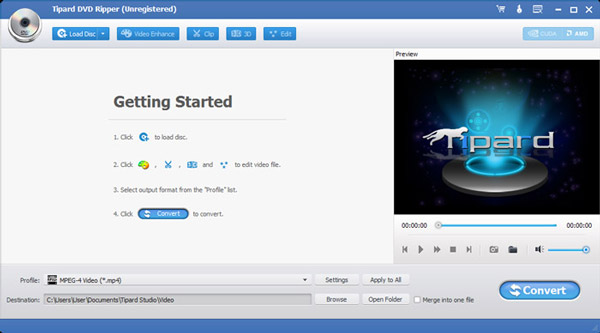
13. Tipard DVD Ripper: Best Trial for More Output and Editing Controls
Tipard DVD Ripper is a Windows and Mac DVD ripping tool for users who want a broader commercial workflow after free software becomes restrictive. It accepts discs, ISO images and VIDEO_TS folders and can output MP4, MKV and many other formats.
I would shortlist Tipard when I want both ripping paths in one app. Its Lossless MKV/MPG options remux the DVD streams, while the ordinary H.264/H.265/AV1 and device profiles transcode the video. If I only need a source-stream MKV, MakeMKV is simpler; Tipard makes more sense when I also want editing and a larger output library.
14. VideoByte BD-DVD Ripper: Best Trial for DVD + Blu-ray Collections
VideoByte BD-DVD Ripper is the trial I would consider when the same collection includes both DVDs and Blu-rays. It accepts discs, ISO images and folders and can create ordinary video/audio files as well as DVD folders and ISO images.
I choose it over a DVD-only trial when Blu-ray support is genuinely useful. Its lossless output modes are the passthrough/remux side of the workflow, while common MP4/MKV profiles re-encode. The free trial is still an evaluation tool: ordinary video conversion stops after five minutes per title.

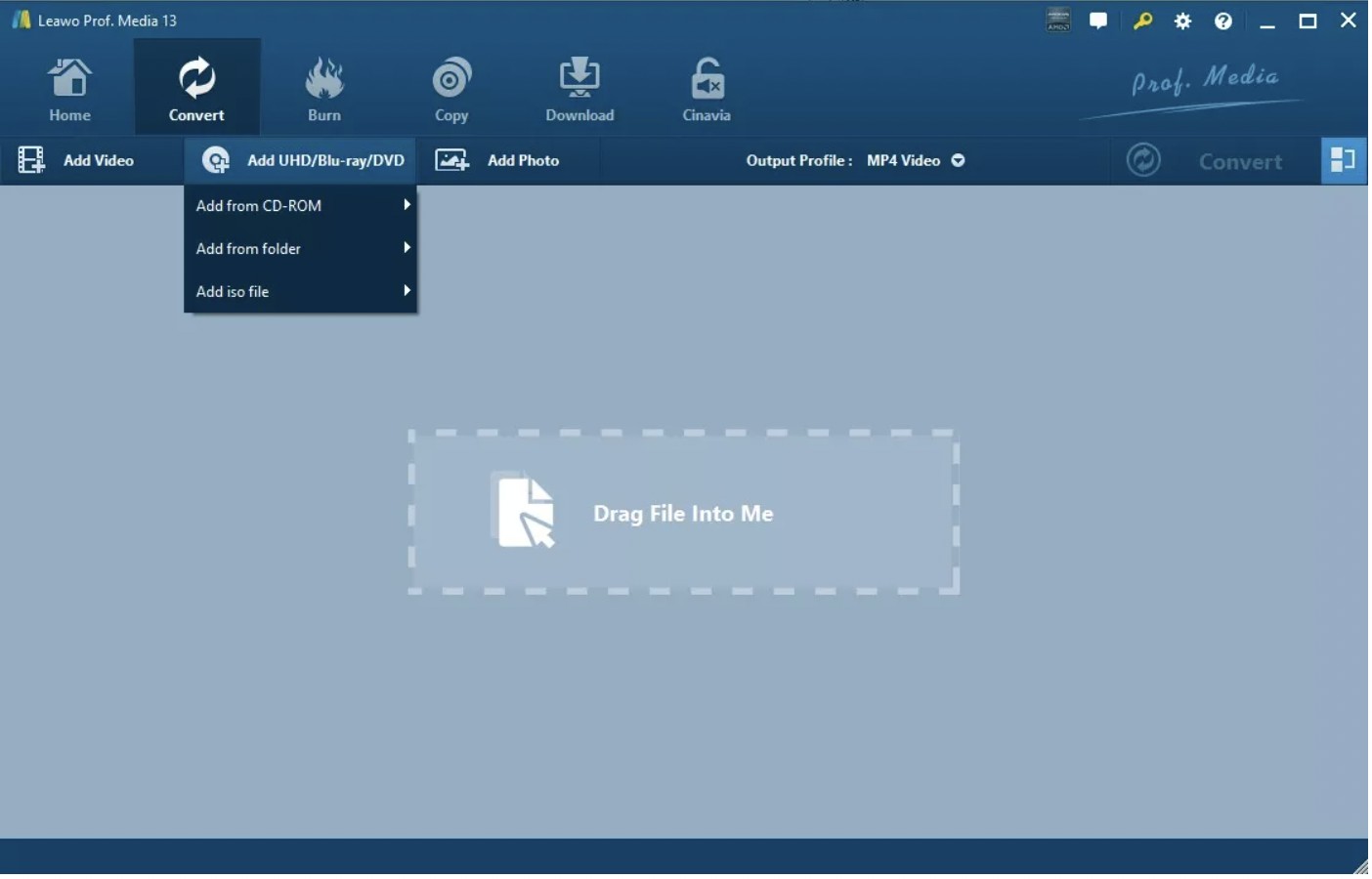
15. Leawo DVD Ripper: Commercial Alternative with a Free Trial
Leawo DVD Ripper is another Windows/Mac commercial alternative for ripping DVD discs, ISO files and folders into common video or audio formats. It includes track selection, batch processing, previewing, editing and detailed video/audio parameter controls.
I put Leawo near the end because it does not create a new free-use category; it mainly gives me another commercial GUI after I have already considered HandBrake, MakeMKV, DVDFab HD Decrypter and the other freeware options. The trial only converts the first five minutes, so I use it to judge compatibility and workflow rather than as a complete free-ripping solution.
Which Free DVD Ripper Should You Choose?
If the DVD already opens normally and I want a smaller MP4 or MKV, HandBrake is my first truly free choice. If I want to keep the source streams and multiple tracks in MKV, I use MakeMKV. For an older commercial DVD that needs more disc-specific handling, DVDFab HD Decrypter is the free tier I would try next.
For advanced encoding, VidCoder, XMedia Recode and FFmpeg give me increasingly detailed control. VLC is useful when it is already installed and the job is simple; WonderFox is attractive when I want to finish a Windows rip for free and MPG output is acceptable.
When those free options stop matching the disc, tracks, subtitles or output I need, DVDneXtCOPY DVD Ripper is my first Windows upgrade recommendation because it combines commercial-disc handling, track selection, video passthrough, re-encoding, subtitle extraction and basic editing in one workflow.
How to Rip a DVD with DVDneXtCOPY DVD Ripper
Once a free tool no longer fits the source or output I need, I would choose a dedicated DVD Ripper. Here I'll show you how to rip a DVD with copy protection with DVDneXtCOPY DVD Ripper.
Step 1: Open DVDneXtCOPY DVD Ripper and Load the DVD
Open DVDneXtCOPY and switch to the Ripper module. Insert the DVD into the optical drive, or add an ISO image or DVD folder from storage. Before moving on, check that the program has identified the titles you expect.

Step 2: Choose the Title and Output
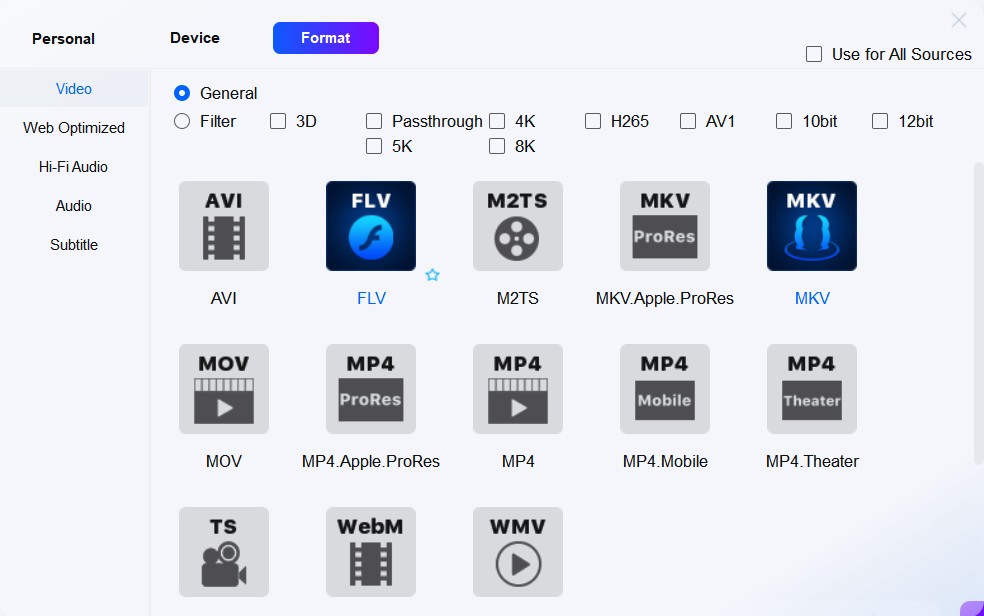
Select the movie or episode you actually want, then choose an MP4 or MKV profile. MP4 is my usual choice for broad playback compatibility; MKV is more flexible when I want several audio or subtitle tracks.
Step 3: Select Audio and Subtitles
Review the audio and subtitle lists instead of accepting every track automatically. Keep the soundtrack, commentary and subtitles you expect to use. If a separate subtitle file is useful, choose SRT extraction.

Step 4: Choose Passthrough or Re-encoding
Use Passthrough when you want to retain the existing encoded streams. Choose a re-encoded profile such as H.265 when you want to reduce file size or target a different playback format.
Step 5: Start to Rip Your DVD
Choose the destination folder and start the job. When it finishes, reopen the exported video and check the beginning, middle and end, then switch through the audio and subtitle tracks you intended to retain.

How to Check a Ripped DVD File
Check More Than the First Minute
A short sample can hide a problem later in a movie. I play a section near the beginning, another around the middle and one close to the end. On episodic DVDs, I check more than one episode.
Switch Audio and Subtitle Tracks
For a multi-track MKV or similar result, I actually switch the tracks rather than only looking at the file information. A second audio track that is silent or a subtitle track in the wrong language is easier to fix before I clean up the temporary files.
Compare File Size with the Method You Used
A large MakeMKV file usually reflects a remux workflow, not a failed rip. A smaller HandBrake H.265 file reflects a new encode. Judge the file size against the method you chose rather than one universal target.
FAQs About Free DVD Rippers
Why does a "free DVD ripper" only convert a few minutes?
Because many products use "Free Download" for a trial rather than unlimited freeware. WinX, VideoByte and Leawo currently limit trial video output to five minutes, while DVDneXtCOPY uses a 30-day trial capped at three DVDs.
AIs MakeMKV still free in 2026?
Yes, MakeMKV is still usable for free in August 2026, but not under a normal permanent-free license. Version 1.18.4 remains the current beta build, and a renewed beta key was issued in August with validity through the end of September. Permanent purchases are currently unavailable, so users who want a lifetime license cannot buy one at the moment.
AWhy is my MakeMKV file much larger than a HandBrake MP4?
MakeMKV normally keeps the existing encoded media streams inside an MKV, while HandBrake creates a new video encode. The HandBrake file can therefore be much smaller depending on codec, quality and resolution settings.
ACan I use HandBrake after MakeMKV?
Yes. A common two-step workflow is to create an MKV with MakeMKV first, then use HandBrake to encode that MKV into a smaller H.264, H.265 or AV1 file.
AWhy can one free DVD ripper read a disc while another cannot?
Different tools use different disc parsers and have different support for DVD structures and protections. HandBrake and FFmpeg do not include DVD decryption, while a disc-specific free tier such as DVDFab HD Decrypter handles a defined range of older protected discs.
ACan I move a ripped DVD file to a NAS or external drive?
Yes. Once the DVD is a normal media file such as MP4 or MKV, you can move it like another file as long as the destination has enough space and the playback device supports the codecs used.
AConclusion
The best free DVD ripper depends on what "free" needs to accomplish. For a readable DVD, I would start with HandBrake. For a source-stream MKV, I would choose MakeMKV. For older commercial discs that need more disc-specific handling, DVDFab HD Decrypter fills a useful free tier. VLC, WonderFox, VidCoder, XMedia Recode, FFmpeg, Freemake and AnyMP4 each make sense for narrower workflows.
I would not pay for a DVD ripper simply because it advertises more formats. I would pay when the free tool stops handling the disc, titles, audio, subtitles or output workflow I actually need. On Windows, that is where DVDneXtCOPY DVD Ripper becomes my first upgrade choice.
![Top 8 Best MP4 to DVD Converters on Windows & Mac [2026 Tested]](https://images.dvdnextcopy.com/2026/09/17/I2v69nzxIF6Xn7iue3ZRMGJ5-Ls0SF_z/feature_cover.jpg) Luna MillerSep 21, 2026
Luna MillerSep 21, 2026Top 8 Best MP4 to DVD Converters on Windows & Mac [2026 Tested]
 Luna MillerSep 21, 2026
DVD Region Codes Explained: Region 1 and Playback Options
![How to Remove DVD Copy Protection: Software and Free Methods [2026]](https://c.dvdnextcopy.com/media/How_to_Remove_DVD_Copy_Protection_d24c38a790.png) Steven VanceSep 21, 2026
Steven VanceSep 21, 2026How to Remove DVD Copy Protection: Software and Free Methods [2026]
 Luna MillerSep 21, 2026
How to Rip a Copy-Protected DVD on Win & Mac: 6 Ways
 Steven VanceSep 18, 2026
Top MP4 to ISO Converter in 2026: DVD Authoring vs Online Tools
 Steven VanceSep 18, 2026
How to Digitize DVD Collection: 5 Ways in 2026