 DVDneXtCOPY DVD Ripper
Extract Audio from a DVD: 3 Direct Methods and 2 Workarounds

Summary: This guide explains how to easily extract audio from DVDs using tools like DVDneXtCOPY DVD Ripper, VLC Media Player, and more. It covers benefits, audio formats, and step-by-step instructions for each tool, helping you select the best method for extracting high-quality audio that's easy to transfer and enjoy on various devices.
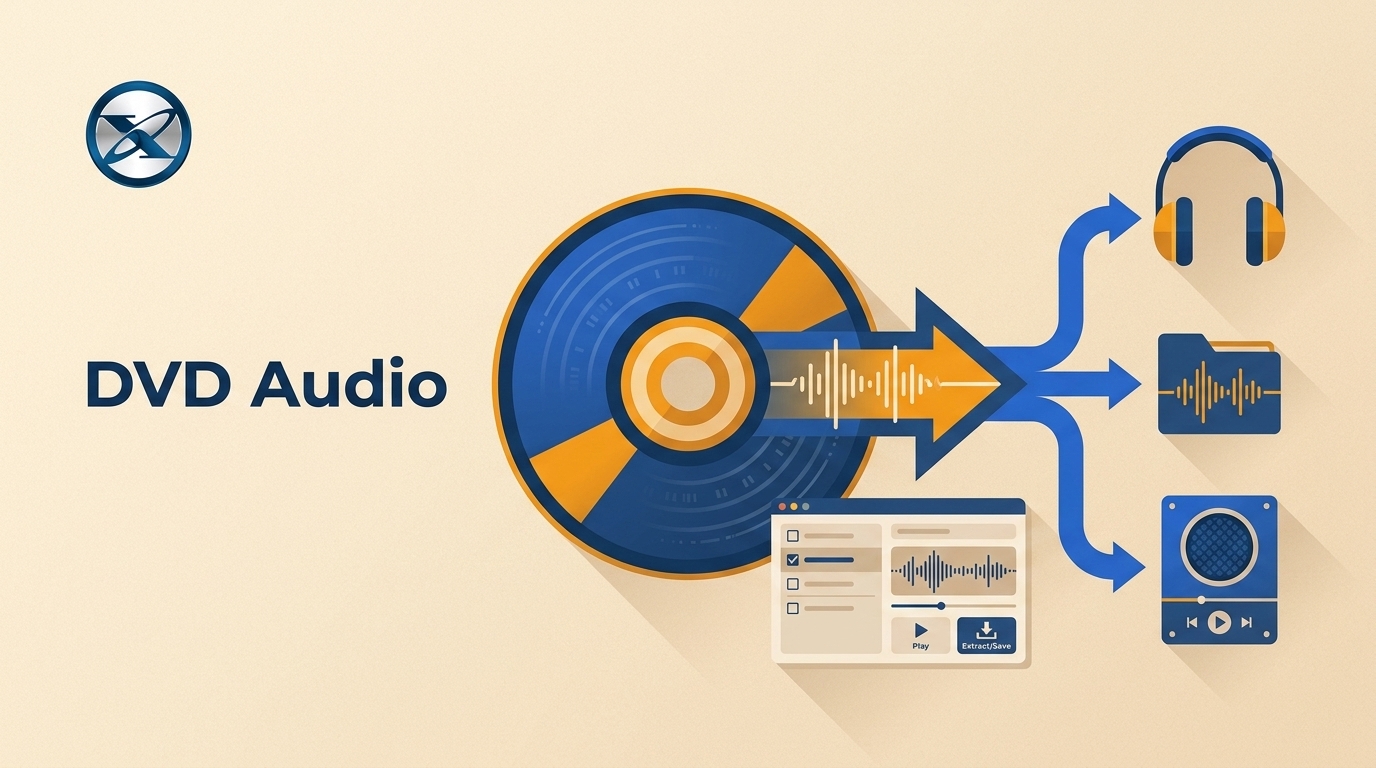
When I extract audio from a DVD, the first choice is not the output format. I check whether the disc is DVD-Video or DVD-Audio, then identify the title and audio track I need. Choosing the wrong path can leave you with a video file, the wrong language, or missing surround channels.
To rip DVD audio cleanly, start by matching the disc structure to the right method. This article covers direct DVD audio extraction, two-step workarounds, format choices, track selection, and the checks that help preserve the audio you intended to save.
Why Extract Audio from a DVD?
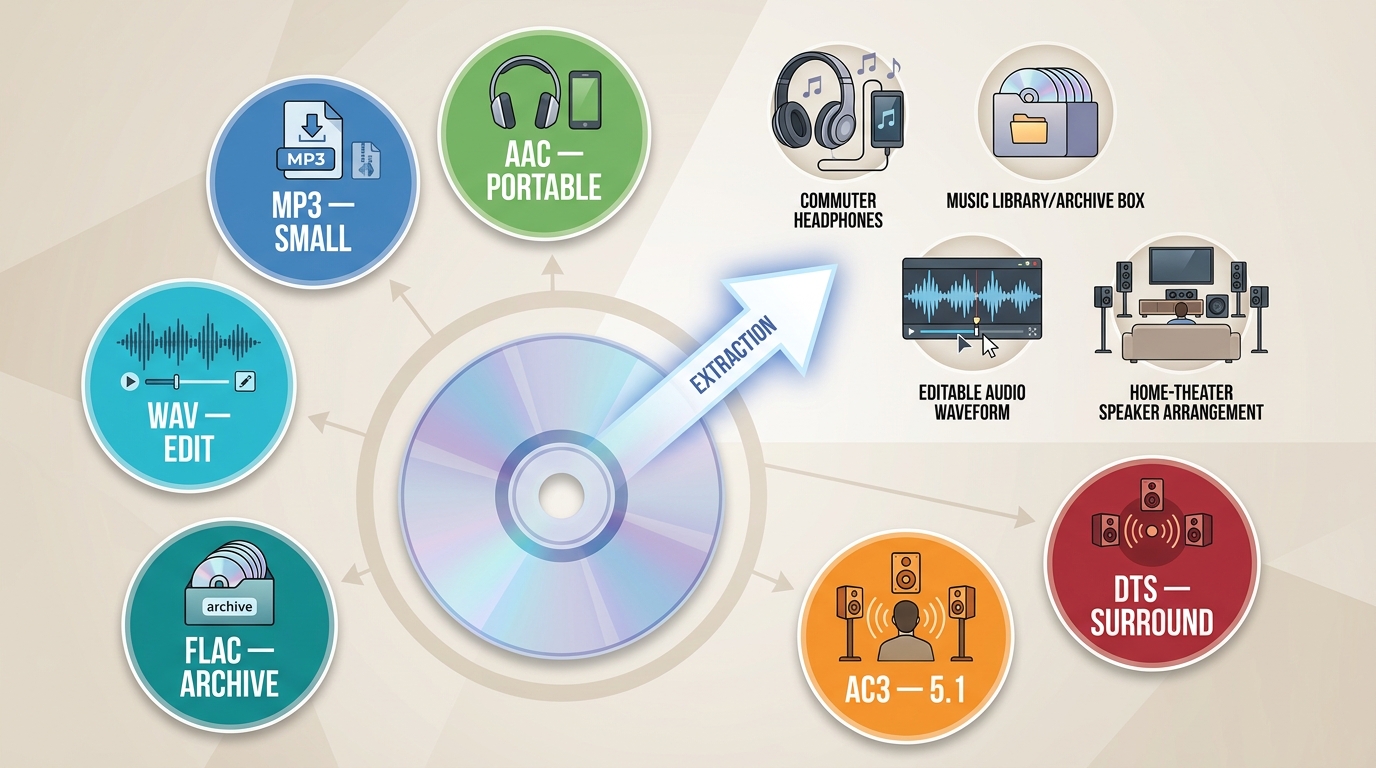
Extracting audio from a DVD can be useful for concert soundtracks, language study, chapter-based listening, creative projects, and personal backups of discs you are authorized to use. If you are preserving a larger digitized DVD collection, separate audio files can also make specific performances or spoken sections easier to find.
- Source Quality: Extracted quality depends on the source track, selected title and channels, and whether the audio is preserved or transcoded.
- Portability: Extracted audio can be transferred to portable devices like smartphones or tablets.
- File Size Control: MP3 or AAC can reduce storage use, while original AC3 or DTS streams may be preferable when surround playback matters.
- Customization: Users can extract specific parts of DVD audio for study, entertainment, or editing purposes.
- No Subtitles: Extracted DVD audio is good for listening practice since it doesn’t have subtitles.
Best Audio Formats for DVD Extraction
Choose the output by what you need to play or preserve. MP3 and AAC work well for smaller, widely playable files. WAV is useful for editable PCM audio, while FLAC is a lossless storage format after a valid decode. If the original AC3 or DTS surround stream already works on your player, direct demux avoids an unnecessary transcode. I would keep that original stream unless device compatibility requires a different format.
| Format | Description | Channel(s) | When to Use It | Key Consideration |
|---|---|---|---|---|
| MP3 | A widely compatible audio format, though it uses lossy compression, which reduces sound quality. | Mono or Stereo | Portable listening and broad compatibility | Uses lossy compression |
| WAV | An audio compression format without quality loss, created by Microsoft. | Mono or Stereo | Editing or PCM-compatible playback | Large uncompressed files |
| AAC | An audio format that offers a good balance between quality and file size, but has limited compatibility. | 1 - 48 | Smaller files on compatible devices | Uses lossy compression |
| M4R | A ringtone format specifically designed for use on Apple devices. | Mono | Apple ringtone projects | Not a general DVD-audio archive format |
| FLAC | A lossless compressed format for storing decoded audio without further loss from the FLAC encoding step. | 1 - 8 | Lossless storage after decoding | Preserve the complete title and channel mapping |
| M4A | An open-source format compatible with a variety of devices. | 6 | Compatible playback in Apple-focused libraries | Codec settings depend on the selected encoder |
Tools to Extract Audio from DVDs
DVDneXtCOPY DVD Ripper
DVDneXtCOPY DVD Ripper is a Windows desktop option for DVD discs, ISO files, and DVD folders. It provides selectable titles, chapters, subtitles, and audio tracks, plus audio output profiles including MP3, FLAC, WAV, AAC, up to 7.1 channels. GPU-assisted batch processing is available on compatible hardware. It is most useful when you need direct control over a readable DVD source and the output file.
👍Key Features:
- Cloud Decryption Service: Allows automatic and fast support of the latest protected discs.
- Audio Output Profiles: Save DVD audio as MP3, FLAC, WAV, and other available profiles.
- Track Selection: Select titles, chapters, audio tracks, and subtitles before exporting.
- Passthrough Option: Preserve original audio and video streams when a Passthrough profile is used without re-encoding.
- Batch Processing: Process multiple items with GPU hardware acceleration on compatible systems.
How to extract audio from DVD using DVDneXtCOPY DVD Ripper:
Step 1: Download and Start the DVDneXtCOPY DVD Ripper
Install the DVDneXtCOPY DVD Ripper after downloading it. Select the 'Ripper' module when the program has opened. You can either click the '+Add' button to choose an ISO file or DVD folder, or put the DVD into your computer.

Step 2: Select the Audio Format
Open "Choose Other Profile - Format - Audio" and select the output that matches your goal. Choose MP3 for smaller files, FLAC or WAV for decoded audio storage, or a Passthrough profile when preserving the original stream is more important than changing formats. Check the selected audio track and channel layout before continuing.
Step 3: Modify the Audio Settings
Click "Advanced Settings" to change audio settings such as bit rate, volume, channels, codec, and sampling rate. If necessary, you can also divide chapters.
Step 4: Audio Editing (Optional)
Choose a video format first, then choose "Video Edit" to adjust the audio if you want to.

Step 5: Select the Output Folder
Choose the folder on your computer where you want to save the audio that will be extracted.
Step 6: Start the Audio Extraction

Press 'Start' to begin extraction. When it finishes, open the saved file and check the runtime, selected language, and channel playback. GPU hardware acceleration may reduce processing time on compatible hardware, but the result also depends on the disc, drive, output profile, and computer.
VLC Media Player

VLC Media Player is a free cross-platform player and converter that can save audio from readable DVD-Video sources or already accessible media files. It can be useful for a simple DVD-to-MP3 conversion, but disc menus, fragmented VOB files, title selection, and conversion stability can affect the result. I would use VLC for a readable disc or file when a free option is the priority, not when precise chapter-by-chapter extraction is essential.
How to extract audio from a readable DVD with VLC Media Player:
Step 1: Download and Install VLC
Put the DVD into your computer, then go to the VLC media player website. Download the latest installer and install this free DVD audio extractor on your Windows PC, Mac or Linux.
Step 2: Access the Open Media Window
Open VLC media player, choose "Media," and then choose "Convert/Save" from the dropdown menu. This will open the "Open Media" window.

Step 3: Load Your DVD
Go to the "Disc" tab and select "DVD" to load the DVD from which you want to extract the audio. You can also select Blu-ray, Audio CD, or SVCD/VCD based on your needs.

Step 4: Disable the Disc Menu and Set the Starting Position.
Select the "No Disc Menu" option and set the "Starting Position" to 1. After that, select "Convert / Save" at the bottom.
Step 5: Select Audio Format
In the "Convert" window, click the "Profile" dropdown menu and choose your desired audio format, such as "MP3" or "FLAC."
Step 6: Extract Audio from DVD with VLC
Click "Browse" to choose a save location, then select "Start." When VLC finishes, play the file and check its runtime, language, and channel output. If it opens with gaps, the wrong track, or no audio, return to the disc title and profile settings before trying another conversion.
HandBrake as a Two-Step Option

HandBrake is a free, open-source video transcoder for Windows, macOS, and Linux. It creates video output such as MP4, MKV, or WebM, not an audio-only DVD file. Treat it as the first stage of a two-step process: save a readable source as video, then use another tool to convert that file to audio. This makes sense when you also want a video master, but it is inefficient for chapter-by-chapter audio-only work.
How to create a video file before extracting audio with HandBrake:
Step 1: Load Your DVD in HandBrake
Open HandBrake and load a readable DVD source or saved disc files. Select the title and chapter range you want to save as video first. HandBrake does not create an audio-only file at this stage.

Step 2: Choose Output Format
Click the "Output Settings" button to choose your preferred format. For optimal quality, it's recommended to convert the DVD to MKV format.

Step 3: Start Ripping the Audio
Click "Start Encode" to create the selected video file. After the video export is complete, load that file into an audio converter if you still need MP3, FLAC, WAV, or another audio-only format.
DVD Audio Extractor

DVD Audio Extractor is a dedicated cross-platform application for extracting audio from DVD-Audio and DVD-Video discs. Its title and chapter controls make it a practical option when the goal is an audio-only result instead of a video conversion. It is most useful for readers who need focused chapter selection across Windows, macOS, or Linux. It is not the right choice when the disc cannot be read by the available drive or when you need a broader video-conversion tool.
How to extract audio with DVD Audio Extractor:
Step 1: Install DVD Audio Extractor
Go to the official DVD Audio Extractor website and click the Download icon. Choose the correct exe file for your operating system and start the download. After downloading the program, double-click it and follow the on-screen instructions to install the software.
Step 2: Import DVD to DVD Audio Extractor
Insert the DVD which you want to extract audio. When you launch DVD Audio Extractor, it will instantly recognize and show the disc's contents.

Step 3: Select the Desired Content
DVD Audio Extractor will automatically select the first title and display all of its chapters. Click on any title you want to rip, and if it has various angles, select the one you want.
Step 4: Adjust the Output Settings
Click the "Next" button. Select your desired output format, and customize other audio encoding settings like sample rate and audio channels. Select the output file's target folder. Once ready, click "Next" to go to the export page, and then click "Start" to begin ripping the audio from the DVD.
Zamzar for Already-Ripped Files
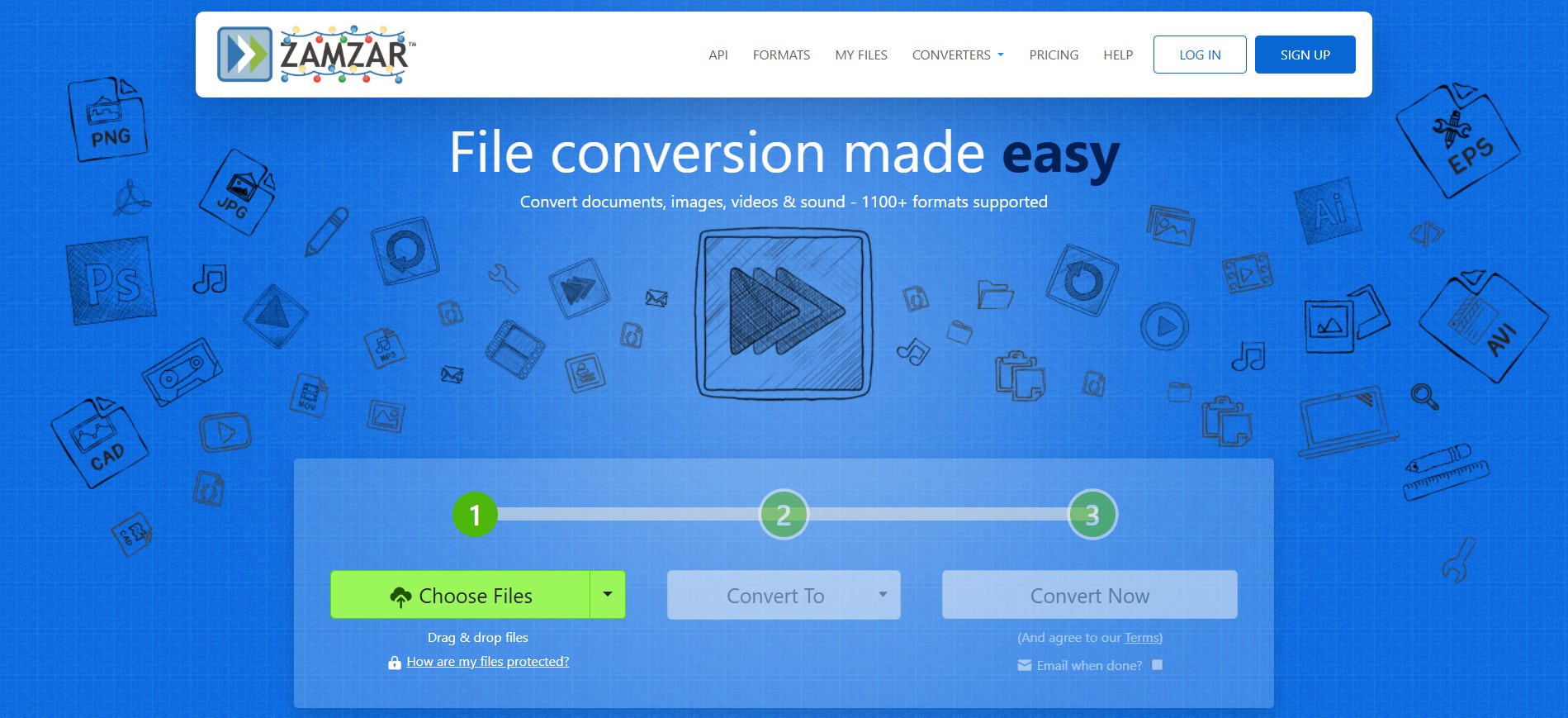
Zamzar is an online converter for files you upload, such as a VOB or video file that has already been saved locally. It does not read or rip a physical DVD directly. It can suit an occasional conversion of a small, non-sensitive file when you do not want to install software, but it is not appropriate for direct disc extraction, large uploads, or privacy-sensitive media.
How to convert an already-ripped video file to audio with Zamzar:
Step 1: Visit the ZAMZAR Website
Open your browser and visit www.zamzar.com.
Step 2: Click "Choose Files"
On the homepage, click the "Choose Files" button.

Step 3: Upload Video or VOB File(s)
Navigate through your computer's HDD and pick the video or VOB file that needs to be converted.
Step 4: Choose Audio Format
From the "Convert To" dropdown menu, choose your desired audio format (e.g., MP3, WAV, etc.).
Step 5: Start Conversion
Click "Convert Now" to start the conversion process. Await the completion of the conversion; the duration will vary based on the size of the file and your internet speed.
Step 6: Download the Audio
Once converted, you’ll be taken to the download page. To save your ripped audio, simply click "Download".
Compare DVD Audio Extraction Methods
DVDneXtCOPY DVD Ripper, VLC Media Player, and DVD Audio Extractor can work as direct extraction paths in their supported scenarios. HandBrake is a video-first step, while Zamzar converts an uploaded file after it has already been saved from the disc. Compare the input type and required controls before choosing one.
|
DVDneXtCOPY |
VLC Media Player | HandBrake | DVD Audio Extractor | Zamzar | |
|---|---|---|---|---|---|
| OS | Windows | Windows, macOS, Linux | Windows, macOS, Linux | Windows, macOS, Linux | Any device having an internet connection and a web browser. |
| Extraction Approach | Direct audio extraction from supported DVD sources | Direct conversion from readable DVD-Video or accessible files | Video-first conversion, followed by a separate audio step | Dedicated DVD audio extraction | Conversion of uploaded local files |
| Direct Physical-Disc Input | Protected DVD disc, ISO, or DVD folder | Readable DVD-Video or accessible file | Readable source saved as video | DVD-Audio and DVD-Video sources | No, uploaded file required |
| Title, Chapter, and Track Control | Selectable titles, chapters, and audio tracks | Depends on disc structure and conversion settings | Title and chapter selection for the video stage | Focused title and chapter selection | Depends on the uploaded file |
| Batch Processing | Yes | No | Yes | Yes | Yes |
| Editing Features | Yes | Yes | Yes | No | No |
For a readable disc and Windows-based direct extraction, DVDneXtCOPY DVD Ripper provides track and output controls. VLC is the free option for accessible DVD-Video sources, DVD Audio Extractor is the dedicated cross-platform choice, HandBrake suits a video-first project, and Zamzar is limited to files already saved locally.
Fix Common DVD Audio Extraction Problems
VLC Crashes or Cannot Read the Disc
If VLC closes, cannot open the disc, or shows an empty title list, check the disc condition, drive connection, and whether the source opens as a complete DVD title. Disc menus and access restrictions can also prevent a usable import. Do not try to defeat access controls; use a readable source you are authorized to process under applicable law.
Wrong Track, Gaps, or Silent Channels
A commentary track, alternate language, or short menu title can be selected by mistake. Preview the complete title, choose the intended audio stream, and check the channel layout before exporting. Gaps can occur when individual VOB segments are converted separately, while silent surround channels, clicks, or pops can result from incorrect mapping or an unnecessary transcode. I would return to the complete title and original stream before repeatedly changing encoders. PAL or region-related playback issues may also require a compatible drive, player, and source format.
Frequently Asked Questions
Why is a surround channel silent after I convert DVD audio to FLAC?
A silent surround channel can result from selecting the wrong source track, incorrect channel mapping, fragmented VOB input, or an unnecessary transcode. Start with the complete title, select the intended multichannel track, and preserve the original stream where possible before converting it to FLAC.
ACan I extract only one chapter or language track from a DVD?
Yes, if the tool exposes title, chapter, language, audio-stream, and channel controls. Preview a short section before saving so you do not export a commentary track, alternate language, or the wrong chapter range by mistake.
AIs ripping DVD audio for personal use legal in the United States?
In the United States, copying audio from an unprotected or home-authored DVD differs from defeating access controls on a protected commercial disc. The latter can raise DMCA anti-circumvention concerns even when the copy is for personal use and is not shared. This is general information, not legal advice.
ACan an online converter extract audio directly from a physical DVD?
Usually not. Online converters generally accept an uploaded VOB or video file, so the disc must already be read and saved locally. Consider upload size and privacy before sending personal media to an online service.
AChoose the Right Extraction Path
The right DVD-to-audio method depends on the disc type, whether the source is directly readable, the title and channel controls you need, and whether you want audio only or a video master first. DVDneXtCOPY DVD Ripper is efficient, versatile and professional. Free options like VLC Media Player and HandBrake are reliable but may not work with DRM protection. Specialized tools like DVD Audio Extractor are good for audio only tasks, Zamzar is good for quick online conversion from VOB or video files.
NOTE: DVDneXtCOPY is intended for personal backups and playback of discs you legally own or are authorized to use. Follow applicable local laws and do not share, resell, or distribute backup content.
![Top 8 Best MP4 to DVD Converters on Windows & Mac [2026 Tested]](https://images.dvdnextcopy.com/2026/09/17/I2v69nzxIF6Xn7iue3ZRMGJ5-Ls0SF_z/feature_cover.jpg) Luna MillerSep 21, 2026
Luna MillerSep 21, 2026Top 8 Best MP4 to DVD Converters on Windows & Mac [2026 Tested]
 Luna MillerSep 21, 2026
DVD Region Codes Explained: Region 1 and Playback Options
![How to Remove DVD Copy Protection: Software and Free Methods [2026]](https://c.dvdnextcopy.com/media/How_to_Remove_DVD_Copy_Protection_d24c38a790.png) Steven VanceSep 21, 2026
Steven VanceSep 21, 2026How to Remove DVD Copy Protection: Software and Free Methods [2026]
 Luna MillerSep 21, 2026
How to Rip a Copy-Protected DVD on Win & Mac: 6 Ways
 Steven VanceSep 18, 2026
Top MP4 to ISO Converter in 2026: DVD Authoring vs Online Tools
 Steven VanceSep 18, 2026
How to Digitize DVD Collection: 5 Ways in 2026