 DVDneXtCOPY Blu-ray Copy
How to Rip Blu-ray to ISO on Windows & Mac in 2026

Summary: A Blu-ray ISO can preserve the disc structure, menus, chapters, audio tracks, subtitles, and extras in one image file. Use DVDneXtCOPY Blu-ray Copy on Windows for protected commercial discs, ImgBurn for readable or unprotected Blu-rays, and DVDFab Blu-ray Copy on Mac. Choose Clone/Burn for a 1:1 ISO, Full Disc for a complete disc with optional compression, or Main Movie/Customize when you only need selected content.
Table of Contents
A Blu-ray can contain much more than the main movie. Menus, alternate cuts, commentary tracks, subtitles, chapter navigation, and bonus features may all be part of the disc, and converting only the movie to MP4 or MKV leaves much of that structure behind. Saving the Blu-ray as an ISO keeps the disc content together in one image file, but the result depends on whether you create a full 1:1 image, compress the disc, or keep only selected titles.
Before I copy a Blu-ray ISO, I first decide which parts of the disc are worth preserving and whether the source can be read without additional protection handling. Below, I separate 1:1, compressed, and main-movie ISO output, then show how to create the ISO from a protected Blu-ray on Windows, from a readable Blu-ray with a free tool, and from a Blu-ray on Mac.
Before You Rip: Choose the Blu-ray ISO You Need
The copy mode changes both what the ISO retains and whether the video is compressed. Use the table below to choose the ISO structure you need before rippping Blu-ray.
| ISO Type | 1:1 Full-Disc ISO | Compressed Full-Disc ISO | Main-Movie or Customized ISO |
| What It Keeps | Complete disc structure, menus, titles, audio, subtitles, chapters, and extras | Full disc structure with video compressed to a smaller target such as BD25 | Selected titles, audio tracks, subtitles, or chapters |
| Compression | No | Yes | Optional |
| When to Choose It | Keep the disc as close as possible to the original | Keep menus and extras while reducing storage use | Keep only the content you actually need |
| Recommended Tools |
DVDneXtCOPY Blu-ray Copy (protected Blu-ray on Windows); ImgBurn (readable Blu-ray on Windows); DVDFab Blu-ray Copy (Mac) |
DVDneXtCOPY Blu-ray Copy (Windows) or DVDFab Blu-ray Copy (Mac) | DVDneXtCOPY Blu-ray Copy (Windows) or DVDFab Blu-ray Copy (Mac) |
How to Rip Protected Blu-ray to ISO with DVDneXtCOPY Blu-ray Copy
DVDneXtCOPY Blu-ray Copy can copy a protected commercial Blu-ray on Windows to an ISO image, Blu-ray folder, or blank disc. It supports common Blu-ray protections, including AACS, BD+, BD-J, Region Code, and Country Code. DVDneXtCOPY also provides six Blu-ray copy modes: Clone/Burn, Full Disc, Main Movie, Customize, Merge, and Blu-ray to DVD. These modes let you create a 1:1 copy, compress the full disc, select specific titles or chapters, or combine content from multiple Blu-rays. The exclusive Blu-ray to DVD mode also allows you to convert Blu-ray content to standard-definition DVD ISO format.
Beyond ISO output, the software can compress BD50 to smaller targets, preview the source before copying, and select chapters, audio tracks, and subtitles in customizable modes. DVDneXtCOPY Blu-ray Copy is Windows-only, so Mac users need a different Blu-ray copy application.
Pros:
- Handle protected Blu-rays and create ISO in one pass.
- Choose 1:1, compressed, or selected-content copies.
Cons:
- Windows only.
Step 1: Scan the Protected Blu-ray
Launch DVDneXtCOPY, open the Copy module, insert the Blu-ray, and click Add if the disc is not loaded automatically.

Step 2: Choose the ISO Copy Mode
Open the Copy Mode selector and choose Clone/Burn, Full Disc, Main Movie, or Customize.

Set the target size, such as BD50 or BD25, when the selected mode supports compression. In Main Movie or Customize mode, select the titles, chapters, audio tracks, and subtitles to retain. Click the ISO output option and choose the destination folder.

Step 3: Save the Blu-ray Copy as an ISO
Click Start. DVDneXtCOPY processes the Blu-ray and saves the ISO image to the selected folder.

How to Rip Unprotected Blu-ray to ISO Free with ImgBurn
ImgBurn can create an ISO image from a readable Blu-ray disc on Windows through its Read mode. It reads the physical disc and saves the image directly to the selected destination without converting the Blu-ray into a video format.
ImgBurn also includes Build mode for creating ISO files from existing Blu-ray folders and Write mode for burning an existing image back to disc. It does not decrypt protected commercial Blu-rays, and the current 2.5.8.0 release dates to 2013.
Pros:
- Create disc images without paying for a license.
- Build ISO files from existing Blu-ray folders.
Cons:
- Require an already readable Blu-ray.
- Rely on a legacy 2013 release.

Step 1: Enter ImgBurn Read Mode
Insert the Blu-ray, launch ImgBurn, and select Create image file from disc.

Step 2: Set the Blu-ray Drive and ISO Path
Choose the Blu-ray drive under Source. Under Destination, choose the folder and filename for the ISO.

Step 3: Read the Disc into an Image
Click the large Read button. ImgBurn reads the disc and saves the image file to the selected destination.
How to Rip Blu-ray to ISO on Mac with DVDFab Blu-ray Copy
DVDFab Blu-ray Copy can copy a Blu-ray on both Windows and macOS to an ISO image, Blu-ray folder, or blank disc. It can also process supported commercial discs protected with AACS, BD+, BD-J, Region Code, and Country Code. Its five copy modes provide different levels of control over the backup: Clone/Burn creates a 1:1 copy, Full Disc keeps the complete Blu-ray structure with or without compression, Main Movie saves the primary movie title, Customize lets you choose specific titles or chapters, and Merge combines content from multiple Blu-ray sources.
You can also set the target size to BD50, BD25, BD9, or BD5. On supported hardware, GPU acceleration uses NVIDIA CUDA, AMD, Intel Quick Sync, or Apple VideoToolbox to speed up the copy and compression process.
Pros:
- Create protected Blu-ray ISO files directly on both Windows and macOS.
- Compress BD50 projects to smaller Blu-ray targets.
Cons:
- The trial version only allows for 3 full Blu-ray copy。
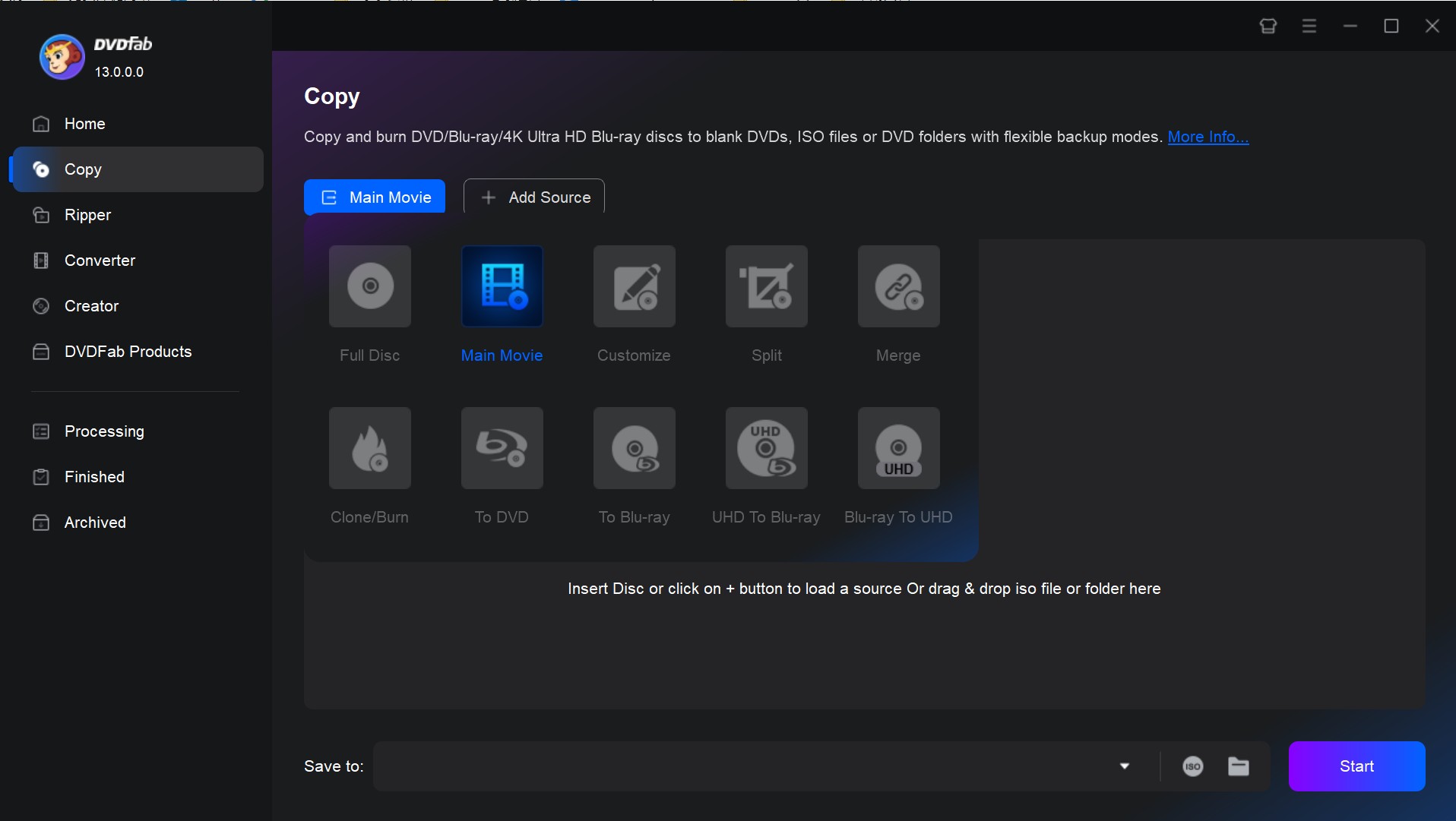
Step 1: Load the Blu-ray in DVDFab Blu-ray Copy Mode
Launch DVDFab, open the Copy module, choose the required copy mode, and insert the Blu-ray. If the source is already stored as an ISO or Blu-ray folder, click Add Source or drag it into the interface.
Step 2: Select Mac ISO Content and Output
Select the titles, chapters, audio tracks, and subtitles available in the chosen mode. Open Advanced Settings to set the output size, then click the ISO output icon and choose the destination folder.
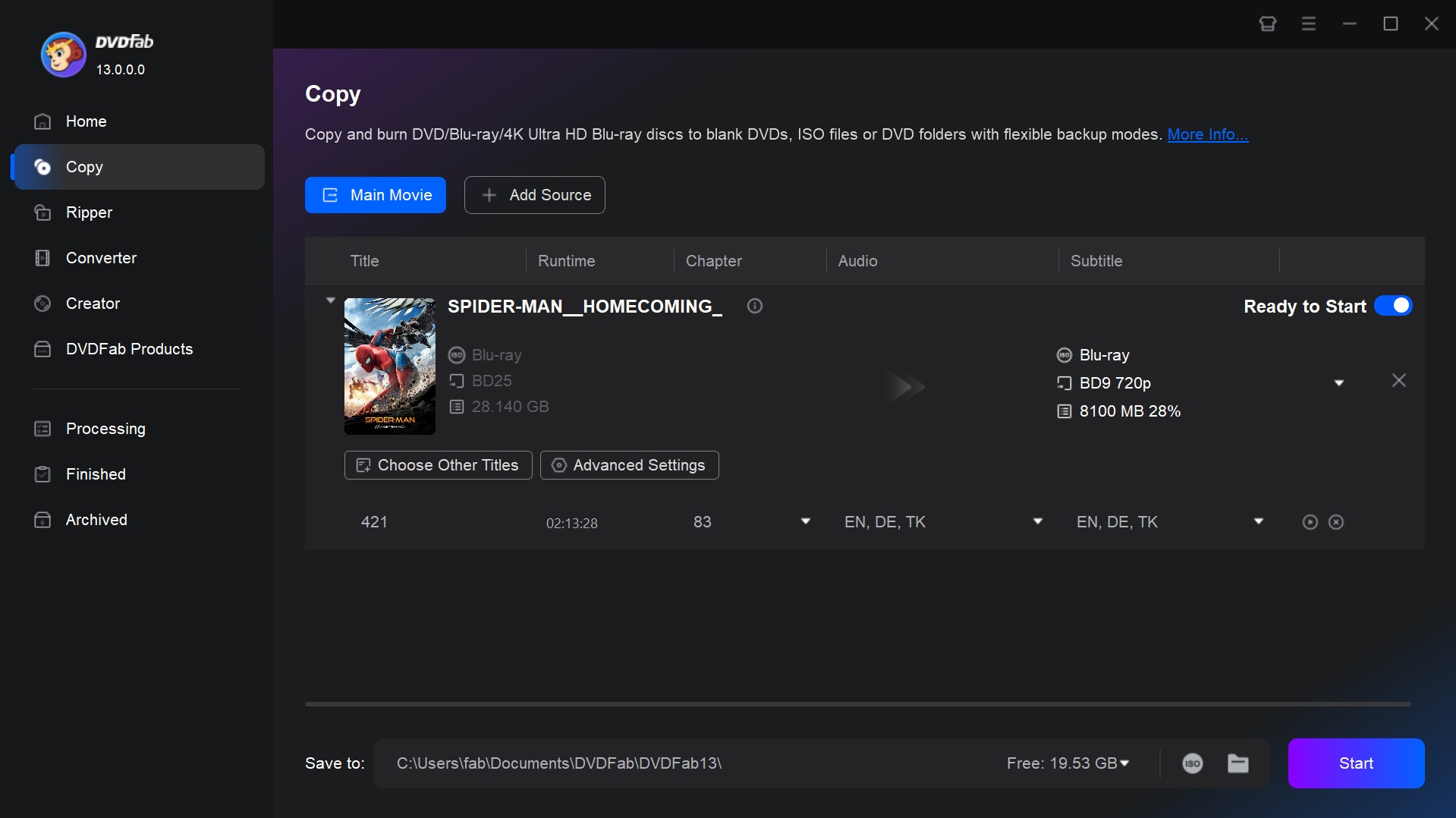
Step 3: Start to Rip Blu-ray to ISO
Click Start. DVDFab processes the Blu-ray and saves the ISO image to the selected location.
How to Check the Blu-ray ISO After Ripping
A finished Blu-ray ISO should contain the content you chose before copying. I reopen the image instead of treating a completed progress bar as proof that every title or track I wanted is present.
For a 1:1 or Full Disc ISO, mount or open the image in software that supports Blu-ray ISO or BDMV playback. Open the disc menu, start the main title, move through several chapters, and switch between the audio and subtitle tracks you expected to retain. If menus, alternate cuts, commentary tracks, or bonus features were the reason you selected Full Disc or Clone/Burn, open those items as well.
For a Main Movie or Customized ISO, confirm that the intended movie title, audio tracks, subtitles, and selected chapters remain in the image. Play sections near the beginning, middle, and end of the movie.
A compressed ISO has been re-encoded. Check playback and the visible output instead of assuming that the video remains identical to the source.
FAQs
ImgBurn can create an ISO from an existing Blu-ray folder on Windows through Build mode. Select Create image file from files/folders, add the complete Blu-ray folder, set the Blu-ray-compatible file system, choose the ISO destination, and start the Build process. Read mode starts with a physical disc; Build mode starts with files or folders already stored on the computer.
A Blu-ray ISO requires playback software or a device that can open the ISO or the Blu-ray structure inside it. Some applications can open the image directly, while others require the ISO to be mounted first. Menu support also varies, so a player that opens the main movie may not support the original BD-J menu.
Yes. Use an image-writing function to write the existing ISO to compatible Blu-ray media. In ImgBurn, select Write image file to disc, choose the ISO as the source, select the Blu-ray writer as the destination, and start the write process. The ISO must also fit the blank disc; a BD50-sized ISO normally requires compatible dual-layer media.
Conclusion
The ISO format is useful when you want to keep Blu-ray structure rather than convert only the movie into a video file. On Windows, DVDneXtCOPY Blu-ray Copy can create ISO images from protected commercial Blu-rays and provides separate modes for 1:1, full-disc, main-movie, and customized copies. ImgBurn can image readable Blu-rays for free, but it does not decrypt protected commercial discs. On Mac, DVDFab Blu-ray Copy can create full-disc, selected-content, compressed, or 1:1 Blu-ray ISO images.
Choose the copy mode according to what you actually want to keep, then reopen the ISO and check the menu, movie, chapters, audio, subtitles, and extras that matter before you archive it.
 Steven VanceSep 17, 2026
How to Rip Blu-ray on Mac in 2026: 4 Workflows, 5 Methods
![How to Rip 3D Blu Ray: Pick MVC or SBS Before You Start [2026]](https://images.dvdnextcopy.com/2026/09/15/OCieIQbnp92l67jxKZzrGV_sFMToZiaa/feature_cover.jpg) Steven VanceSep 16, 2026
Steven VanceSep 16, 2026How to Rip 3D Blu Ray: Pick MVC or SBS Before You Start [2026]
 Steven VanceSep 15, 2026
Convert BDMV to MP4 on Windows or Mac: Choose the Right Method
 Luna MillerSep 15, 2026
How to Convert BDMV to MKV in 2026: Folder, Remux, or Re-Encode?
 Luna MillerSep 15, 2026
Blu-ray Authoring Software for Windows and Mac: 2026 Picks by Project
 Luna MillerSep 8, 2026
Best Free Blu-ray Copy Software in 2026: Reviews & How-to Guide