 DVDneXtCOPY Blu-ray Ripper
Rip Blu-ray to MKV in 2026: 3 Tools for Lossless or Smaller Files

Summary: To rip Blu-ray to MKV, use a Blu-ray-capable drive for a physical disc, then choose a remux if you want selected source streams without re-encoding or an encode if you need a smaller file. DVDneXtCOPY Blu-ray Ripper supports Blu-ray disc, ISO, and folder sources with MKV output choices on Windows; MakeMKV focuses on selected-stream remuxing, while HandBrake creates a newly encoded MKV from sources it can read.
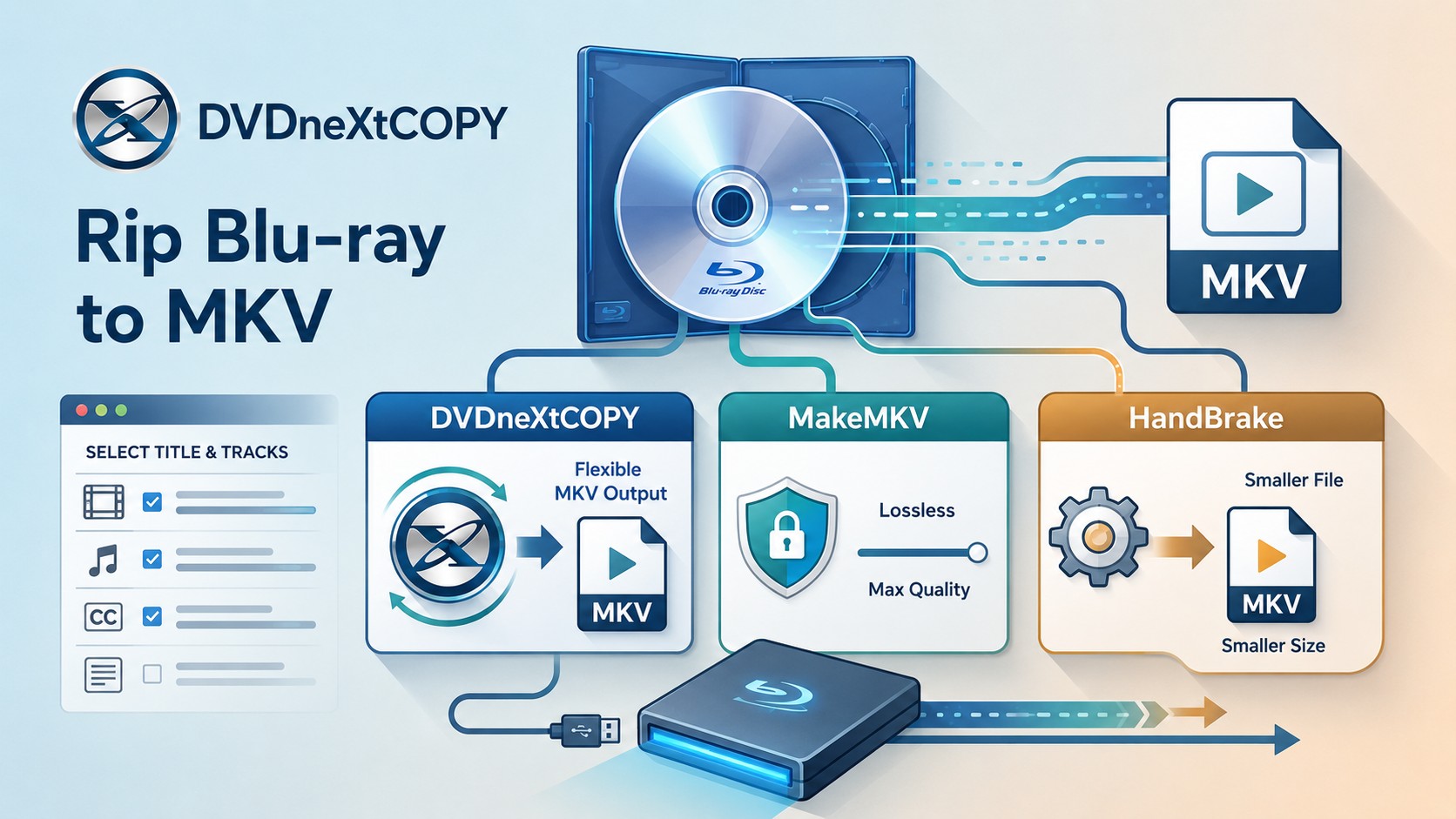
Table of Contents
Ripping a Blu-ray to MKV stores the movie or episode you choose in one file together with selected audio tracks, subtitles, and chapters. A physical disc requires a Blu-ray-capable optical drive; an existing Blu-ray ISO or BDMV folder can be opened from storage by software that supports that source.
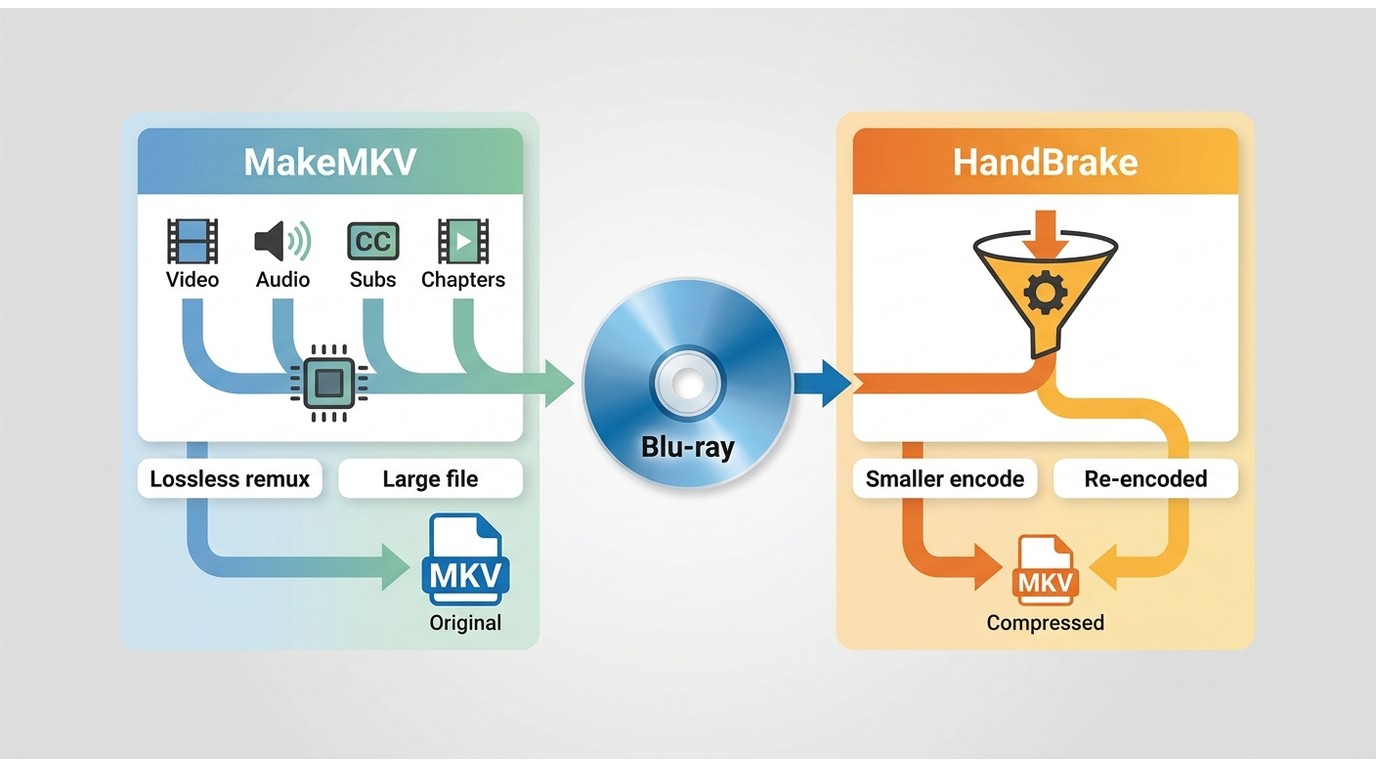
Choose a remux when you want the selected Blu-ray video and audio streams without another video encode. Choose an encode when you need a smaller MKV or a different video codec for playback. A remux usually remains large because the encoded media streams are retained, while an encode creates a new video stream and can reduce file size.
Use only discs and backups you own or are authorized to copy, and follow the law that applies where you live.
Before You Rip Blu-ray to MKV: Drive, Storage, and Output Choice
Physical Blu-ray Disc or Existing ISO/Folder?
A standard DVD drive cannot read a Blu-ray disc. For a physical source, confirm that the computer recognizes a Blu-ray-capable drive and that the ripping software can see the disc before changing output settings. If the source is already stored as a Blu-ray ISO or BDMV folder, use software that can open that stored source directly.
Check the contents before ripping. A movie disc may include alternate cuts, commentary, several subtitle tracks, and bonus titles, while a TV disc may contain several episodes. Runtime and chapter count can help identify a title, but they should be checked rather than treated as a guarantee that the default selection is the main feature.
Lossless Remux or Smaller Encode?
A remux moves selected encoded streams into MKV without re-encoding the video. An encode creates a new video stream so you can reduce file size or change the codec. MKV can carry selected audio, subtitle, and chapter information in either case, but it does not reproduce the full interactive Blu-ray menu.
| Tool | Blu-ray source | Video handling | Main reason to use it | Desktop OS |
|---|---|---|---|---|
| DVDneXtCOPY Blu-ray Ripper | Protected Blu-ray disc, ISO, folder | MKV Passthrough or encoded output | Choose between original-stream MKV and a smaller encoded file in one program | Windows |
| MakeMKV | Blu-ray disc or supported stored source | Remux; no new video encode | Keep selected source streams in MKV | Windows, macOS, Linux |
| HandBrake | Readable Blu-ray, BDMV, ISO, or existing file | Re-encode | Create a smaller or differently encoded MKV | Windows, macOS, Linux |
Rip Blu-ray to MKV with DVDneXtCOPY Blu-ray Ripper
DVDneXtCOPY Blu-ray Ripper can rip protected Blu-ray to MKV from a disc, ISO image, or Blu-ray folder on Windows. After the source loads, you can review the title, choose the audio and subtitle tracks you need, and select MKV Passthrough when you want to keep the existing encoded streams or an encoded MKV profile when file size or codec choice matters more.
Both output types are available in the same Ripper, so one disc can remain an original-stream MKV while another can be encoded for a smaller library file.
How to Rip a Blu-ray to MKV with DVDneXtCOPY Blu-ray Ripper
Step 1: Load the Blu-ray source. Open DVDneXtCOPY, switch to the Ripper module, and insert the physical disc or add a Blu-ray ISO or folder. Confirm that the correct source appears before selecting an output.

Step 2: Review the detected title. Check the runtime and chapters, then use the title selector if the disc contains episodes, alternate cuts, bonus material, or more than one feature.
Step 3: Choose the MKV output. Select MKV.Passthrough when avoiding another video encode is the priority. Choose an encoded MKV profile when you need a smaller file or different video settings.

Step 4: Select audio and subtitles. Keep the languages, commentary, and subtitle tracks you expect to use later. Review forced subtitle needs before starting the rip.

Step 5: Set the destination and start ripping. Choose a folder with enough free space, especially for Passthrough output, and start the job.
Step 6: Reopen the MKV. Confirm the title and runtime, switch through the selected audio and subtitle tracks, and test chapter navigation. If you encoded the video, also play the file on the device or media server where it will be used.
Rip Blu-ray to MKV with MakeMKV Without Re-encoding
MakeMKV handles Blu-ray to MKV as a selected-stream remux. Open the Blu-ray source, inspect the title tree, keep the movie or episodes you want with the required audio, subtitle, and chapter information, and save those streams into MKV without creating a new video encode.
No video quality or bitrate setting is required because MakeMKV does not recompress the selected video stream. The resulting MKV can still be very large, so use an encoder afterward if storage becomes more important than retaining the existing encoded stream.
How to Rip Blu-ray to MKV with MakeMKV
Step 1: Open the source. Insert the Blu-ray and select the optical drive, or open a supported source stored on the computer.
Step 2: Scan the contents. Let MakeMKV build the title tree, then compare title runtimes and chapter information before selecting the movie or episodes.

Step 3: Select the tracks. Expand the chosen title and keep the audio and subtitle tracks you need.
Step 4: Set the output folder and select Make MKV. Use a destination with enough free space for the selected source streams.
Step 5: Verify the result. Reopen the MKV, check the runtime, switch audio and subtitle tracks, and test chapters. Rename episodic outputs after confirming the episode order.
Convert a Readable Blu-ray Source to a Smaller MKV with HandBrake
HandBrake converts a readable Blu-ray source to MKV by encoding a new video stream. It can work with readable Blu-ray discs and disc backups, including BDMV folders and ISO images in many cases, and it provides MKV output with encoders such as H.264, H.265, and AV1.
Use HandBrake when storage or playback compatibility requires a new encode rather than an original-stream remux. HandBrake does not provide video passthrough and does not defeat or circumvent copy protection, so the Blu-ray source must already be readable by the program.
How to Convert Blu-ray to MKV with HandBrake
Step 1: Open a readable source. Select the Blu-ray source HandBrake can access.
Step 2: Select the title. Check the runtime and chapters after the scan finishes rather than relying on the longest title alone.
Step 3: Choose MKV, an encoder, and a quality target. Select settings that match the devices where the file will play. Encode a short sample first when you are unsure about the quality and file-size balance.

Step 4: Choose the audio and subtitle tracks you need. Keep the languages, commentary, and subtitle tracks that should remain available in the finished MKV.

Step 5: Start Encode and verify the file. After the encode finishes, play the beginning, middle, and end, switch audio and subtitle tracks, and test chapters before replacing or archiving the larger source.
Check the Finished MKV and Fix Blu-ray Reading Problems
Before deleting or archiving the source, reopen the MKV and confirm the parts that are difficult to recover later.
- Title and runtime: Confirm that the file is the movie, cut, or episode you intended to keep.
- Audio: Switch through the languages or commentary tracks you selected.
- Subtitles: Confirm that required subtitle tracks are present and display correctly.
- Chapters: Test chapter navigation when chapter markers matter.
- Playback: If the video was encoded, test it on the intended television, media box, computer, Plex, Jellyfin, or other player.
- File name: Name movies and episodes so they remain identifiable after the disc is back on the shelf.
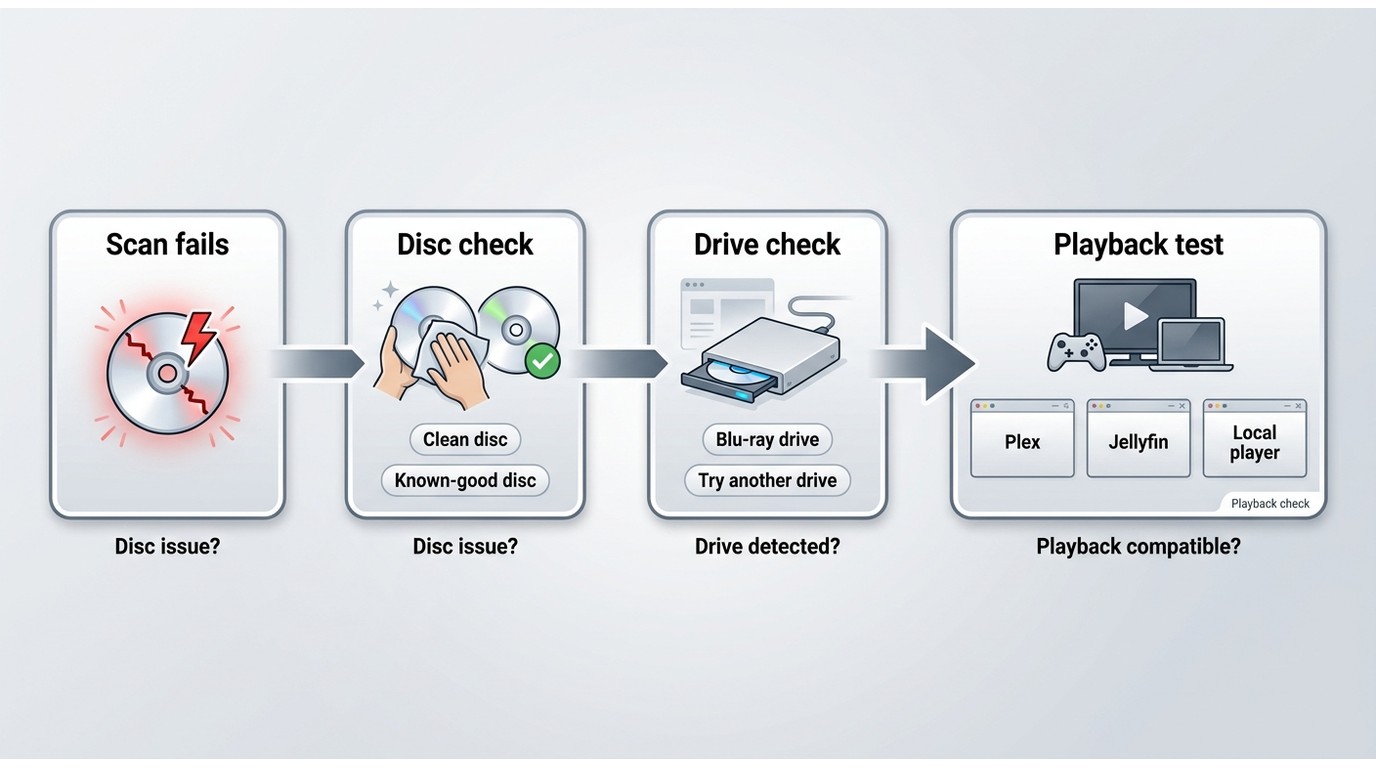
If a physical Blu-ray does not scan, inspect the disc, test another known-good Blu-ray, and confirm that the computer recognizes the Blu-ray drive. If another disc works, investigate the first disc; if neither source appears, check the drive connection and the software's source detection before changing conversion settings.
FAQs
Do I need a Blu-ray drive to rip Blu-ray to MKV?
For a physical Blu-ray disc, use an optical drive that can read Blu-ray media. If the source is already stored as a readable ISO, BDMV folder, or supported video file, the conversion can work from that stored source instead.
ADoes ripping Blu-ray to MKV lose quality?
A remux or MKV Passthrough keeps the selected encoded video stream without a new video encode. An encoded MKV creates a new video stream, so it trades some source fidelity for choices such as a smaller file or a different codec.
AWhy is my Blu-ray MKV file so large?
A remux does not compress the video again. High-bitrate Blu-ray video and audio can therefore remain large after they are placed in an MKV container; use an encoded output when reducing storage is the priority.
ADoes MKV keep Blu-ray menus, subtitles, and chapters?
MKV can hold selected video, audio, subtitle, and chapter information, but it does not reproduce the full interactive Blu-ray menu structure. Check the finished file to confirm that the tracks you selected are present and usable.
ACan HandBrake rip Blu-ray directly to MKV?
HandBrake can encode a Blu-ray source that it can read and save the result as MKV. It re-encodes video rather than performing a no-video-reencode remux, and it does not defeat or circumvent copy protection.
AConclusion
Use DVDneXtCOPY Blu-ray Ripper when you want both MKV Passthrough and encoded MKV choices on Windows. Use MakeMKV when the priority is a selected-stream remux without another video encode, and use HandBrake when a readable source needs to become a smaller or differently encoded MKV. Keep the disc, ISO, or folder until you have reopened the finished MKV and checked its title, runtime, audio, subtitles, and chapters.
 Steven VanceSep 17, 2026
How to Rip Blu-ray on Mac in 2026: 4 Workflows, 5 Methods
![How to Rip 3D Blu Ray: Pick MVC or SBS Before You Start [2026]](https://images.dvdnextcopy.com/2026/09/15/OCieIQbnp92l67jxKZzrGV_sFMToZiaa/feature_cover.jpg) Steven VanceSep 16, 2026
Steven VanceSep 16, 2026How to Rip 3D Blu Ray: Pick MVC or SBS Before You Start [2026]
 Steven VanceSep 15, 2026
Convert BDMV to MP4 on Windows or Mac: Choose the Right Method
 Luna MillerSep 15, 2026
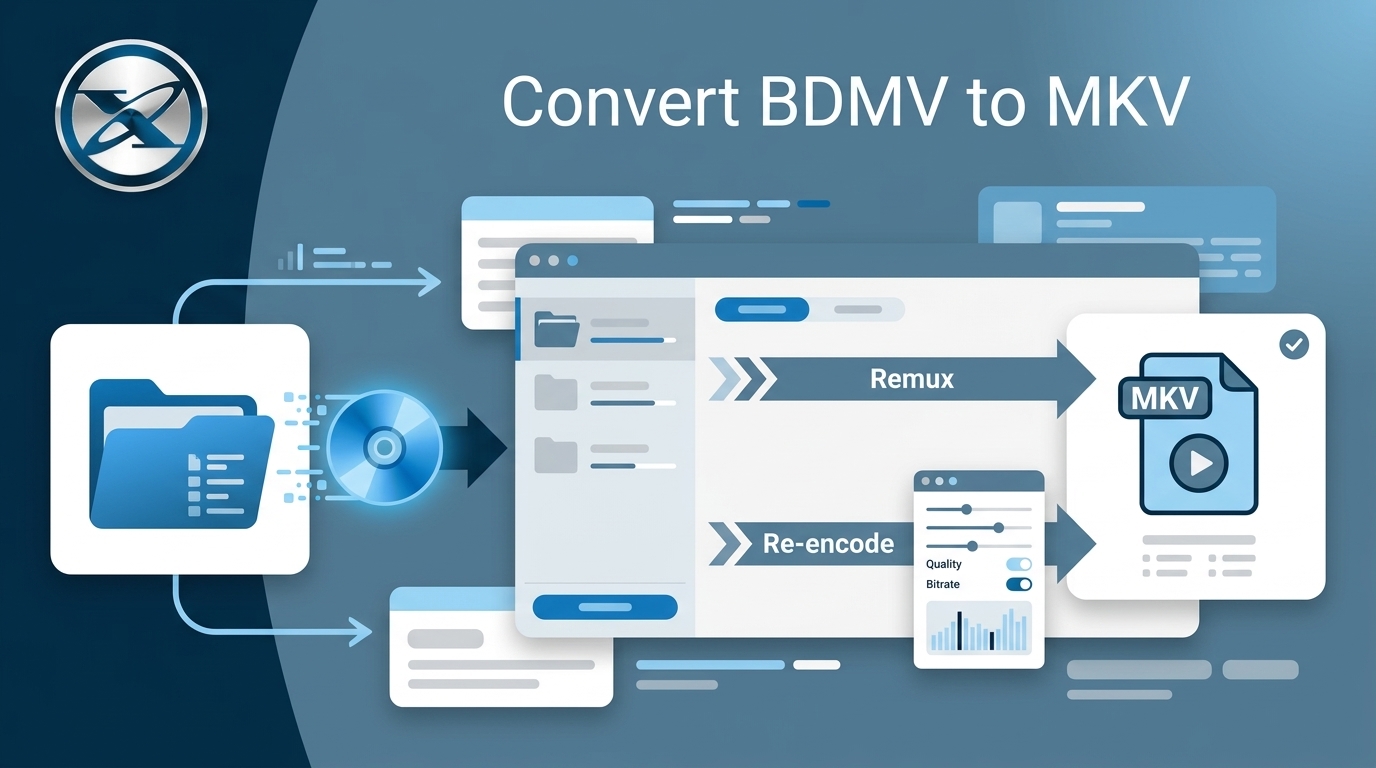
How to Convert BDMV to MKV in 2026: Folder, Remux, or Re-Encode?
 Luna MillerSep 15, 2026
Blu-ray Authoring Software for Windows and Mac: 2026 Picks by Project
 Luna MillerSep 8, 2026
Best Free Blu-ray Copy Software in 2026: Reviews & How-to Guide