 DVDneXtCOPY DVD Ripper
Vudu Disc to Digital (Now Fandango at Home): How It Works & Eligible Titles

Summary: Vudu Disc to Digital now runs under Fandango at Home and adds an eligible electronic copy to your Fandango library rather than creating an MP4 or MKV file. Use the current browser-based Disc to Digital process to scan the retail UPC, confirm eligibility and quality, and check the finished title in My Library. If you need a local file instead, use the matching DVD or Blu-ray ripping software for that separate task.
Table of Contents
Vudu Disc to Digital still exists, but Vudu is now called Fandango at Home. The 2024 name change did not remove existing Vudu libraries or accounts, so older searches for "Vudu Disc to Digital" now refer to the same Disc to Digital feature under the Fandango at Home brand.
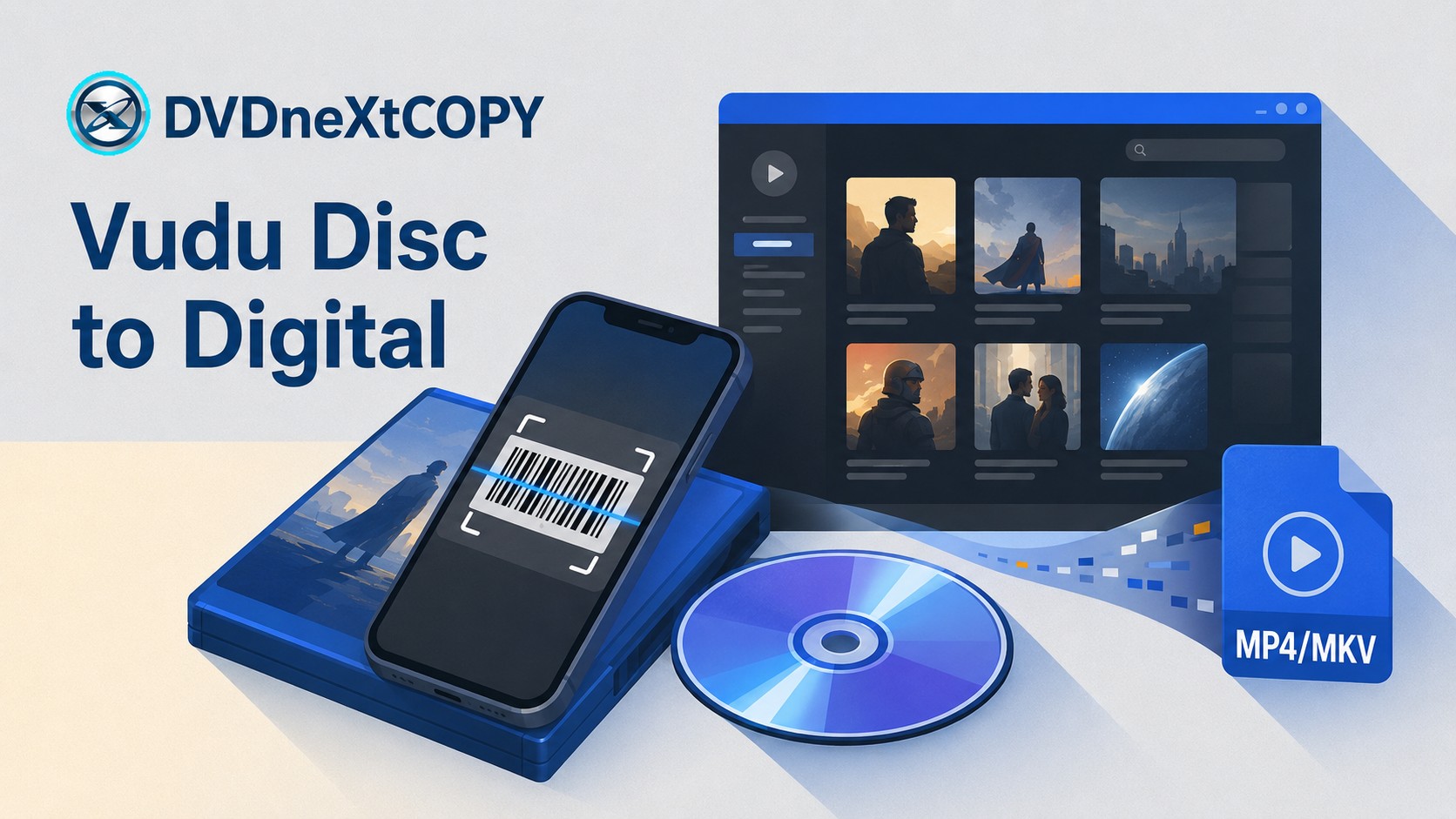
Disc to Digital does not create an MP4 or MKV file from the disc. It converts an eligible physical DVD or Blu-ray title into an electronic copy stored and viewed through Fandango. If you need a video file that you can save, rename, move to another drive, or manage in your own media library, local DVD ripping software serves a different purpose.
Vudu Disc to Digital Is Now Fandango at Home
The old Vudu name remains useful when searching for instructions, compatible-title lists, and barcode problems, but the current service is Fandango at Home. Fandango still lists Disc to Digital as a current feature.
| Method | What You Get |
| Fandango at Home Disc to Digital | An electronic copy stored and viewed through your Fandango account |
| Local disc-ripping software | A video file such as MP4 or MKV stored on your own drive |
Fandango limits Disc to Digital to physical Blu-ray and DVD titles that were legitimately purchased, are still owned by you, have not already been used in a Disc to Digital conversion, and are currently eligible for the program.
How to Use Fandango at Home Disc to Digital
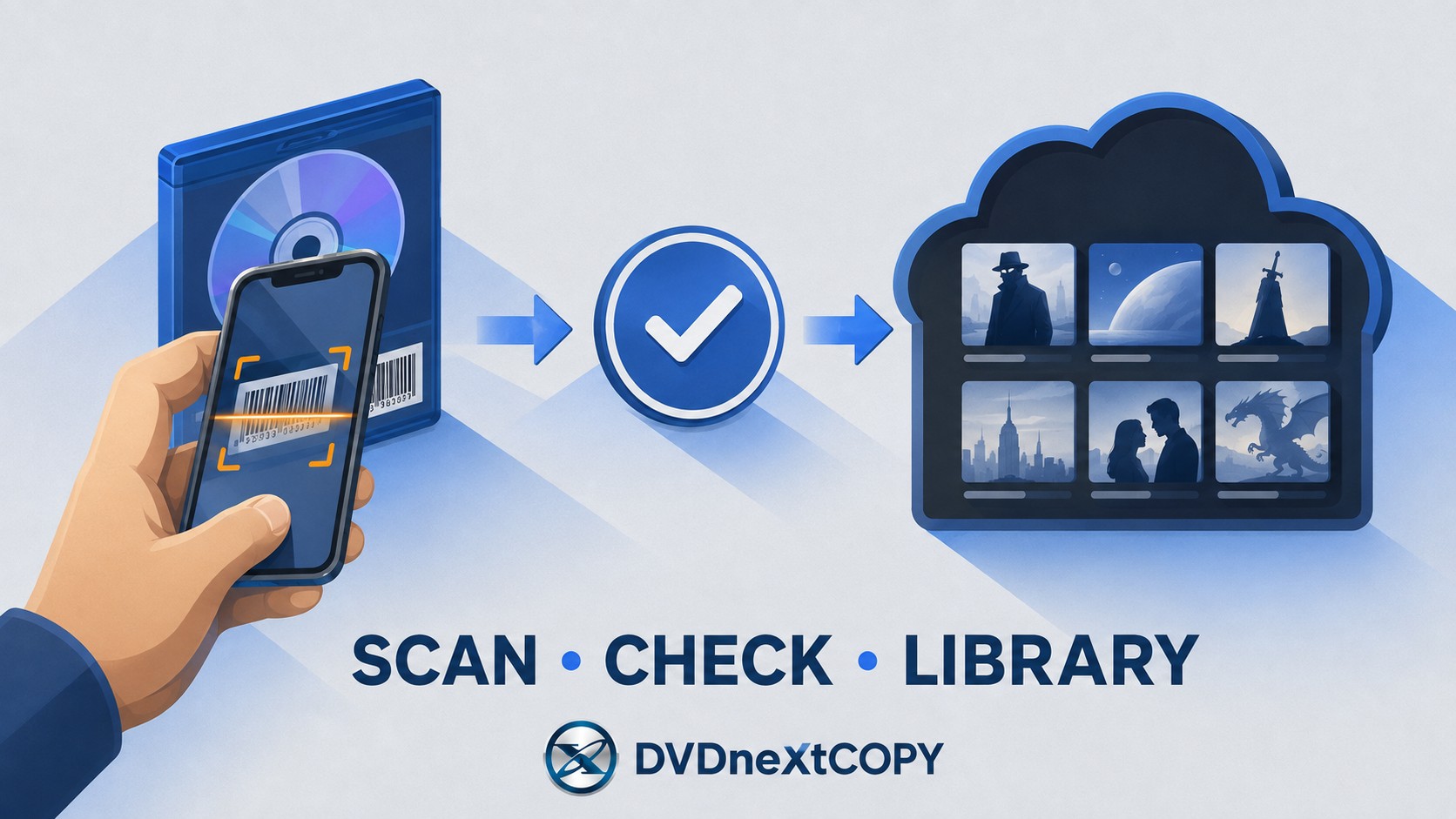
The current process starts from the Fandango at Home Disc to Digital page in a web browser rather than the old Vudu mobile-app workflow. On a phone or tablet, sign in, choose Convert Disc, and use the device camera to capture the retail barcode on the DVD or Blu-ray packaging.
Before You Scan the Disc
Keep the original DVD or Blu-ray package nearby because the service uses the retail UPC rather than reading the movie data from an optical drive. The title also has to satisfy Fandango's current eligibility rules: it must be an eligible physical DVD or Blu-ray title that you legitimately purchased, presently own, and have not already used for a previous Disc to Digital conversion. Fandango's current Streaming Policy states that its streaming service is available only within the United States.
A movie being available to rent or buy on Fandango does not automatically make every physical edition eligible for Disc to Digital. The current barcode match remains the practical check for the copy you own.
Scan the Barcode and Add the Digital Copy
Step 1: Open the Fandango at Home Disc to Digital page in a mobile browser, choose Convert Disc, and sign in to the account where you want the electronic copy stored.
Step 2: Allow camera access, then photograph the retail UPC on the DVD or Blu-ray package. Keep the barcode in focus and move closer if the first image is not recognized.
Step 3: Check the matched movie and edition before paying. If the scan resolves to the wrong title or does not produce an eligible conversion, do not complete checkout.
Step 4: Choose the available digital quality. Current Disc to Digital conversions are offered in SD or HDX rather than a 4K UHD conversion tier.
Step 5: Complete the transaction, reopen My Library, and confirm that the expected title appears at the expected quality. The result is an account-based electronic copy, not an MP4 or MKV extracted from the physical disc.
Vudu Disc to Digital List: Prices, Eligible Titles & Annual Limit
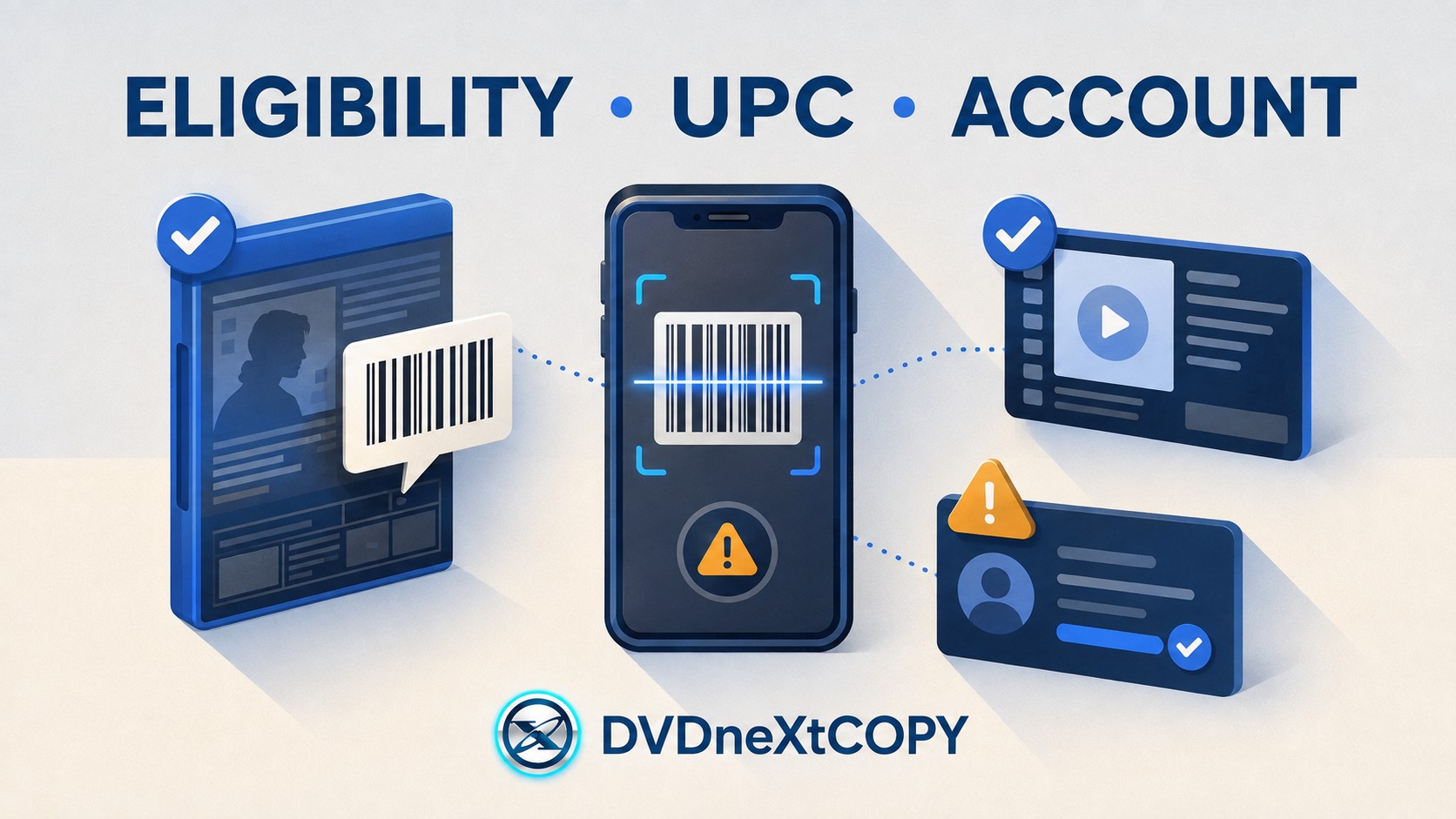
The phrase Vudu Disc to Digital list usually refers to the movies and retail disc barcodes that are eligible for conversion. The eligible catalog is not the same as Fandango's full movie store, because a title can only be scanned while it qualifies for the Disc to Digital program.
How Much Does Disc to Digital Cost?
| Physical Disc | Digital Copy | Current Price |
| DVD | SD | US$2 + tax |
| DVD | HDX | US$5 + tax |
| Blu-ray | HDX | US$2 + tax |
The US$5 option is the DVD-to-HDX upgrade, not a general Blu-ray price. Disc to Digital also does not currently provide a 4K UHD conversion tier. Check the price shown at checkout before confirming, because Fandango may change service fees over time.
How to Check the Vudu Disc to Digital List
A third-party movie list can help identify titles that have been known to participate, but it should not be treated as a permanent guarantee. Fandango's current policy only permits conversion while a title is currently eligible, so the current Disc to Digital barcode match is the final check for the retail edition you own.
Two copies of the same movie can also use different retail UPCs. Confirm the barcode on your own package instead of assuming that seeing the movie title on a general list guarantees the scan.
The 100-Title Annual Limit
Fandango's current Streaming Policy allows a maximum of 100 physical Blu-ray and DVD titles per calendar year through Disc to Digital. The policy uses the word titles, so "100 eligible titles per year" is more accurate than describing the limit simply as 100 discs.
Why Fandango Disc to Digital Won't Scan or Convert a Disc
A failed scan does not automatically mean the phone camera is the problem. Check title eligibility, previous conversion status, the annual allowance, and the retail barcode separately.
The Title Is Not Currently Eligible
Fandango only permits a Blu-ray or DVD to be scanned while that title is eligible for Disc to Digital. A movie can still exist in Fandango's normal store without qualifying for this conversion program.
The Disc Was Already Used for Disc to Digital
Fandango's current policy says that a physical title used for Disc to Digital must not have been previously used in a Disc to Digital conversion. If you converted the title before, check your Fandango library before trying the same package again.
You Reached the Annual Limit
The account-level limit is 100 qualifying physical Blu-ray and DVD titles per calendar year. Once that allowance is exhausted, another eligible title can still be rejected for the remainder of the year.
The Barcode Does Not Match
Use the retail UPC on the outer DVD or Blu-ray package rather than a secondary production, inventory, or internal code. If the service identifies a different movie or edition, stop before checkout and confirm that the correct package barcode is in frame.
Fandango Disc to Digital and Movies Anywhere
Movies Anywhere is not a second Disc to Digital barcode service. The physical-disc conversion happens through Fandango, while Movies Anywhere connects eligible movie entitlements among participating digital retailers.
Fandango's current Streaming Policy says that using Disc to Digital may require a Movies Anywhere account linked to your Fandango account. Eligible movies can then participate in entitlement sharing according to Movies Anywhere and retailer rules, but not every title is guaranteed to sync.
Want an MP4 or MKV Instead? Use Local Ripping Software
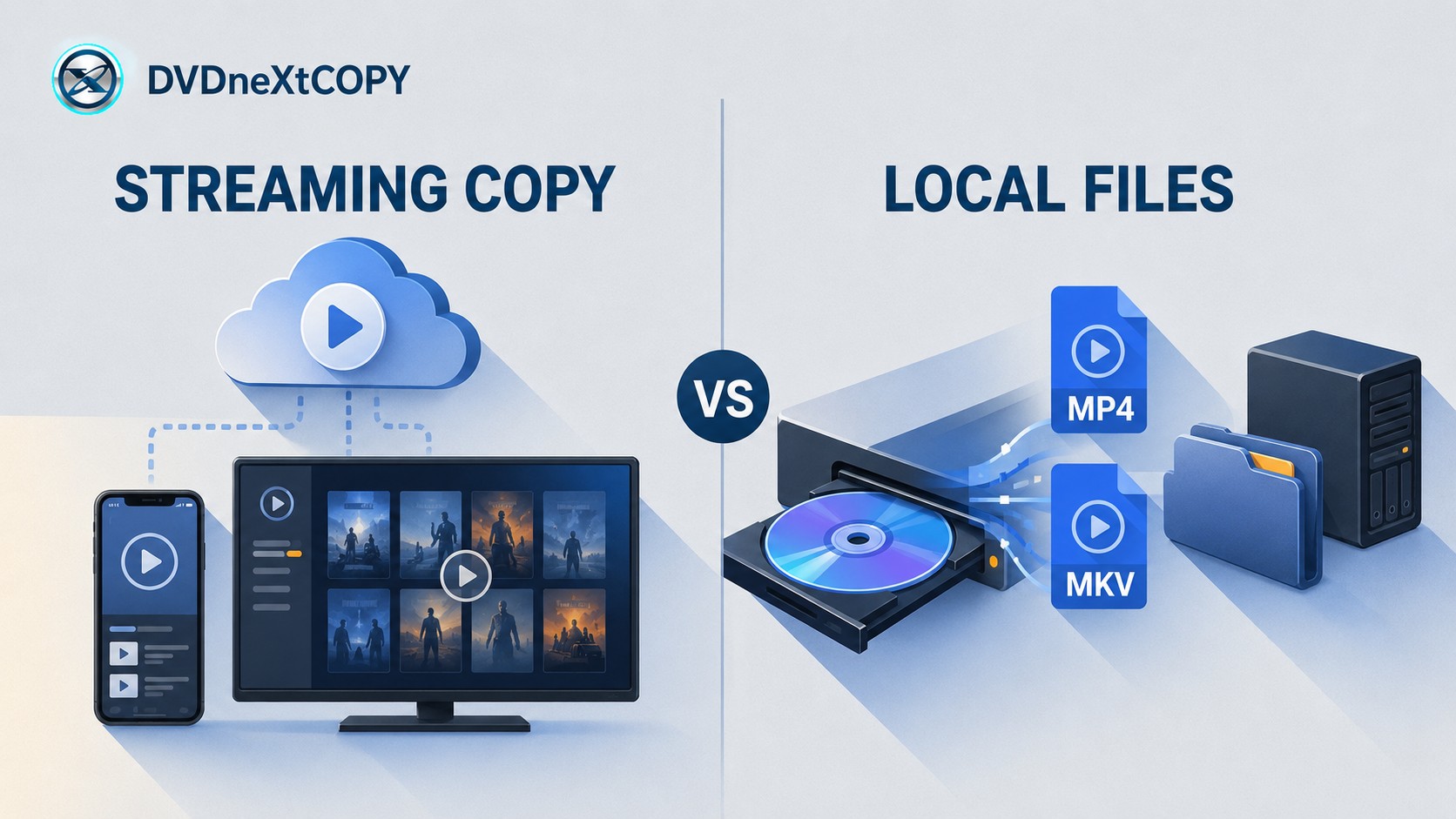
Fandango Disc to Digital is for an electronic copy in an online movie library. If you need a file that lives on your own drive so you can name it, organize it in a media server, or choose which audio and subtitle tracks to keep, use local disc-ripping software instead.
Use discs you own or have permission to copy, and follow the law that applies where you live.
DVDneXtCOPY DVD Ripper for DVD Sources
DVDneXtCOPY DVD Ripper can rip and digitize copy-protected DVDs/ISO files/folders to different media formats, including MP4, MKV, AVI, MP3, and more. It helps you play your lossless-quality videos on any media player, mobile phone, or home theater. It can bypass some Vudu disc to digital limits whether mobile conversion limits, region limits, or movie library limits to make seamless digital conversions.

DVDneXtCOPY Blu-ray Ripper for Blu-ray Sources
For a Blu-ray source, use DVDneXtCOPY Blu-ray Ripper. The Blu-ray Ripper accepts protected Blu-ray discs, ISO images, and folders and can create local video outputs such as MP4 or MKV while letting you select titles, audio, and subtitles.
FAQs
Q1. Can I use a second-hand DVD or Blu-ray with Disc to Digital?
A1. Fandango's current policy requires the physical title to be legitimately purchased, presently owned by you, and not previously used for a Disc to Digital conversion. A used copy can therefore fail if that physical title was already used for the program.
Q2. Does Disc to Digital preserve the DVD or Blu-ray menu and bonus features?
A2. Not as a full-disc copy. Fandango provides an electronic version that it determines is comparable to the physical title, so Disc to Digital should not be treated as a backup of the original menu, disc structure, or every extra on the disc.
Q3. What should I do if the barcode matches the wrong movie or edition?
A3. Do not complete checkout. Check that you scanned the retail UPC from the correct package and confirm the matched title and edition before paying.
Q4. Can one physical disc be used for Disc to Digital more than once?
A4. Fandango's current policy says the physical title must not have been previously used in a Disc to Digital conversion.
Conclusion
Fandango at Home Disc to Digital makes sense when you own an eligible DVD or Blu-ray and want an electronic copy added to your Fandango library. Before paying, confirm the UPC match, available quality, current eligibility, and annual allowance, then reopen My Library to make sure the expected title was added. Fandango currently limits Disc to Digital to 100 eligible physical Blu-ray/DVD titles per calendar year.
Use local ripping software only when you need an MP4 or MKV that you can store and organize yourself. DVDneXtCOPY DVD Ripper covers DVD disc, ISO, and folder sources, while Blu-ray sources require the corresponding Blu-ray Ripper.
 Luna MillerOct 8, 2026
How to Block Someone on TikTok: App & Website Guide
 Luna MillerSep 21, 2026
10 Free Sites to Download Subtitles for Movies & TV Shows in 2026
 Luna MillerSep 17, 2026
How to Delete a TikTok Story in 5 Steps (2026)
 Luna MillerSep 16, 2026
How to Fix Cinavia Message Code 3: Start With the Source
![WinX DVD Author Review & Tutorial: Features, How to Use, and Limits [2026]](https://c.dvdnextcopy.com/uploads/images/17884278134315877-5212fbb54f6ef7f5e20bf1765fc74e79.jpg) Luna MillerSep 3, 2026
Luna MillerSep 3, 2026WinX DVD Author Review & Tutorial: Features, How to Use, and Limits [2026]
 Luna MillerAug 31, 2026
How to Rip a DVD with HandBrake in 2026: Steps, Settings & Limitations