 DVDneXtCOPY DVD Creator
3 Best Free DVD Maker Tools for Playable DVDs in 2026

Summary: DVDneXtCOPY DVD Creator is the best-value Windows DVD maker software here, combining with menu authoring, flexible DVD output, GPU acceleration, and preview controls. DVDStyler is the genuinely free and open-source choice, while DVDFab DVD Creator offers the broadest built-in authoring and editing feature set of the three on both Windows and macOS.
Table of Contents
A useful free DVD maker should match your operating system, support the menus and tracks you need, and produce a disc that works in your intended player. In this article, I'll compare three DVD maker software options for home videos and other media you are authorized to use, followed by a clear explanation of DVD-Video authoring.
3 Best DVD Makers Comparison at a Glance
DVDneXtCOPY DVD Creator is a lower-cost paid option for Windows, DVDStyler is completely free and open source, and DVDFab DVD Creator is a more full-featured commercial option for Windows and macOS. Their operating-system support, authoring features, and output options also differ.
| Tool | Free status and limits | Operating systems | Authoring features | Output |
|---|---|---|---|---|
| DVDneXtCOPY DVD Creator | $39.99 starting price; 30-day trial; up to 3 DVDs | Windows | Custom menus, audio/subtitles, disc settings, preview | Disc, ISO, folder |
| DVDStyler | Completely free and open source; no trial watermark | Windows, macOS, Linux/source builds | Menus, chapters, subtitles, multiple audio tracks | Disc, ISO, DVD folder |
| DVDFab DVD Creator | 30-day trial; paid upgrade | Windows, macOS | Menus, chapters, built-in video editor, subtitles | Disc, ISO, folder |
Operating-system availability, pricing, and trial terms are shown as of September 2026.
DVDneXtCOPY DVD Creator: Best Value DVD Maker for Windows
DVDneXtCOPY DVD Creator is a Windows DVD maker that starts at $39.99 and supports more than 200 video formats, including MP4, AVI, MOV, and MKV. It can create a playable DVD disc or save the project as an ISO image or DVD folder, with customizable menu templates for changing backgrounds, fonts, thumbnails, and navigation elements.
The program also lets you adjust audio tracks, subtitles, disc type, aspect ratio, output quality, and other DVD settings. GPU acceleration is available on supported hardware, and the built-in preview lets you check the menu and project settings before authoring. The free trial lasts 30 days and allows up to three DVD creations.
How to Make a Playable DVD with DVDneXtCOPY DVD Creator
Step 1: Launch DVDneXtCOPY, open the DVD Creator module, and click the Add button or drag your video files into the main window.

Step 2: Open Menu Settings to choose and customize a DVD menu. Set the disc type, output quality, audio or subtitle options, and destination based on the DVD project you want to create.

Step 3: Preview the project and confirm the settings. Choose a compatible DVD burner for a physical disc, or save the project as an ISO or DVD folder, then click Start to begin authoring.

DVDStyler: Free DVD Maker with Menus
DVDStyler is open-source and free DVD maker software for creating DVD-Video projects from formats such as MOV, AVI, and MKV. It supports custom menus, subtitles, audio tracks, and chapters. Its templates can look dated, but it remains a useful choice when you want menu authoring without a paid trial or watermark.
It suits users who are comfortable checking project settings and testing the finished output instead of relying on a fully guided authoring process.
How to Use DVDStyler to Make a Playable DVD
Step 1: Install and launch DVDStyler on your Windows PC. Then create a new project from the window that pops up.

Step 2: Choose a menu template from the provided categories.

Step 3: Add the video files using the "+" button at the top menu bar. You can also change the menu's background, click on each Menu option, then double-click the picture in the Backgrounds panel to switch it.

Step 4: Open the DVD Options window to adjust the video format (PAL/NTSC), audio format, chapter, disc size, etc.

Step 5: Click the "Save" or "Burn" button to save the DVD to your hard drive or burn it to a blank DVD.
DVDFab DVD Creator: Best Full-Featured Option for Windows and Mac
DVDFab DVD Creator is trial-based DVD maker software for Windows and macOS. It can author playable DVDs from more than 200 video formats, including MKV, MP4, AVI, and MOV, and save the project as a disc, ISO file, or DVD folder. It also provides customizable menu templates, chapter controls, audio and subtitle options, and real-time preview.
Among these three tools, DVDFab offers the broadest built-in authoring and editing feature set. Its video editor can trim and crop clips, add watermarks and filters, import external subtitles, and adjust image properties before authoring, while GPU acceleration supports the encoding and burning process on compatible hardware.
How to Make a Playable DVD with DVDFab DVD Creator
Step 1: Download and install DVDFab from its official site. Run DVDFab and switch to the Creator module on the left pane and choose "DVD Creator".
Step 2: Use the "+Add Source" button on the big "+" in the middle of the interface to load the video source you want to make a DVD. Adjust the audio options and subtitles, and import external subtitles if needed.
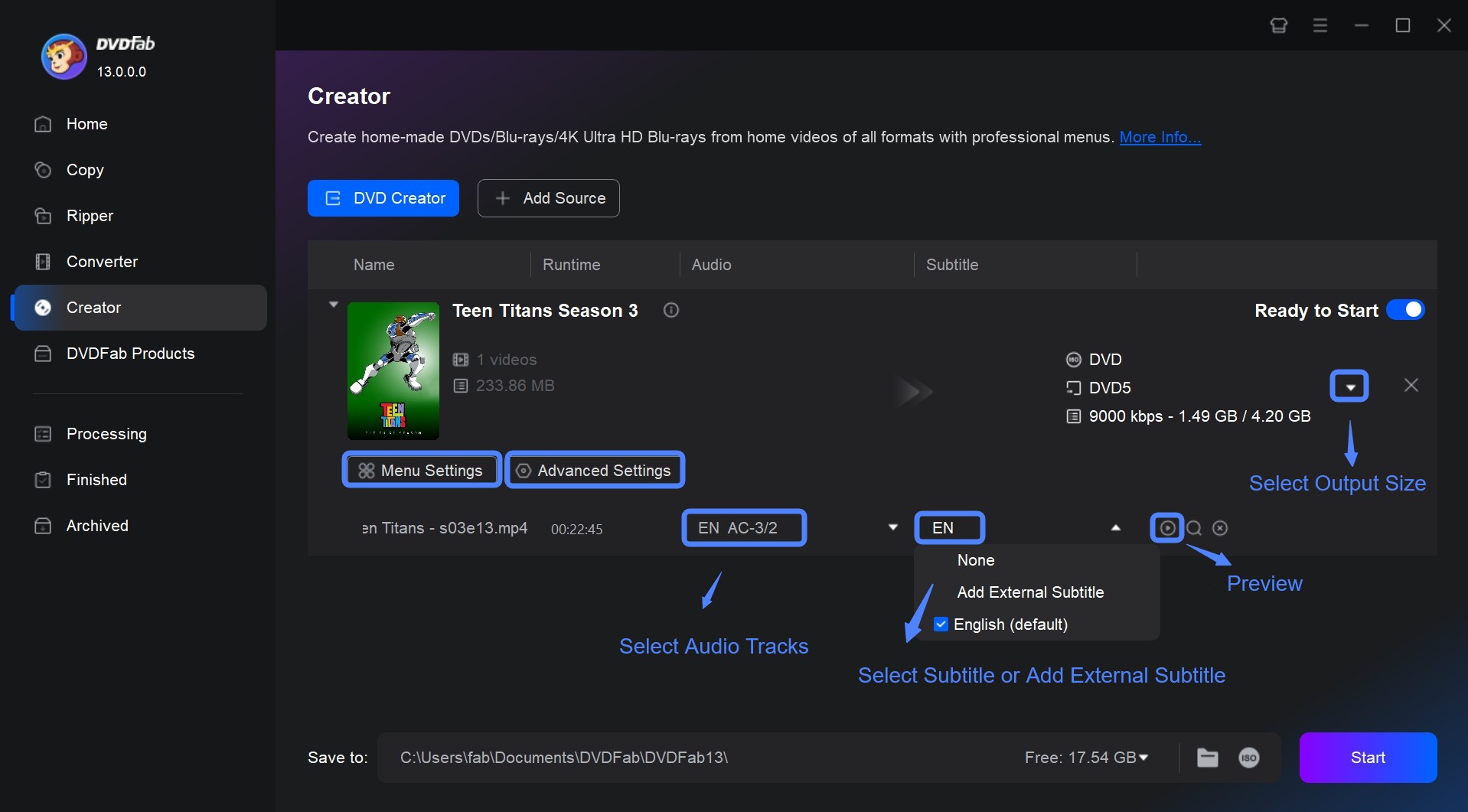
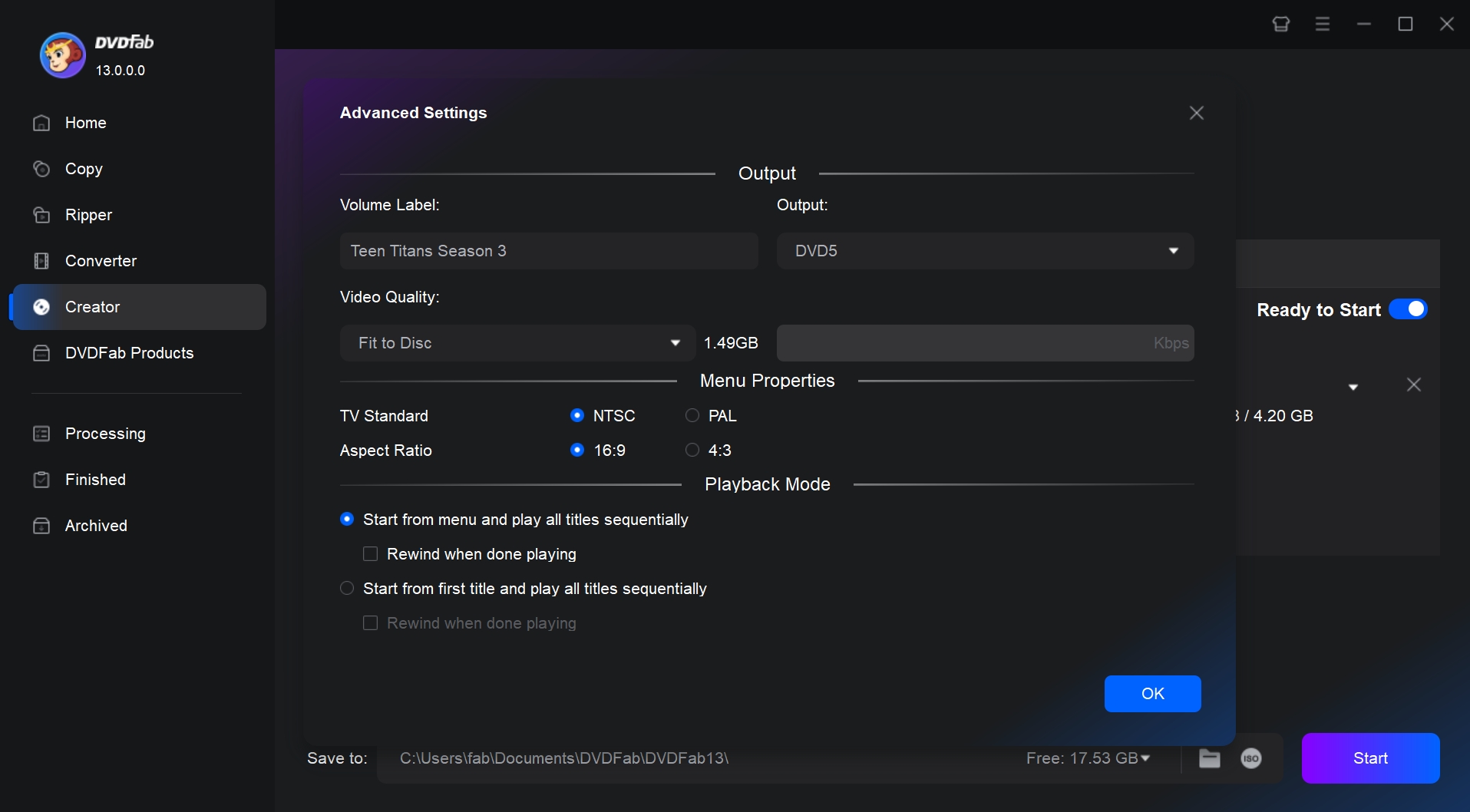
Step 3: Change the output to DVD-5 or DVD-9, adjust video quality, adjust the menu properties, and confirm how you want the DVD to play, start from the menu or start from the titles.
Step 4: If the source video needs changes before authoring, open Video Edit. You can trim unwanted clips, crop the frame, add text or image watermarks and filters, edit or import subtitles, and adjust brightness, contrast, and saturation. Preview the changes, then return to the Creator interface.
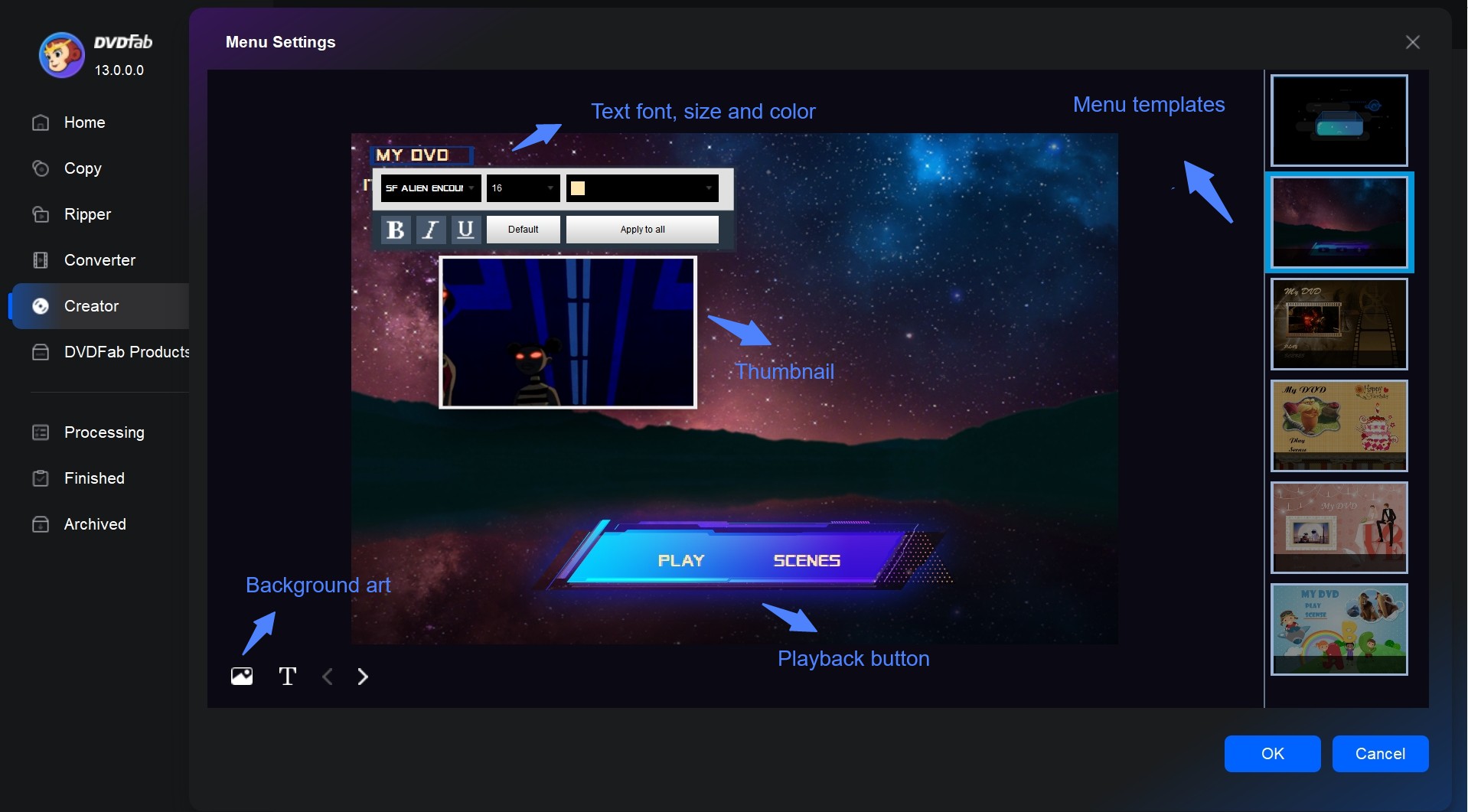
Step 5: Open Menu Settings, choose a menu template, and adjust the background, text, and buttons. Return to the main window after customizing the DVD menu.
Step 6: Set the "Save to" destination. Choose ISO or Folder to save the DVD to your hard drive, or select a compatible burner and insert a blank DVD to create a disc for a standalone DVD player.
Playable DVD Video vs Data Discs
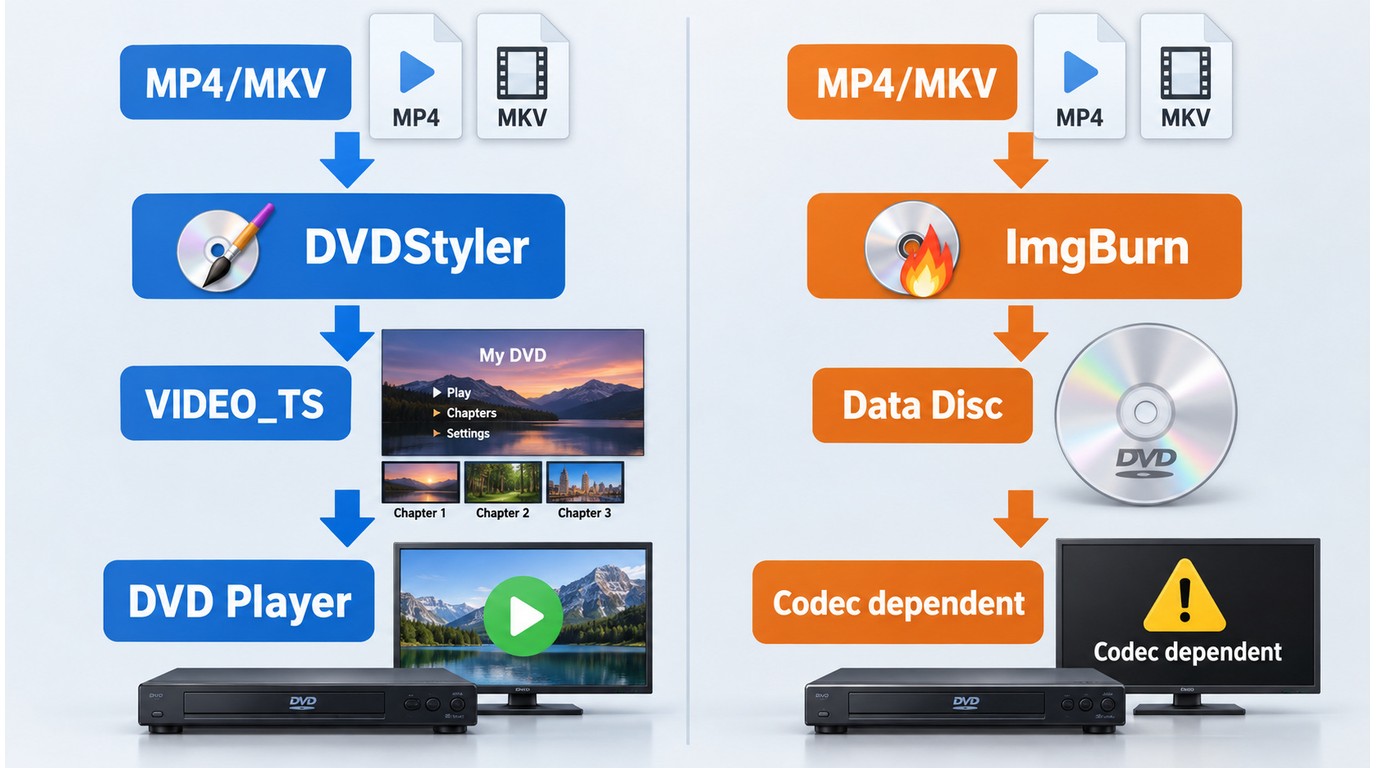
A playable DVD-Video disc uses DVD authoring software to convert and organize video into a structure that compatible standalone DVD players can read, with options such as menus and chapters. A data disc simply stores the original files, so playback depends on whether the device supports those file formats and codecs.
ImgBurn can write files, folders, and prepared disc images, but it does not author ordinary MP4 or MKV files into a menu-based DVD-Video structure. Its file-writing workflow is useful only after the DVD structure or disc image has already been prepared.

FAQs
Is a Free DVD Maker Built Into Windows 11?
A Windows 11 DVD-Video workflow needs authoring software, a compatible DVD burner, a blank writable disc, and enough storage for temporary files. Windows 11 does not include a built-in app for authoring menu-based DVD-Video discs, and the burner drive supplies the hardware rather than the authoring features.
Some of the desktop tools listed above also support older Windows versions.
Is DVDStyler Safe to Install?
Download DVDStyler from its official download page rather than a third-party installer site. Check the installer with your current security software before opening it.
Why Does a Burned DVD Stutter or Show Black Video?
- If encoding stalls, confirm that the source video plays from beginning to end, check the available temporary storage, and retry with one short file to isolate the problem.
- Match the NTSC or PAL setting to the intended playback equipment, and use DVD-compliant MPEG-2 encoding and resolution. A mismatched source frame rate or conversion setting can cause jitter, black video, or shortened playback.
- Use a blank disc type supported by both the burner and player. Preview the authored folder or ISO in a software player, then test the finished disc in a standalone DVD player.
Conclusion
For most Windows users making playable DVDs from home videos, MP4 or MKV files, or a small family video project, I would start with DVDneXtCOPY DVD Creator. It keeps the authoring workflow straightforward while still giving you menu templates, audio and subtitle controls, DVD-5/DVD-9 settings, preview, and disc, ISO, or folder output, and its lower starting price makes it a practical paid option for DVD projects. Choose DVDStyler instead if your priority is a completely free solution and you do not mind a more manual workflow. If you need macOS support or more advanced editing and menu controls, DVDFab DVD Creator is the better fit.
Whichever tool you use, preview the project before burning and test the finished disc on the player you actually plan to use. If your source is MP4, the same checks apply when you convert MP4 to DVD. Use only home videos and other media you are authorized to put on disc.
![Top 8 Best MP4 to DVD Converters on Windows & Mac [2026 Tested]](https://images.dvdnextcopy.com/2026/09/17/I2v69nzxIF6Xn7iue3ZRMGJ5-Ls0SF_z/feature_cover.jpg) Luna MillerSep 21, 2026
Luna MillerSep 21, 2026Top 8 Best MP4 to DVD Converters on Windows & Mac [2026 Tested]
 Luna MillerSep 21, 2026
DVD Region Codes Explained: Region 1 and Playback Options
![How to Remove DVD Copy Protection: Software and Free Methods [2026]](https://c.dvdnextcopy.com/media/How_to_Remove_DVD_Copy_Protection_d24c38a790.png) Steven VanceSep 21, 2026
Steven VanceSep 21, 2026How to Remove DVD Copy Protection: Software and Free Methods [2026]
 Luna MillerSep 21, 2026
How to Rip a Copy-Protected DVD on Win & Mac: 6 Ways
 Steven VanceSep 18, 2026
Top MP4 to ISO Converter in 2026: DVD Authoring vs Online Tools
 Steven VanceSep 18, 2026
How to Digitize DVD Collection: 5 Ways in 2026