 DVDneXtCOPY DVD Ripper
Convert DVD to AVI in 2026: Codecs, Methods, and Playback Fixes

Summary: To convert DVD to AVI, use VLC when you need a free option for a DVD it can already read, or DVDneXtCOPY when you need protected DVD/ISO/folder input and more title, track, and output controls on Windows. Match the AVI codecs to the target player and test a short sample before converting the full title.
AVI still has a practical use when an older DVD player, television, media box, or video editor specifically expects it. The file extension alone does not determine compatibility, though. AVI is a container, so the video and audio codecs inside the file matter just as much as the .avi extension.
For a readable DVD, VLC is the clearest free option in this comparison, while DVDneXtCOPY DVD Ripper adds direct DVD, ISO, and folder input with title, audio, subtitle, and output controls on Windows. Before converting a full title, match the AVI video and audio settings to the target player and test a short sample. Use media you own or are authorized to use and follow the law that applies where you live.
Table of Contents
Free and Paid DVD to AVI Converters at a Glance
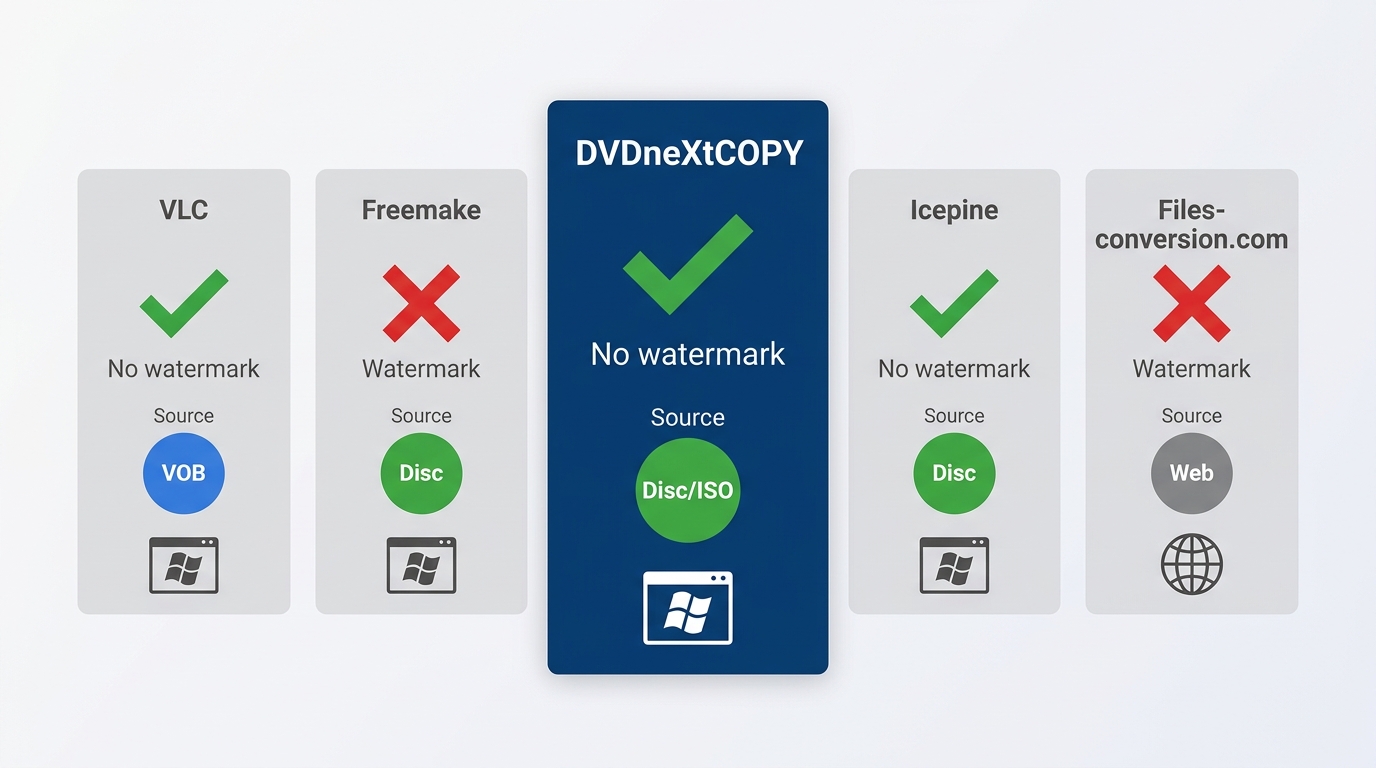
A search for a free DVD to AVI converter can lead to tools with very different limits. Some can load a DVD directly, some work only when the disc already opens correctly, and browser converters generally need an extracted VOB file first.
Start with the source you have and the output restriction you can accept. VLC is free and open source, Freemake's free Video Converter adds branding to converted clips unless the branding pack is purchased, and DVDneXtCOPY is commercial Windows software with a trial.
| Tool | Free status | DVD source | AVI output | Best for |
|---|---|---|---|---|
| DVDneXtCOPY DVD Ripper | Commercial software with trial | DVD disc, ISO, or DVD folder | Yes | Direct disc, ISO, or folder conversion with title, audio, subtitle, and output controls |
| VLC Media Player | Free and open source | Readable DVD and supported media sources | Via VLC conversion/transcoding settings | A free route when the DVD already opens correctly |
| Freemake Video Converter | Free tier; free output adds Freemake branding | DVD disc or folder | Yes | Guided Windows conversion when the branding condition is acceptable |
| Icepine Free DVD to AVI Converter | Legacy freeware; current official availability not verified | DVD | Yes in legacy versions | An existing older installation rather than a new recommendation |
| Online VOB converter | Varies by service | Extracted VOB or video file, not a physical DVD | Varies by service | A small file that has already been copied from the DVD |
Choose the Right AVI Codec Before You Convert
Selecting AVI is only the first half of the job. A player can recognize the container and still reject the video or produce no sound because one of the streams uses an unsupported codec. Check the target player's manual before a full conversion and match the codec, resolution, audio, and TV-system limits it actually lists.
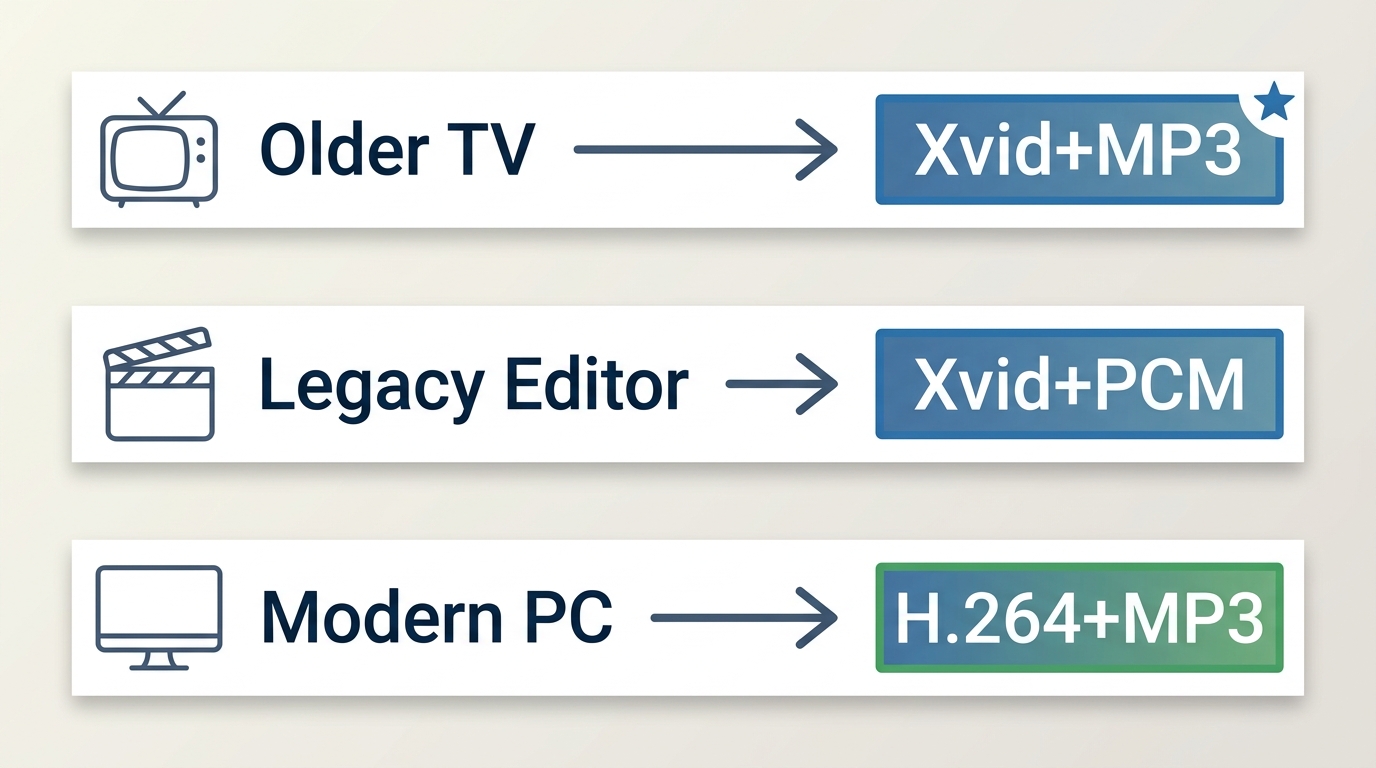
DivX, Xvid, or H.264-in-AVI?
DivX and Xvid are closely associated with older MPEG-4 ASP AVI playback, and many legacy players name one or both in their manuals. H.264 can also be stored in AVI, but an older device that advertises "AVI" does not necessarily support H.264. If the manual only lists DivX or Xvid, use a codec it explicitly supports.
Computer players usually accept a wider range of streams than older standalone hardware. That is why an AVI can work in VLC but fail on a set-top DVD player or television USB port.
Match Video, Audio, Aspect Ratio, and TV System
| Target | Video setting to check | Audio setting to check | Other settings |
|---|---|---|---|
| Older DVD player | DivX, Xvid, or the MPEG-4 profile listed by the player | MP3 or AC3 if listed | Maximum resolution and PAL/NTSC support |
| Older television USB port | Codec named in the TV manual | Supported MP3 or AC3 variant | Resolution and file-size limits |
| Legacy video editor | Codec listed in the editor's import documentation | PCM, MP3, or another supported codec | Preserve the source aspect ratio |
| Computer playback | Broader AVI codec choice | MP3, AC3, or another supported stream | Usually less restrictive than standalone hardware |
Also check whether the DVD is 4:3 or 16:9 and whether the target hardware has PAL or NTSC restrictions. Convert a short sample, play it on the actual device, check sound and picture shape, and only then process the full title. If you do not need AVI compatibility, you can convert a DVD to MP4 for broader support on current devices.
Convert DVD to AVI with DVDneXtCOPY DVD Ripper
DVDneXtCOPY DVD Ripper can load a protected DVD disc, ISO image, or DVD folder and convert the selected title to AVI. Before starting, you can choose the title or chapter range, select audio and subtitles, preview the source, and adjust video and audio settings.
The main advantage for this task is source and track control in one Windows program: an ISO or DVD folder can also be loaded directly rather than being converted to a separate VOB first.
- Support copy-protected DVD discs, ISO files, and DVD folders
- Provides AVI output together with adjustable video and audio settings
- Lets you select titles, chapter ranges, audio tracks, and subtitles before conversion
- Includes preview, editing, batch processing, and GPU acceleration for applicable jobs
How to Convert DVD to AVI with DVDneXtCOPY
Step 1: Load the DVD, ISO, or folder. Open DVDneXtCOPY, switch to the Ripper module, and insert the DVD. Use Add Source for an ISO image or DVD folder. Confirm that the expected title and runtime have been detected.

Step 2: Choose AVI and review the output settings. Open the profile selector and choose an AVI output. If the target player has specific codec, resolution, or audio requirements, match the available settings to the device. The exact AVI codec choices should be taken from the version installed on your PC.
Step 3: Select the title, audio, and subtitles. Keep the movie or episode you need, choose the required audio track, and select the subtitle behavior before processing.

Step 4: Preview, convert, and test the AVI. Preview a short section, set the output folder, and start the conversion. When it finishes, open the AVI on the device it was created for and check the beginning, middle, and end along with sound and aspect ratio.

Convert DVD to AVI for Free with VLC
VLC is a free, open-source, cross-platform media player that can also transcode and save media. It accepts DVD Video as an input and supports AVI-related formats and codecs including DivX, MPEG-4 ASP, Xvid, H.264, MP3, and AC3.
Its advantage is cost: VLC is a useful free choice when the DVD already opens correctly and you only need an occasional conversion. The tradeoff is that VLC is primarily a media player and transcoder rather than a dedicated disc-ripping interface, so title selection, repeated jobs, and disc-specific controls can require more manual setup.
- Free and open source on Windows, macOS, and Linux
- Reads DVD Video and supports a broad range of AVI-related codecs
- Can transcode media and save the result locally
- Works best here when the DVD already opens correctly
How to Convert a DVD to AVI with VLC
Step 1: Open the DVD and identify the title. Insert the disc, open it in VLC, and play enough of the DVD to identify the movie or episode you intend to save.
Step 2: Open Convert/Save. Go to Media > Convert/Save and select the DVD or disc source.

Step 3: Choose or create a compatible profile. Select a profile that produces the required AVI-compatible streams, or edit a profile when necessary. Presets can vary by VLC version, so match the video and audio codecs to the target player's manual rather than relying on one preset name.
Step 4: Save and test the file. Set the destination filename, start the conversion, then open the finished AVI in VLC and on the target player. If VLC plays it but the hardware does not, check the codec combination next.

Other DVD to AVI Converters: Freemake, Legacy Tools, and Online Conversion
Freemake Video Converter
Freemake continues to provide DVD-to-AVI conversion on Windows. It can load DVD sources, let you select titles and tracks, and save the result as AVI with adjustable output settings.
The main limitation is the free tier: Freemake's own documentation says the free Video Converter adds a Freemake logo to converted clips, and removing that branding requires a paid pack. That makes it free to use, but not equivalent to a clean watermark-free export.
- Loads DVD discs and DVD folders on Windows
- Outputs AVI and other common video formats
- Lets you select titles, audio, subtitles, and output settings
- Free output can include Freemake branding
How to Convert DVD to AVI with Freemake Video Converter
- Step 1: Insert the DVD, open Freemake, and select +DVD. Choose the title, audio, and subtitle tracks you need.
- Step 2: Select AVI and match the output settings to the target player.
- Step 3: Review the branding or upgrade notice shown for the selected output before starting a full title.
- Step 4: Convert the DVD and play the finished AVI on the intended device.

Icepine: Legacy Windows Option
Icepine Free DVD to AVI Converter is better treated as a legacy fallback than a current recommendation. The earlier draft documented DivX, Xvid, and H.264 AVI choices, but its current official availability could not be verified during this update.
If an older computer already has a working copy installed, it may still be useful for an existing DVD-to-AVI setup. For a new installation, use a currently maintained tool whose download, platform support, and documentation can be verified.

Convert an Extracted VOB to AVI Online
An online converter is not a substitute for software that reads a physical DVD. The browser first needs a file it can upload, such as an already-extracted VOB, so the DVD content must already exist on the computer.
That makes browser conversion a fallback for a small file you already have rather than a direct DVD-ripping method. Upload the extracted video, choose AVI and the available quality settings, download the result, and test it before deleting the source file.

Fix DVD-to-AVI Playback Problems
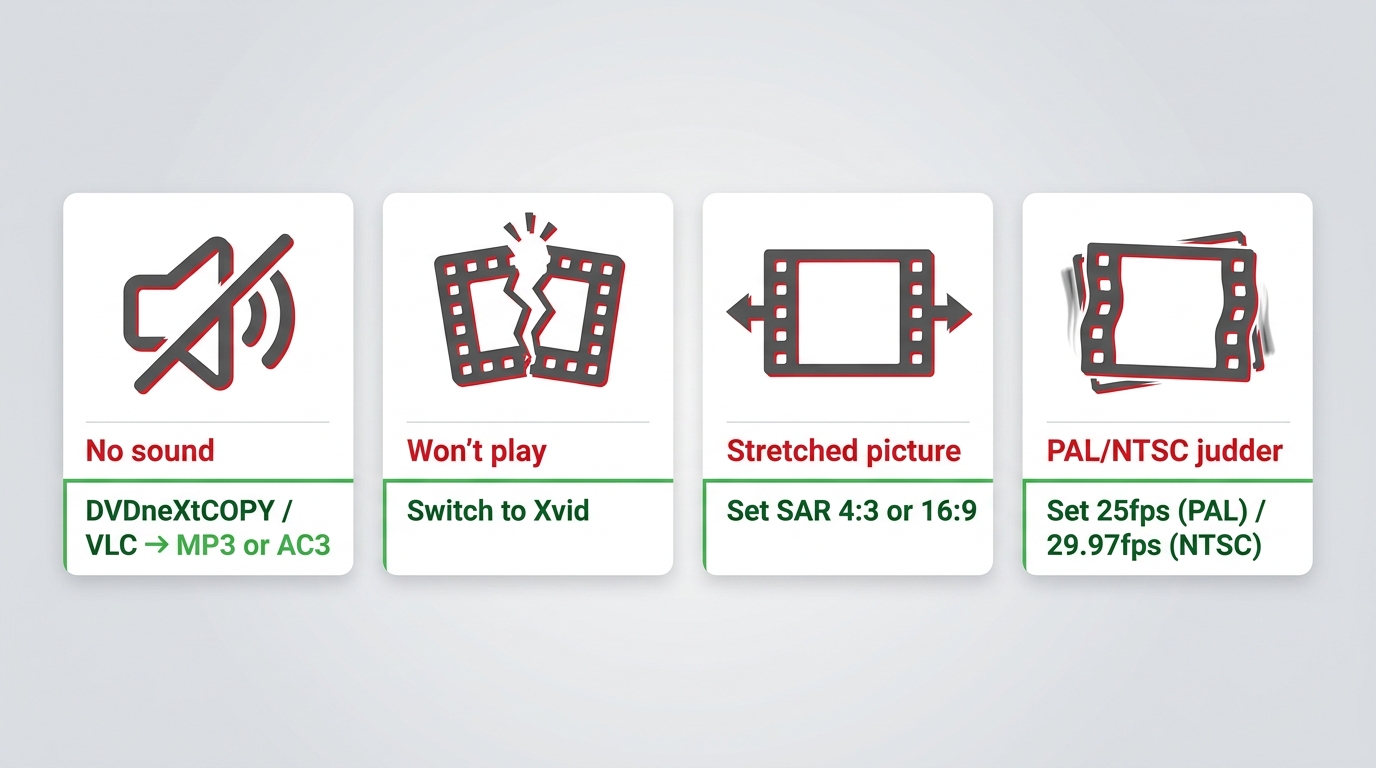
An AVI that finishes converting is not necessarily an AVI the target device can play. Treat each symptom separately, identify the stream or setting involved, and change one parameter before making another short sample.
AVI Has No Sound
If the video plays but there is no audio, inspect the audio stream first. Compare the codec with the player's manual. If the player does not list that audio format, re-encode a short sample with a supported codec before repeating the entire movie.
AVI Will Not Play on the DVD Player or TV
If the AVI works on a computer but not on the intended hardware, check the video codec, audio codec, maximum resolution, frame rate, AVI/MPEG-4 profile restrictions, and any file-size limits for USB playback. Successful playback in VLC does not prove that an older set-top player supports the same streams.
Picture Is Stretched or Has Black Bars
Compare the source aspect ratio with the output. A 4:3 DVD converted as 16:9 can look stretched, while an incorrect resize or crop can add unwanted bars. Keep the DVD's intended aspect ratio unless the target device requires something different.
PAL/NTSC Playback Problems
Older players and televisions can be more sensitive to PAL/NTSC differences than software players. If motion looks wrong or the hardware rejects the AVI, confirm the source TV system, frame rate, resolution, and the target device's supported standard. See the guide to PAL and NTSC differences for the underlying timing and resolution differences.
| Symptom | First thing to check | Next action |
|---|---|---|
| AVI has no sound | Audio codec | Re-encode a short sample with an audio format the player supports |
| AVI will not play | Video codec and profile | Match the codec named in the target device manual |
| Picture is stretched | Aspect ratio | Match the DVD's intended 4:3 or 16:9 presentation |
| Hardware rejects the file or motion looks wrong | PAL/NTSC, resolution, and frame rate | Match the source and the player's supported limits |
DVD to AVI FAQs
Can HandBrake rip a DVD directly to AVI?
No. HandBrake can read supported DVD sources, but its current output containers are MP4, MKV, and WebM rather than AVI. If AVI is required, use a converter that can create AVI directly or transcode a HandBrake output in a second program.
AIs there a free DVD to AVI converter with no watermark?
VLC is the clearest free option in this comparison for a DVD it can read, and it does not add Freemake-style branding to the output. Freemake is also free to use, but its official documentation says the free Video Converter adds a Freemake logo unless the Remove Branding pack is purchased.
AIs AVI outdated compared with MP4 or MKV?
AVI is a legacy container, but it still has a use when older hardware or software specifically requires it. If the target device accepts MP4 or MKV, those formats are usually more convenient for current playback and storage.
AWhy does my AVI play on my computer but not on my DVD player?
The computer and DVD player may support different codecs even though both recognize the AVI container. Check the player's manual, then match the video codec, audio codec, resolution, and PAL/NTSC requirements before making another full conversion.
AConclusion
Use DVDneXtCOPY DVD Ripper when you need direct DVD, ISO, or folder input together with title, audio, subtitle, and output controls on Windows. Use VLC when the DVD already opens correctly and a free conversion route is enough. Freemake remains an alternative when its free-tier branding is acceptable, while legacy and browser tools are better treated as secondary options.
For AVI playback, the final check matters more than the progress bar: reopen the file, confirm sound and aspect ratio, and play a short sample on the actual DVD player, television, or editor that needs the file.
![Top 8 Best MP4 to DVD Converters on Windows & Mac [2026 Tested]](https://images.dvdnextcopy.com/2026/09/17/I2v69nzxIF6Xn7iue3ZRMGJ5-Ls0SF_z/feature_cover.jpg) Luna MillerSep 21, 2026
Luna MillerSep 21, 2026Top 8 Best MP4 to DVD Converters on Windows & Mac [2026 Tested]
 Luna MillerSep 21, 2026
DVD Region Codes Explained: Region 1 and Playback Options
![How to Remove DVD Copy Protection: Software and Free Methods [2026]](https://c.dvdnextcopy.com/media/How_to_Remove_DVD_Copy_Protection_d24c38a790.png) Steven VanceSep 21, 2026
Steven VanceSep 21, 2026How to Remove DVD Copy Protection: Software and Free Methods [2026]
 Luna MillerSep 21, 2026
How to Rip a Copy-Protected DVD on Win & Mac: 6 Ways
 Steven VanceSep 18, 2026
Top MP4 to ISO Converter in 2026: DVD Authoring vs Online Tools
 Steven VanceSep 18, 2026
How to Digitize DVD Collection: 5 Ways in 2026