 DVDneXtCOPY DVD Ripper
How to Convert DVD to Digital: Software and Transfer Services

Summary: To convert DVD to digital, choose MP4 for broad playback or MKV when you want more flexibility with selected audio, subtitles, and chapters. DVDneXtCOPY DVD Ripper handles DVD disc, ISO, and folder sources on Windows with Passthrough or encoded outputs; MakeMKV provides free DVD-to-MKV remuxing, while HandBrake encodes readable DVDs to MP4 or MKV. For home-movie DVDs, an in-store or mail-in transfer service is another option.
Table of Contents
Converting a DVD to digital can be done on your computer or through a media-transfer service. With the software method, a physical DVD must first be readable in an optical drive; the program can then scan the disc so you can save your movie as a digital MP4 or MKV file. A transfer service handles supported personal-media DVDs for you and returns a digital copy without requiring you to manage the conversion settings yourself.
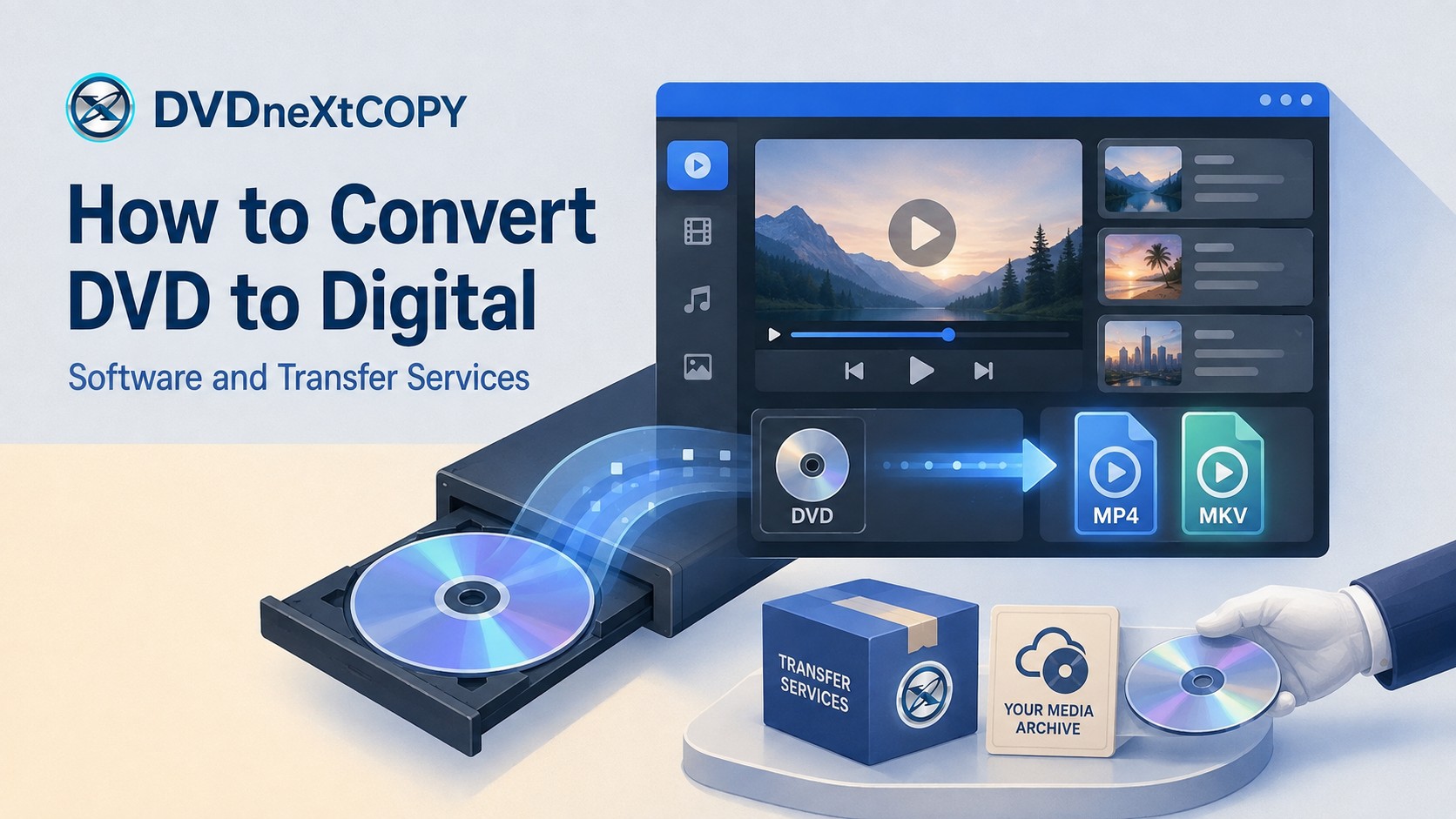
How to Convert DVD to Digital on PC with DVDneXtCOPY DVD Ripper
DVDneXtCOPY DVD Ripper can convert DVD to digital on Windows from a physical DVD, ISO image, or DVD folder. After loading the source, you can choose the title, chapters, audio, and subtitles, then save the selected content as MP4, MKV, or another supported output. MKV Passthrough keeps the existing encoded streams where that profile applies, while encoded profiles create a new video stream.
Having Passthrough and encoded profiles in the same Ripper is useful when different discs need different results: one movie can keep its existing encoded streams while another can be encoded for a smaller library file.
How to Convert a DVD to Digital with DVDneXtCOPY
Step 1: Load the DVD source. Open DVDneXtCOPY and switch to the Ripper module. Insert the physical DVD into the computer's optical drive, or use +Add Source to load a DVD ISO or folder. Stored ISO and folder sources can also be dragged into the main window.

Step 2: Check the detected title and chapters. Review the runtime and chapter information before continuing. If the disc contains episodes, alternate cuts, or bonus material, use the title controls to select the content you actually want instead of relying only on the default selection.
Step 3: Choose MP4 or MKV. Select MP4 when you want an encoded video for regular playback. Choose MKV when you need an MKV output or want to use an available Passthrough profile.

Step 4: Choose Passthrough or an encoded profile. Passthrough keeps the existing audio and video encoding rather than running a new video encode. An encoded profile lets you change codec, resolution, bitrate, and other video parameters when reducing file size or changing playback requirements matters more.

Step 5: Select audio and subtitles. Keep the languages, commentary, and subtitle tracks that should remain available after the disc is stored away. Removing tracks you will never use can make the resulting library easier to navigate.
Step 6: Choose the destination and start the conversion. Save the file to a drive with enough free space. Passthrough output can remain relatively large because the video is not being compressed into a new stream.

Convert DVD to Digital for Free with MakeMKV or HandBrake
Free DVD conversion does not produce one standard type of digital file. MakeMKV is useful when you want the selected DVD streams placed in MKV without another video encode, while HandBrake is useful when a readable DVD should be re-encoded into MP4 or MKV with control over quality, codec, subtitles, and file size.
MakeMKV: Keep the DVD Video Without Re-encoding
MakeMKV reads DVDs and saves selected titles as MKV files while preserving the selected media streams, metadata, and chapter information rather than recompressing the video. You can expand a title, keep the audio and subtitle tracks you need, choose an output folder, and create the MKV. MakeMKV is available for Windows, macOS, and Linux.
DVD conversion is part of MakeMKV's freeware functionality. The tradeoff is the output: MakeMKV is centered on MKV remuxing, so it does not give you the same video-compression controls as HandBrake, and the resulting file can remain large because the DVD video has not been encoded again.

How to Convert a DVD to Digital with MakeMKV
Step 1: Open the DVD. Insert the disc, open MakeMKV, and select the optical drive.
Step 2: Review the title tree. Wait for MakeMKV to scan the DVD, then compare the available titles before selecting the movie or episodes. Episodic and unusually authored discs can contain several legitimate titles.

Step 3: Select the tracks. Expand the chosen title and keep the audio and subtitle tracks you need.
Step 4: Choose an output folder and select Make MKV. Use a destination with enough free space for the selected source streams.

HandBrake: Make a Smaller MP4 or MKV
HandBrake takes a readable DVD source and creates a newly encoded video file. It supports MP4 and MKV output, H.264, H.265, AV1 and other encoders, title and chapter selection, subtitles, chapter markers, and an encoding queue. Those controls make it suitable when the goal is a smaller file or a codec that matches the devices where the digital copy will be played.
HandBrake does not offer video passthrough, so the video is encoded rather than copied unchanged into a new container. It also does not handle any copy protection, which means the DVD source must already be readable by the program.
How to Convert a Readable DVD to Digital with HandBrake
Step 1: Open a readable DVD source. Insert the DVD or open a stored source that HandBrake can access, then wait for the scan to finish.
Step 2: Select the title and chapter range. Compare runtime and chapter information rather than relying on the longest title alone.

Step 3: Choose MP4 or MKV and an encoder. MP4 is useful when your target devices expect that container; MKV gives you more flexibility with DVD subtitle tracks and other stream combinations. Select a preset or video encoder that matches the devices where the file will play.

Step 4: Set the quality level. Avoid assuming that one bitrate or preset is correct for every DVD. Encode a short sample when storage and picture quality need to be balanced.
Step 5: Select the audio and subtitle tracks you need. Keep the languages, commentary, and subtitles that should remain available in the finished file.

Step 6: Keep chapter markers if needed, choose the destination, and start the encode.
Transfer DVDs to Digital with In-Store or Mail-In Services
A transfer service can make sense when a DVD contains home movies or other personal media and you do not want to handle the conversion on a computer. These services digitize supported physical media for you and return a downloadable digital copy or another selected output.
Walmart Digital Media Transfer
Walmart Home Movie & Photo Transfer accepts CDs and DVDs under its Digital Media Transfer category. Orders include a Digital Copy, and customers can add USB or DVD output. You can start an order online and ship the media, or use a participating Walmart store for drop-off.
This service is aimed at personal memories and digital media rather than giving you software controls for movie titles, audio tracks, subtitles, codecs, or containers. Use a local ripping or encoding program when those choices matter.
CVS Home Movie & Photo Transfer
CVS Photo Home Movie & Photo Transfer lets customers submit supported personal media through its transfer service and includes a downloadable Digital Copy with the order. Orders can be prepared online for shipping or submitted through participating CVS Photo locations.
CVS is most relevant for home movies and family-media transfers when you want a service provider to handle the physical source. It is not a replacement for local DVD-ripping software when you need to choose individual titles, audio, subtitles, codec, or output container yourself.
Online file converters belong to a separate step. They become relevant only after the DVD content has already been extracted into a normal video file that can be uploaded; they do not replace the optical-drive and DVD-reading stage for a physical disc.
Check the Digital Copy Before Storing the DVD
Do not treat a completed progress bar as proof that the right content made it into the file. Reopen the MP4 or MKV while the original DVD is still available and verify the parts you would have to repeat the conversion to recover.
- Title and runtime: Confirm that you converted the intended movie, cut, or episode.
- Audio tracks: Switch to the languages or commentary tracks you chose.
- Subtitles: Confirm that the required subtitles are present and display correctly.
- Chapters: Test chapter navigation if you kept chapter markers.
- Picture and audio sync: Play several points in the file rather than only the opening scene.
- Playback device: Test an encoded file on the television, phone, tablet, media box, or server where it will actually be used.
- File name: Add the movie title and year, or season and episode information, before moving the file into a larger library.
Keep the source DVD until those checks are complete. If the final file is missing a subtitle or contains the wrong episode, correcting the selection is easier while the disc and conversion settings are still available.
FAQs
What is the best format for converting DVD to digital?
Choose MP4 when ordinary device playback is the priority and MKV when you want more flexibility with selected audio, subtitle, and chapter tracks. If preserving the original menu and complete disc structure is the goal, use a separate disc-backup method instead of an extracted MP4 or MKV.
Do I need a DVD drive to convert a physical DVD?
Yes. A physical DVD must first be read by a compatible optical drive. If you already have a DVD ISO or folder stored on the computer, software that supports that source can work from the stored copy instead.
Does converting DVD to digital reduce video quality?
It depends on the method. A remux or Passthrough output keeps the existing encoded video stream without another video encode, while an encoded MP4 or MKV creates a new video stream and introduces compression according to the selected settings.
Can MP4 or MKV keep the original DVD menu?
A normal MP4 or MKV should not be treated as a copy of the complete DVD structure. If the original menu and disc layout need to remain available, follow the separate DVD to ISO guide.
Can I pay a service to transfer a DVD to digital?
Yes, for supported personal or home-media sources. Walmart Photo and CVS Photo offer media-transfer services that include a downloadable digital copy, so they are alternatives when you do not want to digitize the physical media yourself.
Is Fandango Disc to Digital the same as transferring a DVD to a digital file?
No. Fandango at Home Disc to Digital is a digital movie-library service feature, while local ripping creates an MP4 or MKV file that you store and organize yourself.
Conclusion
Use DVDneXtCOPY DVD Ripper when you want Windows controls for DVD disc, ISO, or folder sources together with MP4/MKV, track selection, and Passthrough or encoded output choices. Use MakeMKV when a free DVD-to-MKV remux is enough, and use HandBrake when a readable DVD needs to become an encoded MP4 or MKV with control over file size and playback settings.
For supported home-movie and personal-media DVDs, Walmart or CVS transfer services can digitize the physical media for you. Reopen any locally converted MP4 or MKV and confirm its title, audio, subtitles, chapters, and playback before moving the source DVD into long-term storage.
![Top 8 Best MP4 to DVD Converters on Windows & Mac [2026 Tested]](https://images.dvdnextcopy.com/2026/09/17/I2v69nzxIF6Xn7iue3ZRMGJ5-Ls0SF_z/feature_cover.jpg) Luna MillerSep 21, 2026
Luna MillerSep 21, 2026Top 8 Best MP4 to DVD Converters on Windows & Mac [2026 Tested]
 Luna MillerSep 21, 2026
DVD Region Codes Explained: Region 1 and Playback Options
![How to Remove DVD Copy Protection: Software and Free Methods [2026]](https://c.dvdnextcopy.com/media/How_to_Remove_DVD_Copy_Protection_d24c38a790.png) Steven VanceSep 21, 2026
Steven VanceSep 21, 2026How to Remove DVD Copy Protection: Software and Free Methods [2026]
 Luna MillerSep 21, 2026
How to Rip a Copy-Protected DVD on Win & Mac: 6 Ways
 Steven VanceSep 18, 2026
Top MP4 to ISO Converter in 2026: DVD Authoring vs Online Tools
 Steven VanceSep 18, 2026
How to Digitize DVD Collection: 5 Ways in 2026