 DVDneXtCOPY DVD Ripper
DVD Resolution: 720×480, 480i vs. 480p, and Upscaling

Summary: Standard DVD-Video is SD: a full-size NTSC DVD frame is commonly 720×480 pixels, while PAL uses 720×576. A DVD can display as 4:3 or 16:9 because its stored frame size and display aspect ratio are separate, and a player or TV can upscale the picture to 1080p or 4K without turning the original DVD into native HD or 4K video.
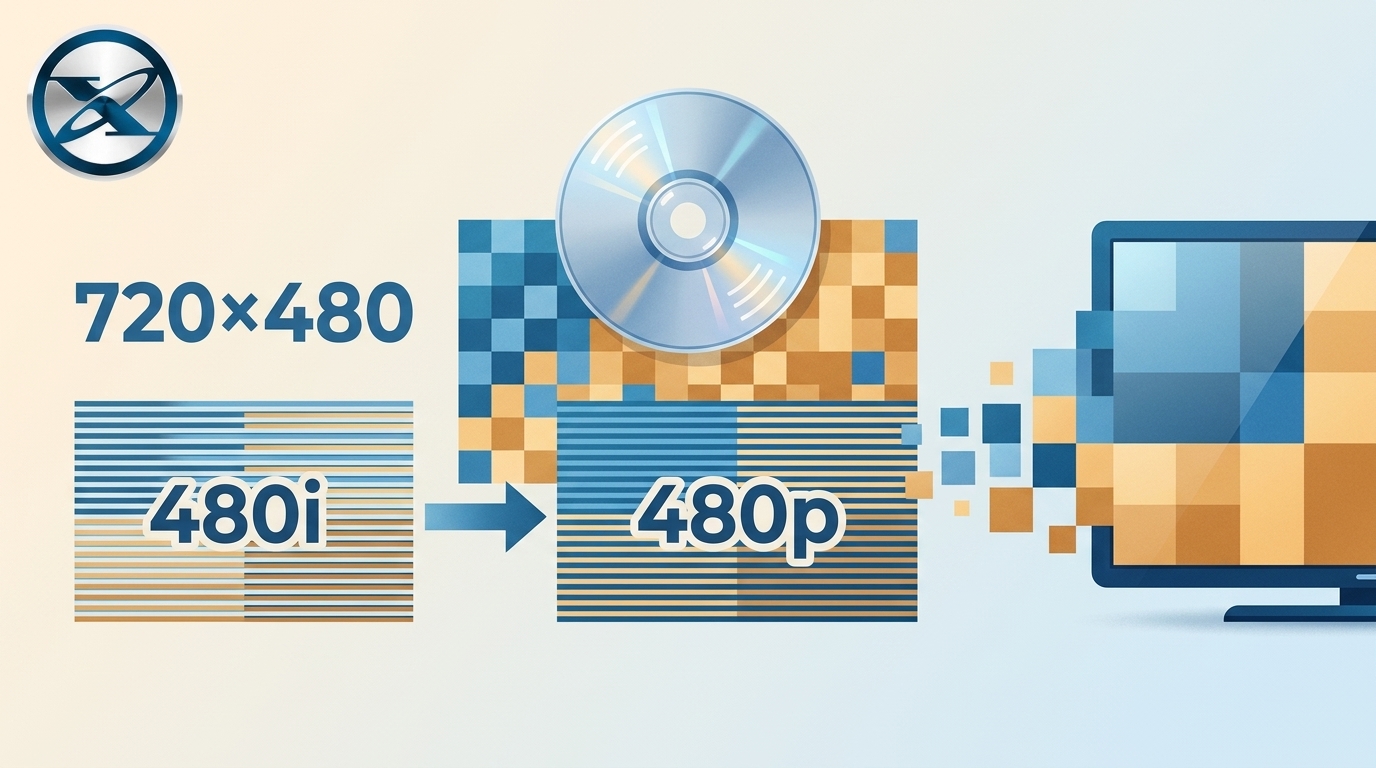
Table of Contents
A DVD can fill a 4K television even though the video stored on the disc is still standard definition. Your DVD player, AV receiver, or TV may scale the picture before it reaches the screen, but a 1080p or 4K output signal does not change the resolution originally stored on the DVD.
For standard DVD-Video, the useful numbers to remember are 720×480 for NTSC-based video and 720×576 for PAL-based video at the common full-size frame. Both belong to the standard-definition family rather than HD. The more important question after that is how the stored frame is displayed, because resolution, aspect ratio, scan type, and perceived picture quality describe different parts of the image.
What Resolution Is a DVD?

| DVD Video Standard | Common Full-Size Frame | Video Class | Display Aspect Ratio |
|---|---|---|---|
| NTSC-based DVD | 720×480 | SD | 4:3 or 16:9 |
| PAL-based DVD | 720×576 | SD | 4:3 or 16:9 |
NTSC and PAL use different television systems, which is why their DVD frame sizes and common frame rates differ. If you need the regional and frame-rate differences in more detail, see our NTSC vs PAL comparison.
You may also see DVD playback described as 480i, 480p, 576i, or 576p. Those labels introduce another property of the video: how the picture is scanned or output. They should not be written as if the width were “720p.”
HD DVD is also not a higher-resolution mode of standard DVD-Video. It was a separate high-definition optical-disc format, so its 720p and 1080-class video does not belong in a list of ordinary DVD resolutions.
Why Can a 720×480 DVD Be 4:3 or 16:9?
Dividing 720 by 480 gives 1.5, which is neither 4:3 nor 16:9. The missing piece is pixel aspect ratio.
DVD video can use non-square pixels. The stored frame tells the player how many samples are encoded horizontally and vertically, while aspect-ratio information tells the player how those pixels should be shaped for display. This allows a 720×480 or 720×576 stored frame to be shown with the intended 4:3 or 16:9 picture shape.
Frame Size vs. Display Aspect Ratio
Frame size describes the stored pixel matrix. Display aspect ratio describes the shape the viewer is supposed to see.
For example, a widescreen NTSC DVD can store its picture in a 720×480 frame and carry a 16:9 display flag. In square-pixel terms, a full-height 16:9 presentation is roughly 854×480. That wider display does not add extra detail to the source; it corrects the shape of the non-square pixels.
This distinction matters when converting a DVD to a normal video file. If the 720×480 frame is retained but its aspect information is lost or interpreted incorrectly, people and objects can appear too narrow or too wide.
Making the file 1920×1080 is not necessary just to correct its shape. Preserving the intended aspect ratio is the first priority.
Interlaced vs. Progressive DVD Video
The letters i and p describe scanning rather than the horizontal size of the frame. Interlaced video is built from alternating fields, while progressive video uses complete frames.
A player or converter may deinterlace interlaced DVD material to create progressive output for a modern display. Deinterlacing can reduce visible combing on suitable material, but it does not increase the amount of detail originally stored on the DVD.
This is why 720×480 and 480i/480p should not be treated as interchangeable measurements. One describes frame dimensions; the other describes scan or output behavior.
DVD Resolution vs. DVD Picture Quality
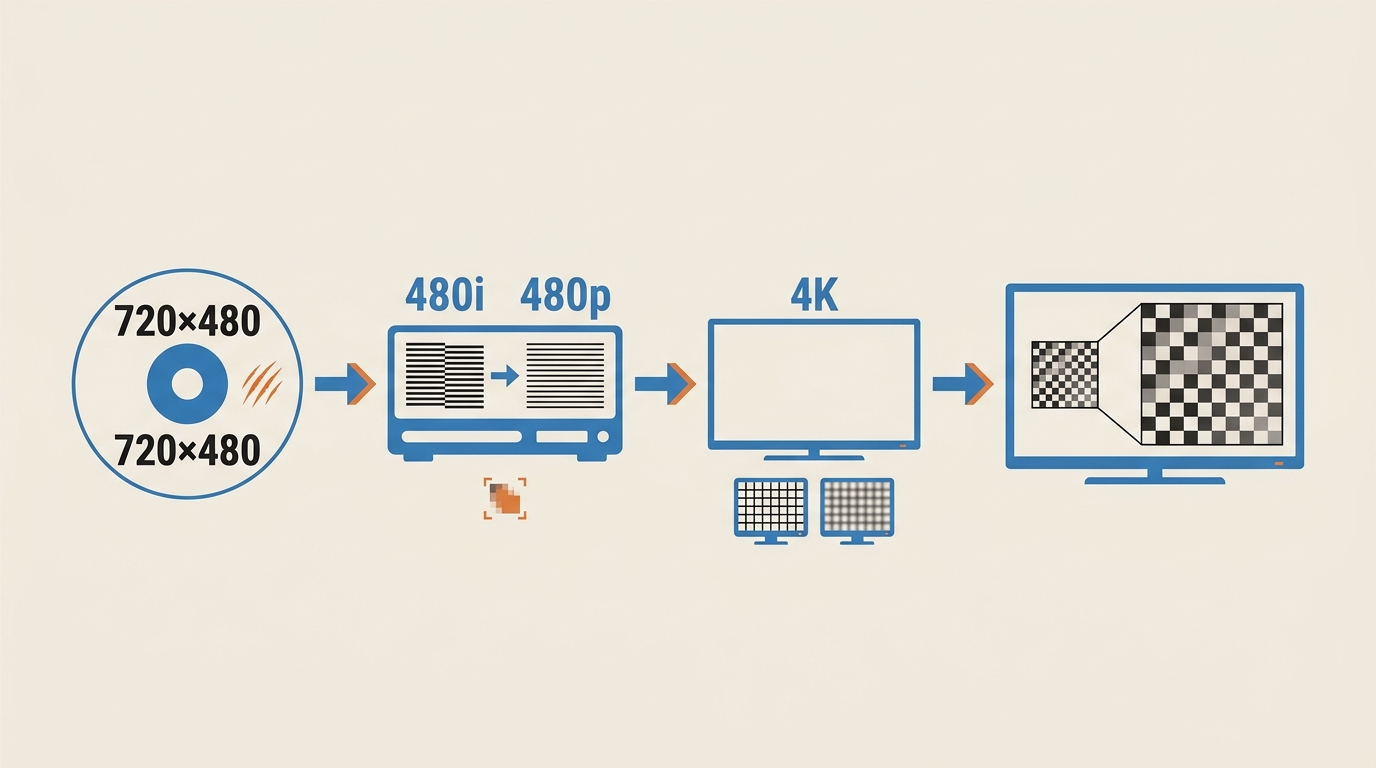
Resolution is only one part of DVD picture quality. Two discs can both contain 720×480 video and still look noticeably different.
The original master and transfer, MPEG-2 compression, bitrate allocation, film grain or video noise, interlacing, aspect-ratio handling, and playback scaling all affect the picture you ultimately see.
What Actually Affects DVD Image Quality?
- Master and transfer quality: A clean source and careful transfer can preserve more usable detail than a poor master even when both discs use the same frame dimensions.
- Compression: MPEG-2 compression can soften fine texture or create visible blocks and ringing without changing the nominal 720×480 or 720×576 resolution.
- Interlacing and cadence: Incorrect deinterlacing or film-cadence handling can create combing, judder, or other motion artifacts.
- Aspect ratio: Incorrect pixel-aspect handling can stretch the picture even when all of the encoded samples are still present.
- Scaling: A television must enlarge an SD picture to fill a 1080p or 4K panel, and different scalers can produce different-looking results.
- Screen size and viewing distance: The same SD source usually exposes its limited detail more clearly when viewed larger or from closer range.
Disc condition is a separate issue. Dust, scratches, fingerprints, or a failing drive can cause read errors, freezes, skipped sections, or visible corruption, but they do not lower the encoded resolution from 720×480 to another frame size.
TV brightness, contrast, color, and sharpness controls can also change perceived appearance. They do not alter the resolution stored on the DVD.
DVD vs. 720p, 1080p, Blu-ray, and 4K
DVD resolution becomes easier to understand when it is placed beside common HD and UHD frame sizes.
| Video Type | Typical Frame Size | Class | What It Means Compared with DVD |
|---|---|---|---|
| NTSC full-size DVD | 720×480 | SD | Standard DVD source |
| PAL full-size DVD | 720×576 | SD | Standard DVD source |
| 720p | 1280×720 | HD | Uses a larger native frame than DVD |
| 1080p / Full HD | 1920×1080 | Full HD | Uses a substantially larger native frame than DVD |
| Ultra HD / 4K | 3840×2160 | UHD | Uses a much larger native frame than DVD |
Standard Blu-ray can deliver 1080p Full HD video, while Ultra HD Blu-ray supports video up to 3840×2160. For a broader comparison of disc capacity, video, audio, and playback features, see Blu-ray vs DVD.
The larger pixel matrix is one reason HD and UHD sources can contain more visible detail, but resolution alone does not guarantee a better transfer. Mastering and encoding still matter.
A DVD shown on a 4K television therefore does not become equivalent to an Ultra HD Blu-ray. The television can scale the DVD so that it fills a 3840×2160 panel, while the original disc remains an SD source.
Can You Improve or Upscale DVD Resolution?
You can create a higher-resolution output from DVD video, but that is not the same as changing the amount of source information stored on the disc.
Upscaling maps a smaller source frame onto a larger pixel grid. A conventional scaler interpolates between existing samples, while more advanced processing may analyze edges, textures, noise, and neighboring frames to produce a cleaner-looking enlarged image. The result can be better suited to a modern display, but it should still be described as an upscaled DVD source rather than native 1080p or native 4K video.
TV and DVD Player Upscaling
If you only want to watch a DVD, letting the player or television scale the picture is usually the simplest option. Many modern playback chains can output an SD source as a 1080p or 4K signal before it reaches the panel.
This avoids creating another encoded copy solely to match the television's pixel count. If the image looks wrong, check the aspect ratio and deinterlacing first instead of assuming that a larger output resolution will solve the problem.
An HDMI connection can carry the player's digital output to the television, but the cable itself does not increase DVD resolution. Likewise, changing TV sharpness or switching to progressive output can affect appearance without adding native source detail.
Upscaling a DVD During Digitization
Digitizing a DVD introduces another choice: preserve the source dimensions or deliberately create a larger output file.
For a straightforward archive or media-library copy, keeping the source dimensions and correct aspect ratio is often the cleaner starting point. Resize only when a specific player, editing project, or viewing setup benefits from another output size.
On Windows, DVDneXtCOPY DVD Ripper can load a DVD, ISO, or DVD folder and save selected titles as formats such as MP4 or MKV. It also lets you choose titles, audio tracks, subtitles, and video settings before conversion.
Those controls are useful when you need a different playback file or output configuration. A larger resolution setting still represents a resized or re-encoded output; it should not be described as recovering native HD or 4K information that was never stored on the DVD. Use discs you own or are authorized to convert and follow the rules that apply where you live.
How to Avoid Making a DVD Look Worse
Keep the intended aspect ratio. A 16:9 anamorphic DVD should remain 16:9 after conversion, while a 4:3 source should not be stretched merely to fill a widescreen display.
Check before deinterlacing. Apply deinterlacing when the source needs it. Unnecessary filtering can alter detail or motion instead of improving it.
Avoid unnecessary downscaling. Reducing the frame size removes source samples. If storage is the concern, test compression settings before reducing resolution.
Do not assume 4K output is automatically better. A larger frame can consume more storage and encoding time while still being based on the same SD source information.
Verify the finished file. Reopen the output and check that the image is not stretched. Inspect moving scenes for combing or judder, look for excessive smoothing or sharpening, and confirm that the required audio and subtitle tracks are still present.
FAQs About DVD Resolution
A standard NTSC DVD commonly stores a 720×480 frame, but that does not make it 720p. The number 720 is the stored frame width; 720p refers to an HD 1280×720 progressive frame.
For the commonly referenced full-size standard DVD-Video frame, NTSC-based video uses 720×480 and PAL-based video uses 720×576. Both belong to the standard-definition family rather than HD.
They come from different television standards with different line structures and timing. The PAL-based DVD frame has more vertical samples, while other differences such as frame rate also depend on the television system used to author the disc.
Yes. DVD video can use non-square pixels and aspect-ratio signaling, so its stored pixel matrix and final display shape do not have to match numerically. Correct playback interprets that information to display the intended 4:3 or 16:9 picture.
Yes, a player or television with scaling can output DVD video in a higher-resolution signal. The DVD remains an SD source, so the resulting 1080p or 4K signal should be understood as upscaled rather than native HD or UHD.
Upscaling can make the output better suited to a modern screen, and good processing may improve perceived edges or reduce some artifacts. It cannot recover native detail that was never stored on the DVD, so a larger output frame is not equivalent to a native HD or 4K source.
Conclusion
Standard DVD-Video is an SD format, with a common full-size frame of 720×480 for NTSC-based video and 720×576 for PAL-based video. Those stored dimensions are separate from display aspect ratio, scan type, and the higher-resolution signal a player or TV may output after scaling.
If you are watching a DVD on a modern television, 1080p or 4K upscaling can help the SD picture fit the display, but it does not turn the disc into a native HD or 4K source. When digitizing a DVD, preserve the correct aspect ratio and source detail first, then resize or upscale only when the playback device or project actually benefits from it.
The most useful check is the finished picture rather than the largest resolution number: reopen the output, confirm that the image is not stretched, inspect motion for interlacing artifacts, and make sure the required audio and subtitle tracks are still available.
 Luna MillerOct 8, 2026
How to Block Someone on TikTok: App & Website Guide
 Luna MillerSep 21, 2026
10 Free Sites to Download Subtitles for Movies & TV Shows in 2026
 Luna MillerSep 17, 2026
How to Delete a TikTok Story in 5 Steps (2026)
 Luna MillerSep 16, 2026
How to Fix Cinavia Message Code 3: Start With the Source
![WinX DVD Author Review & Tutorial: Features, How to Use, and Limits [2026]](https://c.dvdnextcopy.com/uploads/images/17884278134315877-5212fbb54f6ef7f5e20bf1765fc74e79.jpg) Luna MillerSep 3, 2026
Luna MillerSep 3, 2026WinX DVD Author Review & Tutorial: Features, How to Use, and Limits [2026]
 Luna MillerAug 31, 2026
How to Rip a DVD with HandBrake in 2026: Steps, Settings & Limitations