 DVDneXtCOPY DVD Copy
How to Copy a DVD on Mac: Save It to a Hard Drive, Disc Image, or MKV

Summary: To copy a DVD on Mac, use Disk Utility for a readable unprotected disc when you want a CDR disc image, MakeMKV when you want selected movies or episodes in MKV files, and dedicated Mac DVD copy software when a protected disc needs to remain as an ISO, DVD folder, or physical disc. Before archiving the original DVD, reopen the finished copy and check the movie, audio tracks, subtitles, chapters, and menus you intended to preserve.
Table of Contents
A DVD can contain more than the main movie. Menus, bonus features, commentary tracks, several subtitle options, and multiple episodes can all change how you should save it on a Mac. A disc image is useful when you want to keep the disc structure together, while an MKV is easier when you only need selected titles and tracks.
The first choice is not the software. Decide what you want to reopen later: the complete disc, the main movie, individual episodes, or a video file for everyday playback. Once that is clear, you can choose a Mac method that creates the right type of output.
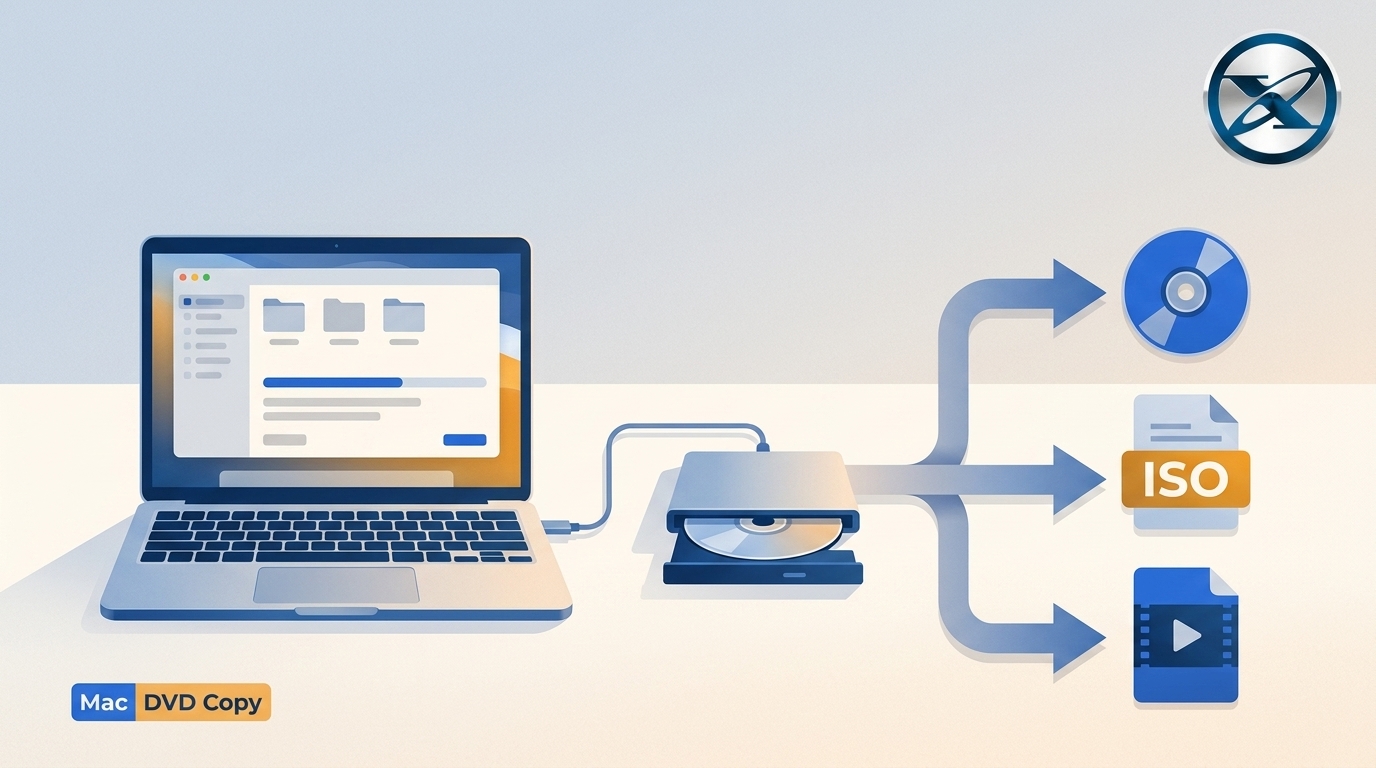
Quick Answer: How to Copy a DVD on Mac
For an unprotected DVD, macOS Disk Utility can create a DVD/CD master image and save it as a .cdr file. If you want individual movies or episodes instead of a complete disc image, MakeMKV can save selected DVD titles as MKV files while retaining the audio, subtitle, and chapter information you choose.
For a protected commercial DVD that needs to remain a disc image, DVD folder, or physical DVD copy, use Mac DVD copy software designed for disc-oriented backup. If your actual goal is an MP4 for a phone, Apple TV, or another modern player, that is better treated as a DVD ripping or conversion task.
| Your DVD or Goal | Method to Consider | Output | Keeps DVD Menus? | Re-encodes Video? |
|---|---|---|---|---|
| Homemade or readable unprotected DVD | Disk Utility | CDR disc image | Keeps the disc-image structure | No |
| Save a movie or individual episodes | MakeMKV | MKV | No | No video transcoding |
| Preserve a protected DVD as a disc backup | Dedicated Mac DVD copy software | ISO, DVD folder, or blank DVD | Can preserve menus when the selected full-disc mode and output retain the DVD structure | Depends on the selected copy mode |
| Create a file for phones or streaming devices | DVD ripping software | MP4 or another video file | No | Usually yes |
If your main goal is to copy a DVD to a hard drive, the destination alone does not determine the result. A hard drive can store a CDR, ISO, DVD folder, MKV, or MP4, but those formats preserve different parts of the original disc.
Before You Copy: Decide What You Want to Keep
Full Disc vs. Main Movie
A full-disc backup is useful when the menu, bonus material, alternate cuts, commentary, or other disc navigation matters. It usually needs more storage because you are keeping much more than one movie title.
A main-movie or title-based copy leaves some of that structure behind. This is often easier to play from a hard drive because you can open one MKV or MP4 directly instead of mounting or navigating a disc image.
TV DVDs need extra attention. A season disc may contain several similarly sized titles, so file size alone is not enough to identify each episode. Check the running time and chapter count before saving titles, then name the completed files by season and episode while the disc order is still clear.
CDR, ISO, VIDEO_TS, MKV, or MP4?
CDR is the DVD/CD master image format created by Disk Utility. It stores a disc-oriented image and is useful when you want to archive a readable DVD rather than convert the movie into a normal video file.
ISO is another disc-image format commonly used to keep DVD structure in one file. Choose it when your DVD copy software supports ISO directly and you want a single image that can be mounted or opened later.
VIDEO_TS is the standard DVD-Video folder structure. Saving the DVD as a folder exposes the individual DVD files while keeping the structure available to compatible DVD playback software.
MKV stores a selected movie or episode as a normal media file. It can contain multiple audio tracks, subtitles, chapter information, and metadata, but it does not recreate the original interactive DVD menu.
MP4 is convenient for phones, tablets, streaming boxes, and many media players. Creating an MP4 normally involves transcoding, so it is a conversion output rather than a full-disc backup.
Copying vs. Ripping a DVD
DVD copying and DVD ripping overlap in casual language, but they usually produce different results. A DVD copy keeps disc-oriented output such as another DVD, an ISO image, a disc image, or a DVD folder.
A DVD rip extracts one or more video titles into files such as MKV or MP4. That makes the movie easier to play and organize, but the original DVD menu is normally left behind. If a video file rather than a disc backup is your goal, see the related DVD ripper software before choosing the output.
Method 1: Copy an Unprotected DVD on Mac with Disk Utility
Disk Utility is built into macOS and can create an image from a readable disk or connected device. When you select DVD/CD master, the finished file uses the .cdr extension, making this a useful no-extra-software method for a homemade, data, or otherwise unprotected DVD.
Its limitation is disc access. Disk Utility is an imaging utility rather than a DVD-decryption application, so it should not be treated as a method for every commercial movie disc. It also creates a disc image rather than a convenient MP4 or MKV movie file.
Create the DVD/CD Master Image
Step 1: Connect the DVD drive and insert the disc.
Most recent Macs do not include an internal optical drive, so connect an external DVD drive if necessary. Wait until macOS recognizes the disc before opening Disk Utility.

Step 2: Open Disk Utility.
Open Disk Utility from Applications, or search for it with Spotlight.

Step 3: Select the DVD.
Find the DVD in the Disk Utility sidebar under the external devices and select the disc or appropriate volume.

Step 4: Create an image from the DVD.
Choose File > New Image > Image from [DVD name].

Enter a clear file name and choose the folder or external drive where the copy will be stored. Under the image format options, select DVD/CD master.

Step 5: Save the image.
Click Save and let Disk Utility finish reading the DVD. The resulting file should use the .cdr extension. Do not eject the physical DVD until the image process has completed.

Open and Check the CDR File
A completed progress bar only confirms that Disk Utility finished creating the image. Check the result before treating it as your only backup.
Locate the CDR file in Finder and try opening or mounting it. Confirm that the expected DVD files or structure appear. For a video DVD, open it with compatible playback software and check the beginning, middle, and end of the main title.
If the image fails to mount or important files cannot be read, check the physical DVD and optical drive before deleting or replacing anything.
Method 2: Save DVD Titles on Mac with MakeMKV
MakeMKV reads DVDs and saves selected titles as MKV files. Its title tree lets you choose individual movies or episodes and retain the audio tracks, subtitle tracks, chapters, and metadata you want without video transcoding.
The tradeoff is DVD structure. An MKV represents a title rather than the original interactive DVD navigation, so MakeMKV is a better choice when the movie, episodes, tracks, and chapters matter more than menus and the original disc interface.
Choose Titles, Audio, and Subtitles
Step 1: Insert the DVD and open MakeMKV.
Connect the optical drive, insert the DVD, and open MakeMKV. Select the DVD drive and let the program scan the disc.

Step 2: Review the detected titles.
Expand the title tree rather than immediately saving everything. For a movie DVD, compare the likely main title with the expected running time. For a TV disc, inspect each episode-sized title separately.
Step 3: Select the tracks worth keeping.
Expand each chosen title and review its audio and subtitle tracks. Keep the languages you need, but also check for commentary, forced subtitles, alternate audio, or other tracks that may not be selected by default.
Create and Verify the MKV Files
Step 4: Select the output folder.
Choose a folder on the Mac or an external hard drive with enough available storage.
Step 5: Click Make MKV.
Start the copy and wait for the selected titles to finish.
Step 6: Reopen the MKV.
Open each important file in a player that supports MKV. Check the beginning, middle, and end of the title, confirm the expected running time, switch between the audio tracks you wanted to keep, turn on the required subtitles, and test chapter navigation.
For TV episodes, rename the files before moving to the next disc. A name such as Show Name - S02E04.mkv is much easier to identify later than a folder full of automatically generated title numbers.
Method 3: Copy a Protected DVD on Mac with DVD Copy Software
When the goal is to preserve a commercial DVD as an ISO, DVD folder, or another physical disc, dedicated DVD copy software is a different type of tool from MakeMKV. For example, DVDFab DVD Copy for Mac provides Full Disc and Main Movie modes and can save supported DVD content to a blank disc, ISO image, or folder.
The advantage is control over disc-oriented output rather than one movie file. Full Disc is intended to retain the DVD structure, while Main Movie removes material outside the selected feature. Compression modes should not be treated as identical to a 1:1 copy because fitting a larger DVD source into a smaller destination changes the amount of stored video data.
Choose Full Disc or Main Movie
Step 1: Open DVD Copy and load the source DVD.
Insert the DVD and let the software analyze it. If the source is already stored as a supported ISO or DVD folder, load that source instead of the physical disc.

Step 2: Choose what should remain in the backup.
Select Full Disc when menus, extras, and the original disc navigation are important. Select Main Movie when you want the feature film without most bonus material.
If the source is DVD-9 and the destination is DVD-5, the software may need to compress the video to fit the smaller capacity.

Save as an ISO, DVD Folder, or Blank Disc
Step 3: Choose the destination.
Use an ISO when you want the backup stored as one disc-image file. Use a DVD folder when you want the DVD structure visible on the hard drive. Choose a blank DVD only when you need another physical disc and your optical drive can write the selected media.
Step 4: Review the selected titles and tracks.
Before starting, check the main movie, chapters, audio languages, subtitles, output size, and copy mode.
Step 5: Start the copy.
Select the destination and begin the backup. Processing time depends on the disc, optical drive, copy mode, compression setting, and Mac hardware, so one speed figure should not be treated as a general expectation.

Check the Finished Backup
For an ISO, mount or open it and confirm that the DVD structure appears. For a DVD folder, open the VIDEO_TS structure with compatible playback software. For a newly written disc, eject and reload it before assuming the burn succeeded.
If you chose Full Disc because menus or extras mattered, test them. If you chose Main Movie, confirm that the running time and selected audio and subtitle tracks match the title you intended to keep.
How to Check and Organize Your DVD Copy
Saving a file is only part of the backup. The useful question is whether the content you care about can still be found and played after the original DVD is back on the shelf.
Check Menus, Chapters, Audio, and Subtitles
For a CDR, ISO, or DVD folder, open or mount the backup, start the main movie, test menu navigation when the format is supposed to retain it, jump to several chapters, switch between the audio and subtitle options you wanted to preserve, and open at least one bonus feature if extras were part of the reason for making a full-disc copy.
For an MKV, check the title length, play the beginning, middle, and end, change the audio track, turn each required subtitle track on, jump between chapters, and confirm that TV episodes have not been combined, split, or mislabeled unexpectedly.
Name and Store the Files for Later Playback
A naming system matters once several DVDs have been copied. For movies, a simple format such as Movie Title (Year) is usually enough.
For TV discs, use a pattern such as Series Name - S01E01 - Episode Title. When one release spans several discs, add a disc number to the folder or image name rather than relying on generic names such as Disc 1 and Disc 2.
Keep full-disc images and individual movie files in separate folders. An ISO and an MKV may come from the same DVD, but they serve different purposes: the image keeps disc-oriented structure, while the MKV is easier to browse and play as a normal video file.
FAQs About Copying DVDs on Mac
Yes, if macOS can read the disc normally. Disk Utility can create a DVD/CD master image and save it as a CDR file, making it useful for homemade and other readable unprotected DVDs.
Disk Utility creates disc images but is not designed to handle copy-protected video DVDs. For media you own or are authorized to copy, use software that supports the particular disc and follow the laws that apply where you live.
No. MakeMKV saves selected DVD titles as MKV files and can retain selected audio tracks, subtitles, chapters, and metadata, but the interactive DVD menu is not recreated inside the MKV.
Choose CDR or ISO when keeping a disc-oriented backup matters. Choose MKV when you want a movie or episode with multiple tracks and chapters, and MP4 when broad device playback matters more than preserving the original DVD structure.
Yes. Set the external drive as the destination when the software allows it, or move the completed CDR, ISO, DVD folder, or MKV there after you verify the output.
Conclusion
The right way to copy a DVD on Mac depends on what you want to preserve. Use Disk Utility when a readable unprotected disc only needs a CDR image, MakeMKV when you want selected movies or episodes with their tracks and chapters, and dedicated Mac DVD copy software when disc structure, menus, or an ISO or DVD-folder backup matters.
Before putting the original disc away, reopen the finished output. Check the movie length, audio, subtitles, chapters, and menus that mattered to you, then give the file a name you will still recognize when the collection grows.
![Top 8 Best MP4 to DVD Converters on Windows & Mac [2026 Tested]](https://images.dvdnextcopy.com/2026/09/17/I2v69nzxIF6Xn7iue3ZRMGJ5-Ls0SF_z/feature_cover.jpg) Luna MillerSep 21, 2026
Luna MillerSep 21, 2026Top 8 Best MP4 to DVD Converters on Windows & Mac [2026 Tested]
 Luna MillerSep 21, 2026
DVD Region Codes Explained: Region 1 and Playback Options
![How to Remove DVD Copy Protection: Software and Free Methods [2026]](https://c.dvdnextcopy.com/media/How_to_Remove_DVD_Copy_Protection_d24c38a790.png) Steven VanceSep 21, 2026
Steven VanceSep 21, 2026How to Remove DVD Copy Protection: Software and Free Methods [2026]
 Luna MillerSep 21, 2026
How to Rip a Copy-Protected DVD on Win & Mac: 6 Ways
 Steven VanceSep 18, 2026
Top MP4 to ISO Converter in 2026: DVD Authoring vs Online Tools
 Steven VanceSep 18, 2026
How to Digitize DVD Collection: 5 Ways in 2026