 DVDneXtCOPY DVD Ripper
Convert DVD to MKV in 2026: Lossless Remux or Smaller Files

Summary: DVDneXtCOPY covers both DVD-to-MKV options: use MKV Passthrough to keep the original audio and video encoding without re-encoding, or choose an encoded MKV profile for a smaller file. MakeMKV is better suited to direct remuxing, while HandBrake is designed for re-encoding readable DVD sources.
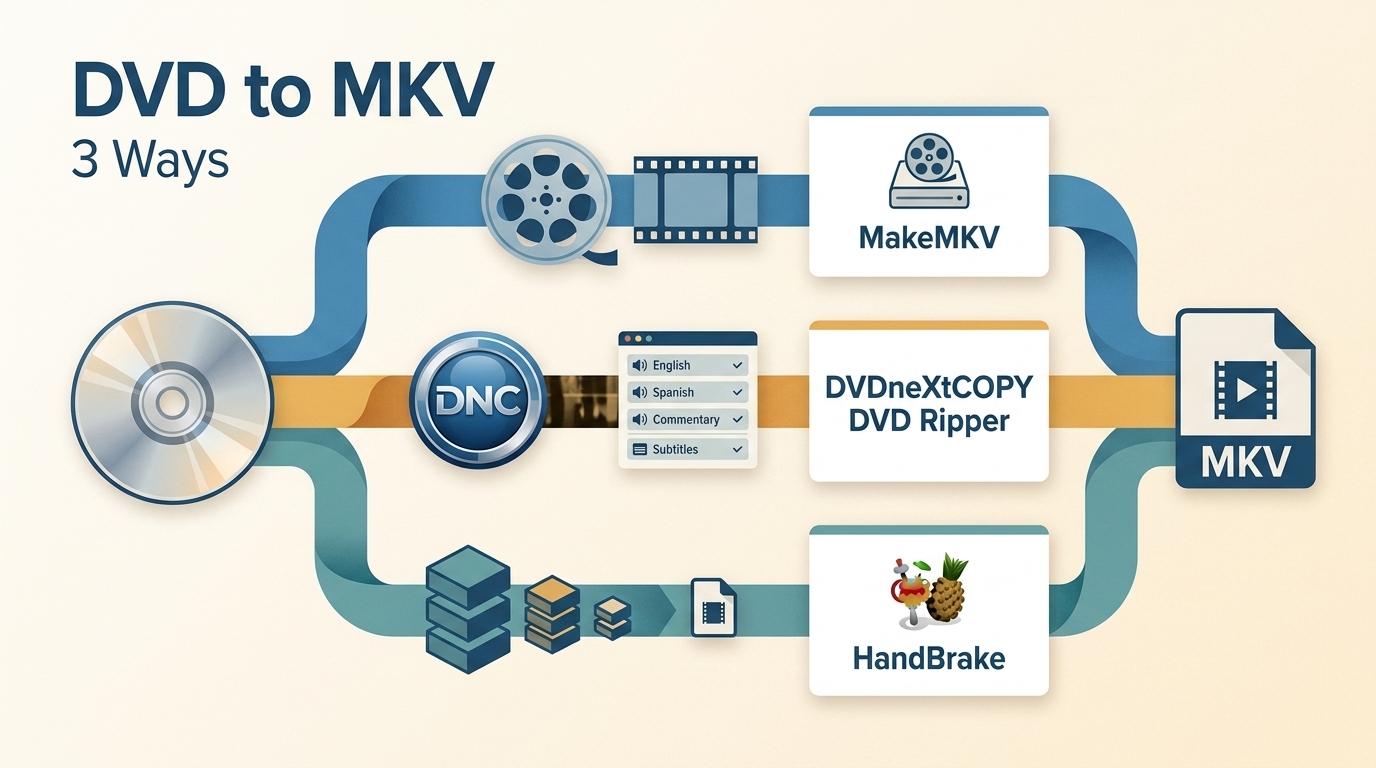
Table of Contents
A DVD can contain more than one video title, along with multiple audio tracks, subtitles, commentary, and chapter markers. Before you convert DVD to MKV, decide whether you want to keep the DVD's existing encoded video without re-encoding it or create a smaller file through a new encode. MKV is a container rather than a video codec, so the codec stored inside the file also affects file size and playback compatibility.
Choose Your DVD-to-MKV Workflow: Remux or Re-encode?
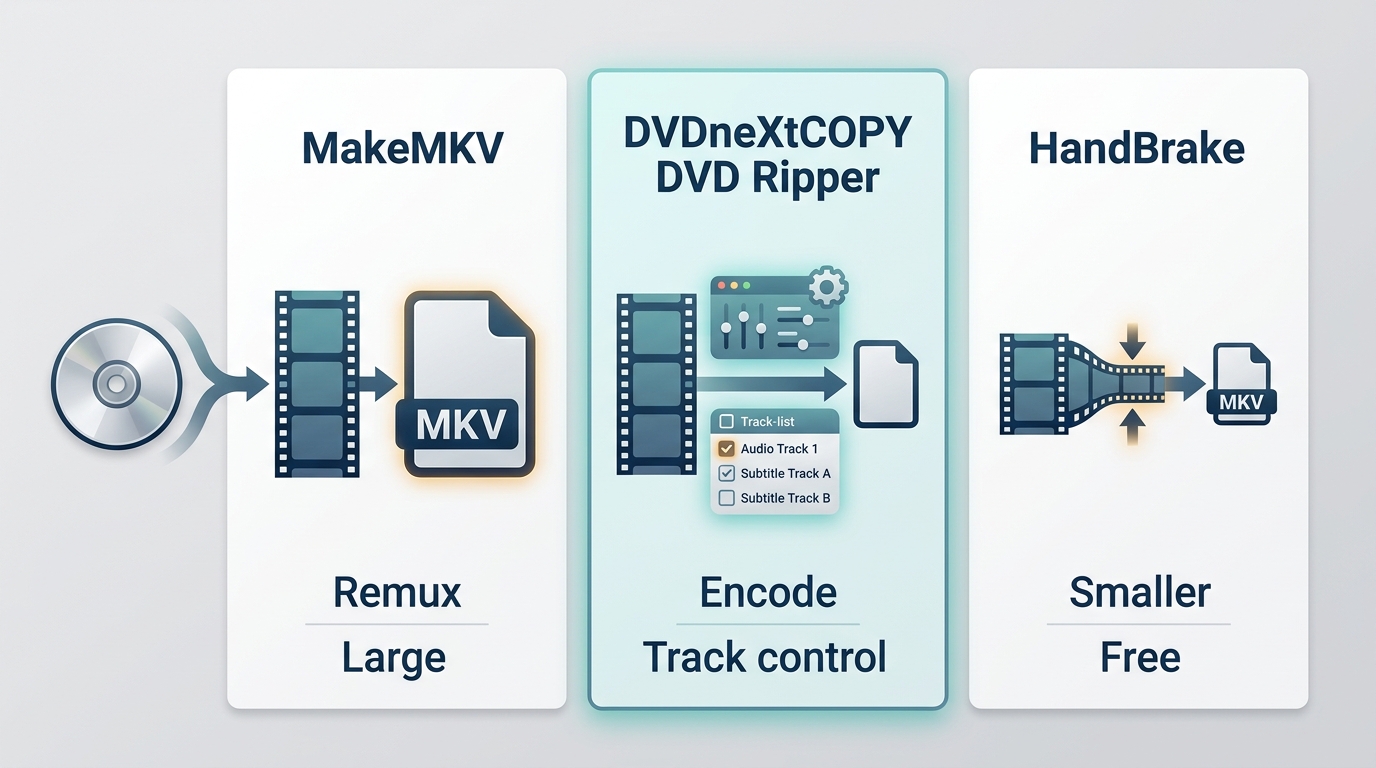
Start with the finished file you need rather than the software name. A remux places the DVD's existing encoded video and selected audio or subtitle streams into an MKV container without re-encoding the video. This avoids another generation of video compression, but the file does not become dramatically smaller just because the container changed.
Re-encoding creates a new video stream. It takes more processing time, but it lets you reduce file size or use a different codec for playback. DVDneXtCOPY can create either a lossless Passthrough MKV without re-encoding or a compressed/re-encoded MKV, MakeMKV remuxes the selected streams, and HandBrake always re-encodes the video.
| Tool | Best for | MKV result | Source requirement | Platform and cost |
|---|---|---|---|---|
| DVDneXtCOPY DVD Ripper | Both lossless Passthrough and smaller re-encoded MKV | Lossless Passthrough without re-encoding or compressed/re-encoded MKV | DVD disc, ISO, or DVD folder the program can load | Windows; commercial |
| MakeMKV | Keeping the existing DVD video stream | MKV remux without video re-encoding | DVD or Blu-ray title MakeMKV can read | Windows, Mac, Linux; DVD opening is free |
| HandBrake | Reducing file size through encoding | Re-encoded MKV | Readable, unprotected DVD or supported video source | Windows, Mac, Linux; free |
What Does MKV Keep from a DVD?
MKV can hold a video title together with multiple audio tracks, subtitle tracks, chapter information, and metadata. What reaches the finished file still depends on the title and tracks you select before conversion.
A normal title-based MKV is not the same as a full DVD-Video image with the original interactive menu and disc structure. If keeping the complete disc structure matters more than having one convenient movie file, use an ISO or DVD-folder backup instead.
Before starting, check whether you need the main movie only or several titles, which audio and subtitle tracks matter, whether chapters should remain available, how much storage you have, and where the MKV will be played.
Convert DVD to MKV with DVDneXtCOPY: Lossless Passthrough or Smaller Files
DVDneXtCOPY DVD Ripper loads a protected DVD disc, ISO image, or DVD folder and lets you choose the title, chapter range, audio tracks, and subtitles before creating the output. For MKV, it supports both directions: choose MKV Passthrough to keep the original audio and video encoding without quality loss from re-encoding, or choose an encoded MKV profile when you want to compress the video and reduce file size.
The main advantage is that you do not have to choose a lossless-only or compression-only tool. DVDneXtCOPY can keep the selected streams unchanged with Passthrough or re-encode them for a smaller MKV in the same Windows program. Batch processing and GPU acceleration are available for applicable encoding jobs.
- Supports both lossless MKV Passthrough and compressed/re-encoded MKV output.
- Supports protected DVD discs, ISO images, and DVD folders.
- Provides title, chapter, audio, and subtitle selection before conversion.
- Supports batch processing and GPU acceleration for applicable encoding jobs.
- It is limited to Windows rather than Windows, Mac, and Linux.
How to Convert DVD to MKV with DVDneXtCOPY
Step 1: Load the DVD source. Install DVDneXtCOPY and open the DVD Ripper module. Insert the DVD and let the program load it, or use Add Source for an ISO image or DVD folder.

Step 2: Choose lossless Passthrough or a compressed MKV. Open the profile selector and choose MKV. Select Passthrough when you want to keep the original audio and video encoding without re-encoding. Choose an encoded profile such as H.265 when reducing file size or changing the video codec matters more.

Step 3: Select the title, audio, subtitles, and chapters. Choose the movie, episode, or other title you want to save. Set the chapter range and keep only the audio and subtitle tracks you expect to use later. If subtitles are important to your library, select them before processing or follow the detailed steps to rip DVD with subtitles.
- Titles: Choose the movie, episode, or other title you intend to save.
- Audio and subtitles: Keep the tracks you will use after conversion.
- Preview and settings: Check the selected title and adjust output options before starting.
Editing is optional. Use crop, trim, rotation, watermarks, external subtitles, or picture adjustments only when you actually need to change the presentation; they are not required for an ordinary DVD-to-MKV conversion.
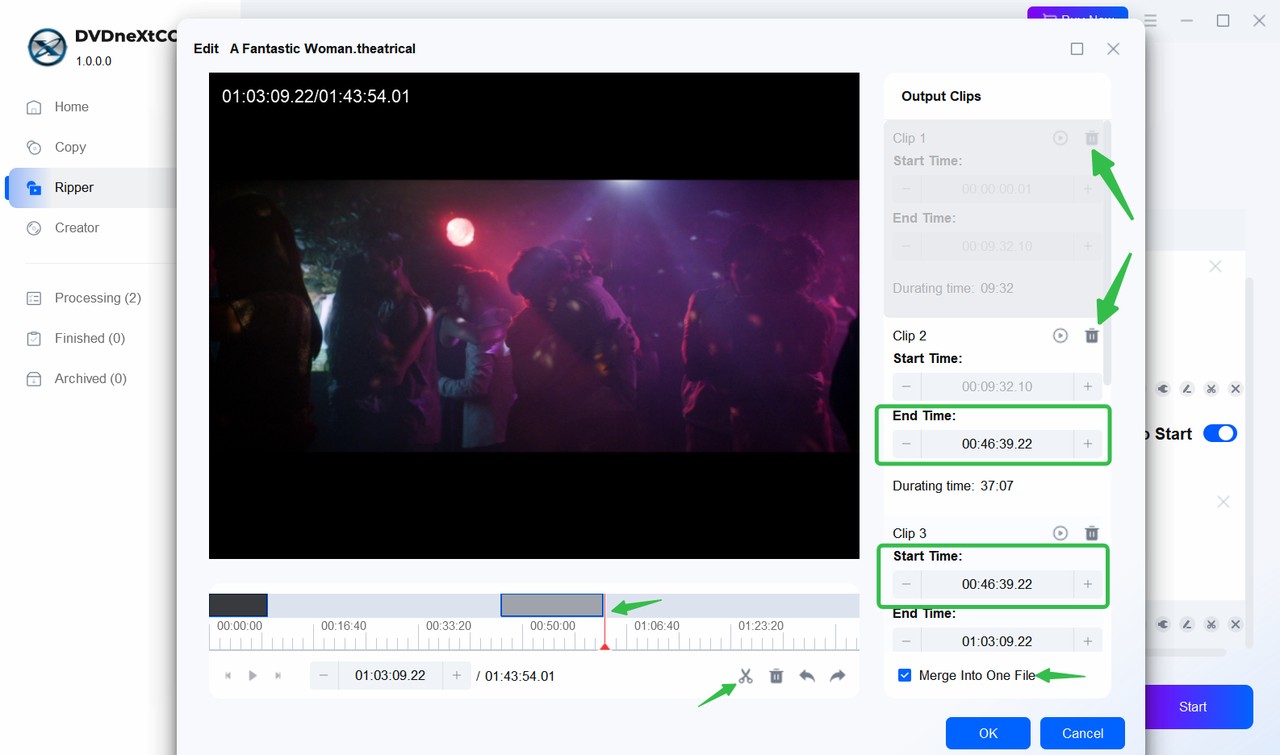
Step 4: Convert and check the output. Choose the output folder and select Start. When the conversion finishes, reopen the MKV and check its runtime, audio tracks, subtitles, and chapters before moving it into your library.

Rip DVD to MKV with MakeMKV Without Re-encoding
MakeMKV reads DVD and Blu-ray titles and saves the selected content into MKV files without re-encoding the video. You can choose the title and retain the audio, subtitle, chapter, and metadata information you need in the finished file.
Its main advantage here is the absence of a video re-encoding stage. That makes MakeMKV a direct choice when retaining the DVD's existing encoded stream matters more than reducing storage use. It is focused on MKV output rather than compression controls or a wide range of output containers, so a smaller video file normally requires a later transcode.
- Does not re-encode the selected DVD video stream.
- Keeps selected audio, subtitle, chapter, and metadata information.
- Runs on Windows, Mac, and Linux.
- The resulting MKV can remain relatively large because the video is not re-encoded for compression.
- MKV is the program's primary file output rather than one of many output containers.
- It does not provide the video-compression controls of a dedicated encoder.
How to Rip DVD to MKV with MakeMKV
Step 1: Download and install MakeMKV from its official site.
Step 2: Insert the DVD into your optical drive and wait for MakeMKV to detect it.
Step 3: Select the "Open DVD disc" button and let MakeMKV scan the available titles.

Step 4: Select the movie or episode you need. Expand the title and disable audio or subtitle tracks you do not want to carry into the MKV. Set the output folder before starting.
Step 5: Select the "Make MKV" icon. After the file is created, reopen it and switch through the audio, subtitle, and chapter options you intended to keep. If several similarly sized titles appear, compare their runtimes and preview likely matches before processing a full movie or episodic disc.

Convert DVD to MKV with HandBrake for Smaller Files
HandBrake is a free, open-source video transcoder for Windows, Mac, and Linux. It can read supported DVD sources and create MKV, MP4, or WebM output. For DVD to MKV, HandBrake always converts the video rather than passing the original video stream through unchanged.
The advantage is control over the balance between file size and encoded quality. You can select codecs, quality settings, audio, subtitles, chapters, filters, and hardware-encoding options where supported. The limitation is equally important: HandBrake does not provide video passthrough and does not circumvent copy protection, so use it with sources the program can already read.
- It is free and available across major desktop platforms.
- Lets you control encoded quality and file size.
- Supports DVD subtitles, chapters, filters, and several video codecs.
- Video is always re-encoded rather than passed through unchanged.
- It does not work around DVD copy protection.
- Its encoding options require more decisions than a direct remux.
How to Convert DVD to MKV with HandBrake
Step 1: Download and install HandBrake on your computer.
Step 2: Insert a home-recorded, unprotected, or otherwise readable DVD into the optical drive.
Step 3: Launch HandBrake, add the DVD source, and wait for it to scan and load the available titles.

Step 4: Choose the movie or episode you need, select MKV as the format, and set a quality target. Encode a short sample or chapter before committing to a full movie if you are still deciding on the quality setting.

Step 5: Review video, audio, subtitle, and chapter settings. HandBrake can carry detected chapter markers into MKV and can keep multiple DVD VOBSUB subtitle tracks when they are selected as soft subtitles. Use deinterlace, decomb, or other filters only when the source actually needs them.

Step 6: Set the output location and select "Start Encode." Reopen the finished MKV after encoding and check playback, subtitles, audio, and chapters before deleting any intermediate source files. For a DVD source already stored as an ISO image, see how to convert ISO to MKV.
Check the MKV Before You Add It to Your Library
A completed progress bar confirms that the program reached the end of the job, but it does not confirm that you selected the right title or kept every track you wanted. Reopen the MKV and check the beginning, middle, and end of the movie. Switch between the audio tracks you intended to keep, turn subtitle tracks on and off, and test chapter navigation.
For episodic discs, compare the runtime and episode order before naming the files. Also check the playback device you plan to use. MKV is the container, while compatibility can still depend on the video codec, audio codec, subtitle type, and player.
Once the file checks out, give it a useful name before moving it into your library. A movie title and year are usually enough for films; TV collections benefit from season, episode, and disc information.
DVD to MKV FAQs
Owning a DVD does not settle every legal question about copying it, especially when access-control measures are involved. Use discs you own or content you are authorized to use, and follow the law that applies where you live.
Not as a practical end-to-end process for a physical disc. An online converter would first require the DVD content to exist as an uploadable file, which adds an extra extraction step as well as upload time and storage requirements.
A DVD can contain separate titles for episodes, bonus features, alternate cuts, or other content. Compare runtimes and preview likely matches before naming the output files, especially with TV season discs or multi-title collections.
MakeMKV remuxes the existing video stream into MKV, while HandBrake creates a newly encoded video stream. HandBrake's processing time therefore also depends on the selected encoder, quality target, filters, frame-rate settings, and hardware.
A standard title-based MKV can keep selected video, audio, subtitles, chapters, and metadata, but it is not the same as preserving the original DVD-Video structure and interactive menu. If the disc structure matters, use an ISO or DVD-folder backup method instead.
Which DVD-to-MKV Converter Should You Choose?
Choose DVDneXtCOPY DVD Ripper when you want one Windows program that supports both lossless MKV Passthrough and compressed/re-encoded MKV output, while also letting you select titles, chapters, audio, and subtitles.
Choose MakeMKV when retaining the DVD's existing encoded video stream matters more than reducing storage use. Choose HandBrake when the source is already readable and you are willing to re-encode the video to control file size, codec, and playback requirements.
Whichever method you use, decide which titles and tracks matter before conversion and reopen the finished MKV afterward. For the broader process of how to rip a DVD, start by deciding what you need to keep before choosing an output format.
![Top 8 Best MP4 to DVD Converters on Windows & Mac [2026 Tested]](https://images.dvdnextcopy.com/2026/09/17/I2v69nzxIF6Xn7iue3ZRMGJ5-Ls0SF_z/feature_cover.jpg) Luna MillerSep 21, 2026
Luna MillerSep 21, 2026Top 8 Best MP4 to DVD Converters on Windows & Mac [2026 Tested]
 Luna MillerSep 21, 2026
DVD Region Codes Explained: Region 1 and Playback Options
![How to Remove DVD Copy Protection: Software and Free Methods [2026]](https://c.dvdnextcopy.com/media/How_to_Remove_DVD_Copy_Protection_d24c38a790.png) Steven VanceSep 21, 2026
Steven VanceSep 21, 2026How to Remove DVD Copy Protection: Software and Free Methods [2026]
 Luna MillerSep 21, 2026
How to Rip a Copy-Protected DVD on Win & Mac: 6 Ways
 Steven VanceSep 18, 2026
Top MP4 to ISO Converter in 2026: DVD Authoring vs Online Tools
 Steven VanceSep 18, 2026
How to Digitize DVD Collection: 5 Ways in 2026