 DVDneXtCOPY DVD Ripper
How to Rip a DVD with Subtitles in 2026: 3 Practical Methods

Summary: Get information on how to easily rip DVDs with subtitles, including DVD original subtitles, external subtitles, and forced-only subtitles. Make your ripped DVDs easier to understand and suitable for language studies.
A completed DVD rip is not much use if the subtitle track is missing or cannot be selected. To get straight to the point, choose the subtitle mode and container before encoding: this guide compares three ways to rip a DVD with subtitles and fix common playback failures.
For discs you own or are authorized to use, the right DVD ripper software depends on whether you need selectable, forced, burned-in, or separate subtitle files.
3 Ways to Rip DVDs with Subtitles
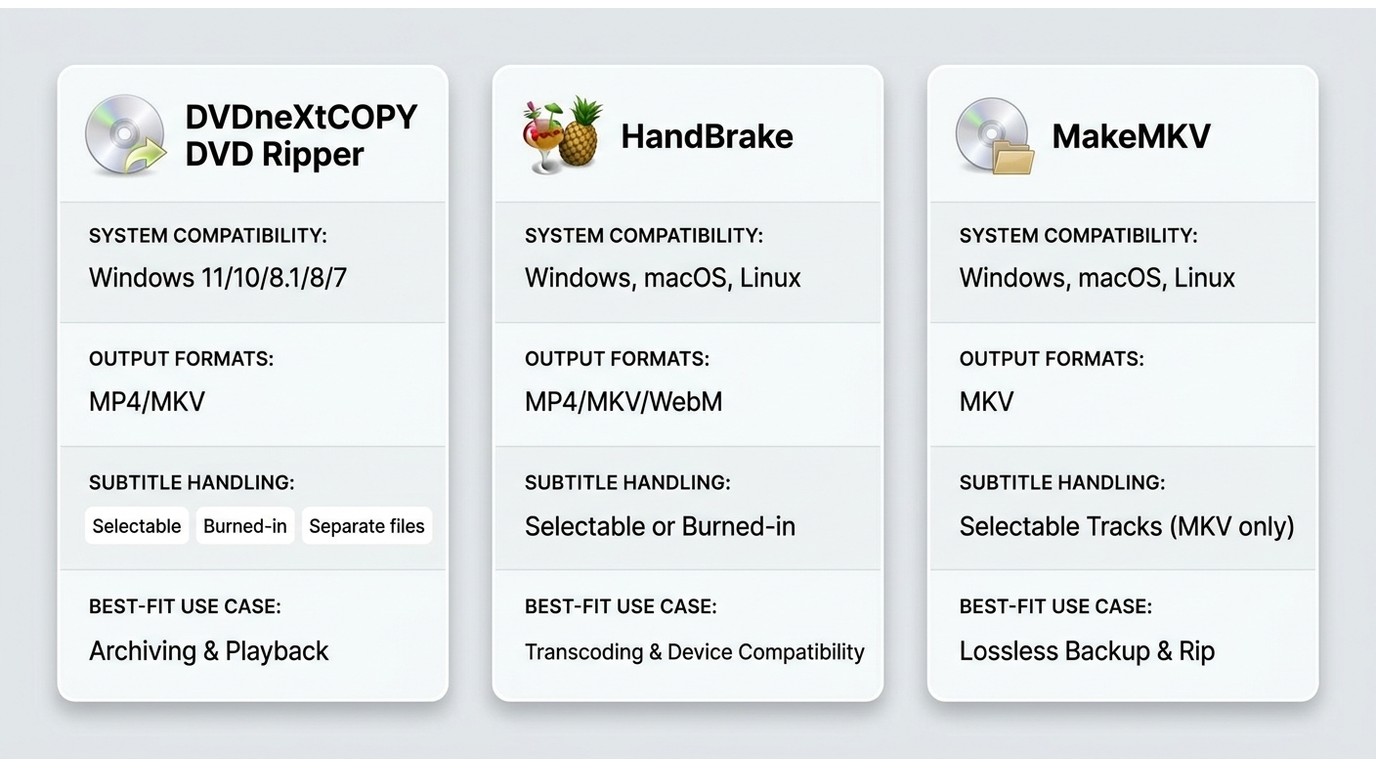
Most commercial DVDs include subtitle tracks, but a finished file can still lose them or make them difficult to select. MKV is generally the safer container when you want several selectable subtitle tracks, while burned-in subtitles are more dependable when a playback device does not expose soft tracks.
| Method | Operating systems | Output container | Subtitle handling | Best fit |
|---|---|---|---|---|
| DVDneXtCOPY DVD Ripper | Windows | MP4, MKV, and more | Selectable, burned-in, or separate files | Windows subtitle choices |
| HandBrake | Windows, macOS, Linux | MP4, MKV, WebM | Track selection and burn-in | Free encoding |
| MakeMKV | Windows, macOS, Linux | MKV | Selected source tracks | Keeping multiple tracks |
For flexible playback, I favor MKV with selectable tracks when the player supports them. Burned-in subtitles are the simpler choice for devices that do not reliably show subtitle menus.
DVDneXtCOPY DVD Ripper: Rip DVD with Subtitles with Multiple Options
- Support OS: Windows
DVDneXtCOPY DVD Ripper provides 4 different subtitle solutions for ripping protected DVDs, ISO files, or Folders. It supports MP4, MKV, and other output profiles, lets you select subtitle and audio tracks, extract SRT subtitles, and add external subtitle files. It is best for Windows users who want several subtitle-output choices.
- Process common protected DVD content for personal backups.
- Rip DVD with external SRT/ASS/SSA/SMI subtitles.
- Fast conversion speed and batch conversion supported.
- Rip DVDs to MKV, MP4, MOV, AVI, and 1000+ output configurations and device profiles.
- Rip DVD with subtitles in different types: Soft subtitles, Hard subtitles, and Forced subtitles.
- Allowing for video size, quality, and effect customization, playback speed, and watermark adding can also be changed using the built-in video editor.
How to Rip a DVD with Soft subtitles using DVDneXtCOPY DVD Ripper [Step-by-Step]
Step 1. Free download DVDneXtCOPY and install it on your computer.
Step 2. Switch to the Ripper module and then add the DVD source or you may insert the DVD into your PC drive and let DVDneXtCOPY automatically detect and load it as the source.
Step 3. Select the video format, MKV, MP4, AVI, or other formats you prefer.

Step 4. In the subtitle list, pick the subtitles you want to rip along with the DVD. Open the Advanced Settings panel and set how you want the subtitles for viewing. To get soft subtitles, use the Remux mode or the SRT mode.
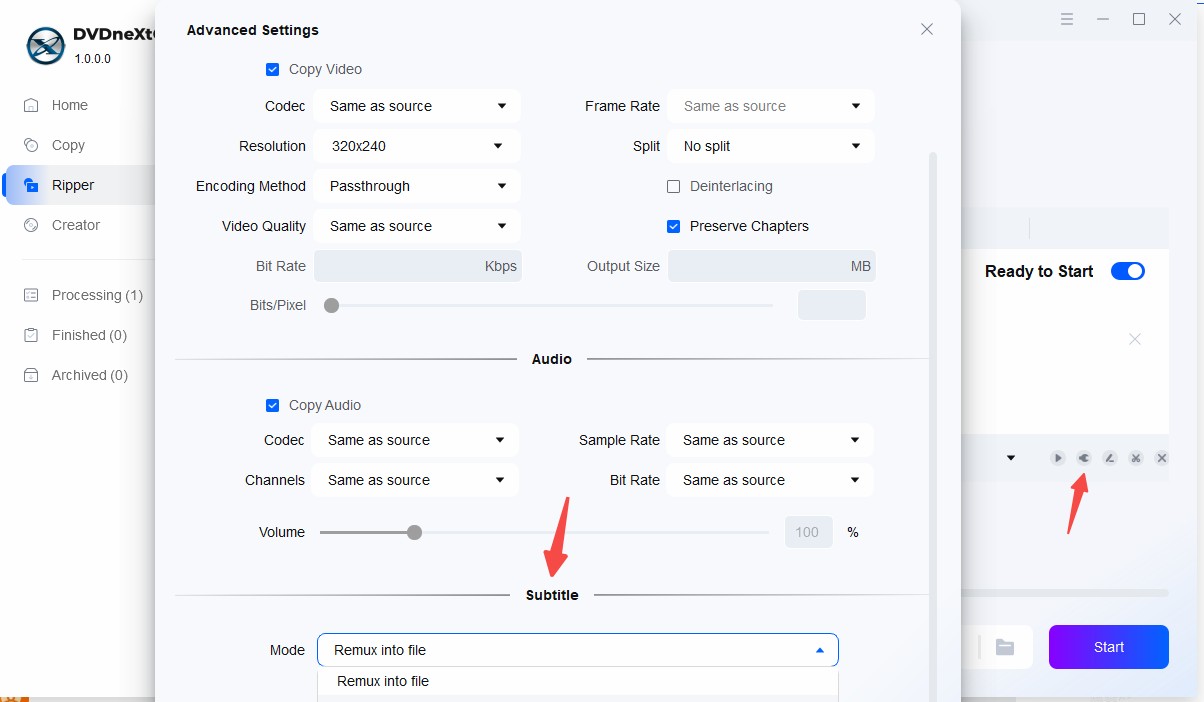
- Remux into file: You can make Subtitles to show up or disappear during playback
- Direct render to video: You cannot control the Subtitles; they are always displaying when playing (in this case, only one subtitle track can be rendered)
- Extract to idx/sub file: You can on or off Subtitles during playback (some players don't support displaying idx/sub subtitle file)
- Extract to SRT file: SRT subtitle mode is available with MP4 and MKV output. It saves a separate text file, while remuxing keeps a selectable subtitle track with the video.
If you need to extract subtitle files from a DVD rather than keep them with the video, use SRT or IDX/SUB output and save the subtitle file alongside the video.
Step 5. Click on the Folder icon next to the Start button and then choose an output path. Once done, click the Start button to rip the DVD with soft subtitles.
Enable forced subtitles when ripping DVD with subtitles using DVDneXtCOPY DVD Ripper
"Forced subtitles" are to help viewers understand what the character speaks in a different language, usually text subtitles that show on screen for specific parts of dialogue spoken in a language that is different from the film's primary language. In the example, movie Avatar, forced subtitles were used for certain scenes where the Na'vi characters speak their native language.
Here are the step-by-step guides to get forced subtitles:
Step 1. Run DVDneXtCOPY and switch to the Ripper module.
Step 2. Add the DVD as a source, choose the desired profile, and set the output size. The larger the size, the better the quality.
Step 3. Open the Subtitle list, tick "Display only forced Subtitles", then choose "Forced only". Be sure to tick the option "Scan Forced Subtitles", it will ensure that you will get the forced subtitles available.
If you want to keep the normal subtitles as well, use the option "Normal and forced only".

Step 4. Select a folder from the location where you want to save the video.
Step 5. Hit Start and rip the DVD. You will get a DVD with forced subtitles after the process is finished.
How to rip DVD with external subtitles using DVDneXtCOPY DVD Ripper
What if you want to add the desired subtitle track to the video? DVDneXtCOPY offers the option to import external subtitles. The supported formats include "*.SRT", "*.smi", "*.ass", and "*.ssa".
Find the guide for ripping DVDs with this kind of subtitles here:
Step 1. Free download and run DVDneXtCOPY. Switch to the Ripper module after the installation is finished.
Step 2. Add a DVD as a source, you will get the main movie title selected by default. If you want to choose another one, open the Other Titles panel. Then, select the output format, MKV, MP4, or other profiles you need.
Step 3. Click on the "Video Edit" button, the one that looks like a pen is writing. On the popup window, switch to the Subtitles tab, and use the "+Add Subtitles" button to browse for the subtitle file you wish to add to the ripped DVD. Adjust the font, transparency, and position of the subtitles.

Step 4. Choose the output target to save the video file.
Step 5. Start the process.
Step 6. When playing the output video, enable the subtitles if you rip the DVD in soft subtitle type to get subtitles to show up. If you choose to render or burn-in subtitles (hard subtitles), you will get subtitles displayed automatically.
HandBrake: Rip DVD with Subtitles with Easy-to-Follow Steps
- Support OS: Windows, macOS, and Linux
HandBrake is a free, open-source encoder that can include selected DVD subtitle tracks from a readable source. It outputs MP4, MKV, and WebM, and supports imported subtitles, forced-subtitle detection, and burned-in subtitles. It is best for free subtitle-aware encoding, but not ideal when you want a one-step workflow.
How to rip DVD with Forced Only subtitles and burn subtitles in the video using HandBrake
Step 1. Download and install HandBrake and launch it once the installation is completed.
Step 2. Open the DVD source, select a title, set the preset for video quality (such as "Fast 1080p30"), and choose the format as MP4, MKV, or WebM according to your needs.

Step 3. Switch to the Subtitles tab. By default, you will see: "Foreign Audio Scan" - Forced Only - Burn In. HandBrake scans the title and can add a subtitle track when it detects foreign-language dialogue. I would check the selected track, forced flag, container, and playback app before committing to a long encode, because Foreign Audio Scan is useful but not foolproof.
Display the Tracks list to add all remaining subtitle tracks and then set how to deal with that track.

Step 4. Browse for the "Save AS" destination at the bottom.
Step 5. Hit the "Start Encode" button on the top menu bar to rip the DVD with forced subtitles.
MakeMKV: Rip DVD with Subtitles for Free
- Support OS: Windows, macOS, and Linux
MakeMKV outputs MKV files and can preserve selected video, audio, and subtitle tracks from the source. It is best for keeping multiple DVD subtitle tracks in MKV, but not ideal if you need MP4 directly or a smaller encoded file. Keeping every track is useful only when your playback app exposes the correct default and forced flags.
How to rip DVD with internal subtitles using MakeMKV
Step 1. Download and install MakeMKV from its website on your computer.
Step 2. Launch the tool and scan the DVD to be ripped.
Step 3. On the left pane, select the title, and unselect the audio tracks and subtitles you do not want to keep. MakeMKV will rip the DVD along with the selected audio and subtitle tracks.

Step 4. Choose the output location where you want to save the video.
Step 5. Click the "Make MKV" button to begin the ripping process from DVD to MKV with internal subtitles of the original disc.
Step 6. Wait for the ripping to complete.
Fix Missing or Out-of-Sync Subtitles
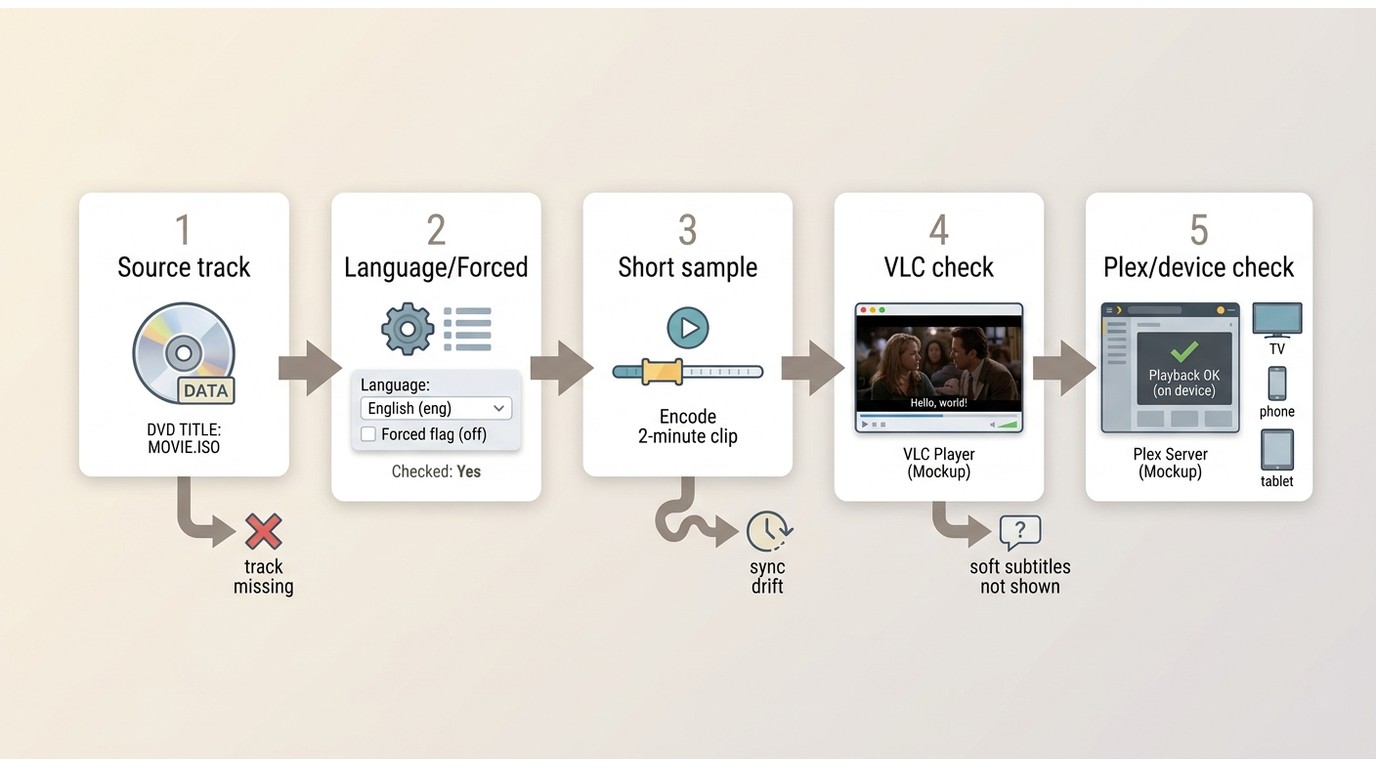
Missing and Forced Subtitle Tracks
Start with the DVD title, not the output file. A disc may contain several cuts, subtitle languages, commentary tracks, or a forced track that is separate from the full subtitle track. Confirm that the chosen title contains the track you expect, then check whether the player has disabled it or ignored its default and forced flags. Subtitle tracks and closed-caption tracks can also be exposed differently by encoders and players.
Subtitle Timing and Sync Problems
Test a short sample before encoding the full title. If subtitles drift, compare the same scene in the source, the encoded file, and a second player. This helps isolate whether the timing problem began with the disc, the encoder, or the playback app. The most common avoidable mistake is re-encoding an entire movie before checking a few scenes and switching tracks.
Plex and Device Playback Issues
MKV can retain selectable tracks, but a TV, tablet, Plex client, or media server may not display them by default. Check the subtitle menu in the final file first, then test the target device. If you are preparing files for mobile viewing, transferring DVDs to an iPad also requires confirming that the chosen player can see the subtitle track. When the device cannot reliably expose soft subtitles, a burned-in subtitle version may be more dependable.
FAQs
Yes. DVDneXtCOPY DVD Ripper lets you adjust the position and color of external subtitles in the Video Editor window. This applies to imported subtitles; selectable disc tracks normally retain their authored placement.
VLC can produce different subtitle results depending on the selected track, codec, container, and playback app. Its DVD-to-MP4 subtitle behavior should be re-tested in the current release before relying on it for an important rip. Use a tool with explicit track and container controls when predictable subtitle handling matters.
DVD subtitles and closed captions can be stored as different track types, and ripping tools or players may expose them differently. A subtitle track may be selectable in the player, while a caption track may require different support or settings. Inspect the source title and track type before encoding.
Conclusion
For desktop or media-server playback, I favor MKV with selectable tracks when the player exposes them properly. Use burned-in subtitles when a TV, tablet, or app does not reliably show soft tracks, and use forced-only output only after confirming that the source contains the intended forced track. Reopen the finished file, switch tracks, and check a few scenes before filing it into your library.
![Top 8 Best MP4 to DVD Converters on Windows & Mac [2026 Tested]](https://images.dvdnextcopy.com/2026/09/17/I2v69nzxIF6Xn7iue3ZRMGJ5-Ls0SF_z/feature_cover.jpg) Luna MillerSep 21, 2026
Luna MillerSep 21, 2026Top 8 Best MP4 to DVD Converters on Windows & Mac [2026 Tested]
 Luna MillerSep 21, 2026
DVD Region Codes Explained: Region 1 and Playback Options
![How to Remove DVD Copy Protection: Software and Free Methods [2026]](https://c.dvdnextcopy.com/media/How_to_Remove_DVD_Copy_Protection_d24c38a790.png) Steven VanceSep 21, 2026
Steven VanceSep 21, 2026How to Remove DVD Copy Protection: Software and Free Methods [2026]
 Luna MillerSep 21, 2026
How to Rip a Copy-Protected DVD on Win & Mac: 6 Ways
 Steven VanceSep 18, 2026
Top MP4 to ISO Converter in 2026: DVD Authoring vs Online Tools
 Steven VanceSep 18, 2026
How to Digitize DVD Collection: 5 Ways in 2026