 DVDneXtCOPY DVD Creator
How to Burn M4V to DVD on Windows and Mac [2026]

Summary: To burn a readable M4V as a playable DVD, use DVD authoring software rather than copying the .m4v file to a blank disc. DVDneXtCOPY DVD Creator covers the Windows workflow, DVDFab DVD Creator can author M4V on Mac, and Finder is only suitable when you want to store the original M4V on a data DVD.
Table of Contents
An M4V file can be written to a blank DVD in a few clicks, but that does not automatically make it playable in a standard DVD player. For normal DVD playback, the video needs to be authored into DVD-Video rather than simply stored on the disc as an .m4v file.
The first thing I check is whether the M4V opens normally. A readable, DRM-free M4V can be loaded into compatible DVD authoring software and converted to a playable DVD. If the file comes from a source with access restrictions and the authoring program cannot open it, DVD burning software does not remove that restriction simply because it supports the M4V format.
![How to Burn M4V to DVD on Windows and Mac [2026]](https://c.dvdnextcopy.com/uploads/images/17875466195502940-bfd957b6692b9edfc067e635576aeff3.jpg)
Before You Burn: Check Whether Your M4V File Can Be Read
M4V is a video container commonly associated with Apple devices and media software, but the .m4v extension by itself does not tell you whether a file is protected. Apple still documents usage restrictions for some previously purchased DRM-protected iTunes content, so file access and DVD authoring should be treated as separate issues.
Before building the DVD project, open the M4V in a media player that normally supports the file and confirm that the video and audio play correctly. If the DVD creator can import the file and display its duration and media information, you can proceed with authoring.
| Your M4V File | What to Do | Finished Disc |
|---|---|---|
| Readable, DRM-free M4V | Author it with compatible DVD creator software | Playable DVD-Video |
| M4V that the authoring program cannot read | Check the file source and access restrictions first | Normal DVD authoring cannot start yet |
| M4V you only want to store as a file | Burn it as a data DVD | DVD containing the original .m4v file |
DVD authoring normally includes the encoding needed for DVD-Video. You do not usually need to create a separate MPEG-2 file before starting, because compatible DVD creator software can handle that stage while building the disc structure.
How to Burn M4V to DVD on Windows with DVDneXtCOPY DVD Creator
DVDneXtCOPY DVD Creator supports M4V input and is designed to turn video files into DVD-Video on Windows. It can write a finished project to a physical DVD or save it as an ISO image or DVD folder. DVDneXtCOPY also comes with DVD menu creator controls include templates, text, backgrounds, thumbnails, and navigation buttons.
For this task, the important difference from ordinary file burning is authoring. The program prepares the source for DVD playback and builds the disc structure and navigation that a conventional DVD player expects. Its M4V support applies to files the program can normally read; DVD Creator should not be treated as a DRM-removal tool.
Step 1: Add the M4V Video
Launch DVDneXtCOPY DVD Creator, choose Creator > DVD Creator, then click Add Source or drag the M4V file into the main window. After the file loads, select the audio track and subtitle options shown on the main interface.

Step 2: Choose the DVD Size and Playback Settings
Click Advanced Settings. Set the volume label, output size (DVD-5 or DVD-9), video quality, TV standard (NTSC or PAL), aspect ratio, menu properties, and playback mode.
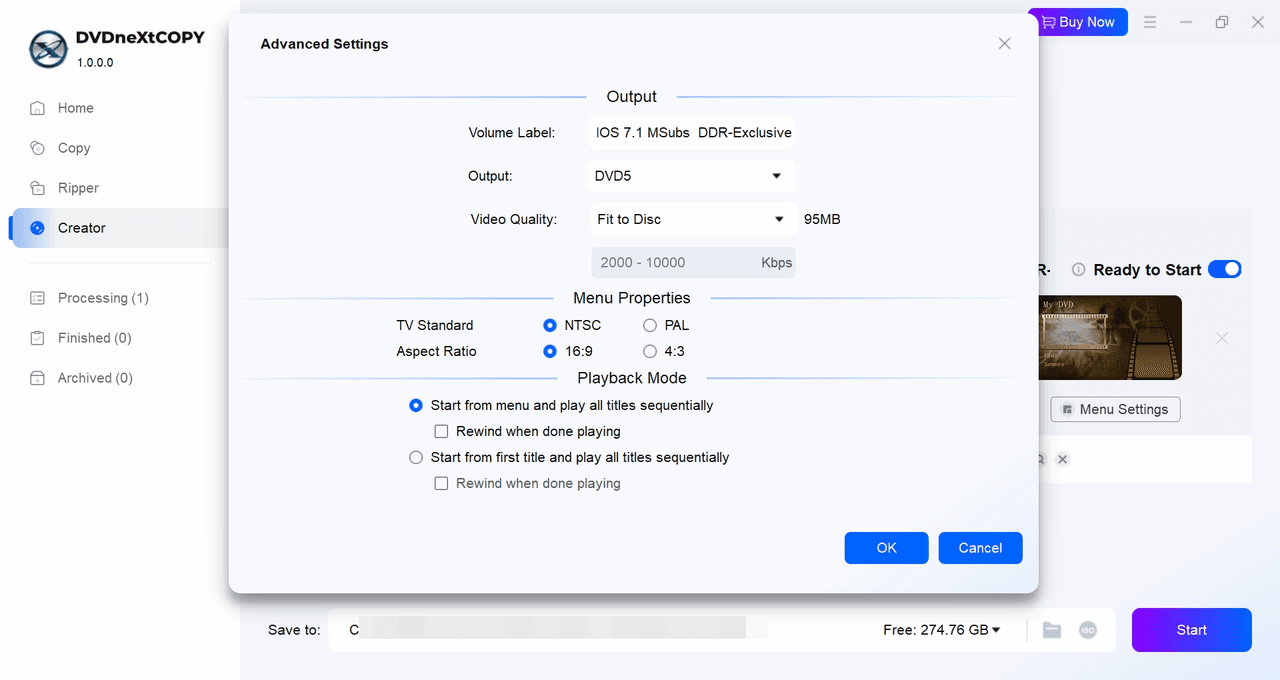
Step 3: Customize and Preview the DVD Menu
Click Menu Settings, choose a template, then edit the menu background, text, font, color, thumbnails, and playback buttons. Return to the main interface and click Play to preview the DVD menu.

Step 4: Burn M4V to DVD
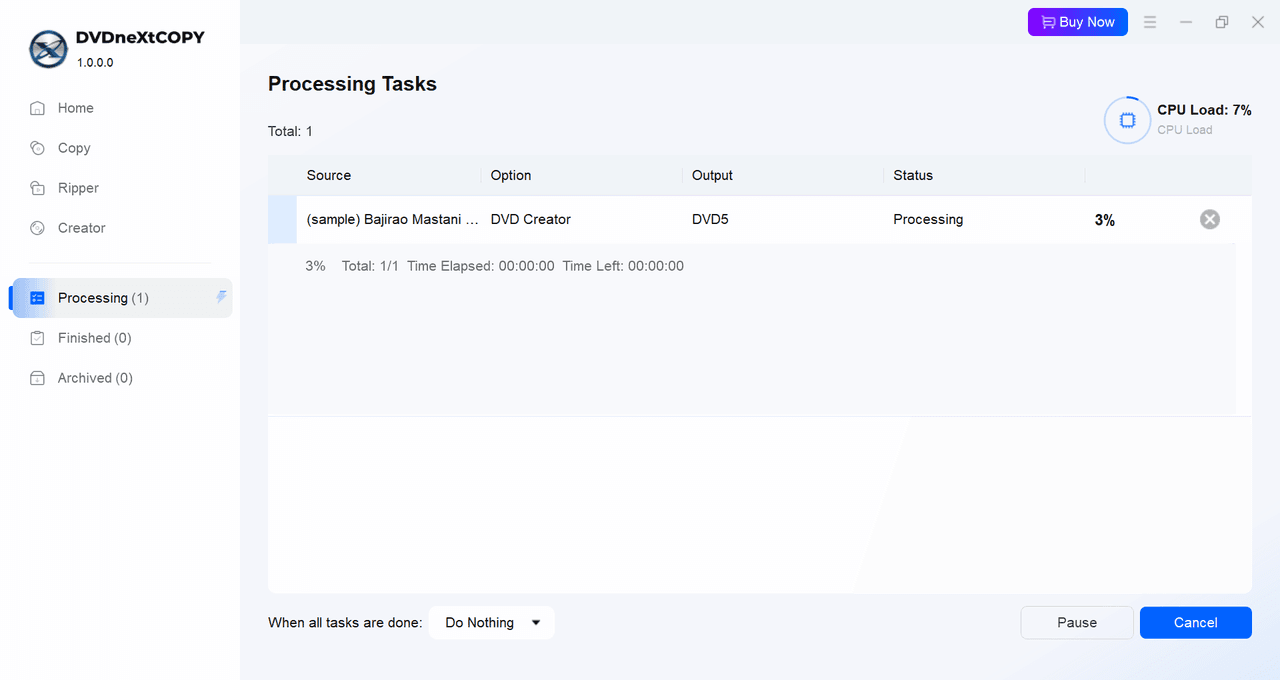
At the output destination, select the optical drive, ISO, or DVD folder. For a physical disc, insert a blank DVD and choose the drive. Click Start to begin creating the DVD.
How to Burn M4V to DVD on Mac with DVDFab DVD Creator
On Mac, a DVD burner for Mac needs DVD-Video authoring capability if the disc is meant for a conventional player. DVDFab DVD Creator supports M4V input on both macOS and Windows and can create a physical DVD, ISO image, or DVD folder from a readable source file.
This is different from Finder's built-in burning feature. DVDFab DVD Creator encodes and authors the source video for DVD playback, while Finder simply writes the M4V file to the disc as data.
Step 1: Load the M4V File
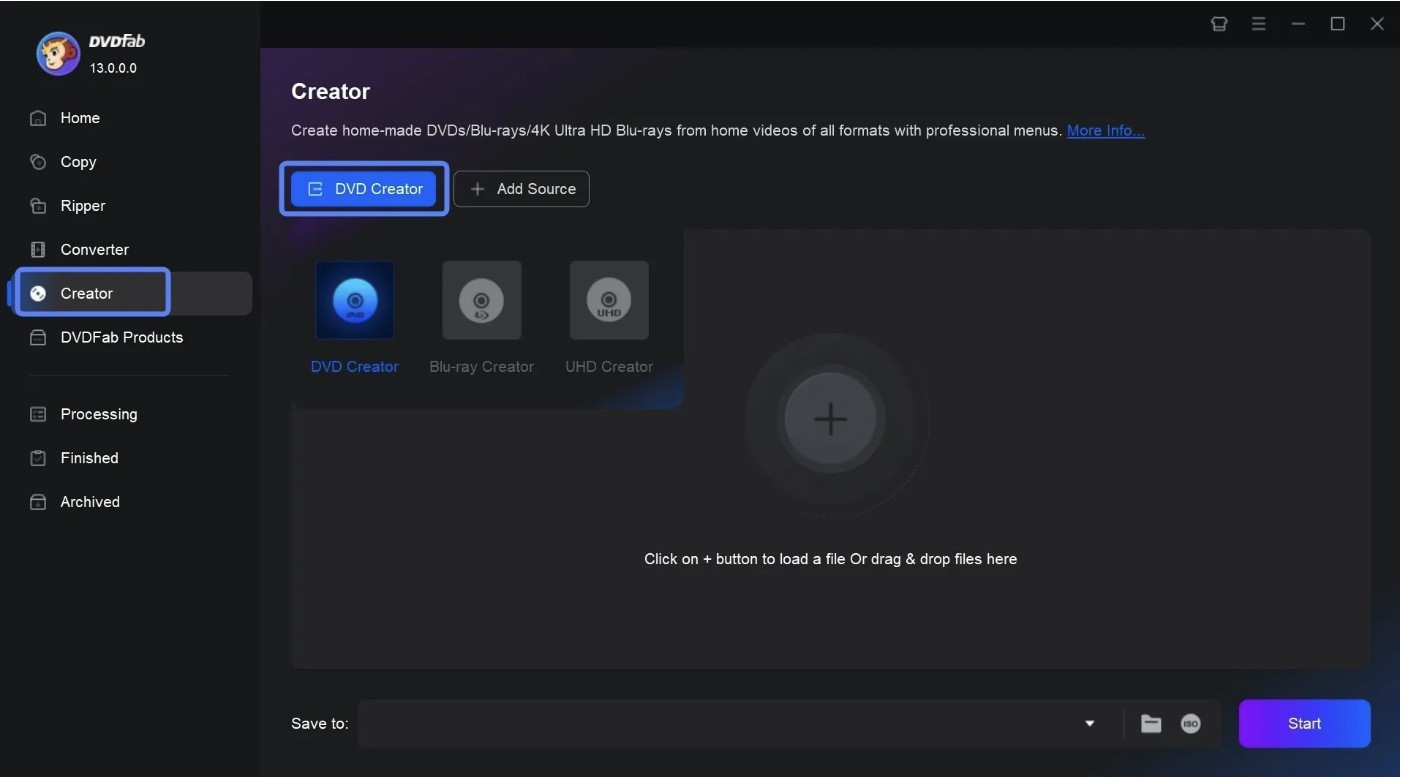
Launch DVDFab DVD Creator, choose Creator > DVD Creator, then click Add Source or drag the M4V file into the interface.
Step 2: Configure the DVD Project
Select the audio track and subtitle options on the main interface, then click Advanced Settings. Set the volume label, output size (DVD-5 or DVD-9), video quality, TV standard, aspect ratio, menu properties, and playback mode.

Step 3: Create and Preview the Menu
Click Menu Settings, choose a template, and edit the background, navigation text, font, size, color, thumbnails, and buttons. Click OK to apply the menu settings, then click Play on the main interface to preview the project.
Step 4: Burn the DVD
At the output destination, select the optical drive, ISO, or DVD folder. For a physical disc, insert a blank DVD and choose the drive. Click Start to begin creating the DVD.
Can Finder Burn M4V to DVD?
Yes, but Finder creates a data DVD, not a DVD-Video movie disc. Apple documents Finder's disc-burning feature as a way to store files and folders on CDs and DVDs. If you place an M4V in a Burn Folder and write it to the disc, the resulting DVD still contains the original .m4v file.
That can be useful when the goal is file storage or moving the video between computers. It does not convert the M4V into the DVD-Video structure expected by a conventional DVD player.
Step 1: In Finder, choose File > New Burn Folder.
Step 2: Drag the M4V file or folder into the Burn Folder.

Step 3: Open the Burn Folder and click Burn. Insert a blank DVD into the writable optical drive when prompted, then follow the onscreen instructions to write the files.
Use Finder when keeping the original file is the goal. If the DVD needs to behave like a regular movie disc, use specialized software to burn a DVD video instead.
FAQs
Yes, if your Mac does not have a built-in writable optical drive. Connect an external DVD writer before creating a physical disc. Apple also notes that Finder's Burn Folder command requires a writable optical drive to be connected.
Use a blank format supported by both your DVD writer and the player you plan to use. DVD-R and DVD+R are write-once media, while DVD-RW and DVD+RW can be erased and reused. Choose DVD-5 or DVD-9 capacity according to the authored project size rather than the original M4V file size alone.
It can, especially when the source M4V is HD or higher resolution. DVD-Video uses standard-definition video specifications, so authoring a high-resolution M4V to DVD normally requires re-encoding and may reduce resolution or detail compared with the source. Disc capacity and project length also affect the amount of compression required.
When the source exposes multiple audio or subtitle tracks and the DVD creator supports them, select the tracks you want before authoring. DVDneXtCOPY DVD Creator and DVDFab DVD Creator both provide audio and subtitle controls, so preview the project and confirm the selected tracks before burning.
Conclusion
Burning M4V to DVD starts with deciding what kind of disc you need. A readable M4V can be authored into DVD-Video with DVDneXtCOPY DVD Creator on Windows or DVDFab DVD Creator on Mac. Finder serves a different purpose: it can store the original M4V on a data DVD, but it does not turn that file into DVD-Video.
Preview the project before burning and test the finished disc afterward. A usable DVD is one whose video, menu, audio, subtitles, and navigation work on the player where you intend to use it.
![Top 8 Best MP4 to DVD Converters on Windows & Mac [2026 Tested]](https://images.dvdnextcopy.com/2026/09/17/I2v69nzxIF6Xn7iue3ZRMGJ5-Ls0SF_z/feature_cover.jpg) Luna MillerSep 21, 2026
Luna MillerSep 21, 2026Top 8 Best MP4 to DVD Converters on Windows & Mac [2026 Tested]
 Luna MillerSep 21, 2026
DVD Region Codes Explained: Region 1 and Playback Options
![How to Remove DVD Copy Protection: Software and Free Methods [2026]](https://c.dvdnextcopy.com/media/How_to_Remove_DVD_Copy_Protection_d24c38a790.png) Steven VanceSep 21, 2026
Steven VanceSep 21, 2026How to Remove DVD Copy Protection: Software and Free Methods [2026]
 Luna MillerSep 21, 2026
How to Rip a Copy-Protected DVD on Win & Mac: 6 Ways
 Steven VanceSep 18, 2026
Top MP4 to ISO Converter in 2026: DVD Authoring vs Online Tools
 Steven VanceSep 18, 2026
How to Digitize DVD Collection: 5 Ways in 2026