 DVDneXtCOPY DVD Ripper
How to Transfer a DVD to a USB Drive in 2026: 3 Ways I Tested

Summary: To convert DVD to USB for playback, MP4 is usually the safest choice, while direct file copy works for readable homemade DVDs and MKV is better when you want to preserve multiple tracks or original streams. DVDneXtCOPY DVD Ripper handles supported DVD protections on Windows, HandBrake suits readable DVDs, and MakeMKV creates stream-preserving MKV files. For large files, use a USB format such as exFAT instead of FAT32, which has a 4 GiB single-file limit.
Table of Contents
If you want to convert DVD to USB, first decide what you want to keep on the drive. You can copy readable DVD files such as VIDEO_TS directly to a flash drive, or convert the movie into a normal video file such as MP4 or MKV. Direct copying can work for homemade or other unprotected DVDs, but converting the movie is usually more practical when you want to play it from a TV, media player, or another USB-compatible device.
In this guide, I'll walk through three ways to transfer a DVD to a USB drive: copying readable DVD files directly on Windows or Mac, converting a DVD to MP4 or MKV with DVD ripping software, and handling personal DVDs when you do not have a computer. I'll also show you how to choose the right USB file system and storage capacity, and how to troubleshoot common problems such as files that are too large for FAT32 or videos that appear on a TV but will not play.
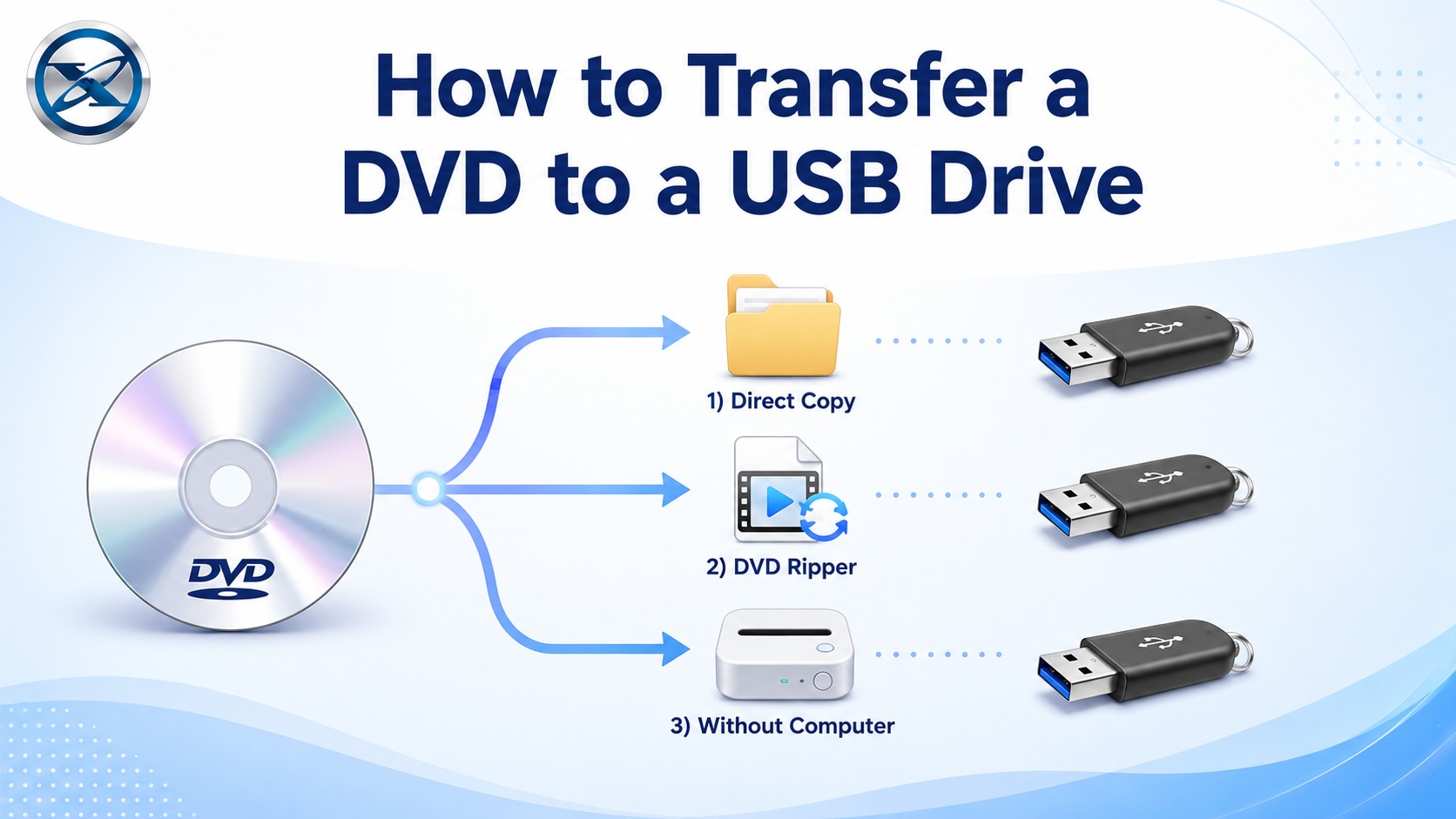
Quick Answer: How to Copy a DVD to USB
| Situation | Best Method | Result on USB |
|---|---|---|
| Homemade / unprotected DVD | Direct Copy | VIDEO_TS / original files |
| Movie needs to play on TV or media player | Convert the DVD | MP4 / MKV |
| Protected DVD | Compatible DVD ripper software | MP4 / MKV |
| Personal/home DVD without a computer | Digitization service | Usually MP4 / digital copy |
VIDEO_TS folder to USB does not automatically make it playable on a TV. If playback from USB is the goal, a compatible MP4 is usually the safer starting point.Before You Start: Prepare the USB Drive
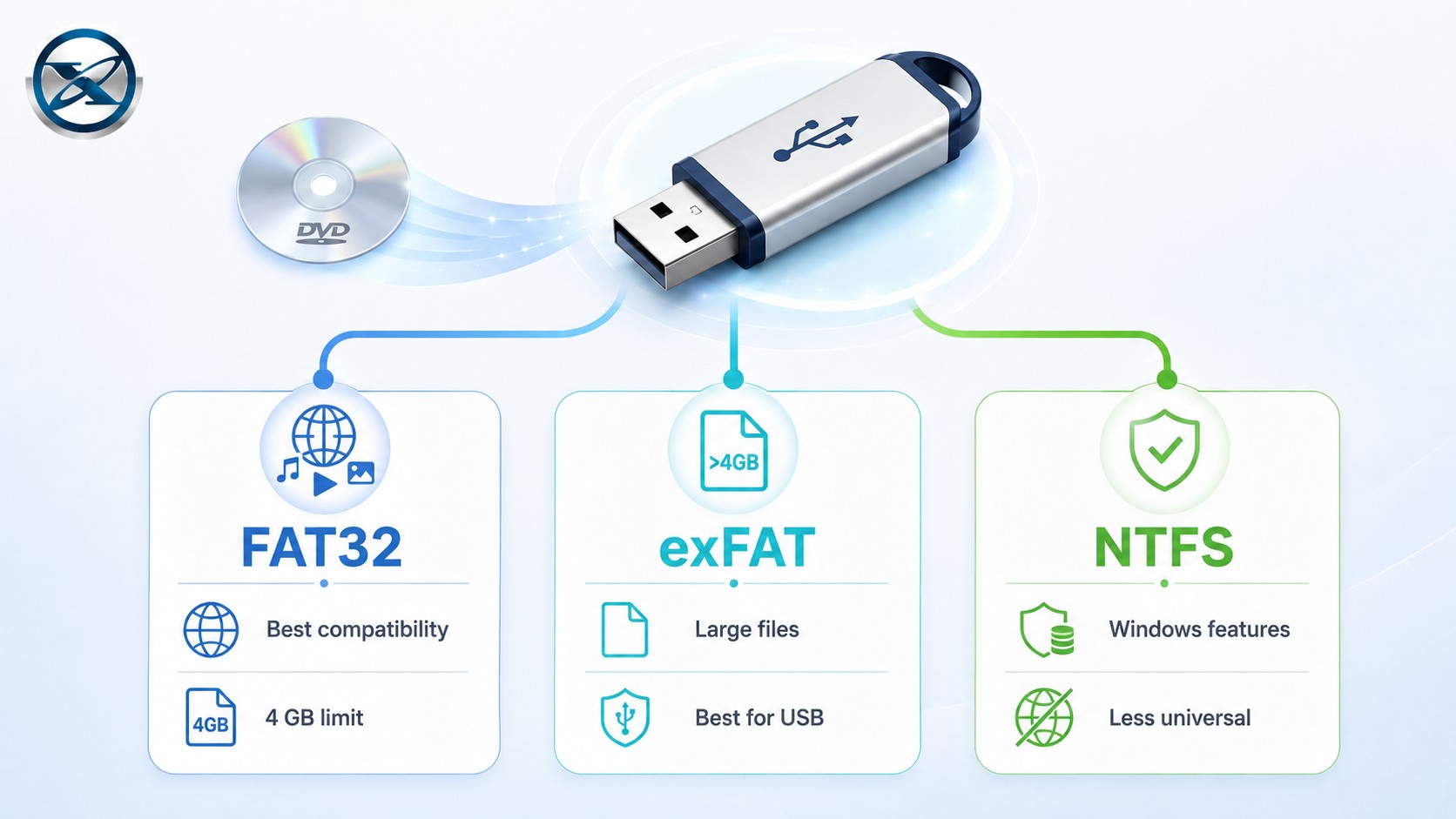
FAT32 vs exFAT vs NTFS
A DVD transfer can fail before ripping starts if the USB drive uses a file system that cannot hold the output file.
| File System | Single-File Limit | Windows | macOS Write | Best Use |
|---|---|---|---|---|
| FAT32 | 4 GiB | Yes | Yes | Older TVs and smaller files |
| exFAT | Far above normal DVD-rip sizes | Yes | Yes | Large MP4/MKV files and Win/Mac sharing |
| NTFS | Large files | Yes | Usually read-only by default | Windows-focused storage |
FAT32 has a 4 GiB individual-file limit, so a large MKV or high-bitrate MP4 can fail to copy even when the USB drive still has free space. exFAT is usually more convenient for large DVD rips that need to move between Windows and Mac, but always check which file systems the target TV or media player supports.
How Much USB Space Do You Need?
The required capacity depends on the output. A full DVD folder can be close to the amount of data stored on the disc, while an MKV made without re-encoding can also remain several gigabytes. A compressed MP4 can be smaller, depending on codec, bitrate, duration, and audio tracks.
A DVD movie stored without heavy recompression can easily exceed 4 GiB, so FAT32 can become a limitation quickly.
Choose a Playback-Compatible Format
For broad TV and media-player support, MP4 with H.264 video and AAC or AC-3 audio is a safer starting point. The .mp4 extension alone does not guarantee playback; the target device must also support the video codec, audio codec, resolution, profile, and USB file system.
Method 1: Copy DVD to USB Directly for an Unprotected Disc
Direct copying works best for homemade DVDs, data DVDs, and other discs whose files can be read normally by the operating system.
Copy DVD Files to USB on Windows
- Insert the DVD and connect the USB drive.
- Open File Explorer and open the DVD drive.
- Copy the complete
VIDEO_TSfolder or the files you need. - Open the USB drive and paste the files.
If the DVD contains normal readable files, no DVD-ripping application is required.
Copy DVD Files to USB on Mac
- Insert the DVD and connect the USB drive.
- Open the DVD in Finder.
- Select the readable files or
VIDEO_TSfolder. - Drag them onto the USB drive.
If Finder or File Explorer cannot copy the files, or the copied folder does not play on the target device, use Method 2 instead.
If you want to preserve the full disc structure rather than prepare a USB playback file, copying a DVD to a hard drive uses a different backup workflow.
Method 2: Convert DVD to USB as MP4 or MKV
This is the main way to convert a DVD to USB when you want a movie file that can be opened directly from the flash drive.
| Output | Best For |
|---|---|
| MP4 | TVs, media players, phones, broad compatibility |
| MKV | Multiple audio/subtitle tracks and larger archival-style files |
For most living-room playback, MP4 is the safer starting point. Choose MKV when retaining more tracks matters and you already know the target player supports MKV and the codecs inside it.
Best DVD to USB Converter for Windows: DVDneXtCOPY DVD Ripper
DVDneXtCOPY DVD Ripper is designed for turning a DVD disc, ISO image, or DVD folder into a normal video file that can be stored and played from a USB drive. It supports protected DVDs using Region Code, CSS, UOPs, RCE, and Sony ARccOS, and can convert the movie to formats such as MP4, MKV, AVI, and MOV. For USB playback, H.264 MP4 is a useful choice when broad device compatibility matters, while H.265/HEVC can reduce the bitrate and file size further when the TV or media player supports it.
The software's output settings are also useful when USB space is limited. You can keep only the movie title, chapters, audio tracks, and subtitles you need, then adjust the codec, bitrate, resolution, and other video settings to balance file size and image quality. A compressed H.264 or H.265 file will usually take much less space than keeping the original DVD folder, while avoiding unnecessarily low bitrate or resolution helps retain more of the source quality. Trimming unwanted footage can reduce the file size further before you copy the finished video to the USB drive.
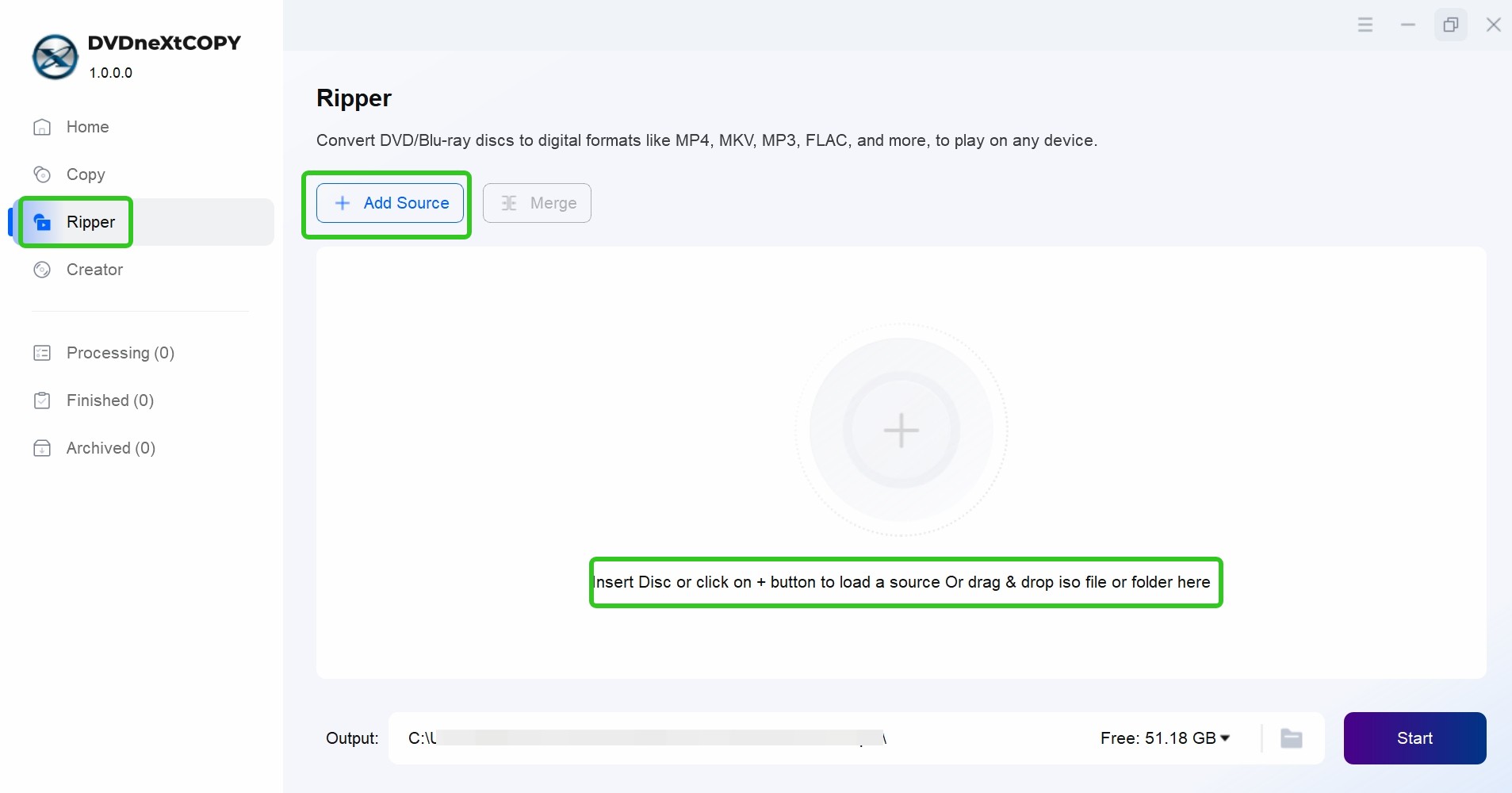
Step 1: Load the DVD
Open DVDneXtCOPY and switch to Ripper. Insert the DVD; the program can detect and load a physical disc automatically. For an ISO image or DVD folder, use Add Source or drag the source into the main window.
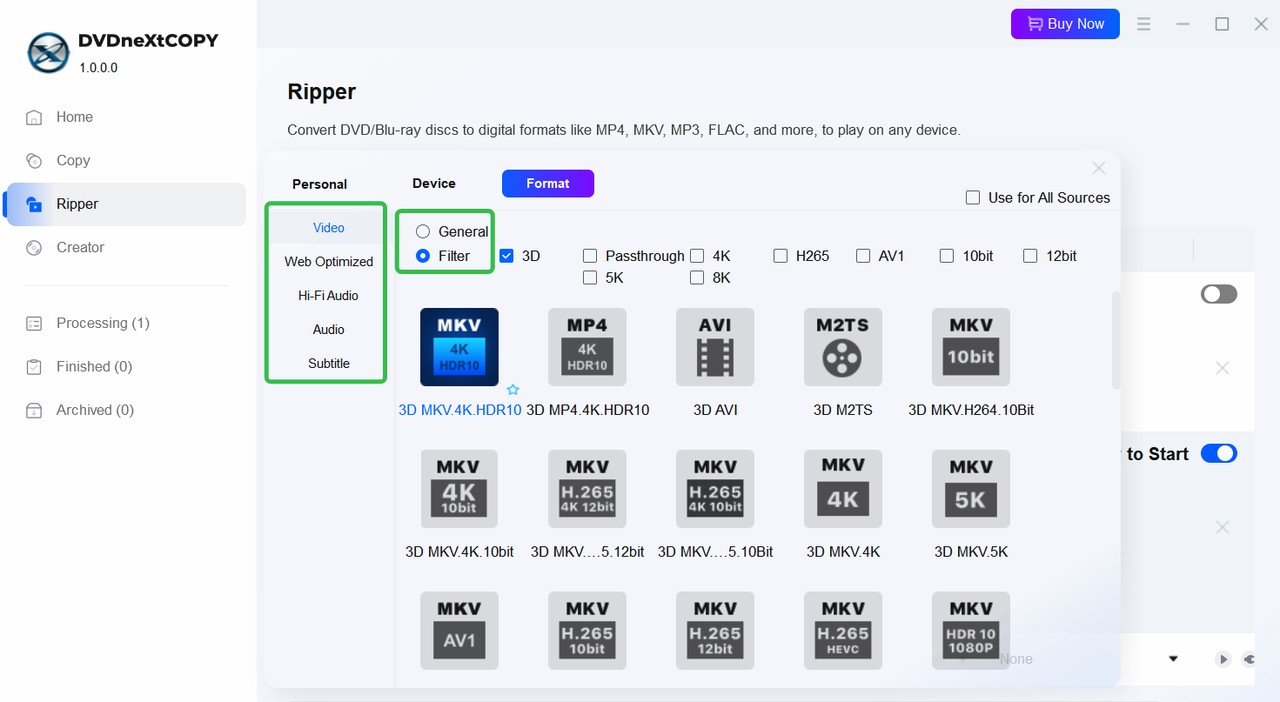
Step 2: Choose MP4 or MKV
Open the output profile and choose MP4 for broader TV/media-player compatibility or MKV when you want more flexibility for multiple audio and subtitle tracks.
Step 3: Select the Movie, Audio and Subtitles
Choose the movie title and chapter range, then select the audio and subtitle tracks you want to keep. Open Advanced Settings only when you need to change codec, quality, or subtitle mode.
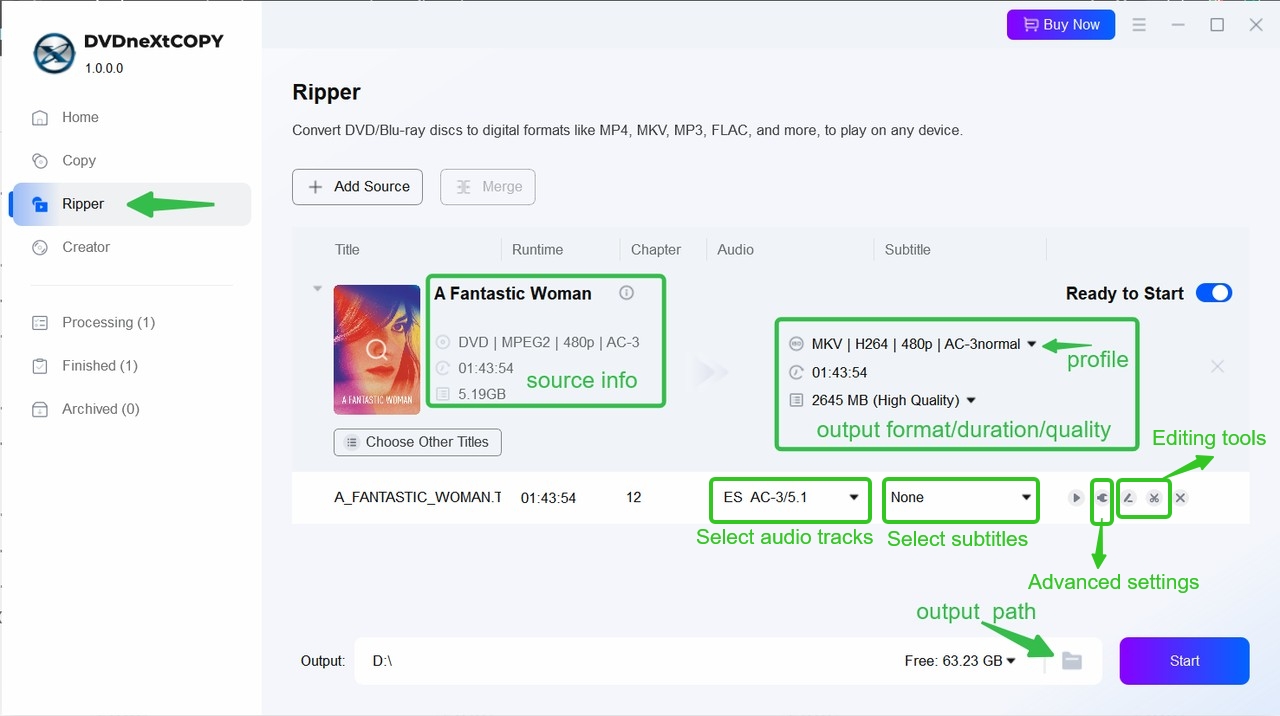
Step 4: Select the USB Drive and Start
Connect the USB drive and choose it as the output destination, then click Start to transfer your DVD to USB.
Free Alternatives for Converting DVD to USB
| Tool | Best For | Protected DVD | Output | OS |
|---|---|---|---|---|
| HandBrake 1.11.2 | Readable DVD → smaller compatible video | No | MP4 / MKV workflow | Windows / macOS / Linux |
| MakeMKV 1.18.4 | DVD → original-stream MKV | DVD reading supported | MKV | Windows / macOS / Linux |
HandBrake: Convert Homemade DVD to USB for Free
HandBrake 1.11.2 is free and open source and works well when the DVD source is already readable and you want a smaller MP4 or MKV for USB playback. HandBrake does not defeat or circumvent copy protection, so it should not be treated as a protected-DVD reader.
For a readable DVD, the short workflow is: open the DVD, choose a compatible MP4 preset, set the USB drive as the destination, and start encoding.

MakeMKV: Convert DVD to USB as Lossless MKV
MakeMKV 1.18.4 converts DVD and Blu-ray sources to MKV while preserving the original video/audio streams, chapters, and metadata instead of re-encoding them. Its DVD-opening functionality is offered free, while the broader product uses a beta/shareware licensing model.
For USB storage, the benefit is stream preservation; the limitation is compatibility. MKV files can be large, and the TV or media player must support both MKV and the original video/audio codecs stored inside the file.\

Method 3: Transfer a DVD to USB Without a Computer
If you are trying to transfer DVD to USB without a computer, a normal standalone DVD player usually cannot copy a movie DVD directly onto a flash drive. A digitization service can be an option for eligible personal or home-recorded media.
Use a Digitization Service for Eligible Personal DVDs
CVS Photo accepts CD/DVD among its digital-media formats and can convert supported personal media into downloadable digital files, including MP4 for video.
Acceptance policies vary, so check what kinds of discs the provider accepts before sending anything in. Home-media digitization services should not be treated as a workaround for copy protection on commercial movie DVDs.
Why Won't My DVD Video Play from USB?
| Problem | What to Check |
|---|---|
| File will not copy to USB | FAT32 4 GiB single-file limit |
| TV detects USB but not the video | Unsupported container or codec |
| MP4 appears but will not play | Unsupported H.264 profile, audio codec, or resolution |
| VIDEO_TS copied but TV will not open it | TV may not support DVD-folder playback |
| MKV plays without audio | TV may not support the original DVD audio codec |
| USB is not detected | Unsupported file system or partition format |
| Subtitles are missing | Subtitle format or track is not supported by the player |
The most common mistake after you put a DVD on USB is checking only the filename extension. A TV can recognize .mp4 or .mkv while still rejecting the video or audio codec inside the file.
FAQs
Yes, if you copy the complete DVD structure as a VIDEO_TS folder, but the target player must support DVD-folder navigation. If you convert the movie to MP4 or MKV, the original interactive DVD menu is normally not preserved.
It depends on the method. Directly copying readable DVD files does not re-encode the video, and MakeMKV preserves the original streams in an MKV container. Converting the DVD to a smaller MP4 re-encodes the video, so quality depends on the codec, bitrate, resolution, and other encoding settings you choose.
Yes. The number depends on the USB capacity and the size of each output file. Compressed MP4 files usually let you store more movies than full DVD folders or stream-preserving MKV files. Keep each movie in a clearly named folder or filename so the library is easier to browse on a TV or media player.
They can, but it depends on the tracks the ripping software keeps, what the MP4 or MKV container supports, and what the target TV or media player can decode. MKV is usually more flexible for multiple tracks, while MP4 often provides broader playback compatibility.
Conclusion
For a readable homemade DVD, direct file copy is the simplest choice. For a movie you want to play from USB, I recommend converting it to MP4; use DVDneXtCOPY DVD Ripper on Windows when the disc needs supported protection handling, HandBrake for readable DVDs, or MakeMKV when keeping the original streams in MKV matters more than file size.
If no computer is available, use a digitization service only for eligible personal media. Before transferring a full collection, confirm the USB file system and the playback formats supported by the target device.
![Top 8 Best MP4 to DVD Converters on Windows & Mac [2026 Tested]](https://images.dvdnextcopy.com/2026/09/17/I2v69nzxIF6Xn7iue3ZRMGJ5-Ls0SF_z/feature_cover.jpg) Luna MillerSep 21, 2026
Luna MillerSep 21, 2026Top 8 Best MP4 to DVD Converters on Windows & Mac [2026 Tested]
 Luna MillerSep 21, 2026
DVD Region Codes Explained: Region 1 and Playback Options
![How to Remove DVD Copy Protection: Software and Free Methods [2026]](https://c.dvdnextcopy.com/media/How_to_Remove_DVD_Copy_Protection_d24c38a790.png) Steven VanceSep 21, 2026
Steven VanceSep 21, 2026How to Remove DVD Copy Protection: Software and Free Methods [2026]
 Luna MillerSep 21, 2026
How to Rip a Copy-Protected DVD on Win & Mac: 6 Ways
 Steven VanceSep 18, 2026
Top MP4 to ISO Converter in 2026: DVD Authoring vs Online Tools
 Steven VanceSep 18, 2026
How to Digitize DVD Collection: 5 Ways in 2026